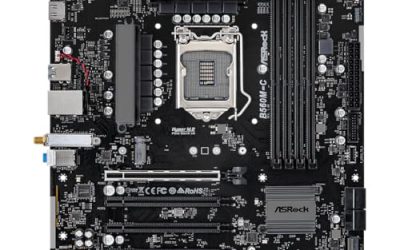
The Ryzen 9 9950X3D does not need an extreme board, but it does reward a solid one. A B850 ATX model with a strong stated VRM, such as the MSI MAG B850 Tomahawk MAX WiFi or the ASUS TUF Gaming B850-PLUS WiFi, covers the chip well, while X870E boards are for builders who want extra storage and connectivity. Every board below is AM5 with DDR5. Where a title says nothing about a spec, the entry says to check the listing, and every figure comes from published listing text.
Our Top Picks
 ASUS ROG Strix X870E-E Gaming WiFi AMD AM5X870E-E|M.2x53.4 x 14.4 x 11.1 inches5.3 PoundsCheck on Amazon
 MSI MPG X870E Carbon WiFi Gaming Motherboard13.6"L x 3"W x 10.7"H13.46 x 10.55 x 2.76 Inches5.5 poundsCheck on Amazon
Top 3 picks at a glance
Where each board fits
As an Amazon Associate we earn from qualifying purchases at no extra cost to you.


- MSI MAG B850 Tomahawk MAX WiFi – best value pick with a stated 80A VRM
- ASUS TUF Gaming B850-PLUS WiFi – best for BIOS Flashback and plenty of ports
- GIGABYTE B850 AORUS Elite WIFI7 – best for a long warranty and Wi-Fi 7
- ASUS ROG Strix B850-A Gaming WiFi – best B850 for four M.2 slots
- MSI X870E Gaming Plus WiFi – best low-cost X870E for a 16-core build
- GIGABYTE X870E AORUS PRO ICE – best white board with USB4
- MSI MPG X870E Carbon WiFi – best for 40Gbps USB and 5Gbps LAN
- ASUS ROG Strix X870E-E Gaming WiFi – best for the highest stated stage count
Comparison table
| Model | Chipset + socket | Form factor | Key point from title | Best for |
|---|---|---|---|---|
| MSI MAG B850 Tomahawk MAX WiFi | B850, AM5 | ATX | 80A SPS VRM, Wi-Fi 7, 5G LAN | Value with strong VRM |
| ASUS TUF Gaming B850-PLUS WiFi | B850, AM5 | ATX | 14+2+1 at 80A, 3x M.2, BIOS Flashback | Easy BIOS updates |
| GIGABYTE B850 AORUS Elite WIFI7 | B850, AM5 | ATX | 14+2+2, 3x M.2, 5-year warranty | Long coverage |
| ASUS ROG Strix B850-A Gaming WiFi | B850, AM5 | ATX | 14+2+2, 4x M.2, 2.5G LAN | Storage-heavy builds |
| MSI X870E Gaming Plus WiFi | X870E, AM5 | ATX | 60A SPS VRM, Wi-Fi 7, 5G LAN | Entry X870E |
| GIGABYTE X870E AORUS PRO ICE | X870E, AM5 | ATX | 4x M.2, USB4, Wi-Fi 7 | White premium build |
| MSI MPG X870E Carbon WiFi | X870E, AM5 | ATX | USB 40Gbps, 5Gbps LAN | Enthusiast I/O |
| ASUS ROG Strix X870E-E Gaming WiFi | X870E (title says X870), AM5 | ATX | 18+2+2, 5x M.2, USB4 | Maximum features |
The eight boards
MSI MAG B850 Tomahawk MAX WiFi
This is the practical default for a 9950X3D build. The title states Ryzen 9000, 8000 and 7000 support, an 80A SPS VRM, DDR5 memory boost up to 8400+ MT/s (an overclock figure), a PCIe 5.0 x16 slot, M.2 Gen5, Wi-Fi 7 and 5G LAN, which presumably means 5Gbps Ethernet. An 80A rating is the highest on any B850 listing in this article and equals the TUF’s. That gives a 16-core chip more breathing room than the lower-rated boards. The board is also an ATX size, so there is space for a large cooler and several expansion cards. Because the title omits the M.2 count, check the listing if you plan more than two drives, and look at how the heatsinks are arranged around the socket.
- Pros: strong stated VRM at a mid price; Wi-Fi 7 and fast LAN; Gen5 M.2 named.
- Cons: M.2 count and USB4 not in the title; B850 has fewer extras than X870E.
Who it’s for: gamers who want the 9950X3D with a sensible spend. Who should skip it: anyone who needs USB4 or many drives.
ASUS TUF Gaming B850-PLUS WiFi
The TUF title gives 14+2+1 stages at 80A, DDR5, PCIe 5.0, three M.2 slots, Wi-Fi 7, 2.5Gb LAN, DisplayPort, HDMI, USB 10Gbps and 20Gbps Type-C ports, and BIOS Flashback. For a 9950X3D owner, Flashback is the item to notice: it allows a firmware update from a USB drive, which is useful if the board ships with an older version, because a board that cannot recognize the CPU would otherwise need a second, older processor to update. The motherboard video outputs only work through a processor’s integrated graphics, which can help with troubleshooting when no graphics card is installed; confirm the 9950X3D’s integrated graphics on AMD’s page.
- Pros: BIOS Flashback; 80A stages; Wi-Fi 7 plus a good port mix.
- Cons: 2.5Gb LAN only; three M.2 slots.
Who it’s for: builders who want a safety net for BIOS updates. Who should skip it: those who need four or more M.2 drives. The USB 20Gbps Type-C port is useful for fast external SSDs, and the title names both HDMI and DisplayPort for the rear panel.
GIGABYTE B850 AORUS Elite WIFI7
Here the title mentions Ryzen 9000, 8000 and 7000 support, DDR5, 14+2+2 power phases, three M.2 slots, PCIe 5.0, USB-C, Wi-Fi 7, 2.5GbE LAN, EZ-Latch and a five-year warranty. The phase count rivals the ROG Strix B850-A, but the title does not state per-phase amperage, so a direct VRM comparison with the 80A boards is not possible. The five-year warranty may matter for a pricey processor you plan to keep for years. EZ-Latch is Gigabyte’s tool-free mechanism for the graphics slot and M.2 covers, which makes swapping drives less fiddly. If you intend to run a large air cooler, check the listing images and dimensions for how close the heatsinks sit to the CPU socket, since the title says nothing about clearance.
- Pros: long warranty; Wi-Fi 7; EZ-Latch for easy installs.
- Cons: no amperage figure; 2.5GbE only.
Who it’s for: people who value the warranty and a clean feature set. Who should skip it: buyers who want a published amperage rating.
ASUS ROG Strix B850-A Gaming WiFi
This ROG model is the B850 option for storage. The title lists 14+2+2 power stages, DDR5 with AEMP, networking wording that is garbled in the title (it reads 2.5G LAN 7 with Q-Antenna, presumably 2.5G LAN and Wi-Fi 7, so check the listing), four M.2 slots, PCIe 5.0 and a 20Gbps USB Type-C port, plus AI Networking II and an ASUS advisor tool. AEMP is ASUS’s memory profile label, so look at the memory kit’s compatibility list. The cost sits above the TUF and Tomahawk, and the premium is largely features and styling rather than a stated VRM advantage. The advisor tool named in the title is software that guides setup, which is helpful for first-time builders but not a reason to pay more by itself. If you own only two drives, the extra M.2 slots are wasted money, and the TUF or Tomahawk delivers a similar stated VRM for less.
- Pros: four M.2 slots; stated stage count matches the Gigabyte; ROG software tools.
- Cons: costs more than other B850 boards; no amperage figure.
Who it’s for: gamers with several NVMe drives. Who should skip it: buyers who care most about price per stated amp.
MSI X870E Gaming Plus WiFi
The lowest-priced X870E here lists a 60A SPS VRM, DDR5 boost to 8200+ MT/s as an overclock, PCIe 5.0 x16 with PCIe 4.0 x4, M.2 Gen5, Wi-Fi 7 and 5G LAN. The 60A rating is below the 80A stated on the B850 boards above, so for a 16-core chip like the 9950X3D this is an odd trade: a higher chipset tier with a lower stated VRM. Verify the actual power design on the listing before buying. The title also shows a PCIe 4.0 x4 slot next to the PCIe 5.0 x16, which is a sensible layout for a capture card or extra network adapter. In practice this board suits a builder who values the chipset naming more than raw stated amperage, and who will run the processor at default power limits.
- Pros: X870E label at a lower price; Wi-Fi 7 and 5Gbps LAN.
- Cons: lowest stated VRM rating in the group; USB4 not named in the title.
Who it’s for: builders who want the X870E branding on a budget. Who should skip it: anyone who prioritizes VRM headroom for a 16-core CPU.
GIGABYTE X870E AORUS PRO ICE
The AORUS PRO ICE is a white X870E ATX board. The title lists AM5, DDR5, four M.2 slots, PCIe 5.0, USB4, Wi-Fi 7, 2.5GbE, EZ-Latch and a five-year warranty. It does not mention the VRM at all, which is a gap for a buyer choosing around a 16-core processor. The ICE finish is mainly for builds with a white case and white parts. USB4 gives you 40Gbps external ports for fast SSD enclosures and docks, a feature absent from several of the B850 titles in this list. Its sibling, the standard AORUS PRO, may exist in a darker finish for less, so compare listings if colour is not a priority.
- Pros: USB4 and four M.2 slots; five-year warranty; white styling.
- Cons: no VRM details in the title; premium for colour.
Who it’s for: white-themed 9950X3D builds with several drives. Who should skip it: buyers who want a documented power design.
MSI MPG X870E Carbon WiFi
The Carbon title includes Ryzen 9000, 8000 and 7000 support, DDR5, PCIe 5.0, M.2 Gen5, SATA 6Gb/s, USB 40Gbps, HDMI, Wi-Fi 7, Bluetooth 5.4, 5Gbps LAN and ATX. It is a premium listing with a rich connectivity set, but the title leaves out VRM figures and the M.2 count. For most gamers the extras go unused, but a streamer with capture hardware and a NAS may use all of them. HDMI on the rear panel works with integrated graphics, while the 5Gbps LAN only pays off with a 5Gbps or faster switch. Without those pieces in place, the board behaves much like the cheaper X870E and B850 listings, so decide on actual devices you own.
- Pros: USB 40Gbps; 5Gbps LAN; Bluetooth 5.4 and Wi-Fi 7.
- Cons: expensive; VRM not stated in the title.
Who it’s for: streaming and creator builds around the 9950X3D. Who should skip it: gamers who just want strong frame rates.
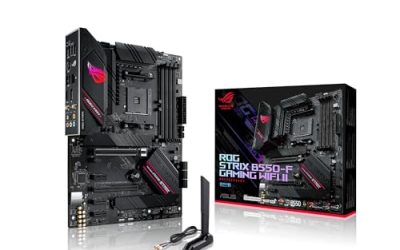
ASUS ROG Strix X870E-E Gaming WiFi
The top of the group lists 18+2+2 power stages, Dynamic OC Switcher, Core Flex, DDR5 AEMP, Wi-Fi 7, five M.2 slots, PCIe 5.0, Q-Release Slim and USB4. It has the highest stated stage count in this article. The title is inconsistent, because it names X870E in the model and X870 in the descriptive text, so check the listing for the actual chipset. Overclocking tools suit tuning enthusiasts. Dynamic OC Switcher and Core Flex are ASUS features that adjust power and clock behavior, but their value depends on how willing you are to tune. Five M.2 slots also means more drive heat, so look at the listing for heatsink coverage before filling every slot.
- Pros: highest stated stage count; five M.2 slots; USB4.
- Cons: the most expensive board here; chipset naming is unclear.
Who it’s for: enthusiasts tuning a 9950X3D and many drives. Who should skip it: anyone running the chip at stock settings on a budget.
How these were chosen
We selected AM5 ATX boards whose titles describe features relevant to a 16-core, 3D V-Cache processor: stated VRM ratings, DDR5 support, M.2 count and BIOS tools. The list covers both B850 and X870E tiers so you can weigh cost against connectivity. Titles are seller claims, and gaps are marked “check the listing”. Nobody on the team used or measured these units. The basis is published specifications, manufacturer documentation and buyer reviews.
What matters when pairing a board with the 9950X3D
What the CPU asks of the board
The 9950X3D is a 16-core Ryzen 9000 processor with stacked 3D V-Cache on part of the chip, and AMD lists it as a high-power part, so check AMD’s page for its exact power figure. It uses the AM5 socket and DDR5 memory. Because gaming loads rarely push all cores, a mid-range B850 board with a solid VRM is enough for stock use, while long all-core workloads such as rendering benefit from a stronger power design. No B850 or X870E board here is a bad match. The main variables are the stated VRM, the BIOS situation and the amount of storage you need, which the next sections address.
BIOS update checklist
Before your first boot, work through this list.
- Find the CPU support page for your exact board and confirm the 9950X3D appears with a minimum BIOS version.
- Check the BIOS version printed on the box label or shown on the listing.
- If the board has BIOS Flashback (the TUF B850-PLUS lists it), download the update to a FAT32 USB drive and flash without a CPU installed.
- If there is no Flashback, update with an older supported CPU or ask the retailer about pre-updated stock.
- Use stable power, never interrupt the flash and do not power off during the process.
- After the first boot, load the memory profile and install the latest chipset driver.
Memory support and EXPO
AM5 takes only DDR5. Boards here mention AEMP or high MT/s overclock figures, but those are not guarantees. Many Ryzen builders choose a kit with an EXPO profile and run it at a moderate speed, since stability matters more than headline numbers. Two modules are typically easier to run than four, so a pair of 16GB or 32GB modules is a simple starting point. Always check the board’s qualified memory list for your kit.
VRM, cooling and clearance
Seller-stated figures like 80A, 60A or 18+2+2 cannot tell you thermals on their own, because heatsink size and airflow play a big role. A 16-core chip paired with a strong cooler and a case with good airflow keeps the VRM area cooler. Check that your cooler clears the board’s heatsinks and tall memory. Many AM4 coolers use the same mounting holes as AM5, but confirm with the cooler maker. For a deeper platform comparison, see B650 vs X670E for a Ryzen gaming build.
Case airflow and PCIe layout
A 16-core processor and a high-end GPU produce a lot of heat in the same case, so pick a case with front intake and rear exhaust, and avoid solid front panels. On the board side, look at where the first M.2 slot sits. On some boards it lies beneath the graphics card, which traps heat and may require a low-profile heatsink. Also verify the physical spacing of the x16 slot so a thick card does not cover other slots you plan to use.
How to spend the budget
| Priority | Choose | Why |
|---|---|---|
| Gaming only, lowest sensible spend | B850 with 80A stated VRM | Matches the CPU without paying for extras |
| Several NVMe drives | Four or five M.2 slots | Avoids adapter cards |
| Streaming or capture | X870E with USB4 and fast LAN | More ports and bandwidth |
| Strict budget | A cheaper B650 or B850 board | See our budget B650 guide for options |
Mistakes buyers make
The first mistake is paying for an X870E label while buying a lower stated VRM than a cheaper B850 board offers. The second is skipping the BIOS check, which can leave an expensive processor unable to boot on old firmware. Third, buyers read overclock figures such as 8400+ MT/s as guaranteed speeds. Fourth, they use a cooler that does not clear the VRM heatsinks. Fifth, they assume every PCIe 5.0 label applies to every slot. Sixth, they forget ESD precautions: touch bare metal on the case and handle the board by its edges. A last mistake is mixing DDR4 memory from an old build into an AM5 system, which cannot work. Also avoid assuming a bundle or combo ships ready for the 9950X3D; ask whether the board has been updated or whether Flashback is present.
Verdict
The MSI MAG B850 Tomahawk MAX WiFi is the best-value choice for most 9950X3D builders, with the ASUS TUF Gaming B850-PLUS WiFi close behind for its BIOS Flashback. If you want extra storage and top-end I/O, the ASUS ROG Strix X870E-E Gaming WiFi or MSI MPG X870E Carbon WiFi are the premium picks. Treat the MSI X870E Gaming Plus WiFi with caution for a 16-core chip until you confirm its power design.
Related guides
- How To Check Gpu Compatibility With Your Motherboard And Cpu
- High-Performance Gaming Desktop Specifications
- Prebuilt Gaming Pc Rtx 5070 Under 1500
Frequently asked questions
Do you need an X870E board for the Ryzen 9 9950X3D?
No. The processor uses the AM5 socket, and B850 and X870E boards both support it. An X870E board adds connectivity and storage, but a B850 board with a solid VRM can run the chip well for gaming. Choose X870E only if you will use the extra I/O. For gaming alone, money saved on the board is better spent on the graphics card or cooling.
Which BIOS version does the 9950X3D need?
It depends on the board, so look at the manufacturer’s CPU support page for the minimum BIOS. A board in stock may ship with older firmware. A BIOS Flashback feature allows updating without a CPU, which is why it is useful for new processors. Among these listings, only the ASUS TUF Gaming B850-PLUS WiFi names it in the title, so check the others. Never interrupt a flash, and use stable power.
What memory should you pair with this board?
Any DDR5 kit on the board’s qualified memory list will work, since AM5 does not take DDR4. Choose an EXPO kit if possible, and start with two modules. Treat headline overclock figures as optional extras, not as guaranteed speeds. A moderate speed with stable behavior beats a risky setting for a processor this expensive.
Does the 9950X3D need a special cooler clearance?
It needs a cooler rated for a high-power 16-core processor and enough room around the socket. Check the cooler’s height, its width versus your memory modules and the VRM heatsinks. Many AM4 mounting kits fit AM5, but confirm with the cooler maker. A dual-tower air cooler or a 280mm or larger liquid cooler is a common choice for this class of chip.
Are Wi-Fi 7 boards worth it?
Only if your router supports Wi-Fi 7. Otherwise it behaves like an older standard, and a wired connection is still the most stable choice for gaming. Most boards here include Wi-Fi 7, so you are unlikely to pay much more for it, but do not choose a board on that spec alone. VRM, M.2 count and BIOS tools should come first.