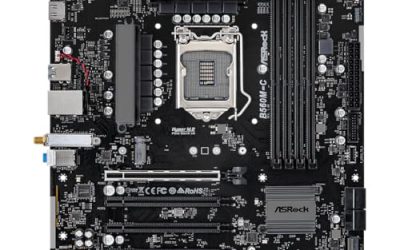
To check GPU compatibility with your motherboard and CPU, confirm four things in order: the card’s slot interface against the board’s PCIe slots, the card’s physical size against your case, its power connectors against your power supply, and your BIOS against the card’s requirements. The processor rarely blocks a card from working, though it affects how much of the card’s performance you see. This guide takes those checks safest-first, using published specifications and manufacturer documentation, so you can make the call before opening your wallet or your case.
What you need before you start
Find the exact model of your motherboard, which is printed on the board itself and on the original box, and download its manual and specification page. Identify your processor and your power supply model, including its rated wattage, which is on the label on the side of the unit. Note the make and model of your case so you can look up its maximum graphics card length.
On the card side, open the maker’s specification page for the model you are considering. Write down the length, the slot width, the power connector type, the recommended power supply wattage and the interface lane count. If you plan to open the case at any point, power the system off, switch off the supply and unplug it, then touch bare metal on the case to discharge static before handling parts.
Step 1: Check the PCIe slot on the motherboard
Graphics cards use a PCI Express x16 connector. Nearly every desktop board has at least one full-length slot reinforced for graphics, usually the one closest to the processor. The generation of that slot, such as 3.0, 4.0 or 5.0, sets its maximum speed, and newer cards work in older slots by running at the slower speed.
- Open the motherboard manual and find the expansion slot table.
- Locate the slot labeled for the processor, often described as the primary graphics slot.
- Note its generation and its lane count. Some long slots are wired for fewer lanes, such as x4, and are fed by the chipset rather than the processor.
- Check any footnotes that say a slot shares lanes with storage connectors, since populating those may reduce the graphics slot width on some boards.
Most mainstream processors route 16 lanes to the main graphics slot, so a standard card gets its full width there. A few budget cards use only x8 or x4 interfaces by design. Those can lose more performance in an older slot, so match them with a recent generation slot when possible.
Step 2: Verify the physical fit in your case
This is the check people skip, and it is the one that causes returns. Cards come in a range of lengths, and modern high-end models can occupy two and a half to four slot widths. Look up your case’s maximum graphics card length in its specification page and compare it with the card’s length, leaving a little room for cables.
- Compare card length to the case’s maximum clearance. If a front radiator or fan mount sits in the way, the usable length may be shorter than the headline figure.
- Compare card thickness to the open rear slots. A thick card blocks adjacent slots and can cover the second graphics slot and some M.2 drives.
- Check the height. Tall cards can press against the side panel in compact cases.
Worked example: a card listed at 320 mm fits a case rated for 330 mm, but a front radiator bracket in that case cuts clearance to 300 mm, so the card does not fit as installed. A snug fit can also starve the card of fresh air; the guide on undervolting a GPU for lower temperatures covers one way to reduce heat in a cramped case.
Step 3: Match the power connectors and wattage
Graphics cards draw power through the slot itself plus additional connectors on the card. These commonly come as 6-pin, 8-pin or the newer 16-pin 12VHPWR (also referred to as 12V-2×6) plug. Look at the card maker’s page for the connector layout, then look at your power supply’s labeled outputs and any modular cables it came with.
- Use cables from your own power supply’s brand and model. Modular connectors on the supply side are not always interchangeable between makers.
- Prefer one cable per connector rather than splitting a single cable to feed several, when the supply provides enough outputs.
- Push 16-pin connectors in fully and keep bends away from the plug, following the card maker’s guidance.
- Confirm the supply’s wattage against the card maker’s recommended figure, which already accounts for a typical system.
If the supply lacks the right connector, use only the official adapter or cable set from the card or supply maker. Never force a plug that does not seat easily.
Step 4: Check your BIOS and processor support
Most current cards need no special motherboard support, but older boards with outdated firmware can occasionally fail to initialize a newer card. Check the board maker’s page for the latest BIOS and read its release notes. If an update is needed, follow the maker’s instructions carefully, keep the power stable, and never interrupt the process. Some boards have USB BIOS Flashback or dual-BIOS protection, but only on boards that have it.
Also check that your monitor connects to the card, not to the motherboard’s own video port. The processor matters here mainly for features, such as Resizable BAR, covered below. For picking a card that suits your screen, see this walkthrough on matching a GPU to your monitor’s resolution and refresh rate.
Resizable BAR in plain terms
Resizable BAR, sometimes shown as Smart Access Memory on some platforms, allows the processor to address the card’s whole memory pool instead of small chunks. It is an optional performance feature, not a compatibility requirement. To enable it, your processor, your board’s BIOS and your graphics card must all support it. You generally also need the system booting in UEFI mode, with the setting often named Above 4G Decoding turned on first.
Expect results to vary by game: some titles gain a little, others show no change. If a setting change causes boot trouble, reset the BIOS to defaults following the board manual. For a CMOS reset, unplug the power supply first, use the clear jumper or button as described, and remember that all custom settings will return to defaults.
Bottleneck myths worth dropping
A bottleneck is a balance issue, not an incompatibility. Any processor can run any card as long as the slot and BIOS cooperate. The question is how much of the card’s potential a given processor lets you see. At 1080p with high refresh rates, the processor often limits frame rate. At 1440p or 4K, the card usually limits it.
Online calculators give a single percentage, but real results depend on the game, settings and resolution, so treat them as a rough hint at most. If your processor sits near full load while the current card idles, a card upgrade will add little at that resolution.
What can go wrong, and when to stop
If the system shows no display after installing a card, power off and unplug before touching anything. Re-seat the card until the slot latch clicks, check that every power connector is fully inserted, and confirm the monitor cable is on the card.
Stop and ask for professional help or contact the maker if you see a burnt smell, discolored connectors, a connector that will not seat without force, or repeated shutdowns under load. These are signs to stop using the hardware. Opening and modifying parts may also touch warranty conditions, so read the terms before attempting anything beyond a straightforward install.
GPU compatibility questions answered
Will any graphics card work in any motherboard?
Almost any modern card will physically and electrically work in a standard x16 PCIe slot, because the interface is designed to be backward and forward compatible between generations. The practical limits are elsewhere: whether the card fits inside the case, whether the power supply has the right connectors and enough capacity, and whether the BIOS is recent enough to initialize the card. Check those three before assuming it works.
Does a PCIe 4.0 or 5.0 card work in an older PCIe 3.0 slot?
Yes, the card falls back to the speed the slot supports. For many cards the performance difference is small, since most do not saturate the link, but cards with a narrow interface such as x8 or x4 can lose more when placed in an older slot. Check the card maker’s page for the lane width and generation it uses, then compare it with the slot listed in your motherboard manual.
Can a weak CPU damage or block a powerful graphics card?
No, a slower processor cannot damage a card, and it will not stop one from working. What happens is that the card may wait on the processor to prepare frames, so you see lower frame rates than the card can deliver, mostly at lower resolutions and in processor-heavy games. Higher resolutions and graphics settings shift more work onto the card. This is a balance question, not a compatibility failure.
Does a new graphics card need Resizable BAR to work?
No. Resizable BAR is an optional feature that lets the processor access the card’s full memory at once, and the gain depends on the game and the hardware. The card runs without it. To use it, the processor, motherboard BIOS and graphics card must all support it, and it usually requires UEFI boot mode with the related setting turned on. Check your board maker’s notes for the exact option names.
What happens if the power supply connector does not match the card?
Do not force it and do not improvise with adapters from unknown sources. Connectors are keyed so that only the right plug fits. If the card needs a connector your power supply lacks, look for the official adapter or cable set from the power supply maker, and verify that the supply can deliver the total wattage the card maker recommends. When in doubt, replace the supply rather than risk overheated cables.
Related guides
- High-Performance Gaming Desktop Specifications
- Prebuilt Gaming Pc Rtx 5070 Under 1500
- How To Check If Prebuilt Parts Are Genuine