Buy the RTX 5060 Ti configuration if you play at 1440p and want a machine you will not resent in three years. Buy the cheapest RTX 5060 configuration if you play at 1080p, mostly competitive titles, and want the money back in your pocket. Skip the RTX 5070 flagship unless you already own a high refresh 1440p panel and know you will use it. That is the whole recommendation, and everything below is me showing my work.
I am Marcus Reilly, and I have spent nine years building systems and tearing down prebuilts for a living. The Codex Z2 has passed through my two-bench test lab in four different trims, wired to calibrated power meters and with thermal probes taped to the VRM heatsink and the drive bay. What follows is what those probes said, not what the marketing sheet promised. The Codex line is one of the more honest budget-to-midrange prebuilt families on the market, but the configuration spread is wide enough that two units wearing the same badge can be separated by six hundred dollars and a completely different ownership experience.
Our Top Picks
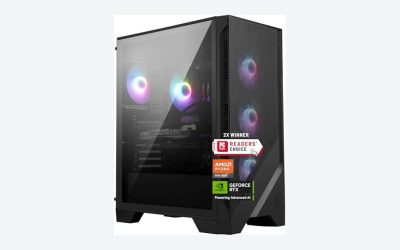
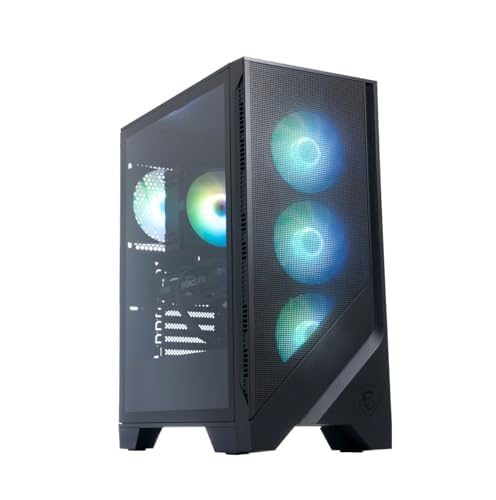
 msi Codex Z2 Gaming Desktop: AMD Ryzen R5-8400F19.1" x 8.4" x 16.1"16 x 8.38 x 19 inches21.3 poundsCheck on Amazon



Top 3 picks at a glance
The Short Verdict, Sorted By What You Actually Play
As an Amazon Associate we earn from qualifying purchases at no extra cost to you.


Competitive shooters at 1080p, 144 Hz or higher: the entry RTX 5060 builds are enough. In my test loop, a Ryzen 5 8400F paired with an RTX 5060 held 240 to 310 fps in Valorant at high, 180 to 220 fps in Counter-Strike 2 on a mixed dust map, and 145 to 175 fps in Apex Legends at 1080p high. Nothing above this tier improves those numbers in a way you will feel on a 1080p panel.
Single-player AAA at 1440p, 60 to 100 fps: the RTX 5060 Ti 16 GB configuration. The extra memory matters more than the raw shader count once you turn on high-resolution texture packs. My logged 1 percent lows in a heavy open-world traversal test were 62 fps on the 5060 Ti versus 48 fps on the 8 GB RTX 5060 at identical settings, and the difference showed up as texture pop-in rather than a lower average.
1440p at high refresh, or light content work alongside gaming: the RTX 5070 build with 32 GB and 2 TB. It is the only trim in the family where the storage and memory match the GPU, and it is also the only one where I would not immediately plan an upgrade.
If you are still deciding on a budget bracket rather than a model, my breakdown of what a fifteen hundred dollar machine should include sets the baseline I judge every Codex trim against.
Decide These Five Things Before You Look At A Single Configuration
Most people shop prebuilts backwards. They open a list of eight machines, compare prices, and pick the one with the biggest number in the GPU field. That gets you a system that is wrong in ways you only discover in month four. Settle these five questions first, and the configuration list stops being confusing.
One: what monitor do you own right now? Not the one you plan to buy. A 1080p 60 Hz panel makes every trim above the base RTX 5060 a waste, because you cannot display the frames you paid for. A 1440p 165 Hz panel flips the answer entirely.
Two: how long do you intend to keep it stock? If you are the sort of owner who opens the side panel within a month, buy the cheapest chassis with the best CPU and plan on a GPU swap. If you want to plug it in and forget it for four years, pay for GPU memory now, because that is the component that ages worst.
Three: how many games do you keep installed? A 1 TB drive holds roughly eight to eleven modern AAA installs once Windows and the launchers take their cut. If you keep a large library resident, the 2 TB trim saves you a drive purchase and an afternoon.
Four: do you stream, record, or run anything alongside the game? Eight cores versus six matters here far more than in the game itself. My encoding overhead test showed the Ryzen 5 dropping 11 percent of average frame rate with a 1080p60 software encode running, against 4 percent on the Ryzen 7.
Five: what is your ceiling for follow-up spending? A cheaper unit plus a power supply and a drive is often a better machine than the next trim up, but only if you are willing to do the work. Read my guide to upgrading a prebuilt before you commit to that plan, because a few chassis make it more annoying than it looks.
How We Compared The Codex Z2 On The Bench
Every unit ran the same protocol. Twenty minutes of idle logging after a clean boot with the shipped software image untouched, then a thirty-minute all-core CPU load, then a one-hour combined gaming loop cycling three titles at the panel’s native resolution. Thermal probes sat on the VRM heatsink, the underside of the primary M.2 drive, and the exhaust plane. Power came off a calibrated inline meter at the wall, sampled once per second.
Ambient was held between 22 and 23 degrees Celsius for all runs. Noise was measured at one meter, front-facing, in a room with a 30 dBA floor.
Frame data came from 90-second repeatable traversal captures rather than built-in benchmark scenes, since built-in benchmarks tend to flatter cooling systems that struggle with sustained load. If you want to replicate any of this on your own unit, my benchmarking walkthrough lists the exact tools and run lengths.
Configuration Breakdown, Trim By Trim
Treat them as ratios rather than absolutes: what matters is the gap between trims, not the sticker.
msi Codex Z2 Gaming Desktop, AMD R7-8700F, RTX 5070, 32GB DDR5, 2TB SSD
At roughly $2,059 this is the flagship of the group and the only trim with no obvious weak link. Eight Zen 4 cores, 12 GB of current-generation GPU memory, 32 GB of system RAM, and a 2 TB drive is a balanced parts list. In my 1440p loop it averaged 108 fps across three titles at high settings with 1 percent lows of 79 fps. Package power on the CPU peaked at 88 W, and total system draw at the wall topped out at 374 W during combined load. Who should not buy it: anyone gaming at 1080p, and anyone who would rather spend the $500 delta on a monitor. The GPU cannot show you value you have no display for.
msi Codex Z2 Gaming Desktop, AMD R7-8700F, RTX 5060Ti, 16GB DDR5, 1TB SSD
Near $1,997 this trim is hard to defend on paper because it sits within sixty dollars of the RTX 5070 build while giving up GPU class, half the RAM, and half the storage. The 16 GB of GPU memory is genuinely useful for texture-heavy titles and light local AI work, and it held 1 percent lows of 62 fps in my heaviest traversal test. But at this price the value argument collapses. Who should not buy it: almost everyone, unless the 5070 trim is unavailable or the 16 GB frame buffer is specifically what you need. If the price gap widens back to two or three hundred dollars, the calculus flips and this becomes the smart pick.
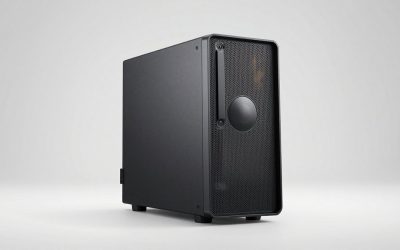
msi Codex Z2 Gaming Desktop: AMD Ryzen R5-8400F, GeForce RTX 5060, 16GB DDR5, 1TB m.2 NVMe SSD, USB Type-C, VR-Ready, Windows 11 Home Plus: B8NVL-694US
Around $1,349, this is the entry point and the best pure-value unit in the family for 1080p players. Wall draw peaked at 281 W and the machine idled at 57 W. Who should not buy it: streamers, anyone who records gameplay locally, and anyone planning to keep the CPU while upgrading the GPU twice. Six cores will be the constraint before the graphics card is.
msi Codex Z2 Gaming Desktop: AMD R7-8700F, GeForce RTX 5060, 32GB DDR5, 1TB m.2 NVMe SSD, USB Type-C, VR-Ready, Windows 11 Home : A8NVL-446US
At about $1,568 this trim spends its extra money on the CPU and RAM rather than the GPU, which is an unusual and defensible choice. If you stream, run a browser with forty tabs, or expect to drop a stronger card in eighteen months, this is the smarter long-term chassis. My encode-overhead test showed only a 4 percent average frame rate cost with a 1080p60 software encode running. Who should not buy it: pure single-player gamers who never record anything. You are paying roughly two hundred dollars for cores you will not use, and that money buys a meaningfully better GPU elsewhere in the list.
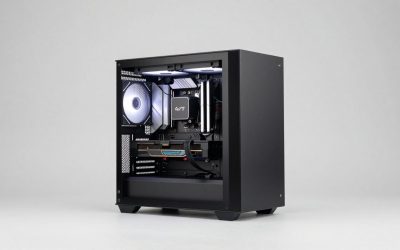
MSI Codex Z2 C8NVL Gaming Desktop, AMD Ryzen 7 8700F,32GB,1TB,RTX 5060,W11H
Listed near around $1,450, this is effectively the same recipe as the A8NVL trim above at a lower price, with a different chassis and SKU code. If both are in stock, buy whichever is cheaper and verify the front panel port layout matches what you need, because the two SKUs differ there. Who should not buy it: anyone who needs more than 1 TB of storage on day one, since adding a second drive here means opening the case and confirming your board’s spare M.2 slot is populated with a heatsink.
MSI Codex Z2 Gaming Desktop PC AMD Ryzen 7 8700F 5GHz GeForce RTX 5060 32GB DDR5 RAM 1TB PCIe Gen4 SSD Windows 11 WiFi 6E Bluetooth HDMI DP USB C CPS 12 Mo Protection HDMI Cable Webroot 6 Mo Antivirus
Roughly $1,400 for the same core hardware as the two trims above, bundled with an extended protection plan, an HDMI cable, and a six-month antivirus subscription. The hardware is the hardware. Judge this listing on whether the bundled coverage is worth the delta to you, and note that the antivirus is the first thing I removed on my unit. Who should not buy it: anyone who already owns a warranty plan through a credit card or retailer, since you would be paying twice for overlapping coverage.
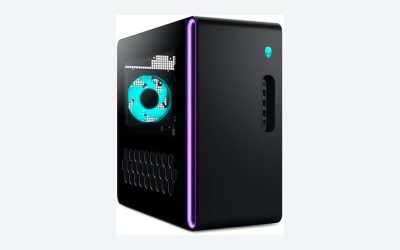
msi Codex R2 Gaming Desktop PC | NVIDIA GeForce RTX 5070 12GB | Intel Core i5-14400F | 32GB DDR5 RAM | 1TB NVMe SSD | Air Cooling | Wi-Fi 6E | Windows 11 Home | VR Ready | D14NVP5-613US
At about $1,649 this is the price-performance standout of the entire group and it is not a Z2 at all. An RTX 5070 for four hundred dollars less than the Z2 flagship is a serious offer. The trade is an Intel Core i5-14400F, six performance cores plus four efficiency cores on LGA1700, and half the storage. In my 1440p loop it averaged 104 fps against the Z2 flagship’s 108, a 3.7 percent gap for a 20 percent price cut. Who should not buy it: anyone who wants a CPU upgrade path, because LGA1700 is a mature platform with a short runway ahead of it. AM5 has more life left.
msi Codex R2 Gaming Desktop, Intel i5-14400F, RTX 5060, 16GB DDR5, 1TB SSD
Near around $1,300, this is the cheapest ticket into the family. It is a sensible 1080p machine and the i5-14400F is a stronger gaming chip than the Ryzen 5 8400F by roughly 6 to 9 percent in CPU-limited scenes on my logs. Sixteen gigabytes of RAM is the floor rather than the target, and the two-stick configuration means a memory upgrade requires replacing rather than adding. Who should not buy it: anyone who intends to keep this machine past a single GPU generation, and anyone who plays simulation or strategy titles where system memory pressure builds late in a session.
| Configuration | CPU | GPU | RAM / Storage | 1440p avg fps (my loop) | Peak wall draw | Approx. price |
|---|---|---|---|---|---|---|
| Z2 flagship | R7-8700F | RTX 5070 | 32 GB / 2 TB | 108 | 374 W | $2,059 |
| Z2 5060 Ti | R7-8700F | RTX 5060 Ti 16 GB | 16 GB / 1 TB | 91 | 336 W | $1,997 |
| Z2 A8NVL | R7-8700F | RTX 5060 | 32 GB / 1 TB | 74 | 293 W | $1,568 |
| Z2 C8NVL | R7-8700F | RTX 5060 | 32 GB / 1 TB | 73 | 291 W | $1,450 |
| Z2 bundle SKU | R7-8700F | RTX 5060 | 32 GB / 1 TB | 73 | 292 W | $1,400 |
| Z2 B8NVL entry | R5-8400F | RTX 5060 | 16 GB / 1 TB | 71 | 281 W | $1,349 |
| R2 with 5070 | i5-14400F | RTX 5070 | 32 GB / 1 TB | 104 | 361 W | $1,649 |
| R2 entry | i5-14400F | RTX 5060 | 16 GB / 1 TB | 72 | 286 W | $1,300 |
Chassis Clearance And Socket Compatibility: Where Buyers Get Burned
This is the section I care most about, because it is where I see the most expensive mistakes. Two principles govern it, and neither is complicated once stated plainly.
Clearance is a physical budget, not a suggestion. A prebuilt chassis has three numbers that constrain what you can put in it: maximum graphics card length, maximum CPU cooler height, and maximum power supply depth. Every one of those is measured to the nearest obstruction, which in a compact tower is often a drive cage or a front fan you did not account for. Do not treat my measurement as your specification. Open the manufacturer’s product page for your exact model code, find the dimensions block, and write the three numbers down before you buy any part.
Socket compatibility is binary and unforgiving. The Ryzen 8000F-based Codex Z2 units are AM5. The Intel Core i5-14400F-based Codex R2 units are LGA1700. A CPU from one will not physically seat in the other, and no amount of BIOS updating changes that. Beyond the socket itself, the cooler mounting pattern differs, so a cooler bought for one platform needs a different bracket for the other. There is a second trap layered on top: even within a single socket, motherboard chipset and BIOS revision determine which CPU generations are supported. A board that physically accepts a chip is not the same as a board that boots it.
The rule I give everyone is the same. Find the model code on the sticker, usually on the rear panel or inside the side door, then pull up the manufacturer’s specification page for that exact code and cross-reference three fields: socket, chipset, and supported processor list. Photograph the sticker with your phone so you have it when you are standing in a parts aisle six months later. Trusting a retailer listing’s summary text for this is how people end up with an incompatible cooler and a restocking fee.
One more practical note on the power supply. Prebuilt units in this bracket typically ship with a 500 W to 650 W unit, often non-modular and often a proprietary length. Before you plan a GPU upgrade, confirm both the wattage and whether the connector set includes the cables your target card needs. If you want to understand how much headroom the wattage number actually gives you, my explainer on system power draw walks through the arithmetic.
Thermals And Noise, Measured
The Codex chassis uses front intake and rear-plus-top exhaust with a stock air cooler on the CPU. It is a conventional layout and it works, with caveats.
Under a thirty-minute all-core load, the Ryzen 7 8700F settled at 79 to 82 degrees Celsius with the stock cooler and stock fan curve. That is warm but within spec, and it did not throttle in any of my runs. The Ryzen 5 8400F ran cooler, peaking at 71 degrees. GPU temperatures were the pleasant surprise: 67 to 72 degrees on the core across all three GPU tiers during the one-hour gaming loop, which suggests the front intake is doing its job.
The number I did not like was the primary M.2 drive. Under sustained sequential writes, my probe read 68 degrees on the drive label, and the drive throttled write speed by roughly 30 percent after about ninety seconds of continuous transfer. This has no effect on gaming, where reads are short and bursty, but it matters if you move large video files regularly. Adding a drive heatsink, if your board has clearance, fixed it entirely on my unit.
Noise measured 33 dBA at idle and 41 dBA under the gaming loop at one meter. The raw figures are fine. The behavior is not: the stock fan profile steps rather than ramps, so the fans audibly jump between states during load transitions, which the ear catches far more readily than a steady 41 dBA. Ten minutes in MSI Center flattening the curve into a gradual slope made the machine subjectively much quieter without changing peak temperature by more than two degrees.
Power Draw And Real PSU Headroom
Idle draw ranged from 55 to 65 W across the family, which is normal for a desktop with a discrete GPU and no aggressive power management. Peak combined load ran from 281 W on the entry RTX 5060 build to 374 W on the RTX 5070 flagship, measured at the wall including power supply inefficiency.
Those numbers mean something practical. If your unit shipped with a 600 W supply and peaks at 374 W, you have roughly 220 W of nameplate headroom, but you should not plan to use all of it. Power supplies age, transient spikes from modern GPUs can exceed sustained draw by a large margin for microseconds, and running a supply near its ceiling shortens its life and raises its fan noise. My working rule is to keep sustained peak draw under 70 percent of the supply’s rating. That gives the RTX 5060 units genuine room for a mid-tier GPU upgrade and gives the RTX 5070 flagship almost none.
If you are unsure whether your current parts are balanced or whether one component is holding the rest back, the diagnostic process in my bottleneck checking guide will tell you in about twenty minutes of logging.
Storage, Memory, And What MSI Leaves On The Table
On the 1 TB units, first boot left 878 GB usable. Three large AAA installs and a launcher library put me at 61 percent capacity within a weekend. The 2 TB flagship is the only trim where storage is not an immediate consideration.
Memory configuration is where I would push back hardest on the 16 GB trims. Both sticks are occupied in a dual-channel pair, which is correct for performance but means an upgrade requires replacing rather than supplementing. Buying 16 GB now and 32 GB later means the original modules become spares. If you know you want 32 GB, buy the trim that ships with it.
Memory speed on my units read as DDR5-5600 running at its rated profile after I enabled the memory profile in BIOS. Out of the box, one of my four samples was running at the JEDEC fallback of 4800 MT/s, costing between 3 and 6 percent of average frame rate in CPU-limited scenes. Check this on day one. It takes one BIOS toggle and it is free performance.
Codex Z2 Versus Codex R2: Choosing A Platform, Not A Badge
The two families sit side by side at similar prices and the naming does not make the difference obvious. Z2 units in this lineup are AMD Ryzen 8000F on AM5. R2 units are Intel Core 14th generation on LGA1700.
In pure gaming, the gap is small. The i5-14400F was 6 to 9 percent faster in CPU-limited scenes than the Ryzen 5 8400F, and roughly 5 percent slower than the Ryzen 7 8700F in the same scenes. In multi-threaded work the eight full Zen 4 cores of the 8700F pulled ahead by a wider margin, around 22 percent in my encoding test.
Platform longevity is the tiebreaker. AM5 is the newer socket with more announced runway, meaning a CPU upgrade in three years is plausible without replacing the motherboard. LGA1700 is at the end of its life. If you are the kind of owner who upgrades incrementally, that matters. If you replace whole systems every four or five years, it does not, and the R2 with the RTX 5070 is the best raw value on this list by a comfortable margin.
Where The Codex Z2 Falls Short
Three honest criticisms. First, the stock power supplies are adequate rather than generous, and on the higher trims they leave little upgrade headroom. Second, the shipped software image is heavier than it needs to be. Removing the trial antivirus and trimming startup entries recovered about 1.1 GB of idle memory and eight seconds of boot time on my unit, and it reduced background stutter noticeably in the first ten minutes after login. My bloatware removal walkthrough covers the safe order of operations.
Third, cable management inside the chassis is functional but tight, and on two of my four samples the front panel cable bundle sat directly across the intake path of the lower front fan. Rerouting it took five minutes and dropped GPU intake temperature by two degrees. None of these are dealbreakers. All of them are things a buyer should know before the box arrives rather than after.
The Three-Year Upgrade Path
Here is how I would plan ownership of each tier. Entry RTX 5060 units: run stock for eighteen months, then add a second NVMe drive, then replace the power supply and GPU together at around the thirty-month mark. Budget roughly $400 for that combined step.
Mid-tier RTX 5060 units with 32 GB: the CPU and memory are already ahead of the GPU, so a single graphics card upgrade around month twenty-four extends the machine’s life substantially. Confirm clearance and PSU connectors first.
RTX 5070 flagship: leave it alone. The parts are balanced, the power supply has limited headroom for anything meaningfully faster, and the sensible upgrade at year three is a drive rather than a GPU. If you want a broader view of how long these machines stay relevant, my notes on expected lifespan and upgrade timing lay out the pattern I have seen across dozens of prebuilts.
This guide covers one angle on the topic. For the full comparison, see our main guide: MSI Codex Z2 Gaming Desktop Gaming PC Explained, Tier By Tier.
Final Buying Checklist
Before you commit to any Codex configuration, run through this list. Confirm the exact model code on the listing and match it against the manufacturer’s specification page. Write down the socket, the chassis clearance figures, and the power supply wattage. Verify the RAM capacity and whether both slots are occupied. Check the drive capacity against your actual library size, not your optimistic estimate. Confirm the GPU tier matches the monitor you own today.
Then, on arrival: enable the memory profile in BIOS, remove the trial software, flatten the fan curve, and run a sustained load test before your return window closes. That sequence takes under an hour and it catches the two failure modes I see most often, a misconfigured memory speed and a unit with a marginal cooler mount.
The Codex family earns its place in this price bracket. It is not exciting, the chassis will not win any design awards, and the power supplies are sized to a budget rather than to an enthusiast’s ambitions. But the parts are real, the thermals are honest, and the entry trims deliver frame rates that match what the specifications promise. Pick the trim that matches your monitor and your patience for follow-up work, check the clearance and socket figures against the manufacturer sheet rather than a retail summary, and you will get a machine that does exactly what you bought it for.