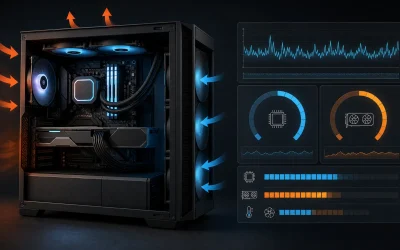
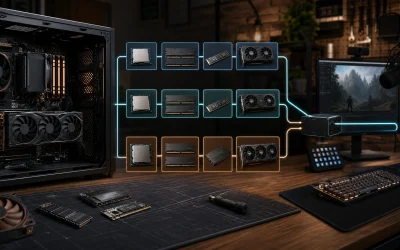
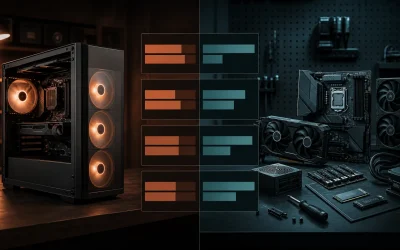
A gaming PC built today stays capable at the resolution and settings it was bought for over 4-5 years on average, but that number hides a lot of variation — the GPU is usually the first part to fall behind, often within 3-4 years, while the PSU, case, and storage can outlast two or three GPU upgrades without issue. Knowing which component ages on which schedule is what lets you spend $400-600 on a GPU upgrade in year three instead of $1,500+ on a whole new system that replaces parts that didn’t need replacing.
Our Top Picks
 Timeline Mitopure™ Firming Serum Anti-Aging Treatment With Antioxidants1 Fl Oz (Pack of 1)Check on Amazon
 Timeline Mito-Biotic™ Travel Size Barrier Cream Nourishing Moisturizer0.51 Ounce (Pack of 1)0 PoundsCheck on Amazon


Top 3 picks at a glance

Why “how long does a gaming PC last” has two different answers
A gaming PC can run for 8-10 years before hardware failure in the literal sense — components don’t stop working just because they’re old, and a well-cased, well-powered system can run reliably for a decade with basic maintenance. The more useful question is how long it stays capable of running current games at the settings you bought it for, and that timeline is set by the GPU, not by mechanical failure of any part.
As an Amazon Associate we earn from qualifying purchases at no extra cost to you.




A three-year-old GPU that ran every title at 1440p/high on release day might only manage 1440p/medium against newer releases, even though it hasn’t failed or degraded in any measurable way — the games simply became more demanding over that time as engines evolved and texture budgets grew. This distinction matters when budgeting: hardware failure is rare and largely unpredictable, while performance-based obsolescence is gradual and can be planned around well in advance.
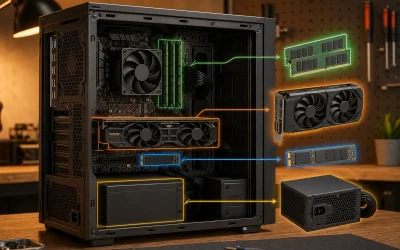
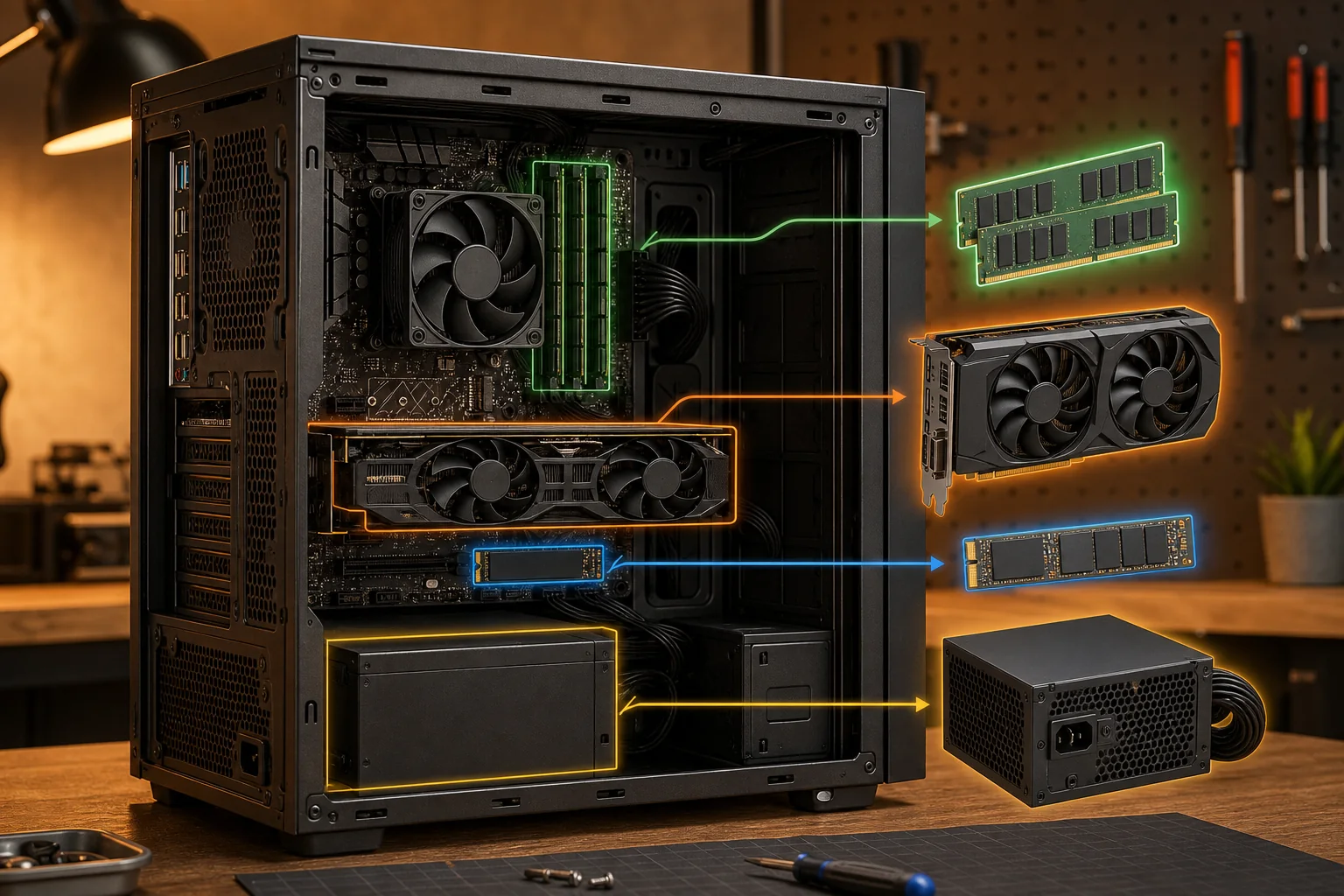
Component lifespan by part
| Component | Typical useful life (gaming-relevant) | Typical hardware life (before failure) | What ends its usefulness first |
|---|---|---|---|
| GPU | 3-4 years at original settings | 7-10 years | New titles exceed its VRAM or raw performance |
| CPU | 5-6 years | 10+ years | Platform/socket falls out of support for new chips |
| RAM | 5-7 years | 10+ years | Capacity needs outgrow it before it fails |
| PSU | 7-10 years | 7-10 years | Wattage needs exceed it, or age-related degradation |
| NVMe storage | 5-8 years | 5-10 years, write-endurance dependent | Capacity fills up before wear becomes a concern |
| Case/fans | 8-10+ years | 10+ years | Rarely replaced unless upgrading aesthetics or airflow |
GPU — the component that ages fastest in gaming terms
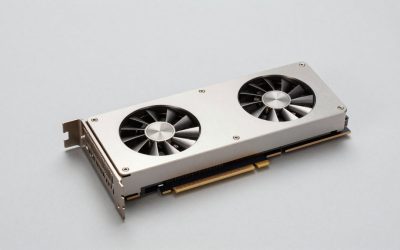
The GPU falls behind for two separate reasons that often overlap: raw compute performance gets outpaced by newer game engines, and VRAM capacity that felt generous on release becomes a limiting factor as texture packs grow larger with each engine generation. An 8GB card bought as a mid-range option is typically the first spec to become a genuine limitation, often within 2-3 years at 1440p.
A 16GB card in the same performance tier stays comfortable for closer to 4 years because VRAM isn’t the bottleneck yet when raw compute starts to slip, which means two GPUs with similar launch-day fps numbers can age at noticeably different rates depending purely on memory capacity. This is one reason it’s worth paying a modest premium for extra VRAM even when it doesn’t show up in launch-day benchmarks, since the benefit compounds over the ownership period rather than showing up immediately.
CPU — lasts longer than GPU, but platform support has an expiration date too
A six- or eight-core CPU bought today handles game logic comfortably for 5-6 years in most titles, since CPU requirements have grown more slowly than GPU requirements over the last several console generations. The real expiration date is platform support — once a CPU socket is discontinued for new chip releases, upgrading the CPU later means replacing the motherboard too, turning what could have been a $300 CPU swap into a $500-700 CPU-plus-motherboard-plus-RAM upgrade if the new chip needs a different RAM generation.
This risk varies by platform, so check how long a socket has stayed current before committing to it — the lineup in Best Amd Ryzen Gaming PC is a useful reference point for how long recent AMD sockets have remained supported for new chip releases before requiring a full platform change.
PSU and case — the parts that often outlive two GPU upgrades
A quality 80 Plus Gold PSU bought with 20%+ headroom over its original system draw can comfortably power one, sometimes two GPU upgrades without needing replacement, since GPU power draw within a given performance tier hasn’t grown as fast as raw performance has over recent generations. The case is similar — a mesh-front case with good airflow rarely needs replacing unless you’re changing form factor entirely.
It’s reasonable to treat PSU and case as a one-time cost across two GPU upgrade cycles rather than budgeting for them every time you refresh the system, which meaningfully lowers the average annual cost of staying current compared to treating every upgrade as a from-scratch purchase of every component.
Storage — NVMe wear and when to worry about it
Modern NVMe drives are rated in total bytes written (TBW), typically 300-600TBW for a 1TB consumer drive — a typical gaming workload writes well under 20TB per year, meaning wear-related failure is rarely the reason to replace a drive under normal use. Capacity is the more common reason: a 1TB drive that felt spacious at purchase fills up within 2-3 years as game install sizes keep growing with each release cycle, at which point adding a second drive is more practical than replacing the first one.
How usage patterns change the lifespan numbers above
The lifespan figures above assume moderate daily use — a few hours of gaming most days, normal room-temperature operation, and stock clock speeds without manual tuning. A few usage patterns shift those numbers meaningfully. Running a GPU at a manual overclock or with an aggressive undervolt pushes it closer to its thermal and electrical limits continuously, which can shorten its useful life by 6-12 months compared to stock settings, though this varies significantly by silicon quality and cooling quality.
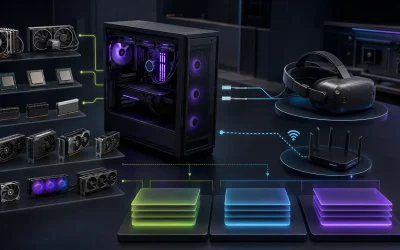
VR gaming — see our Best Gaming PC For VR picks for the GPU tiers this demands — pushes both GPU and CPU harder than flat-screen gaming at the same visual settings, since VR headsets typically render at higher effective resolutions and frame rates to avoid motion sickness; a GPU used primarily for VR often shows its age about a year earlier than the same card used for flat-screen 1440p gaming. Dust buildup in a poorly ventilated room accelerates thermal throttling over time even without any change in usage pattern, effectively shortening the GPU’s comfortable performance window, which is one reason builds like those in our Best Liquid Cooled Gaming PC guide tend to hold their original performance longer.
A realistic upgrade timeline for a $1,500-class build
Years 1-2 typically need no upgrades at all — the system runs current titles at the settings it was bought for without adjustment. Year 3 is when the GPU starts showing its age in the newest releases; this is the point to budget $400-600 for a GPU-only upgrade if you want to hold the original resolution target rather than turning settings down.
Years 4-5 are a good point to consider adding RAM if still on 16GB, and to check whether the boot drive needs a capacity upgrade after several years of game installs accumulating. By years 5-6, the CPU starts to feel dated in CPU-heavy titles specifically; this is typically when a platform upgrade covering CPU, motherboard, and RAM becomes worth planning for rather than patching around piece by piece. Year 7 and beyond, the PSU and case are usually still fine to carry into a full rebuild, keeping total rebuild cost meaningfully lower than a from-scratch purchase of every component. If a GPU-only upgrade isn’t enough to close the gap by that point, our Best High End Gaming PC roundup covers full replacement options for when a platform upgrade makes more sense than patching around an aging system.
Common mistakes buyers make with upgrade timing
Upgrading the GPU while keeping a four-core CPU from the original build is a frequent mistake, since it caps the new GPU’s performance and wastes a portion of the upgrade budget on a part that can’t be fully used at its intended tier. Waiting until a component fully fails before replacing it, rather than watching for the performance-based signs described above, is another common error — a slow decline is easier to plan a budget around than an emergency replacement made under time pressure.
Buying a PSU sized exactly for the current GPU with no headroom forces a PSU replacement alongside the next GPU upgrade instead of letting the existing unit carry over, which adds an unplanned $80-150 to an upgrade that should have only needed a new card. Assuming RAM never needs upgrading is a fourth mistake — capacity requirements have risen with each major game engine generation, and 16GB that felt sufficient at purchase can become a real limitation within 4-5 years of ownership. Skipping driver and BIOS updates for years rounds out the list, which can leave real performance on the table and occasionally causes instability that gets misdiagnosed as aging hardware rather than a simple software fix.
Signs each component is nearing end of life
The lifespan ranges earlier in this guide are averages, not guarantees, and real hardware usually gives a warning before it fails outright rather than dying without notice. Knowing what to watch for component by component turns an unplanned emergency replacement into a scheduled one, which is almost always cheaper and less disruptive.
For an SSD, free tools like CrystalDiskInfo or HWiNFO read the drive’s SMART data directly, including a Media Wearout Indicator or Percentage Used attribute that tracks how much of the drive’s total rated write endurance has been consumed. A drive still reads and writes normally right up until it doesn’t, so once that indicator crosses roughly 80% used, it’s worth backing up anything important and budgeting for a replacement rather than waiting for a sudden failure that can take data with it.
A PSU gives a few different warning signs depending on how it’s failing. Voltage sag under load — the 12V rail dropping further than it should when the GPU spikes during a demanding scene — is visible in HWiNFO’s voltage monitoring and often shows up months before an outright failure. A rising coil whine or capacitor whine that gets noticeably louder over time, especially under load, is another early sign worth taking seriously. Random reboots specifically during GPU-intensive moments, when the system runs fine otherwise, point toward a PSU struggling to maintain stable output rather than a software issue. Any burning smell is not a warning sign to monitor — it’s a reason to power down immediately and replace the unit.
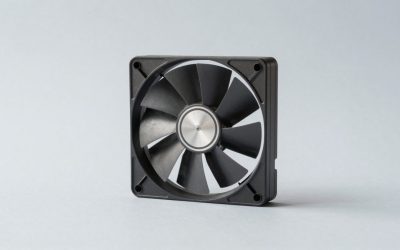
Case and CPU cooler fans develop a grinding or rattling noise as their bearings wear, typically starting somewhere in year 3-5 of continuous use, and a fan making that noise is worth replacing before it seizes entirely and lets a component overheat. Rising CPU or GPU temperatures at the same ambient room temperature and the same workload, compared to when the system was new, often points to thermal paste drying out rather than a fan problem specifically — this typically becomes noticeable starting around year 3 or 4 and is a cheap, five-dollar fix that can meaningfully extend a cooler’s effective life.
GPUs have two very different symptoms that get confused with each other. Coil whine — a faint electrical buzzing sound, usually most audible in high-fps, low-load scenarios like a menu screen — is annoying but generally harmless and not a sign the card is failing. Visual artifacting, on the other hand — colored specks, flickering textures, or geometric glitches appearing on screen — usually does indicate a failing GPU die or degrading VRAM chips, and is the symptom that actually warrants concern and testing rather than coil whine’s cosmetic annoyance.
RAM failure is comparatively rare but shows up as random crashes to desktop or blue screens under normal use, particularly if they happen inconsistently rather than tied to one specific game or task. Running Memtest86 overnight is the standard way to confirm a suspected RAM fault before spending money on a replacement based on a hunch.
Treating these symptoms as a rolling checklist rather than something to think about only when a system won’t boot is what turns component lifespan from a guessing game into a plannable maintenance schedule, and it’s the difference between a $30 preventive fan swap and a $400 emergency GPU replacement after ignoring artifacting for two months.
Planning upgrade spending across a 7-year ownership window
Looking at total cost of ownership across several years, rather than the sticker price of the initial build alone, changes how a gaming PC’s real annual cost compares to other spending decisions, and it makes the earlier year-by-year upgrade timeline easier to budget for in advance rather than reacting to it as surprises come up.
A handful of preventive maintenance tasks are cheap enough that skipping them rarely makes financial sense. Reapplying thermal paste around year 3, once temperatures start climbing at the same workload, costs under $10 in paste and 20 minutes of work, and it can recover several degrees of headroom that push a GPU or CPU further from its thermal throttle point. Cleaning dust filters and case intakes every three months takes a few minutes and directly protects the 8-12°C airflow advantage a clean mesh-front case has over a dusty one. Checking SMART data on the boot drive once a year, and PSU voltage rails during a demanding game session, catches the early warning signs described above while there’s still time to plan a replacement rather than scramble for one.
| Year | Typical action | Estimated cost |
|---|---|---|
| Year 1 | No action needed beyond normal use | $0 |
| Year 2 | Clean filters, check SMART/voltage data | $0 |
| Year 3 | Reapply thermal paste, budget GPU upgrade | $10 paste + $400-600 GPU |
| Year 4 | RAM top-up if still on 16GB, storage expansion | $60-120 |
| Year 5 | Replace aging fans if noisy, monitor PSU | $20-40 |
| Year 6 | Platform upgrade: CPU + motherboard + RAM | $500-700 |
| Year 7 | Reuse PSU/case into next build cycle | $0 (carried forward) |
Adding up a $1,500 initial build against that schedule puts total spend around $2,470-2,970 over seven years, which works out to roughly $355-425 per year of ownership once the upfront cost is spread across the full window rather than treated as a single lump sum. That’s a meaningfully different number than the $1,500 sticker price alone suggests, but it’s also lower than it looks at first glance once compared against the alternative.
Compare that to buying a full new $1,500-class system every three years instead of staging upgrades: three full purchases over seven years (with the third partway through year 7) runs close to $4,500 for the same rough performance trajectory, since a from-scratch rebuild throws away a PSU, case, and often storage that still had years of useful life left in them. The staged upgrade path in the table above isn’t just less disruptive — it’s typically 30-40% cheaper over the same ownership window.
The exact numbers will shift with GPU pricing and how aggressively you chase the newest hardware each cycle, but the underlying principle holds regardless of the specific dollar figures: replacing only the component that’s actually the bottleneck, on the schedule laid out earlier in this guide, consistently beats replacing the whole system on a fixed calendar interval.
Frequently asked questions
How many years does a gaming PC realistically last?
4-5 years at its original resolution and settings before the GPU becomes the clear bottleneck in newer releases, though the hardware itself can keep running for 8-10 years total with reduced settings or at a lower resolution target than it was originally bought for. The GPU sets this timeline, not mechanical failure of the components involved.
Which component usually needs replacing first?
The GPU, typically within 3-4 years, since game engines demand more raw performance and VRAM faster than CPU, RAM, or storage requirements grow over the same period. This holds true even for cards that never fail mechanically, since the limitation is performance falling behind rather than hardware breaking down.
Can I upgrade just the GPU instead of buying a whole new PC?
Yes, as long as the CPU, RAM, and PSU aren’t already bottlenecking the new GPU. Check CPU generation and PSU wattage headroom before buying a replacement card, since a severely outdated CPU can cap the benefit of a GPU upgrade and leave real performance on the table that you already paid for.
Does a gaming PC’s PSU need to be replaced periodically?
Not on a fixed schedule. A quality 80 Plus Gold PSU bought with headroom can last 7-10 years and often survives one or two GPU upgrades along the way, unlike the GPU itself, which typically needs replacing well before the PSU shows any signs of age-related wear.
When does it make more sense to rebuild the whole system instead of upgrading parts?
When the CPU platform is more than two generations old, since a new CPU at that point usually requires a new motherboard and possibly a new RAM generation too, closing much of the cost gap with a full rebuild. At that stage, a partial upgrade often costs nearly as much as starting fresh.