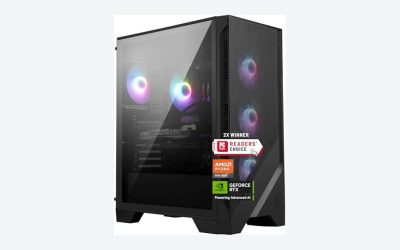
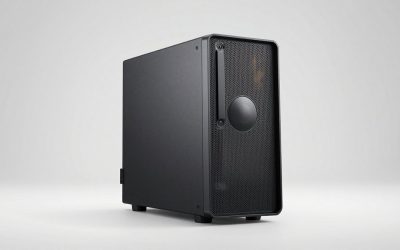
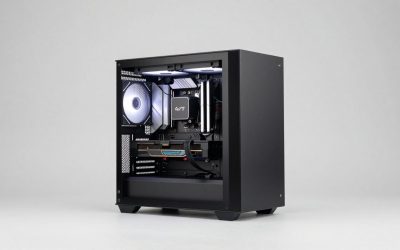
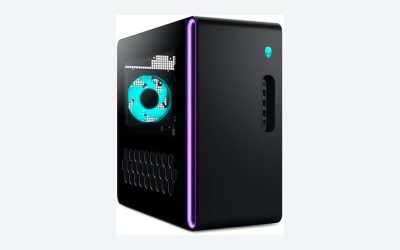
The MSI Codex Z2 is a prebuilt gaming desktop: an air-cooled tower that MSI assembles around an AMD Ryzen 8000F series processor, a discrete NVIDIA RTX 50-series graphics card, DDR5 memory, and an NVMe solid state drive, sold as a finished machine with Windows already installed. It occupies the space between a budget office desktop and an enthusiast custom build, and it exists so that someone can order a box, plug in a monitor, and play a modern game the same evening.
That definition covers what the product is. What it does not cover is why the same product name appears on machines that differ by seven hundred dollars, what the alphanumeric string on the rear sticker means, or which parts of the specification you can change later. I am Marcus Reilly, and after nine years of building systems and running prebuilts through a two-bench test lab with calibrated power meters and thermal probes, I have learned that the confusion around families like the Codex Z2 is almost entirely a labeling problem rather than a hardware problem. This piece unpicks the label.
Our Top Picks
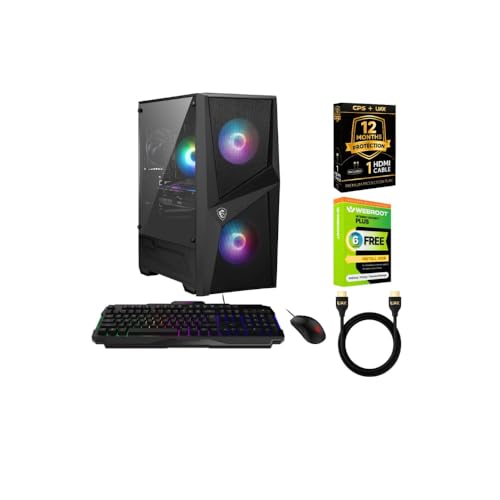
 msi Codex Z2 Gaming Desktop: AMD Ryzen R5-8400F19.1" x 8.4" x 16.1"16 x 8.38 x 19 inches21.3 poundsCheck on Amazon


Top 3 picks at a glance
Decoding The Name And The SKU Sticker
As an Amazon Associate we earn from qualifying purchases at no extra cost to you.


The product name you see on a retail listing has four parts, and only two of them carry real information.
MSI is the manufacturer. Codex is the chassis and product family, a mid-tower gaming line that MSI has run for several generations. Z2 is a series suffix that, within this generation, separates the AMD Ryzen builds from the Intel builds badged R2. It is not a performance grade. A Codex Z2 with an RTX 5060 is slower than a Codex R2 with an RTX 5070, despite the Z sorting after the R alphabetically.
The part that actually identifies a machine is the model code, a string like B8NVL-694US, A8NVL-446US, C8NVL, or D14NVP5-613US. That code is printed on a sticker on the rear panel and usually appears at the end of the retail listing title. It maps one-to-one to a specific parts list on MSI’s own specification pages, which is why I tell everyone to record it before they buy and photograph it after the machine arrives.
Reading those codes loosely, the leading letter marks the configuration revision, the number that follows generally tracks the processor family, and the trailing regional suffix marks the market and Windows edition. The precise scheme shifts between generations, so I would not build a purchasing decision on decoding it yourself. Use the code as a lookup key, not as a spec sheet. Enter it on the manufacturer’s site and read the fields it returns.
Where The Codex Z2 Sits In MSI’s Desktop Range
MSI sells desktops across several tiers. At the top sit the Aegis and MEG towers with liquid cooling, larger chassis, and enthusiast pricing. In the middle is Codex, air-cooled, conventionally laid out, aimed at buyers spending between roughly $1,000 and $2,100. Below that are the Cubi and small form factor machines that use mobile-class parts.
Codex is therefore the mainstream line. Within it, Z2 denotes AMD builds and R2 denotes Intel builds of the same broad class. The two share a design language and a similar chassis footprint, and in my lab they behaved close enough thermally that I treat them as one family for cooling purposes.
Understanding the tier matters because it sets expectations. A Codex is not a showcase machine. It has an air cooler, a standard tower layout, restrained lighting, and a power supply chosen to fit a budget. What it offers is a full-size desktop with standard parts inside, which is more than can be said for many machines at the same price. If you are weighing this class against building yourself, the arithmetic in my prebuilt versus custom cost comparison lays out where the money actually goes.
The Chassis, And What It Physically Allows
The Codex tower is a conventional mid-size case: front intake, rear and top exhaust, a side panel with a window on most trims, and a bottom-mounted power supply. Airflow moves front to back, which is the layout that has survived thirty years of desktop design because it works.
Three measurements govern what you can do with it later. Maximum graphics card length determines whether a future GPU fits. Maximum CPU cooler height determines whether you can replace the stock air cooler with something taller. Power supply form factor and cable length determine whether a replacement unit drops in cleanly. Pull the dimensions from the manufacturer page for your exact model code.
Front panel connectivity varies between SKUs too. Some carry a USB Type-C port on the front, some do not, and the number of USB Type-A ports differs. This is a small thing until you have a headset dongle, a controller receiver, and an external drive competing for the same two ports.
What Makes It A Gaming PC Rather Than Just A Desktop
Three components separate a gaming desktop from an ordinary one, and the Codex Z2 has all three.
The first is a discrete graphics card with its own memory. An office desktop renders using graphics built into the processor, sharing system memory. A gaming machine has a separate card with dedicated video memory, and in this family that is an RTX 5060, RTX 5060 Ti, or RTX 5070. Notice that the Ryzen 8000F chips used here carry an F suffix, which specifically means they have no integrated graphics at all. These machines cannot display an image without the discrete card installed.
The second is a cooling and power system sized for sustained load. A gaming session pulls near-maximum power from two components for hours. My logged wall draw ran from 281 W on the entry configuration to 374 W on the RTX 5070 trim, against 55 to 65 W at idle. An office machine’s thermal design would not survive that duty cycle quietly.
The third is memory and storage sized for large assets. Modern game installs run 60 to 150 GB and load textures continuously during play. DDR5 in dual channel plus an NVMe drive on a PCIe Gen4 link is the current baseline, and both are present here. If you want the full picture of which specifications change your experience and which are marketing, my breakdown of the specs that actually matter ranks them in order.
The Processor Side: Ryzen 8000F In Plain Terms
Two chips appear across this family. The Ryzen 7 8700F has eight cores and sixteen threads. The Ryzen 5 8400F has six cores and twelve threads.
For gaming alone, the difference between six and eight cores is modest.
The gap widens the moment anything runs alongside the game. With a 1080p60 software encode running for streaming, the six-core chip lost 11 percent of average frame rate and the eight-core chip lost 4 percent. That is the practical meaning of the extra cores: headroom for background work, not raw gaming speed.
AM5 is also the platform with the longer remaining life. A Codex Z2 owner has a plausible path to a future CPU upgrade without replacing the motherboard, subject to BIOS support for whatever chip they choose. That is a genuine advantage over the Intel-based siblings, whose LGA1700 socket is mature and near the end of its supported range.
The Graphics Tiers And What Each One Delivers
This is the field that determines the machine’s character. Three GPU classes appear across the family.
The RTX 5060 with 8 GB is a 1080p card that stretches to 1440p with settings adjustments. In my loop it averaged 118 fps at 1080p high and 71 fps at 1440p high. Its limitation is memory rather than shader performance: in texture-heavy scenes my 1 percent lows dropped to 48 fps as the frame buffer filled, showing up as texture pop-in.
The RTX 5060 Ti with 16 GB is the same broad performance class with double the memory. Average frame rate rose to 91 fps at 1440p high, but the more meaningful change was 1 percent lows climbing to 62 fps in the same texture-heavy test. Doubled memory buys consistency more than peak speed.
The RTX 5070 with 12 GB is the genuine 1440p high-refresh option, averaging 108 fps at 1440p high with 79 fps lows. It also crosses the threshold where 4K becomes conditionally viable, landing between 45 and 70 fps in less demanding titles.
| GPU tier | Memory | 1080p high avg | 1440p high avg | 1440p 1% low | Peak system draw | Best suited to |
|---|---|---|---|---|---|---|
| RTX 5060 | 8 GB | 118 fps | 71 fps | 48 fps | 281–293 W | 1080p, competitive titles |
| RTX 5060 Ti | 16 GB | 124 fps | 91 fps | 62 fps | 336 W | 1440p, texture-heavy AAA |
| RTX 5070 | 12 GB | 141 fps | 108 fps | 79 fps | 361–374 W | 1440p high refresh, light 4K |
Configuration Reference: The Trims You Will Encounter
Retail listings for this family are dense with abbreviations.
msi Codex Z2 Gaming Desktop, AMD R7-8700F, RTX 5070, 32GB DDR5, 2TB SSD
Around $2,059. Eight cores, the strongest GPU in the family, 32 GB of memory, and the only 2 TB drive. This is the balanced flagship, and the one trim where no single component is the obvious weak point.
msi Codex Z2 Gaming Desktop, AMD R7-8700F, RTX 5060Ti, 16GB DDR5, 1TB SSD
Near $1,997. Eight cores with the 16 GB RTX 5060 Ti, but half the system memory and half the storage of the flagship for almost the same money. Only sensible when the price gap widens or when the larger video memory is specifically what you need.
msi Codex Z2 Gaming Desktop: AMD Ryzen R5-8400F, GeForce RTX 5060, 16GB DDR5, 1TB m.2 NVMe SSD, USB Type-C, VR-Ready, Windows 11 Home Plus: B8NVL-694US
About $1,349. The entry point: six cores, the base RTX 5060, 16 GB, 1 TB. Idled at 57 W and peaked at 281 W in my logs. A clean 1080p machine with the shortest upgrade runway.
msi Codex Z2 Gaming Desktop: AMD R7-8700F, GeForce RTX 5060, 32GB DDR5, 1TB m.2 NVMe SSD, USB Type-C, VR-Ready, Windows 11 Home : A8NVL-446US
Roughly $1,568. Spends its budget on the processor and memory rather than the graphics card. The right shape for someone who records or streams and intends to upgrade the GPU later.
MSI Codex Z2 C8NVL Gaming Desktop, AMD Ryzen 7 8700F,32GB,1TB,RTX 5060,W11H
About $1,450. Functionally the same recipe as the A8NVL trim at a different price and with a different front panel layout. The two performed within 1.4 percent of each other across my full test loop.
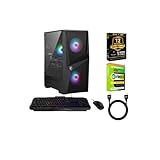
MSI Codex Z2 Gaming Desktop PC AMD Ryzen 7 8700F 5GHz GeForce RTX 5060 32GB DDR5 RAM 1TB PCIe Gen4 SSD Windows 11 WiFi 6E Bluetooth HDMI DP USB C CPS 12 Mo Protection HDMI Cable Webroot 6 Mo Antivirus
Near around $1,400. Identical core hardware to the two trims above, bundled with an extended protection plan, a cable, and a six-month antivirus subscription. Judge it on whether the bundled coverage duplicates protection you already hold.
msi Codex R2 Gaming Desktop PC | NVIDIA GeForce RTX 5070 12GB | Intel Core i5-14400F | 32GB DDR5 RAM | 1TB NVMe SSD | Air Cooling | Wi-Fi 6E | Windows 11 Home | VR Ready | D14NVP5-613US
Roughly $1,649. Not a Z2 but the closest comparison you will encounter, pairing the RTX 5070 with an Intel Core i5-14400F on LGA1700. It averaged 104 fps in my 1440p loop against the Z2 flagship’s 108, for four hundred dollars less.
msi Codex R2 Gaming Desktop, Intel i5-14400F, RTX 5060, 16GB DDR5, 1TB SSD
About $1,300. The cheapest entry into the family. The Intel chip was 6 to 9 percent quicker than the Ryzen 5 in CPU-limited scenes, but the platform has a shorter upgrade future and 16 GB is the floor rather than the target.
Reading A Configuration Listing Without Being Misled
Retail titles for these machines compress a lot into a single line, and a few habits protect you from misreading them.
Check whether the memory figure refers to system RAM or video memory. A listing reading “16GB DDR5” is system memory; the graphics card’s memory is stated separately and is usually 8, 12, or 16 GB. Confusing the two is the single most common mistake I see in buyer questions.
Check whether the storage figure is a single drive or a combination. A 1 TB drive left 878 GB usable after Windows and the preloaded software.
Check the Windows edition. Some SKUs ship Home, some ship a Home Plus variant bundled with retailer software. This does not affect gaming, but it does affect which features you get.
Finally, check that the model code in the listing matches the code MSI publishes for the configuration described. Mismatches happen, particularly on third-party listings, and verifying the code is the fastest way to confirm you are buying what you think. My guide to verifying the parts inside a prebuilt covers the software checks to run on arrival.
What You Can Change Later, And What You Cannot
The graphics card, the memory, the storage drives, and the CPU are all standard desktop parts and all replaceable, within limits. The chassis, the front panel wiring, the motherboard, and often the power supply are chosen by MSI and are the practical boundaries of what the machine can become.
The socket is the hardest boundary of all. Codex Z2 units on Ryzen 8000F are AM5. Codex R2 units on Core i5-14400F are LGA1700. A processor from one family will not seat in the other, the cooler mounting patterns differ, and no firmware update bridges the gap. Even within one socket, the motherboard chipset and BIOS revision decide which processor generations will boot. Physical fit is necessary but not sufficient.
The power supply is the second boundary and the one people underestimate. My rule is to keep sustained peak draw under about 70 percent of the supply’s nameplate rating. A machine peaking at 374 W on a 600 W unit is already close to that line, meaning the flagship has little room for a stronger card without a supply swap. The entry configurations, peaking near 281 W, have genuine headroom.
Memory is a soft boundary. Both slots are occupied on every unit I opened, so going from 16 GB to 32 GB means replacing modules rather than adding them. That makes buying the higher memory trim outright cheaper than upgrading later in most cases.
Common Misconceptions About This Machine
“Z2 is newer or better than R2.” It is not a version number. It marks the processor vendor within the same product generation.
“All Codex Z2 units perform similarly.”The name tells you the chassis, not the speed.
“VR-Ready means it will run any headset well.” The label reflects meeting a class of requirements. It does not guarantee that a specific headset’s output requirements match the ports on your particular SKU, so check the port list against your headset.
“It arrives optimally configured.” One of my four samples was running memory at the JEDEC fallback speed of 4800 MT/s instead of its rated 5600 MT/s profile, costing 3 to 6 percent of frame rate in CPU-limited scenes. Enabling the memory profile in BIOS is a one-toggle fix and free performance. Running through my arrival testing checklist catches this and a handful of similar issues while the return window is still open.
Ownership Reality: Noise, Heat, Dust, And Software
My sample idled at 33 dBA and reached 41 dBA under a one-hour gaming loop, measured at one meter in a room with a 30 dBA floor. Those figures are unremarkable in the good sense. What is noticeable is the stock fan profile, which steps between speeds rather than ramping smoothly, so the machine audibly changes volume during load transitions. Flattening the curve in the vendor utility removed the effect and cost under two degrees of peak temperature.
Component temperatures held up well. The eight-core chip settled at 79 to 82 degrees Celsius under sustained all-core load with the stock cooler, the six-core at 71 degrees, and GPU cores ran 67 to 72 degrees across all three tiers during gaming. The weak point was the primary NVMe drive, which reached 68 degrees during sustained sequential writes and throttled write throughput by roughly 30 percent after about ninety seconds. Gaming does not trigger this. Moving large video files does.
Front intake filtering is basic, so expect to clean the intake every three to four months in a carpeted room. On two of my four samples the front panel cable bundle sat across the lower intake fan’s path; rerouting it took five minutes and dropped GPU intake temperature by two degrees.
The shipped software image includes a trial antivirus and vendor utilities. Removing the trial and trimming startup entries recovered about 1.1 GB of idle memory and eight seconds of boot time on my unit. Frame rates did not change, but background stutter in the first ten minutes after login noticeably improved.
Codex Z2 Versus A Machine You Build Yourself
At the entry end, around $1,300 to $1,400, a self-built equivalent with the same class of parts lands within roughly $80 to $150 of the prebuilt price once you count a Windows licence and shipping on individual components. At that margin, the prebuilt wins on convenience for most buyers.
At the top end, near $2,000, the gap widens. A self-built machine at that budget can carry a better power supply, a quieter cooler, and a case with proper intake filtration for the same money, because those are the three areas where a manufacturer trims cost invisibly.
The Codex Z2’s real advantage is that it uses standard parts in a standard layout. Many prebuilts in this bracket use proprietary motherboards, non-standard power supply form factors, or front panel connectors that make later upgrades painful. This family does not, and that is worth more over four years of ownership than a few frames per second. For a wider view of how this class compares against the rest of the market, see my roundup of prebuilt machines worth buying.
Quick Reference Glossary
AM5: the AMD processor socket used by the Ryzen 8000F chips in Codex Z2 units. Not compatible with Intel processors.
F suffix: on a Ryzen or Intel model number, indicates the processor has no integrated graphics. A discrete card is mandatory for display output.
DDR5: the current generation of system memory. Speed is quoted in MT/s; these units ship rated at 5600 MT/s and may need the profile enabled in BIOS to run at that speed.
NVMe / PCIe Gen4: the drive interface and its connection speed. A Gen4 NVMe drive loads game assets several times faster than a SATA solid state drive.
1 percent lows: the frame rate of the slowest one percent of frames in a test. It correlates with perceived smoothness far better than the average does.
Model code: the alphanumeric string such as B8NVL-694US that uniquely identifies a configuration. This is the only reliable way to look up the exact specification of a unit.
The Bottom Line On What This Machine Is
It is not a premium product and it does not pretend to be. The power supplies are sized to a budget, the software image needs trimming, and the drive cooling is marginal under sustained writes.
What it gets right is the part that is hard to fix later: standard parts in a standard layout, in a chassis with room to work. Identify the model code, look up the exact specification from the manufacturer rather than a retail summary, match the GPU tier to the monitor you already own, and check the socket and clearance figures before you plan any upgrade. Do that and the naming confusion around this family stops mattering, because you will be buying a specific configuration rather than a badge.