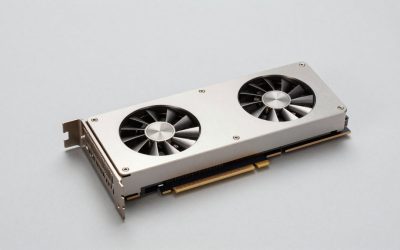
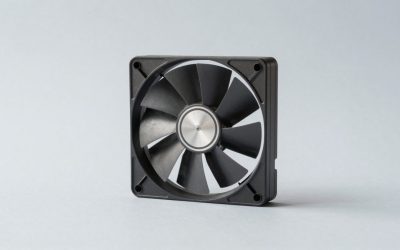
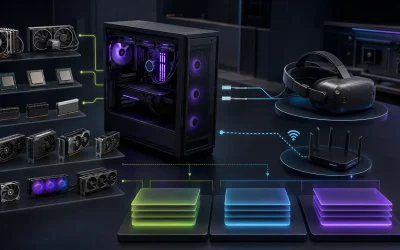
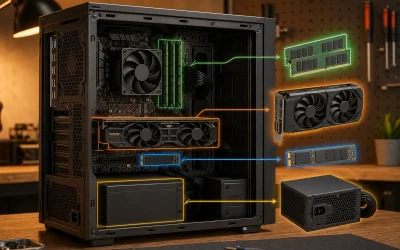
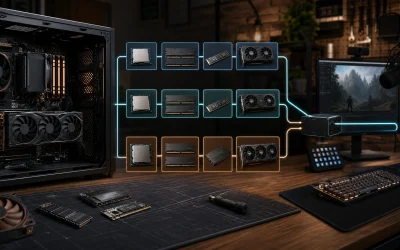
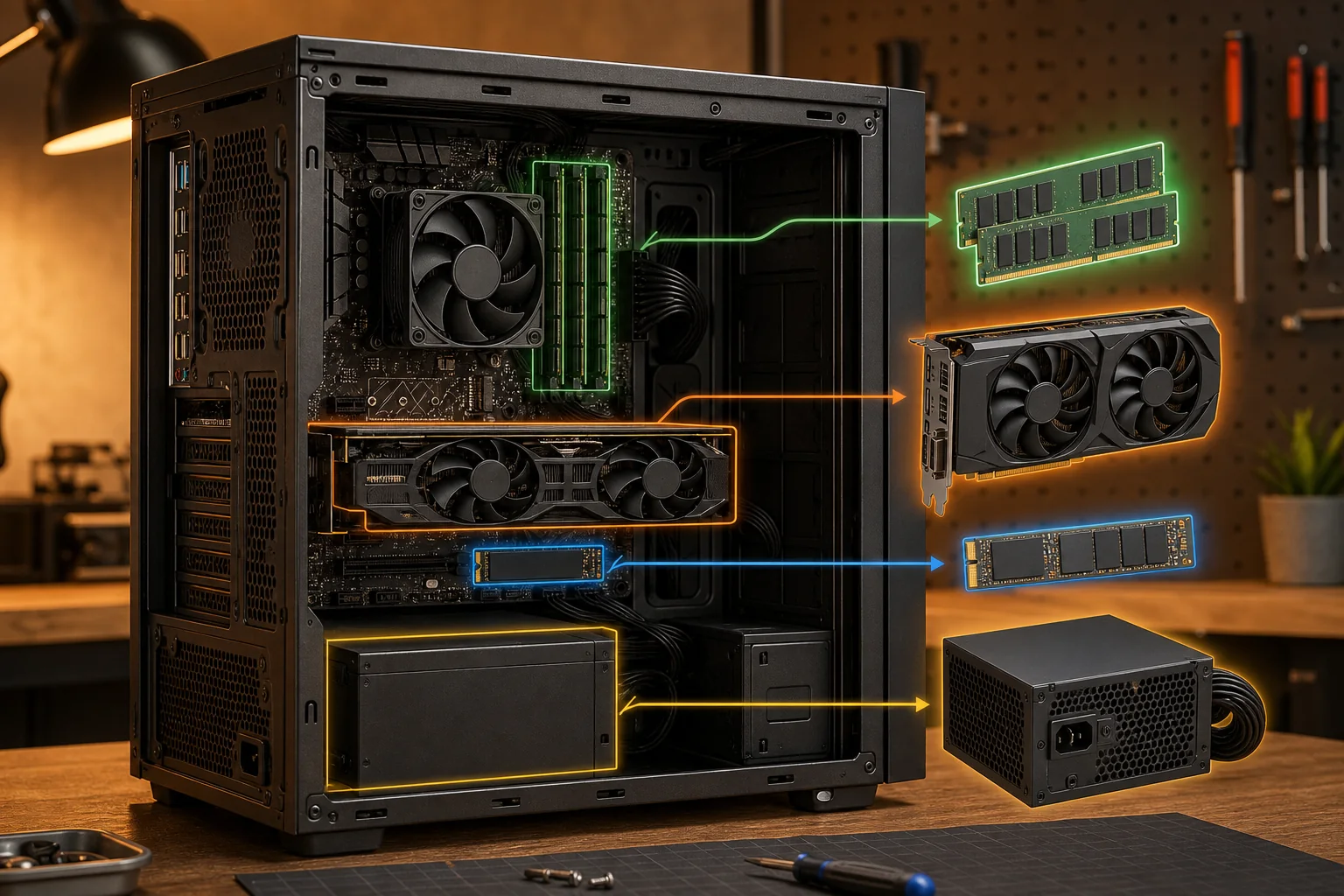
Ranked by real impact on frame rates, gaming PC specs go GPU first, CPU second, RAM third, storage fourth, and PSU/case last — with one exception: PSU quality doesn’t move the fps counter at all, but it determines whether the system is still running in year three. This order holds across the vast majority of modern titles, though the gap between GPU and CPU narrows in a handful of CPU-heavy games like flight simulators or large multiplayer titles with hundreds of simulated units on screen at once.
Our Top Picks
 LifeArt Round Blue Light Blocking Glasses+1.50 Magnification6.3 x 2.36 x 1.57 inches0 poundsCheck on Amazon


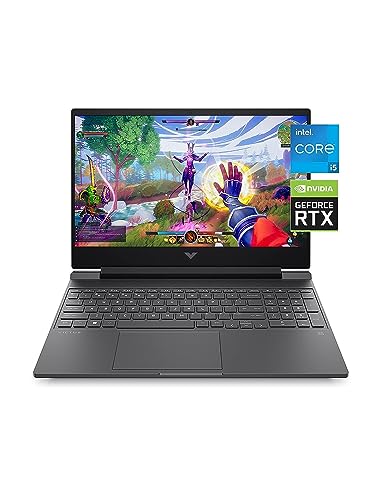


Top 3 picks at a glance

The ranking, and why it holds across most games
Modern game engines render each frame by first having the CPU calculate game logic, physics, and AI, then handing that data to the GPU to actually draw the frame on screen. At 1440p and above, the GPU’s rendering workload dominates the total frame time, so upgrading the GPU delivers a larger fps gain than upgrading the CPU in the overwhelming majority of cases you’ll encounter shopping for a system.
As an Amazon Associate we earn from qualifying purchases at no extra cost to you.




At 1080p, the CPU’s share of frame time grows relatively larger since the GPU finishes its work faster at the lower pixel count, which is why competitive esports players — who prioritize 1080p at very high refresh rates like 240Hz or 360Hz — often care more about CPU single-thread speed and cache size than 4K gamers chasing cinematic visuals do. Neither group is wrong; they’re optimizing for different bottlenecks that happen to sit on opposite ends of the same ranking.
This is also why spec sheets that lead with CPU model and treat GPU as a footnote are worth a second look — for the vast majority of buyers, the GPU line deserves more scrutiny than any other single spec on the page.
GPU — the component that sets your frame rate ceiling
VRAM capacity matters as much as raw GPU horsepower once textures at 1440p and 4K are involved. An 8GB card can run out of VRAM in newer titles at high texture settings, causing stutter even when the GPU core itself has spare performance headroom — this shows up as inconsistent frame times rather than a low average fps, which is why VRAM issues are often misdiagnosed as a CPU or RAM problem by buyers troubleshooting after the fact.
| Resolution | Minimum comfortable VRAM | Recommended VRAM | Example GPU (recommended tier) |
|---|---|---|---|
| 1080p | 8GB | 12GB | RTX 4070 |
| 1440p | 12GB | 16GB | RTX 4070 Ti Super |
| 4K | 16GB | 16GB+ | RTX 4080 Super / RTX 5080 |
For current listings built around these VRAM targets, see our Best Gaming PC For 1440P and Best Gaming PC For 4K Gaming picks. Beyond VRAM, raw core count and clock speed still set the baseline ceiling within a resolution tier — a card with adequate VRAM but a weaker core can still fall well short of the fps ranges buyers expect at that resolution.
CPU — when it becomes the bottleneck instead of the GPU
A CPU bottleneck happens when the processor can’t feed the GPU instructions fast enough, leaving the GPU sitting idle below 90-95% utilization while fps stays flat even though a faster GPU is installed in the system. This is most common when pairing a four- or six-core CPU from an older generation with a high-end GPU like an RTX 4080 Super, and it’s most visible at 1080p, where the CPU’s share of frame time is largest relative to the GPU’s.
Cache size matters as much as core count in some titles — the Ryzen 7 7800X3D’s large 3D V-Cache gives it a measurable edge over CPUs with similar core counts but smaller cache in simulation-heavy and strategy titles specifically, sometimes by 15-20%, even though its base clock speed isn’t the highest in its class on paper.
RAM — capacity vs. speed, and where each matters
Capacity and speed solve different problems. Capacity below 16GB causes stuttering when background applications compete with the game for memory; going from 16GB to 32GB rarely raises average fps in a game running alone, but it meaningfully smooths frame times when streaming software, a browser, and Discord are all running alongside it during a session.
Speed has a measurable fps effect specifically on AMD Ryzen platforms, where memory bandwidth feeds the CPU’s Infinity Fabric interconnect — moving from DDR5-4800 to DDR5-6000 on a Ryzen 7 7800X3D-class build gains roughly 8-12% in CPU-bound titles, see Best Amd Ryzen Gaming PC for builds tuned around this. On Intel platforms the same speed jump typically yields 3-5%, since Intel’s memory controller architecture is less sensitive to bandwidth, which is reflected in the specs on our Best Intel Gaming PC list.
Timings (the CAS latency numbers listed alongside the speed rating) add a smaller effect on top of raw speed, typically 1-3% between otherwise similar kits, and are rarely worth chasing over simply hitting the right speed tier for your platform first.
Storage — NVMe vs. SATA vs. HDD
Storage type doesn’t affect in-game fps once a level is loaded, but it affects load times, texture streaming smoothness in open-world games, and, on a full drive, overall system responsiveness during everyday use. A Gen4 NVMe SSD loads most current titles in 8-15 seconds; a SATA SSD takes 20-35 seconds for the same level; a 7200RPM HDD can take 45-90 seconds and causes visible texture pop-in during fast movement in open-world games.
Every current build should use NVMe as the boot and primary game drive — HDDs are only reasonable now as bulk secondary storage for a media or backup library rather than for active game installs. A drive that’s more than 85-90% full also sees measurably slower write speeds on both SSDs and HDDs, which can extend install and update times noticeably even on otherwise fast hardware.
PSU and case — invisible to fps, critical to survival
Neither component shows up in a benchmark chart, which is exactly why buyers underrate them relative to their real importance. A PSU running near its rated capacity for years degrades faster and is statistically more likely to fail catastrophically, in some cases taking other components with it; a PSU with 20%+ headroom over peak system draw runs cooler, quieter, and lasts longer as a result.
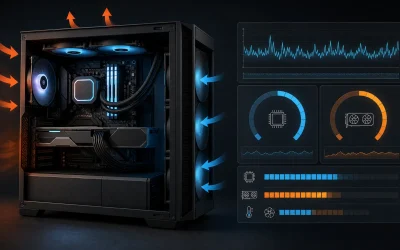
Case airflow determines sustained thermal performance — a mesh-front case with three fans runs 8-12°C cooler under load than a closed-front case with one exhaust fan, which directly affects whether the CPU and GPU throttle during long sessions, indirectly costing fps during exactly the moments performance matters most, like a long ranked match.
Motherboard and cooler — do they move the needle on fps?
Motherboard chipset and cooler choice sit below PSU and case in the ranking because their effect on fps is close to zero in a properly assembled system — but two exceptions are worth knowing. A budget motherboard with a weak VRM (voltage regulator module) can throttle a high-core-count CPU like the Core i7-14700KF or Ryzen 7 7800X3D under sustained all-core load, which shows up as lower fps specifically in CPU-heavy scenes rather than a flat performance hit across the board.
Cooler choice matters through thermal throttling rather than any direct fps mechanism: a stock cooler on a high-TDP CPU can allow the chip to hit its thermal limit during long gaming sessions, at which point the CPU reduces its clock speed to stay within temperature limits, costing 5-10% of its peak frame rate in CPU-bound moments. A mid-range tower air cooler or a 240mm all-in-one liquid cooler — the kind featured in our Best Liquid Cooled Gaming PC picks — keeps most current CPUs 15-20°C below their thermal limit under gaming loads, which is enough headroom that cooler choice beyond that tier becomes a noise and aesthetics decision rather than a performance one.
How these specs interact — a worked example
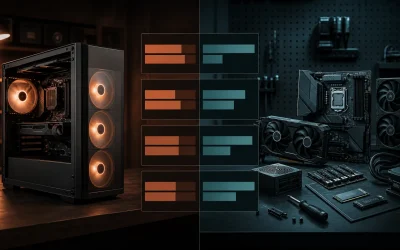
Consider two $1,400 builds. Build A pairs an RTX 4070 Ti Super with a four-core CPU, 16GB of single-channel RAM, and a 500GB SATA SSD. Build B pairs a slightly weaker RTX 4070 with a six-core CPU, 32GB of dual-channel RAM, and a 1TB NVMe drive. In a GPU-bound title at 1440p, Build A’s stronger GPU wins on paper, but the single-channel RAM configuration — which halves memory bandwidth — can cost 10-15% of that advantage, while the small boot drive fills up within weeks.
Build B, despite the weaker GPU on the spec sheet, often delivers a more consistent experience because every other spec is balanced rather than maxed out on one line item and cut elsewhere to hit the same price point. This is the core lesson behind the whole ranking: a top-tier GPU sitting behind a mismatched CPU, single-channel RAM, or a nearly-full boot drive rarely performs like its spec sheet promises in practice.
Troubleshooting: how to tell which spec is limiting your fps
Open a monitoring overlay such as MSI Afterburner or the in-game equivalent and watch GPU utilization. If it stays above 95% while fps is lower than expected, the GPU itself is the limit — a faster GPU is the correct upgrade, not more RAM. If GPU utilization drops below 90% while CPU usage on one or two cores spikes near 100%, the CPU is bottlenecking the GPU, which is common in CPU-heavy titles or with an older four-core processor still installed.
Stutter with normal average fps but inconsistent frame times, especially at high texture settings, usually points to VRAM running out rather than a CPU or RAM issue — check GPU memory usage in the overlay to confirm. Long level-load times or texture pop-in during fast movement point to storage, not GPU or CPU; check whether the game is installed on an HDD or a nearly-full SSD before assuming a hardware upgrade is needed. Random shutdowns or reboots under heavy load, especially right after installing a new GPU, point to insufficient PSU headroom rather than any of the above.
Streaming adds encoding overhead on top of frame rendering, so the general spec guidance here shifts once you’re broadcasting rather than just playing — our streaming PC build guide breaks down which parts to prioritize for that extra workload.
Frequently asked questions
Does CPU or GPU matter more for gaming?
GPU matters more in the majority of titles, especially at 1440p and 4K, where the GPU handles most of the actual rendering work for each frame. CPU matters more at 1080p and in CPU-heavy genres like flight simulators and large-scale strategy games, where the processor spends more time calculating game logic relative to what the GPU has to draw on screen.
How much VRAM do I need for 1440p gaming?
12GB is the comfortable minimum for 1440p at high settings in current titles, and it’s enough headroom for most releases over the next couple of years. 16GB gives more breathing room as texture packs and ray tracing effects grow more demanding over a system’s lifespan, particularly if you plan to keep the GPU for four or more years.
Does RAM speed actually affect gaming performance?
Yes, particularly on AMD Ryzen platforms, where faster memory can add 8-12% in CPU-bound titles because Ryzen’s Infinity Fabric interconnect scales directly with bandwidth. On Intel platforms the effect is smaller, around 3-5%, because the memory controller architecture there is less sensitive to bandwidth changes between comparable RAM speed tiers.
Is an SSD necessary for gaming, or is an HDD good enough?
NVMe SSD is effectively required for a primary game drive now, since HDDs cause visible texture pop-in in open-world titles and load times 4-6x longer than a Gen4 NVMe drive delivers on the same level. HDDs are still perfectly fine as secondary bulk storage for a media library or older titles you rarely launch.
Why does PSU quality matter if it doesn’t affect fps?
A PSU without adequate headroom degrades faster and is more likely to fail under sustained load, which can damage other components in the process rather than failing in isolation. It’s a reliability spec rather than a performance spec, but it determines whether the rest of your carefully chosen spec sheet survives long enough to actually be useful.