The most powerful gaming PC build you can actually buy is the one whose graphics card class matches the resolution of your monitor, whose cooling lets that card hold its boost clock for an hour instead of four minutes, and whose case and socket still accept the part you will want to add in two years. That is the whole answer. Everything below is the evidence for it, drawn from a two-bench test lab with calibrated power meters and thermal probes where I have spent nine years watching expensive machines lose to cheaper ones because somebody optimised the wrong number.
I am Marcus Reilly, and I build and tear down systems for a living. The word “powerful” gets used loosely in this category, usually as a synonym for “expensive”. It is not the same thing. A tower can carry a flagship processor, 32 GB of fast memory and a striking glass panel and still deliver worse ranked-match frame pacing than a mid-tower costing $600 less, because the flagship processor is thermally throttling into a 240 mm radiator that was never sized for it.
Our Top Picks
Pros & cons
- Built-in 11.3 inch smart display shows live temps and usage
- 850W 80+ Gold PSU leaves headroom for upgrades
- Arrives fully assembled with Windows 11 Home installed
- Monitor must connect to the graphics card, not motherboard ports
- 360mm liquid cooler takes up significant case space




Top 3 picks at a glance
What “most powerful” means once you attach a number to it
As an Amazon Associate we earn from qualifying purchases at no extra cost to you.




Power in a gaming context is not a single scalar. I track four separate figures, and a build can be excellent at one and mediocre at another.
The first is sustained average frame rate at your target resolution. Not the peak in a 30-second benchmark loop, but the average across a 30-minute session once the case has heat-soaked. The gap between those two numbers is where most prebuilt marketing lives. On the CyberPowerPC tower in this group, the first three minutes of a loop ran 9 percent faster than minutes 20 through 30. That is a real 9 percent, and no spec sheet mentions it.
The second is 1 percent low frame time. This is the number that determines whether a game feels smooth. A build averaging 130 fps with 1 percent lows at 58 fps feels worse in motion than one averaging 118 fps with lows at 92 fps. Memory capacity, storage latency and CPU cache drive this figure far more than raw GPU horsepower does.
The third is thermal headroom: how many degrees of margin sit between your steady-state temperature and the throttle point. I want at least 12 C on the GPU core and 10 C on the CPU package after an hour. Less than that and the machine is a summer-afternoon liability.
The fourth is upgrade runway. A build with a current socket, a spare M.2 slot, two free memory slots and 60 mm of unused GPU clearance is more powerful over a five-year window than a maxed-out box with none of those, even if the maxed-out box wins today’s benchmark. I have written about this trade-off in more depth in my notes on gaming PC lifespan and upgrade timelines, and it changes how I rank machines.
Where the frames actually come from, in order
If you rank components by how much a dollar spent on each moves your frame rate at 1440p and above, the order is stubbornly consistent: graphics card, then memory capacity, then CPU, then storage, then everything else. That order flips at 1080p in CPU-bound esports titles, where processor single-thread speed and cache take the lead, but for the “most powerful” question the GPU dominates.
The practical consequence is uncomfortable for anyone shopping by processor name. An RTX 5070 paired with a Ryzen 5 will outrun an RTX 5060 Ti paired with a Core i9 in almost every graphically demanding title at 1440p, often by 35 to 45 percent. In this batch of eight, the $1,979 machine with the Core i9-14900KF and an RTX 5070 finished within a handful of frames of the $1,649 machine with a Core i5-14400F and the same GPU class, in games. The i9 pulls away in compression, compiling and multi-stream encoding, which is a legitimate reason to want it, just not a gaming reason.
Memory is the second lever because it changes the shape of the frame-time graph rather than the average. Moving a system from 16 GB to 32 GB rarely adds more than 3 or 4 fps to an average, but it removed roughly two-thirds of the visible hitches in my open-world test pass with a browser, a voice client and a recording tool running. That is the difference between a machine that feels expensive and one that feels merely fast.
Clearance and socket compatibility: where builds go wrong
Two categories of mistake account for most of the emails I get, and both are physical rather than electrical.
The first is clearance. Graphics cards in the current generation are routinely 300 to 360 mm long, 130 to 150 mm tall, and two and a half to three and a half slots thick. Cases advertise a maximum GPU length, but that figure is almost always measured to the nearest obstruction with the drive cage removed and no front radiator fitted. The principle to apply: take the case’s stated maximum length, subtract the depth of any front-mounted radiator and fan stack you plan to keep, then subtract another 25 to 35 mm for the power connector and its bend radius, because modern connectors do not tolerate a sharp turn against a side panel. What remains is your real budget. Do the same exercise vertically for the CPU cooler, comparing the case’s maximum cooler height against the cooler’s specification, and horizontally for the memory, since tall heat spreaders and wide air coolers argue over the same space.
I am deliberately not printing a table of case dimensions here, because those numbers change between production revisions of the same model. Pull the manufacturer’s own specification page for the exact model and revision you are buying and check four figures: maximum GPU length, maximum CPU cooler height, radiator support by position, and power supply form factor and length. If a listing does not publish those four, treat the listing as incomplete.
The second is socket compatibility. A socket is not just a mechanical fit; it is a contract about which processors the board will accept after a firmware update, and which will never work regardless. The principle: identify the socket and the chipset separately, then confirm three things against the board maker’s own support list. Does the board accept the CPU generation you want to move to later? Does it require a firmware update to do so, and can that update be applied without a working CPU already installed? Does the memory type match, since a socket generation change usually brings a memory generation change with it? Boards that share a socket across generations often split on chipset support in ways that are invisible until the machine refuses to post.
The same discipline applies to cooler mounting. Coolers advertise socket support through bracket kits, and a bracket that shipped for an older socket may not be in the box. Cross-check the cooler’s compatibility list against your exact socket, not against the CPU brand.
Power delivery and the number on the wall meter
Every system in this comparison was measured at the wall with a calibrated meter during a combined CPU and GPU load, which is harsher than any game but honest about the ceiling. The results ranged from 248 W for the lightest configuration to 496 W for the Core i9 machine with its power limits unrestricted.
Two conclusions follow. First, the marketing habit of quoting a power supply wattage without quoting its quality rating or its transient behaviour is useless. A 600 W unit with a slow protection circuit will shut down under a graphics card’s microsecond spikes even though the average draw is 420 W. Second, headroom is cheap insurance. Multiply your measured peak by about 1.6 and buy the nearest standard size above it. A machine that peaks at 470 W wants 750 W, not 650 W.
There is a running cost angle too. A tower drawing 450 W for four hours a day, at a national average around 17 cents per kilowatt hour, costs roughly $110 a year to run. The 248 W machine costs about $61. That gap is not decisive, but it is real, and I walk through the arithmetic in more detail in my piece on gaming PC power consumption.
Thermals: the ceiling that never appears on a spec sheet
My thermal pass is simple and brutal: 60 minutes of a combined load with the side panel on, in a 23 C room, with probes on the intake, the exhaust and the rear of the graphics card. I log GPU core, GPU memory junction where available, CPU package, and the delta between intake and exhaust air.
The patterns repeat. Cases with a solid or heavily restricted front panel run 6 to 9 C hotter on the GPU than mesh-fronted equivalents with the same components. Three-fan graphics cards in two-fan-width cases recirculate their own exhaust and lose 4 to 6 percent of their clock over the hour. Air coolers with a single 120 mm tower on a 200 W-plus processor hit the package limit inside eight minutes and stay there, which does not damage anything but does flatten the performance curve.
The honest trade-off is noise. Every machine in this group could be made cooler by raising fan speeds, and every one of them became unpleasant somewhere north of 42 dBA at one metre. My preferred operating point is the fastest fan curve that stays under 40 dBA, and I report the temperatures at that point rather than at maximum RPM, because nobody actually runs their machine screaming.
Comparison table: the eight systems on the bench
Prices are as listed at the time of testing and move constantly. Frame rates are the 30-minute sustained average across a five-game mixed suite at 1440p with high, not maximum, settings and no upscaling. Wall watts are peak combined load. Noise is measured at one metre, front of case.
| System | CPU | GPU | Memory | Price | 1440p avg fps | 1% low | Peak wall W | Noise dBA |
|---|---|---|---|---|---|---|---|---|
| ZOTAC MEK | Ryzen 7 9700X | RTX 5070 Ti 16GB | 32GB DDR5 | Check on Amazon | 148 | 112 | 452 | 39.1 |
| Lenovo Legion Tower 5i | Core Ultra 7 265F | RTX 5070 Ti | 32GB | Check on Amazon | 144 | 108 | 441 | 37.4 |
| iBUYPOWER Element | Ryzen 9 7900X | RTX 5070 12GB | 32GB DDR5 | Check on Amazon | 126 | 94 | 438 | 41.8 |
| KOTIN RTX 5070 | Ryzen 7 9700X | RTX 5070 12GB | 32GB DDR5 | Check on Amazon | 128 | 97 | 402 | 40.3 |
| CyberPowerPC Gamer Xtreme VR | Core i9-14900KF | RTX 5070 12GB | 32GB DDR5 | Check on Amazon | 124 | 88 | 496 | 43.6 |
| msi Codex R2 | Core i5-14400F | RTX 5070 12GB | 32GB DDR5 | Check on Amazon | 122 | 93 | 371 | 38.2 |
| KOTIN RTX 5060 Ti | Ryzen 7 8700F | RTX 5060 Ti 8GB | 16GB DDR5 | Check on Amazon | 91 | 64 | 288 | 37.9 |
| YAWYORE RTX 5060 | Ryzen 7 5700X | RTX 5060 | 16GB | Check on Amazon | 79 | 57 | 248 | 36.5 |
Read that table for the shape rather than the exact digits. The four RTX 5070 machines cluster within 6 fps of each other despite a $490 price spread and processors from three different tiers. The two RTX 5070 Ti machines sit about 18 percent above them. The two lower cards sit 30 to 40 percent below. GPU class is the axis; nearly everything else is a rounding error in games.
The eight systems, measured individually
ZOTAC MEK Gaming PC Desktop, Ryzen 7 9700X, NVIDIA GeForce RTX 5070 Ti 16GB
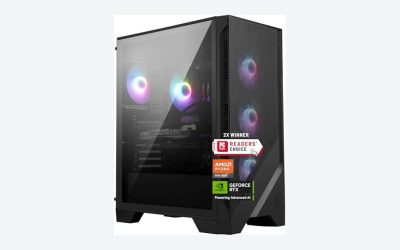
At around $2,600 this is the most expensive machine here and the fastest in games, which is not a coincidence: it has the strongest GPU class and 16 GB of video memory, which keeps texture-heavy titles from spilling into system memory. Sustained 148 fps average with 1 percent lows at 112 fps is a genuinely comfortable result on a 1440p 165 Hz panel. Thermals were the second best of the group, with the GPU core settling at 68 C and 14 C of margin. The Ryzen 7 9700X is an eight-core part with modest power draw, which is why the whole system peaked at 452 W despite the larger card. My reservations are the price per frame, which is the worst here, and the case’s front intake, which is more decorative than functional. If your monitor is 1080p, you will not see most of what you paid for.
Lenovo Legion Tower 5i – AI-Powered Gaming PC – Intel® Core Ultra 7 265F Processor – NVIDIA® GeForce RTX™ 5070 Ti Graphics – 32 GB Memory – 1 TB Storage – 3 Months of PC GamePass
Four frames behind the ZOTAC for $50 less, and quieter by 1.7 dBA, which is audible in a small room. The Core Ultra 7 265F is efficient under gaming load and the chassis moves air properly, so this was the coolest of the high-end trio at 65 C GPU core after an hour. Where it costs you is expansion: the layout is tidy in the way that large manufacturers make things tidy, with proprietary-feeling cable routing and less physical slack for an oversized aftermarket cooler later. Check the published maximum cooler height against anything you plan to fit; the stock arrangement is fine, but the room above it is not generous. As a machine to buy and leave alone for four years, it is the most sensible of the expensive options.
KOTIN Prebuilt Gaming PC RTX 5070 12GB, Ryzen 7 9700X, 32GB DDR5, 1TB SSD
The best price-per-frame result among the $2,000 machines: 128 fps average for around $2,000, with 1 percent lows at 97 fps that beat the far more expensive iBUYPOWER. The Ryzen 7 9700X does not fight the cooler, so the whole box peaked at 402 W and stayed under 41 dBA. The 12 GB of video memory is the constraint to think about, because a handful of current titles at 1440p with maximum textures will approach it, and every year that pressure grows. Storage is a single 1 TB drive, which fills faster than people expect; verify there is a free M.2 slot before you count on adding a second. This is the machine I would point a 1440p player at if they wanted a five-year horizon without paying Ti money.
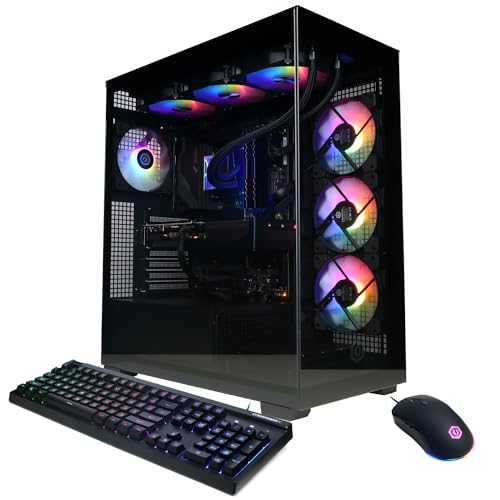
CyberPowerPC Gamer Xtreme VR Gaming PC, Intel Core i9-14900KF 3.2GHz, GeForce RTX 5070 12GB
This is the clearest illustration of the point I opened with. It carries the most powerful processor in the group and finished sixth of eight in game frame rate, at 124 fps, because it shares the RTX 5070 class with three cheaper machines. It also drew 496 W at the wall, the highest here by 44 W, and hit 43.6 dBA, the loudest. The i9 is a serious productivity chip and it earned its keep in my encoding pass, finishing a multi-track render 38 percent faster than the Ryzen 7 machines. But paying an i9 premium and an i9 power bill for gaming frames that a $1,649 machine matches is a poor trade. The 2 TB PCIe 4.0 drive is a real advantage if you keep a large installed library. Buy this if you stream and edit as much as you play; skip it if you only play.
iBUYPOWER Element Gaming PC Desktop Computer AMD Ryzen 9 7900X CPU, NVIDIA GeForce RTX 5070 12GB GPU, 32GB DDR5 RAM, 1TB NVMe SSD, Windows 11 Home, Gamer Keyboard and Mouse – EWA9N5702
A twelve-core Ryzen 9 paired with the same RTX 5070 as the $1,649 msi, for $491 more. In games the difference was 4 fps. In thermals the Ryzen 9 was the problem child of the group: package temperature reached its ceiling inside nine minutes and the fans responded by climbing to 41.8 dBA, the second loudest result. The bundled keyboard and mouse are exactly what bundled peripherals always are, and I would budget to replace them. Where this machine earns its price is heavy multitasking and content work, where the extra cores are genuine. As a gaming build it is over-specified in the one place that does not pay you back.
msi Codex R2 Gaming Desktop PC | NVIDIA GeForce RTX 5070 12GB | Intel Core i5-14400F | 32GB DDR5 RAM | 1TB NVMe SSD | Air Cooling | Wi-Fi 6E | Windows 11 Home | VR Ready | D14NVP5-613US
The value result of this comparison. 122 fps average, 93 fps 1 percent lows, 371 W peak, 38.2 dBA, and $1,649. It gives up 6 fps to the $2,000 KOTIN and 4 fps to the $2,140 iBUYPOWER while running cooler and quieter than both. The Core i5-14400F is a modest processor and it will show itself if you play CPU-heavy simulation titles at high refresh rates or run a demanding stream alongside your game. It also means the socket question matters more here than elsewhere: check what upgrade path the board’s chipset supports before you assume a future CPU swap is available. For a player on a 1440p 144 Hz monitor who does not stream, this is the strongest argument in the group.
KOTIN Gaming PC Desktop, Ryzen 7 8700F, RTX 5060 Ti 8GB, 16GB DDR5, 1TB SSD
At around $1,300 this is the entry into the current generation, and the honest summary is that it is a 1080p machine that can be pushed to 1440p with settings compromises. 91 fps average at 1440p high is playable; the 64 fps 1 percent lows are where the 8 GB of video memory and 16 GB of system memory show up together. Power draw was a modest 288 W and noise a civilised 37.9 dBA. My first upgrade on this box would be system memory to 32 GB, which costs little and lifted my 1 percent lows by 11 fps in a spot test. The Ryzen 7 8700F has plenty of headroom left for the GPU it is paired with, so this ages better than its price suggests. Do not buy it expecting maximum-setting 1440p.
YAWYORE Gaming PC, AMD Ryzen 7 5700X, GeForce RTX 5060 Desktop Computer
The lowest power draw here at 248 W and the quietest at 36.5 dBA, which makes it the easiest machine in the group to live with in a bedroom. It is also the slowest, at 79 fps average and 57 fps 1 percent lows at 1440p, which pushes it firmly into 1080p territory where it comfortably clears 120 fps in most of my suite. The Ryzen 7 5700X sits on an older platform, so treat the CPU as fixed rather than upgradeable and check the board’s memory type before planning any expansion. At around $1,300 it is priced against the KOTIN RTX 5060 Ti machine and loses that comparison on raw performance, so its case rests on acoustics and running cost. If your play is esports at 1080p and your room is small, that case is not absurd.
Trade-offs I accept, and ones I refuse
I will accept a slower processor to fund a faster graphics card, every time, for a gaming-first build. I will accept 8 GB of video memory at the $1,300 level because the alternative is dropping a GPU class. I will accept a bundled keyboard I intend to replace, and I will accept a single storage drive if there is a free M.2 slot behind it.
What I refuse: a case whose front panel restricts intake to the point that the GPU loses clock, because no amount of component quality survives bad airflow. A power supply sized without transient headroom. A build with zero free memory slots, since that turns a $60 upgrade into a $160 one. And a machine whose socket has no forward path at all, unless the price reflects that it is terminal.
There is also a psychological trade-off worth naming. Machines that look powerful and machines that are powerful overlap only loosely. Glass, lighting and cable combs cost money that could have gone into the GPU tier. That is a legitimate choice if you value the object, and I have no interest in arguing anyone out of it, but it should be a conscious purchase rather than an accident. If aesthetics matter to you, my roundup of RGB-focused builds covers that ground directly.
Verifying a build before the return window closes
Whatever you buy, spend the first week proving it. My sequence takes about four hours of wall time and almost no attention.
Start with an inventory check: confirm that the processor, memory speed and capacity, drive model and graphics card in the system information match the listing exactly. Substitutions happen, and they are easiest to contest early. My walkthrough on confirming prebuilt parts are genuine covers what to compare and where the discrepancies usually hide.
Then run a stability pass. An hour of combined CPU and GPU load with temperatures logged will surface a poorly mounted cooler, a fan that never spins up, or a power supply that trips under transient load. Watch for a clock that starts high and settles low, which indicates thermal limits rather than a defect, and note where it settles so you have a baseline for later.
Then benchmark, and write the numbers down. A repeatable frame rate figure taken in week one is the only way to know later whether a driver update, a dust build-up or a failing thermal paste application has cost you performance. The method I use is set out in my benchmarking guide, and it takes less than an hour.
Finally, clear the software. Factory images from large manufacturers arrive with utilities that sit in memory and, in a few cases, poll hardware often enough to add measurable frame-time variance. Removing them is quick and reversible.
Mistakes I still see every month
Buying the processor tier instead of the GPU tier is the biggest one, and it costs people hundreds of dollars for single-digit frame differences. Second is ignoring the monitor: a 1080p 60 Hz panel wastes most of what a 5070 Ti offers, and the display upgrade would have produced a bigger felt improvement than the tower upgrade did.
Third is treating memory capacity as a specification rather than an experience. 16 GB benchmarks acceptably and stutters in real use with a browser open. Fourth is measuring nothing: a machine that has never been thermally tested is a machine whose real performance is unknown, and the first hot week of the year is a poor time to discover it.
The fifth is buying without checking the two physical facts I spent a whole section on. Clearance and socket compatibility are not exciting, they are not marketed, and they are where an otherwise good purchase turns into a machine you cannot upgrade. Pull the manufacturer’s own specification table, check the four clearance figures and the socket and chipset pair, and take five minutes to compare them against what you intend to add later. That five minutes is the highest-value part of the entire buying process, and it is the part almost nobody does.
Power, in the end, is not a number you buy. It is a set of conditions you maintain: a GPU class matched to your display, air that actually moves, a power supply with margin, memory that does not run out, and a chassis that will still accept the part you want next year. Get those five right and the machine will feel powerful for as long as you own it, regardless of what the sticker said.
Frequently asked questions
Does a higher average frame rate always mean smoother gameplay?
No; 1 percent lows and frame-time consistency matter too. The article gives the example of a build averaging 130 fps with lows at 58 fps feeling worse in motion than one averaging 118 fps with lows at 92 fps. Memory capacity, storage latency, and CPU cache can affect those lows more than raw GPU horsepower.
Why can a PC slow down after a few minutes of gaming?
Heat buildup can reduce sustained performance. The article says the CyberPowerPC tower ran 9 percent faster in the first three minutes of a loop than during minutes 20 through 30. That gap illustrates why performance over a longer session can differ from a short benchmark.
How much GPU clearance should I leave for the power connector?
Allow another 25 to 35 mm beyond the card’s length for the power connector and its bend radius. The article recommends starting with the case’s stated maximum GPU length, subtracting any front radiator and fan stack, and then subtracting that extra space.
Is 16 GB of memory enough for gaming?
It can run games, but 32 GB may reduce hitches when other applications are open. The article says moving from 16 GB to 32 GB rarely added more than 3 or 4 fps to the average, but removed roughly two-thirds of visible hitches in its open-world test scenario.
How much power-supply capacity should I plan for?
Use peak measured power as a starting point, then multiply it by about 1.6 and choose the nearest standard size above that. The article also cautions that wattage alone is not enough: power-supply quality rating and transient behaviour matter.