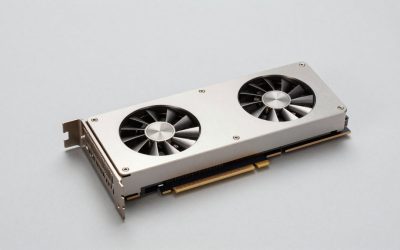
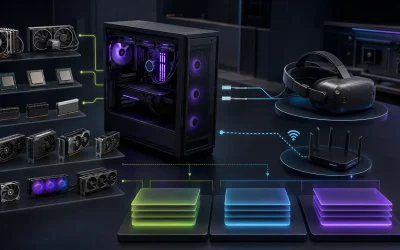
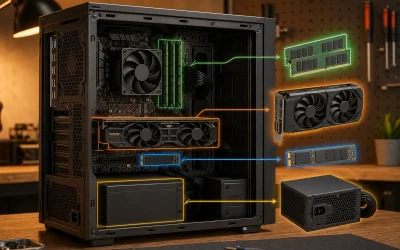
Spending more than your resolution target requires just means paying for fps headroom you can’t see on a monitor that can’t display it; spending less means turning settings down sooner than you’d like.
Our Top Picks
Pros & cons
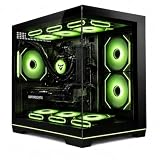
- Built-in 11.3 inch smart display shows live temps and usage
- 850W 80+ Gold PSU leaves headroom for upgrades
- Arrives fully assembled with Windows 11 Home installed
- Monitor must connect to the graphics card, not motherboard ports
- 360mm liquid cooler takes up significant case space

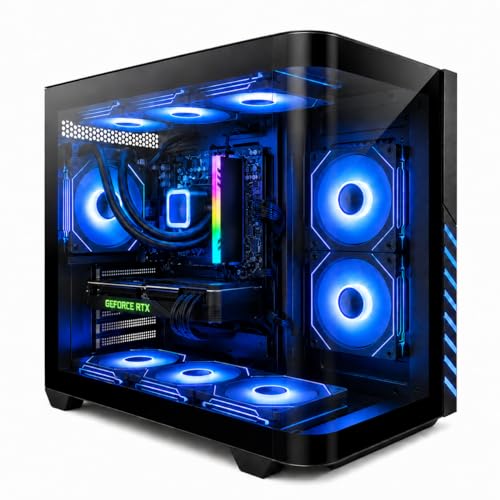
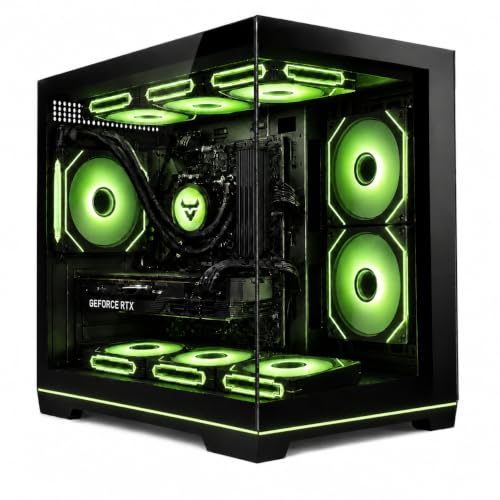

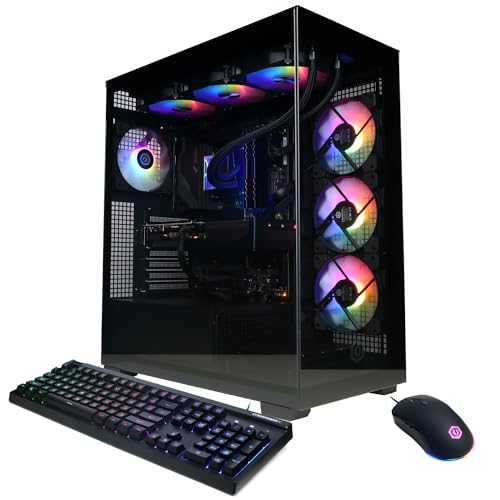
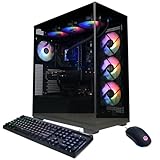
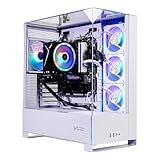
Top 3 picks at a glance
Set your budget from resolution and use case first
The monitor you already own, or plan to buy alongside the PC, should be the first input into the budget decision, not the last.
As an Amazon Associate we earn from qualifying purchases at no extra cost to you.




Budget tiers and what they get you
| Budget range | Target | Example GPU | Example CPU | RAM / Storage | Typical fps, high settings |
|---|---|---|---|---|---|
| Varies | 1080p / 144Hz esports | RTX 4060 | Ryzen 5 7500F | 16GB / 500GB NVMe | 140-220 fps in esports titles |
| Varies | 1080p high-refresh AAA | RTX 4070 | Core i5-14600KF | 16GB / 1TB NVMe | 90-120 fps AAA at 1080p |
| Varies | 1440p / 100Hz+ | RTX 4070 Ti Super | Ryzen 7 7700 | 32GB / 1TB NVMe | 75-100 fps AAA at 1440p |
| Varies | 1440p / 165Hz+ or entry 4K | RTX 4080 Super | Core i7-14700KF | 32GB / 2TB NVMe | 100-140 fps at 1440p, 55-70 at 4K |
| Varies | 4K / 120Hz+ | RTX 5080 or higher | Ryzen 7 7800X3D | 32GB / 2TB NVMe | 90-130 fps at 4K |
What you’re trading away at each lower tier
Moving down a tier doesn’t just lower fps proportionally — it changes what you have to turn off to hit a comfortable frame rate.
Understanding exactly which setting gets sacrificed at each tier makes it much easier to pick the right budget instead of just picking the highest number you can afford.
Where to spend extra dollars first if your budget grows
After RAM, storage capacity, since a second NVMe drive avoids the compromise of uninstalling games to make room for new ones every few months. CPU upgrades beyond the tier already matched to your GPU choice deliver the smallest return per dollar in a pure gaming build, since the GPU remains the limiting factor at 1440p and above regardless of how much faster the CPU gets past that matching point.
Where not to spend extra dollars
RGB lighting — however good it looks in our Best Rgb Gaming PC picks — a tempered glass side panel, and a premium case beyond basic mesh-front airflow don’t affect fps at all; they’re worth paying for only if aesthetics matter to you personally, not as a performance decision that improves your actual gameplay experience.
A PSU rated well beyond what your GPU and CPU combination actually needs also delivers diminishing returns past the 20-30% headroom point covered elsewhere in this guide.
Used and open-box GPUs — where the savings are real
Buying a one-tier-higher GPU used or open-box instead of a new card one tier lower is one of the more reliable ways to stretch a fixed budget, as long as the risk is priced in correctly. This tactic is most worth the extra diligence at the tier covered in Best High End Gaming PC, where the dollar gap between tiers is largest and the savings are most meaningful in absolute terms.
Open-box listings from major retailers typically carry a 90-day to 1-year warranty and sell for 10-20% below new pricing, which is close to risk-free since the return and warranty process matches a new purchase. Used GPUs sold peer-to-peer carry no warranty at all and typically sell for 25-40% below new pricing, which can move a build up an entire GPU tier for the same total budget, but only makes sense if you can verify the card’s condition and operating history first.
Budgeting for the parts that don’t affect fps
The PC price tag isn’t the full cost of gaming at a given resolution.
Set these aside from the PC budget itself so the resolution-target table above stays accurate, rather than discovering the true total cost only after checkout when a matching monitor and peripherals get added to the cart.
Common mistakes buyers make with budgeting
Buying a GPU tier above what the monitor can display spends money on fps headroom that never shows up on screen, which is one of the most common and most avoidable budgeting mistakes. Cutting RAM or storage to afford a slightly higher GPU tier often creates a bottleneck elsewhere that costs more of the GPU’s potential than the GPU upgrade gained in the first place.
Forgetting to budget for a monitor at all when the number being compared is PC-only leads to sticker shock at checkout once a matching display is added to the total. Assuming a higher price always means a better-balanced build is another trap — some prebuilts spend disproportionately on GPU and cut RAM, storage, or PSU quality to hit a headline price point. Setting a budget based on a friend’s build without accounting for a different resolution or refresh-rate target can lead to overspending or underspending by an entire tier from what you actually need.
The real total cost of ownership beyond the PC price tag
The number on a listing is the start of the budget conversation, not the end of it.
Electricity cost scales directly with system wattage and how many hours a day it runs under load. A mid-tier system averaging 400W while gaming, run for 4 hours a day at the U.S.
That number scales with tier.
Peripherals are the next line item buyers underbudget for.
The GPU or platform upgrade covered in depth elsewhere in our upgrade-timeline coverage is also worth amortizing into an annual figure rather than treating as a distant one-time cost.
None of these additional costs should scare a buyer away from a given tier — they’re manageable and mostly predictable once you know to plan for them.
Buyers upgrading from a much older, less efficient system sometimes see the opposite effect — a new GPU with better performance-per-watt can actually lower the electricity bill compared to an aging card working harder to hit the same frame rate, which is worth factoring in if the comparison point is an existing five-plus-year-old system rather than a fresh purchase.
True total budget: PC vs. peripherals by tier
Putting the PC price and the surrounding costs side by side by tier makes it easier to see where the real budget line sits for a given target, rather than anchoring only on the PC’s advertised price. The table below assumes a mid-range monitor matched to the tier’s resolution target, a basic mechanical keyboard and mouse combo, and the gaming-session electricity estimate from above at 4 hours a day.
| Budget tier | PC only | Monitor | Keyboard + mouse | First-year electricity | True first-year total |
|---|---|---|---|---|---|
| Varies | Check on Amazon | Varies | Varies | Varies | Varies |
| Varies | Check on Amazon | Varies | Varies | Varies | Varies |
| Varies | Check on Amazon | Varies | Varies | Varies | Varies |
| Varies | Check on Amazon | Varies | Varies | Varies | Varies |
| Varies | Check on Amazon | Varies | Varies | Varies | Varies |
That gap is worth planning for at the same time you’re choosing the PC tier, not after the PC purchase is already finalized and the remaining budget for a monitor turns out to be thinner than expected.
The most common mistake this table exposes is treating the PC-only column as the full budget and discovering the monitor and peripheral costs only at checkout, which frequently pushes buyers into a lower PC tier than they intended once the true total is added up, or into skipping a needed monitor upgrade entirely and pairing a strong GPU with an outdated display that can’t show what it’s capable of.
Working from the true total column backward is usually the more reliable way to budget: decide on an all-in number you’re comfortable spending, subtract a realistic monitor and peripheral estimate for your resolution target using the ranges above, and use what’s left as the actual PC budget rather than the other way around.
Frequently asked questions
How much should I spend on a gaming PC for 1080p gaming?
What’s a reasonable budget for 1440p gaming?
Yes for 1080p gaming, including high refresh rates in esports titles like Valorant and Counter-Strike 2, though AAA titles at ultra settings will need some setting adjustments to hit higher frame rates at that price point specifically. It’s a reasonable starting budget as long as expectations match the resolution tier.
How much should I budget for 4K gaming?
Should I include the monitor in my gaming PC budget?
Yes, set it aside as a separate line item.