Rendering punishes a graphics card differently than gaming does. A game cares about frame pacing at a fixed resolution; a render cares about whether the entire scene fits in video memory at all, and about how long the card can hold a heavy load. That is why the shopping question behind this keyword is rarely “which card is fastest” and more often “how much memory do I need before a scene stops loading.”
The cards below span three very different buying paths: gaming-class GeForce models that also advertise creator work, AMD’s workstation line with large memory pools, and NVIDIA’s Blackwell workstation cards with ECC memory. Each path suits a different artist, from a student learning Blender on a budget to a studio that cannot afford a failed overnight job. In 2026 the gap between these paths is mostly about memory capacity, driver support, and form factor, so those are the details to compare.
Our Top Picks
 ASUS Dual GeForce RTX 5060 Ti 16GB GDDR7RTX5060Ti|OC|16GB9 x 4.7 x 2 inches1.4 PoundsCheck on Amazon


Top 3 picks at a glance
Quick Picks
As an Amazon Associate we earn from qualifying purchases at no extra cost to you.


| Product | Best for | Key spec from the title |
|---|---|---|
| MSI GeForce RTX 5080 Ventus 3X OC | Hobbyists who also game | 16GB GDDR7, PCIe Gen 5 |
| AMD Radeon Pro W7800 | Mid-size scenes on a pro driver | 32GB GDDR6, 70 CUs, 260W TDP |
| AMD Radeon Pro W7900 | Large scenes with heavy textures | 48GB GDDR6, 96 CUs, 295W TDP |
| ASRock Radeon AI PRO R9700 Creator | Newer RDNA 4 workstation build | 32GB GDDR6, 2920 MHz boost clock |
| ASUS Dual GeForce RTX 5060 Ti 16GB | Entry-level rendering on a tight plan | 16GB GDDR7, PCIe 5.0, 2.5-slot |
| NVIDIA RTX PRO 4000 Blackwell | Compact workstation towers | 24GB GDDR7 ECC, single slot |
| NVIDIA RTX PRO 5000 Blackwell | Production work with big scenes | 48GB GDDR7 ECC, dual slot |
The 7 Best Options
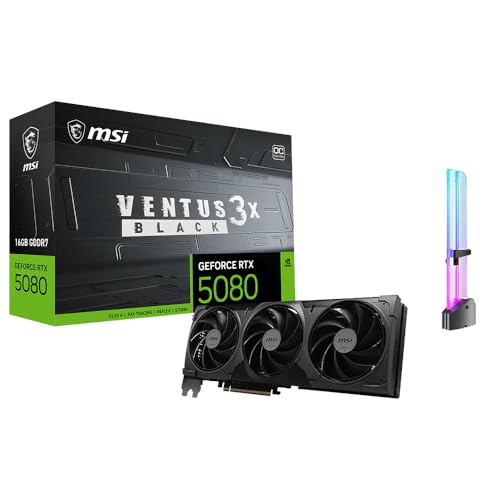
MSI GeForce RTX 5080 16G Ventus 3X OC
This is the gaming-class pick that still names 3D rendering and AI content creation in its title. The listing shows 16GB of GDDR7, a PCIe Gen 5 interface, 4K gaming support, streaming, and RGB lighting, which makes it a good fit for someone who splits time between play and projects. It suits a Blender hobbyist, a freelance motion designer, or a student who needs one machine for everything.
- 16GB of GDDR7 covers many small and mid-size scenes.
- PCIe Gen 5 matches current motherboards and keeps the upgrade path open.
- The same card handles 4K gaming, streaming, and AI creation tasks, according to the title.
- 16GB can run out on scenes with large texture sets or dense geometry.
- The title names no ECC memory or workstation driver branding.
The practical case for this card is simplicity. One purchase covers evening gaming, a streaming setup, and a Blender or Cinema 4D session the next morning, and the title is upfront about that mix. A freelancer with modest scenes can keep client files, game libraries, and capture software on one machine without paying workstation prices. The trade is that nothing on the listing promises the stability features that production shops look for.
Skip it if your scenes regularly push past the memory of a gaming card or if your studio standardizes on certified professional drivers. Against the AMD Radeon Pro W7800 that follows, the MSI offers a gaming-first design while the Radeon Pro doubles the memory on the listing.
AMD Radeon Pro W7800
The W7800 is a workstation card, and the title says so directly: professional graphics, AI, 3D rendering, and a 32GB GDDR6 memory pool. Other listed details include DisplayPort 2.1, AV1, 45 TFLOPS, 70 compute units, a 260W TDP, and 8K support. It fits an artist who wants a lot of memory without moving to the largest card in the family.
- 32GB of GDDR6 gives room for scenes that a 16GB card would struggle to hold.
- DisplayPort 2.1 and 8K support suit high-resolution viewports.
- A stated 260W TDP is manageable for many workstation power supplies.
- GDDR6 is the older memory type in this group, and the title shows no ECC.
- Software support differs by renderer, so check that your tools run well on AMD hardware.
The attraction of a workstation card at this size is headroom. With 32GB on the listing, an artist can load scenes with 8K textures, layered materials, and a few heavy simulation caches without constantly trimming assets. The pro branding also signals that the card is meant for sustained loads rather than short gaming sessions, and the large-format display support helps when you are sculpting on a high-resolution monitor.
Skip it if your renderer or plug-ins only perform well on NVIDIA hardware. Compared with the W7900 below, the W7800 saves power and money in exchange for 16GB less memory.
AMD Radeon Pro W7900
The W7900 is the top of the Radeon Pro group shown here. Its title lists 48GB of GDDR6, 61 TFLOPS, 96 compute units, a 295W TDP, AV1, 8K, and a single Mini DisplayPort output. A card with this much memory is aimed at artists whose scenes are limited by capacity, such as architectural visualization, large simulations, or texture-heavy character work.
- 48GB is the largest memory pool on the listing, tied with one NVIDIA card.
- The title states 61 TFLOPS and 96 compute units for the heavier load.
- Professional positioning means the card is aimed at production work.
- A 295W TDP calls for a capable power supply and good case airflow.
- Only one Mini DisplayPort output is listed, so multi-monitor setups may need adapters.
Teams that build architectural walkthroughs, product visuals with dozens of high-resolution material maps, or scenes made of millions of instanced objects are the natural audience. For them, the cost of optimizing every asset to squeeze under a smaller memory limit is real labor, and a large pool removes that chore. Because the title lists a single Mini DisplayPort, plan on adapters or a second graphics output if you drive several monitors from this card.
Skip it if your scenes fit comfortably in 16GB, because most of the value here is the memory. Against the ASRock R9700 that comes next, the W7900 has more memory while the ASRock is a newer architecture at a smaller pool.
ASRock Radeon AI PRO R9700 Creator 32GB
This is a newer entry from the AMD family, built on RDNA 4 according to the title. It lists 32GB of GDDR6, a 2920 MHz boost clock, AI accelerators, DisplayPort 2.1a, and PCIe 5. The Creator label signals a card aimed at artists and AI work rather than at gaming alone.
- 32GB matches the W7800 and doubles the gaming cards on the list.
- RDNA 4 and AI accelerators are named in the title.
- PCIe 5 and DisplayPort 2.1a keep it current with modern boards and monitors.
- The title does not list TDP or slot width, so check the full specs for your case.
- As with other AMD cards, confirm that your renderer supports the architecture well.
It makes the most sense for artists who want a roomy 32GB card from the newer AMD generation and are willing to confirm software support first. The AI accelerators named in the title also point toward creators who mix rendering with local AI image or video tools. As with any new architecture, give driver updates a few weeks of community feedback before assuming every plug-in behaves.
Skip it if you are tied to CUDA-only tools. Compared with the ASUS RTX 5060 Ti next, the R9700 doubles the memory pool and sits in a different price tier.
ASUS Dual GeForce RTX 5060 Ti 16GB
The entry point on this list is a compact, gaming-class card with a creator-friendly memory size. The title names 16GB of GDDR7, PCIe 5.0, HDMI 2.1b, DisplayPort 2.1b, a 2.5-slot cooler, Axial-tech fans, and 0dB technology. For a student, a hobbyist, or a first Blender build, that much memory is a sensible starting point.
- 16GB of GDDR7 is generous for the entry tier.
- The 2.5-slot cooler fits many standard cases.
- 0dB technology means the fans can stop at idle, a plus for quiet rooms.
- It is a gaming card first, so it has no ECC and no workstation certification.
- Heavy production scenes will likely outgrow 16GB.
This card is best understood as a learning and hobby tool that happens to have a generous memory pool. The 2.5-slot cooler leaves room for good airflow, and the fan-stop feature keeps a home office quiet while you are modeling rather than rendering. Because it is a mainstream gaming product, it is also the easiest card on the list to find drivers, guides, and community help for.
Skip it if your jobs run for hours and any failure would cost real money. It sits below the NVIDIA RTX PRO 4000 Blackwell next in capability, but it also sits far below it in expected cost.
NVIDIA RTX PRO 4000 Blackwell
This single-slot workstation card is aimed at small cases and multi-GPU layouts. The title lists 24GB of GDDR7 with ECC, PCIe 5.0 x16, four DisplayPort 2.1b outputs, and a single-slot, full-height design for AI workstations. ECC memory is the key difference from the gaming models: it corrects certain memory errors during long jobs.
- 24GB of ECC GDDR7 adds reliability for long renders.
- A single-slot body leaves room for other cards or a crowded case.
- Four DisplayPort 2.1b outputs support multi-monitor desks.
- 24GB is smaller than the 32GB and 48GB options elsewhere on the list.
- Workstation cards usually carry a premium over gaming cards of similar speed.
A single-slot body is unusual at this performance tier, and it changes what you can build. Compact workstations, small-form-factor towers, and layouts with two cards in adjacent slots all become practical. The four display outputs also suit artists who keep a reference monitor, a timeline, and a viewport open at once.
Skip it if you need the largest memory pool or if your budget is tight. Compared with the RTX PRO 5000 Blackwell that follows, the 4000 is the slimmer and more modest option.
NVIDIA RTX PRO 5000 Blackwell
The RTX PRO 5000 is the heavyweight of the group. Its title lists 48GB of GDDR7 ECC memory, PCIe 5.0 x16, four DisplayPort 2.1b outputs, and a dual-slot, full-height design. This is the kind of card studios buy when scenes are large, deadlines are real, and a crash on hour ten of a render is not acceptable.
- 48GB of ECC GDDR7 handles very large scenes and reduces memory-related risk.
- Four DisplayPort 2.1b outputs cover large multi-monitor workspaces.
- Workstation positioning suits certified software and production pipelines.
- It is the top tier on the list, so expect the highest cost.
- A dual-slot body takes more room than the single-slot PRO 4000.
Think of it as insurance for expensive hours. Long animation renders, simulations that cache gigabytes of data, and client scenes that arrive already built at full size are all cases where more memory and error correction pay off. The dual-slot, full-height body is standard for tower workstations, so most professional cases already have room for it.
Skip it if your scenes fit in a smaller pool, since most of what you pay for is capacity and reliability. It tops the list and is the natural counterpart to the MSI gaming card at the start.
Who Needs a Dedicated Rendering GPU
Not every artist needs a workstation card, and not every gamer should buy one. This section explains where each type belongs.
Hobbyists and students
If you are learning Blender, building a portfolio, or doing occasional client work, a gaming card with 16GB is enough for many projects. You get gaming performance for free and enough memory for modest scenes. The ASUS and MSI cards on the list suit this group.
Freelancers and small studios
Once rendering is how you earn money, memory capacity and stability begin to matter. A 32GB or 48GB card lets you open bigger scenes without optimizing every texture. The AMD Radeon Pro cards and the ASRock Creator fit here, provided your software supports them well.
Production and professional pipelines
For jobs that run for hours, ECC memory, certified drivers, and four-output display support are practical benefits, not marketing. The NVIDIA RTX PRO Blackwell cards are built for this, and the single-slot 4000 also suits a multi-GPU tower.
A final group worth naming is the AI-curious artist. Several titles mention AI workstation use or AI content creation, which means local image generation and upscaling can share the same card that renders your scenes. Larger memory pools help there too, since model weights and scene data compete for the same space.
How to Choose a Rendering Graphics Card
Video memory first
Memory capacity decides whether a scene renders at all. As a rough guide, 16GB covers many hobby scenes, 24GB to 32GB handles larger projects with high-resolution textures, and 48GB is for the largest scenes. If a scene does not fit, many renderers fall back to the CPU or fail, which can turn a quick job into a slow one.
Work backward from your largest file. Open the heaviest scene you expect to touch this year, note how much video memory it uses during a render, and add 25 percent for growth. That number, not the card’s speed, is your target capacity.
Memory type and ECC
GDDR7 offers more bandwidth than GDDR6, and ECC adds error correction on workstation cards. ECC matters most on long jobs, simulations, and anything where one bad bit can ruin hours of work. If your renders are short and easily repeated, you can skip it.
Bandwidth also matters for texture-heavy scenes, which is why the newer GDDR7 cards on this list are attractive even at 16GB. Still, a larger pool of slightly older memory beats a smaller pool of faster memory when the scene would otherwise not fit.
Renderer and software support
Check which renderers you use. Some engines lean heavily on NVIDIA features, while others perform well on AMD. Read the software vendor’s supported-hardware list, and look at community reports for your exact workflow before committing to a card.
Also consider viewport behavior. Some applications use specific driver features for modeling and display, and a card that renders quickly can still feel sluggish if the viewport path is poorly supported. A short trial of your own workflow, using a return window if the seller offers one, is the best check available.
Power and cooling
The listed TDP figures, such as 260W and 295W, tell you what your power supply and case must handle. Add headroom: pick a power supply with a comfortable margin above the combined load of your CPU and GPU. Cases with poor airflow can cause throttling in the middle of a long render, which costs time.
Sustained loads create steady heat, unlike short game sessions, so allow for it. A case with unobstructed front-to-back airflow and a power supply with at least 100 to 150W of headroom above your measured load keeps clocks stable on long jobs.
Slot width, ports, and form factor
A single-slot card fits tight cases and multi-GPU layouts, while a 2.5-slot cooler needs more room. Count the display outputs you need: one Mini DisplayPort will limit a multi-monitor desk, while four DisplayPort 2.1b outputs will not. Measure the clearance in your case before you buy.
Also consider the physical mounting: heavy cards sag in long cases, so use a support bracket if one is included, and make sure the power cable bends gently and does not strain the connector.
What to ignore, and where cheaper models cut corners
Ignore the gaming-resolution marketing if you never play, and ignore clock speeds in isolation. Cheaper cards cut corners on memory capacity, ECC, driver certification, and the number of display outputs. Be wary of vague listings, too. Some marketplace products use a rendering label with little detail about the chip, memory, or cooling. If a title does not name the exact GPU and memory size, treat it as unverified and look elsewhere. Do not buy by TFLOPS alone, because memory and software support often decide the real result.
Gaming-Class vs Workstation Cards for 3D Work
Buyers of this keyword usually face one question: pay for a gaming card or step up to a workstation card. The table compares the two paths.
| Factor | Gaming-class card | Workstation card |
|---|---|---|
| Memory on this list | 16GB GDDR7 | 24GB to 48GB |
| ECC memory | Not listed | Listed on NVIDIA PRO models |
| Driver focus | Games and creators | Professional software |
| Display outputs | HDMI and DisplayPort | Four DisplayPort on NVIDIA PRO |
| Best for | Mixed play and projects | Production and large scenes |
The table simplifies things, but the decision is really about what a failure costs you. A hobbyist who loses a render can start it again over lunch. A studio that loses a night of farm time may miss a delivery.
When a gaming card is enough
If your scenes fit in 16GB, you can tolerate an occasional re-render, and you also play games, a gaming card is the efficient choice. You get the most speed per spend, and the MSI and ASUS cards cover that need.
Gaming cards also tend to be easier to resell and easier to troubleshoot, because far more people use them. That matters if your needs may change within a year or two.
When to step up to a workstation card
Choose a workstation card when the scene size, job length, or client deadlines make failures expensive. More memory, ECC, and professional drivers are the practical reasons, not the label on the box.
There is a middle route for tight budgets: start with a 16GB gaming card, track how often scenes hit the limit, and move to a workstation card only when the limit becomes a daily problem. That approach turns a guess into a decision based on your own files.
Setup, Compatibility and Upgrade Tips
What to check before buying
Check the case for length, slot width, and clearance, then check the power supply for wattage and the right power connectors. A card with a high TDP may need more than one power cable, so verify what your supply provides. Confirm that the motherboard has a free PCIe x16 slot, ideally the one wired to the CPU.
Also check that the display cables you own match the card. Cards with DisplayPort 2.1b outputs work with older DisplayPort cables, but you may need adapters for HDMI-only monitors or for a single Mini DisplayPort output.
What to upgrade first
If your renders are slow, memory is the first thing to examine. Watch video memory use during a scene, and if it reaches the limit, a card with more memory will help more than a faster one. System RAM and fast storage matter too, since large scenes load from disk and sit in memory before they reach the card.
Keep an eye on thermals during the first long render. Open a monitoring tool, watch the GPU temperature and clock speed for ten minutes, and adjust fan curves or case airflow if clocks fall.
Common compatibility traps
Adapter cables for new power connectors can be a problem if they are not fully seated. Install the latest drivers for your exact card, and use the studio or workstation driver branch when your software calls for it. Do not forget that a very large card can block adjacent slots, so plan where your other add-in cards will go.
Which One Fits Your Situation
You are learning Blender on a budget
Pick the ASUS Dual GeForce RTX 5060 Ti 16GB. It gives you a roomy 16GB of GDDR7 in a card that fits most cases and idles quietly. Learn on small scenes, watch your memory use, and upgrade when the work demands it.
You game and render on the same PC
Choose the MSI GeForce RTX 5080 16G Ventus 3X OC. Its title ties together 4K gaming, streaming, and 3D rendering, which is the profile of a hybrid machine. You get a single card for weekday projects and weekend play.
Your scenes are huge and textures are heavy
Big memory is the whole story for this reader, and two cards on the list put 48GB on the table.
The AMD Radeon Pro W7900 is the card to look at. Its 48GB of GDDR6 is the main benefit, as long as your software runs well on AMD.
You run a compact tower with long renders
Small cases punish thick coolers and hot cards, so a slim workstation design earns its keep here.
The NVIDIA RTX PRO 4000 Blackwell fits well here. It is a single-slot card with 24GB of ECC GDDR7, which suits a small case and unattended jobs. Pair it with a power supply that meets the card’s connector needs and leave airflow room around it.
Common Mistakes
- Buying for gaming speed when the scene size is what limits rendering, so the card is quick on small files and stalls on the one that matters.
- Ignoring renderer support and ending up with a card that runs slowly in your software.
- Underestimating power needs for cards with a TDP near 300W.
- Choosing a thick card without measuring slot clearance in the case.
- Skipping ECC on a card that will run overnight jobs, then losing a night of work to a memory error nobody noticed.
- Pairing a strong card with too little system RAM or a slow drive, which leaves large scenes stuck loading before the GPU even starts working.
Related guides
- How To Check Gpu Compatibility With Your Motherboard And Cpu
- High-Performance Gaming Desktop Specifications
- Desktop Computer For Working From Home
Frequently Asked Questions
How much VRAM do I need for 3D rendering?
For small and mid-size scenes, 16GB is a workable floor, and plenty of student and hobby work lives comfortably inside it. For large scenes with heavy textures, aim for 24GB to 48GB. If a scene does not fit, many renderers slow down sharply or fail.
Is a gaming card good enough for Blender?
Yes for many projects, especially while you are learning and your scenes stay modest. Gaming cards with 16GB handle a lot of hobby and freelance work, though they lack ECC and professional driver focus.
What does ECC memory do?
ECC detects and corrects certain memory errors. It matters for long renders and simulations where a single error could ruin hours of work.
Do AMD workstation cards work for rendering?
They can, and the large memory pools are attractive. Check that your renderer and plug-ins support AMD well before buying.
Can I use two cards?
Some renderers can use multiple GPUs. A single-slot card such as the RTX PRO 4000 Blackwell makes this easier, but you need enough slots, power, and cooling.
Why is my render slow even with a fast card?
The scene may not fit in video memory, or the system may lack RAM or fast storage. Check memory use first, then your cooling and drivers.
Final Words
The right rendering card depends on your scenes more than on your budget alone. The ASUS RTX 5060 Ti 16GB and MSI RTX 5080 serve learners and hybrid users, the Radeon Pro and ASRock cards add large memory pools for freelancers, and the NVIDIA RTX PRO Blackwell cards bring ECC memory for production work. Measure your scene sizes, confirm software support, and choose the smallest card that keeps your largest projects inside video memory. If you are unsure, start with a 16GB card and let your own files show you when to move up. Cards with large memory pools reward artists who actually hit the limit, so match the purchase to your real workload.