The best gaming router for most players is a Wi-Fi 7 model with 2.5GbE ports, configurable QoS, and enough coverage for the rooms you actually use—not necessarily the one with the biggest advertised speed. If your gaming PC or console is near the router, connect it by Ethernet: that usually does more for consistency than upgrading from one high-end Wi-Fi standard to another.
As an Amazon Associate we earn from qualifying purchases at no extra cost to you.


Our Top Picks
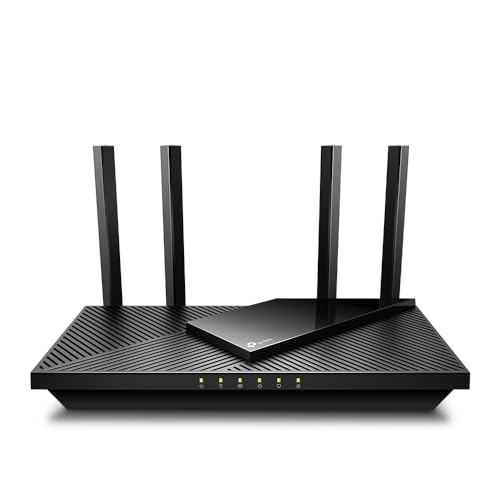
 TP-Link AXE5400 Tri-Band WiFi 6E RouterWiFi 6E, Tri-Band AXE540012.91 x 10.43 x 4.72 inches1.5 PoundsCheck on Amazon
 ASUS ROG Rapture GT-BE98 Pro WiFi 7 GamingQuad-Band13.7 x 8.6 x 13.7 inches4.4 poundsCheck on Amazon

Top 3 picks at a glance
What matters for gaming latency
A router cannot fix every source of lag. Game-server distance, your internet connection, congestion in your neighborhood, and local Wi-Fi interference all contribute. A router’s main job is to keep its own added delay low and prevent other household traffic from causing spikes.
- Use Ethernet where practical. A wired link avoids radio interference and usually produces steadier ping and fewer retransmissions.
- Look for useful QoS, not gaming branding. QoS can prioritize a game device or control upload and download queues. It cannot make a distant server closer or create bandwidth your connection does not have.
- Match coverage to the floor plan. Walls, floors, building materials, and router placement matter more than a manufacturer’s idealized coverage figure.
- Check port speeds. Gigabit Ethernet is sufficient for many internet plans, but faster WAN or LAN ports can matter for multi-gig service, local file transfers, and a wired backbone to an access point.
Gaming router comparison by setup
The models below are established router lines with different strengths. Exact features and port layouts can vary by hardware revision and region, so confirm the specification for the version sold where you live.
| Router | Best fit | Wired networking | Latency and QoS angle | Typical market position |
|---|---|---|---|---|
| ASUS RT-BE96U | Large, busy homes wanting high-end Wi-Fi 7 | Includes multi-gig WAN/LAN connectivity; check the exact port layout before buying | ASUS gaming prioritization and adaptive QoS options; useful when configured around your actual connection | Premium; commonly around $500–$700 |
| TP-Link Archer BE800 | Multi-gig internet and several wired devices | Multi-gig WAN/LAN options, including 10GbE on the model | QoS and device prioritization are available; less specialized than a dedicated gaming interface | Upper tier; commonly around $400–$600 |
| ASUS RT-AX86U Pro | One gaming room and a strong Wi-Fi 6 value pick | Gigabit LAN plus a 2.5GbE port | Gaming prioritization and adaptive QoS make it easier to manage competing household traffic | Midrange; commonly around $180–$300 |
| TP-Link Deco BE63 | Homes where coverage across several rooms matters more than a single-router setup | 2.5GbE ports on each unit; port count and role depend on the node | Mesh management can improve reach, but wireless backhaul can add variability compared with Ethernet | Multi-unit system; commonly around $300–$500, depending on pack size |
These prices are broad market ranges, not live quotes. A sale, region, and mesh pack size can shift them. For a small apartment with a wired gaming device, the RT-AX86U Pro may deliver better value than paying for top-tier Wi-Fi 7 bandwidth you will not use. For a large home, a well-placed mesh system—or a wired access point—may outperform one expensive router at the far end of the house.
Choose by room size and connection type
| Your setup | Practical choice | What to prioritize |
|---|---|---|
| Small apartment; PC or console near router | Midrange Wi-Fi 6 or Wi-Fi 7 router | Ethernet, stable QoS, and a good price; extra radios are unlikely to improve a wired game session |
| Medium home; gaming room one or two walls away | Strong single router or a router plus wired access point | Router placement, 5GHz or 6GHz signal quality, and a 2.5GbE uplink if your plan or home network needs it |
| Large or multi-floor home; gaming room at the edge | Mesh with Ethernet backhaul, or multiple wired access points | Coverage and backhaul first; a mesh node connected wirelessly may help reach but cannot guarantee the same latency as a cable |
| Multi-gig internet or a home server/NAS | Router with matching multi-gig WAN and LAN ports | Confirm the full path: router port, switch, cabling, and PC network adapter must all support the target speed |
Room size is only a rough guide. A compact home with brick walls can be harder to cover than a larger open-plan space. If the signal is weak in the gaming room, test a wired access point or Ethernet backhaul before replacing a router with a more expensive model of the same placement and layout.
QoS settings that can reduce lag spikes
QoS is most useful when another device is saturating the connection—especially the upload, where cloud backups, video calls, and file sharing can fill a queue. Start with these settings, then adjust based on whether latency spikes persist:
- Update the router firmware and give the gaming PC or console a reserved local IP address. This makes device-specific rules easier to keep consistent.
- Enable adaptive QoS or device prioritization and set the console or PC to high priority. Avoid marking every device as high priority, which defeats the purpose.
- Enter realistic bandwidth limits. Run a few speed tests over Ethernet at different times. If your router asks for manual limits, start around 90–95% of the lowest repeatable download and upload results, then test during a busy household period.
- Compare latency under load. Check ping while someone streams or uploads a file. If the router’s QoS mode improves loaded latency but caps throughput too aggressively, raise the limits slightly and retest.
- Keep the gaming device on Ethernet if possible. If using Wi-Fi, try 5GHz or 6GHz near the router, but use 2.4GHz when distance or walls make the higher bands unreliable.
For example, if repeatable speeds are 500 Mbps down and 20 Mbps up, a starting QoS limit near 475 Mbps down and 19 Mbps up leaves a small buffer for the router to manage queues. The upload figure is especially important on a plan with limited upstream capacity. This is a starting point, not a universal ideal; test the result rather than assuming a specific percentage suits every connection.
When a premium router is worth it
Spend more when the router solves a specific constraint: weak coverage across a large home, several multi-gig wired devices, a multi-gig internet plan, or household congestion that useful QoS can manage. Wi-Fi 7 can also make sense for newer compatible devices and a network with high local throughput needs, but it does not automatically lower ping to an online game server.
For a single PC or console connected by Ethernet on an ordinary broadband plan, a reliable midrange router is often enough. Put the remaining budget toward a wired run, a suitable access point, or a faster internet plan if your current connection—not your local network—is the bottleneck.
Frequently asked questions
Should I replace my router if my ping is high?
Not necessarily. High ping can come from game-server distance, your internet connection, neighborhood congestion, or local Wi-Fi interference, none of which a router can fully fix. A router mainly helps keep its own added delay low and prevents household traffic from causing spikes. Try Ethernet and sensible QoS first, then determine whether the connection itself is the bottleneck.
Is Wi-Fi 7 automatically better for online gaming?
No. Wi-Fi 7 can make sense for newer compatible devices and networks with high local-throughput needs, but it does not automatically lower ping to an online game server. For a gaming PC or console near the router, Ethernet usually improves consistency more than moving between high-end Wi-Fi standards. A reliable midrange router may be sufficient on an ordinary broadband plan.
Does mesh Wi-Fi provide the same latency as Ethernet?
No. A mesh system can improve reach across several rooms, but wireless backhaul can add variability compared with Ethernet. For a large or multi-floor home, mesh with Ethernet backhaul or multiple wired access points is preferable when possible. A mesh node connected wirelessly may extend coverage, but it cannot guarantee the same latency as a cable.
What internet speed should I enter for QoS?
Use realistic limits based on repeatable speed tests over Ethernet at different times. If manual limits are required, start around 90–95% of the lowest repeatable download and upload results, then test during household activity. For example, 500 Mbps down and 20 Mbps up suggests starting near 475 Mbps down and 19 Mbps up. Adjust after comparing latency under load.
Does a faster Ethernet port improve game ping?
Not by itself. Gigabit Ethernet is sufficient for many internet plans, while faster WAN or LAN ports mainly matter for multi-gig service, local file transfers, or a wired backbone to an access point. For gaming, the consistency of a wired connection and effective QoS are more important than headline port speed unless your internet or home network needs additional capacity.
Bottom line
Choose the ASUS RT-AX86U Pro for a capable, more affordable gaming setup centered on one room. Consider the ASUS RT-BE96U or TP-Link Archer BE800 when you need premium Wi-Fi and multi-gig networking. Pick a TP-Link Deco BE63-style mesh system when coverage across multiple rooms is the real problem, ideally with Ethernet backhaul. For the lowest and most consistent gaming latency, prioritize a wired connection and sensible QoS before paying extra for headline wireless speeds.