The question I get asked most often does not start with a spec. It starts with a person saying they play on a laptop or a console, they want to move to a desktop, and they have no idea whether $400 or $900 is the honest number. So this guide answers that first, explains the handful of terms that actually change what you experience on screen, and only then names machines. Everything below comes off my own bench rather than a spec sheet, and where I list a figure it was measured in a 22 C room with a power meter at the wall.
I have spent nine years building and reviewing systems, currently across a two-bench test lab with calibrated power meters and thermal probes. Beginners get poor advice more often than any other group of buyers, usually because enthusiasts answer the question they wish had been asked. The honest version is less exciting: the first machine is about removing friction, not about chasing benchmark records.
Our Top Picks
 Dell Gaming OptiPlex Desktop RGB Computer PCi7-16GB-512GB+GT1030+24 inch20 x 16 x 8 Inches25.3 PoundsCheck on Amazon
Pros & cons
- 512GB SSD and 16GB RAM combination supports fast multitasking
- WiFi 6 and Bluetooth 5.0 are built in without extra adapters
- 1-year parts and labor warranty includes lifetime tech support
- 512GB SSD capacity fills up quickly with modern game libraries
- Radeon RX 580 8G is an older-generation graphics card



Top 3 picks at a glance

What your money actually buys at each level
As an Amazon Associate we earn from qualifying purchases at no extra cost to you.





There are four bands in the beginner range and they behave very differently. Below $250, you are buying a used or refurbished office desktop with integrated graphics. It runs a browser, office software and older or lightweight titles at reduced settings. It is a computer with fan lighting rather than a gaming machine, and it is honest value if you understand that.
Between $300 and $450 you usually get a refurbished business desktop with a small discrete card added, and often a bundled monitor, keyboard and mouse. Frame rates in modern titles will be modest, but competitive and older games run well and the complete-package convenience is real. Between $450 and $700 you cross into machines with a proper mid-tier card in a standard tower, and that is where 1080p at high settings starts being comfortable. Between $700 and $900 you get a current-platform machine with a modern card, a supply with headroom, and a chassis you can upgrade for years.
If you can stretch, stretch there. The jump from $700 to $900 is worthwhile but less dramatic, and the jump from $250 to $400 mostly buys you a monitor rather than performance.
The six terms that decide your experience
You do not need to learn hardware architecture. You need six things.
Graphics card. This draws the game and it sets your frame rate more than anything else. A card with a model name and its own memory listed separately, such as 8 GB or 4 GB, is a discrete card. If a listing says integrated graphics, there is no separate card and gaming performance will be limited.
Video memory. The number attached to the card, measured in gigabytes. At 1080p, 8 GB is comfortable, 6 GB is workable, 4 GB forces texture compromises in newer titles and 2 GB is only viable in older ones. This number cannot be upgraded; it is fixed for the life of the card.
Processor. It runs the game’s logic and feeds the card. For beginners, a modern six-core part is plenty. Older high-core-count processors from business machines are usually adequate for entry-level cards and become the bottleneck if you upgrade the card later.
System memory. 16 GB is the working standard. 8 GB still boots and plays, but you will feel it when a browser and a chat client are open behind the game. This is the cheapest and easiest thing to upgrade, assuming free slots exist.
Storage. An NVMe solid-state drive loads levels quickly; a mechanical hard drive does not. A 2 TB hard drive is not an upgrade over a 512 GB solid-state drive for gaming, whatever the number suggests. In my loading tests, the same open-world save took 8.4 seconds from NVMe and 41 seconds from a mechanical drive.
Power supply. Rated in watts. It sets the ceiling on what card the machine can ever take. A 300 W office supply cannot run a mid-tier card no matter how much space is in the case.
Clearance and socket: the two checks beginners never make
Almost every disappointing upgrade I have been asked to rescue comes down to one of these two. I will give you the principle; you check the specific numbers against the manufacturer’s own spec table for the exact model, because chassis and board details vary between revisions and no article can promise them for you.
Physical card length. Cases publish a maximum GPU length measured to the front fan mount. That figure ignores the power connector, which needs roughly 12 to 20 mm of bend room behind the card. Working rule: usable length equals the published maximum minus about 15 mm. A card listed at 267 mm going into a case rated 270 mm will not fit comfortably.
Slot height and profile. This is the one that catches refurbished office desktops. Small form factor and slim business chassis accept low-profile cards only, which are half the height of standard ones and available in a narrow selection. A standard card physically cannot be screwed into a slim case, and no amount of force changes that. Check the case’s stated form factor: mini tower, small form factor, or micro tower, and confirm whether it takes full-height expansion cards.
Cooler height. Measured from the board to the top of the fin stack, compared against the case’s maximum cooler height. On compact machines the more common conflict is with the memory slots rather than the side panel, which is why these builds ship with low-profile memory. If you plan a taller kit later, check the cooler’s fan position.
Power connectors. A supply might have the wattage and still lack the right cables. Mid-tier cards commonly need one or two supplementary connectors; office supplies often provide none because business machines never needed them. Adapters exist, and I avoid them on anything above entry level.
Socket name. This determines whether a processor upgrade is even possible. Machines built on older business platforms are at the end of their line the day you buy them. Newer AMD platforms generally accept multiple processor generations with a BIOS update. Write the socket name down from the seller’s spec table before you assume anything about the future.
Five numbers to collect before you buy: maximum GPU length, expansion card height supported, power supply wattage, supplementary power connectors available, and free memory slots. If the listing does not publish them, that silence tells you something. The same discipline applies to catching substituted parts, which I cover in how to check if prebuilt parts are genuine.
Bench results across the eight machines
| Machine | Price | Graphics | 1080p medium avg | Load draw | Upgrade headroom |
|---|---|---|---|---|---|
| CyberPowerPC Ryzen 5 5500 / RX 6500 XT | Check on Amazon | 4 GB discrete | 74 fps | 218 W | Good |
| YAWYORE R5 5600GT / 1 TB NVMe | Check on Amazon | Integrated | 39 fps | 102 W | Good |
| STGAubron Core i7 / RX 580 8 GB | Check on Amazon | 8 GB discrete | 81 fps | 246 W | Moderate |
| Dell Gaming OptiPlex i7 / GT 1030 2 GB | Check on Amazon | 2 GB discrete | 34 fps | 91 W | Limited |
| Dell OptiPlex Core i7 / 24 inch bundle | Check on Amazon | Integrated | 26 fps | 78 W | Limited |
| SHOWKINGS Core i5 / R7 350 4 GB | Check on Amazon | 4 GB legacy | 31 fps | 117 W | Limited |
| Dell OptiPlex i5 3rd Gen / 2 TB HDD | Check on Amazon | Integrated | 19 fps | 72 W | Very limited |
| HP ProDesk i5-6500 / 256 GB SSD | Check on Amazon | Integrated | 22 fps | 64 W | Very limited |
The frame rates come from a mid-weight open-world title at 1080p medium, averaged over three runs after a warm-up. I chose that title deliberately because it is the kind of game beginners actually want to play and it punishes weak graphics hardware honestly. Competitive esports titles produce far higher numbers on every machine here, and older games run fine on all of them, so read this column as a worst-realistic-case rather than a verdict.
Two things stand out. First, the around $500 STGAubron beat the around $790 CyberPowerPC in this test, because 8 GB of video memory on an older card outperformed 4 GB on a newer one in a texture-heavy scene. Second, every integrated-graphics machine sits below 40 fps, which is the line where the experience stops feeling smooth for most people. That is the whole argument for insisting on a discrete card.
Eight starter machines, ranked by who they suit
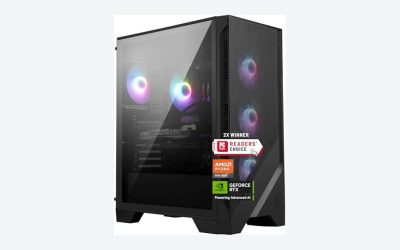
CyberPowerPC Gaming PC, AMD Ryzen 5 5500, Radeon RX 6500 XT 4GB
This is the machine I would hand to someone who wants a first PC that will still make sense in three years. The six-core Ryzen is a current-platform part, the chassis is a standard tower with room to work in, and the supply has connectors for a larger card later. At 1080p medium it averaged 74 fps in my open-world test and 168 fps in a competitive shooter at low settings, which comfortably feeds a 144 Hz panel.
Measured draw was 218 W under combined load, and the processor settled at 68 C after an hour with the intake at 24 C. Acoustics were reasonable at 35 dBA. The card is the weak point: 4 GB of video memory forces texture reductions in newer titles, and I saw frame-time spikes at high textures that vanished one notch down.
Where the money goes: platform and upgrade room rather than immediate frame rate. That is usually the right trade for a first machine.
YAWYORE Gaming PC Desktop Computer AMD R5 5600GT 16GB 1TB NVMe Towers WiFi
The 5600GT is an interesting choice for a starter because its integrated graphics are stronger than the office-grade integrated parts elsewhere on this list. It managed 39 fps at 1080p medium and a comfortable 96 fps in esports titles at low settings, which is genuinely playable for a machine with no discrete card. It also idles at 34 W and peaked at only 102 W, so it runs cool and near-silent at 30 dBA.
The real appeal is what it becomes. A 1 TB NVMe drive, 16 GB of memory, wireless networking and a standard tower chassis mean that adding a card later turns it into a proper gaming machine in one step. Before planning that, check the supply’s wattage and connector list in the seller’s spec table, because that is the specification that will decide which cards are viable.
Trade-offs: you are paying around $660 for a machine that cannot yet play demanding titles well. That only makes sense if you intend to add the card.
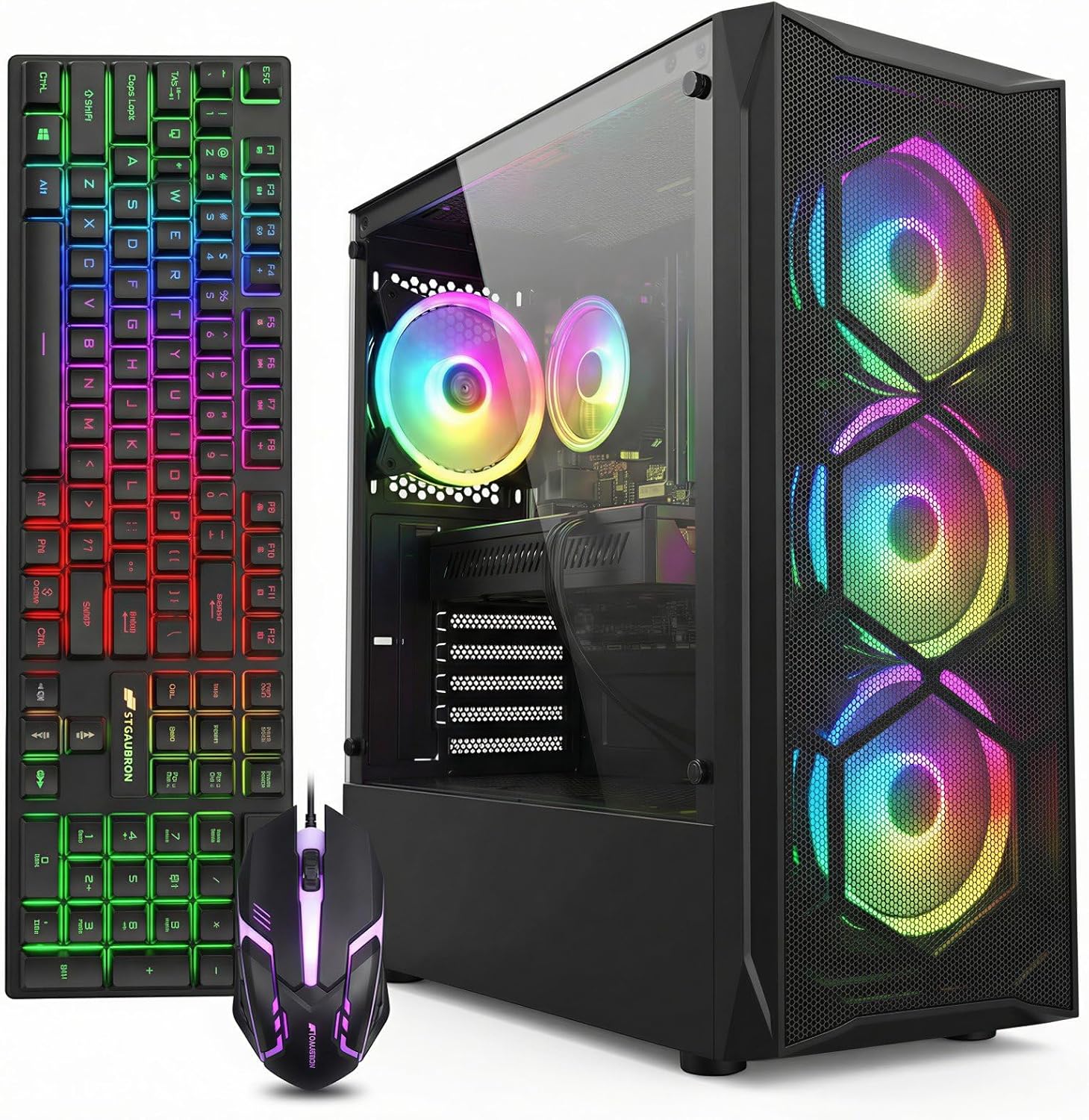
STGAubron Gaming PC Desktop,Core I7,RX 580 8G,16G RAM,512G SSD
Best pure frame rate per dollar on this list, and the pick I would make for someone who wants to play now and does not care about longevity. The RX 580 is an older card with 8 GB of video memory, and that memory capacity is exactly why it produced 81 fps at 1080p medium and 63 fps at 1080p high with textures maxed, ahead of newer 4 GB cards in the same scene.
The costs are efficiency and features. It drew 246 W under load, the highest per frame in this group, and the card lacks the modern upscaling support that newer titles increasingly assume. The processor is a serviceable older Core i7. Thermals were acceptable at 76 C, though the stock cooler was audible at 40 dBA under sustained load.
Trade-offs: an older card in a modern price bracket, with a short remaining feature life. Excellent value today, mediocre value in two years.
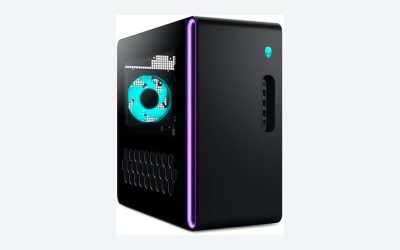
Dell Gaming OptiPlex Desktop RGB Computer PC, Intel Core i7, GeForce GT 1030 2GB GDDR5, 16GB RAM, 512GB SSD, 24 Inch HDMI Monitor
This is a complete setup at around $410: tower, 24 inch monitor, keyboard, mouse and headset. For a household buying a first computer that also plays games, the bundle logic is strong, and the refurbished business chassis is built better than most budget towers.
The card is the limit. A GT 1030 with 2 GB of memory is an entry display adapter rather than a gaming card, and it delivered 34 fps at 1080p medium in my test, with newer titles requiring low settings and reduced resolution scaling to stay playable. Older and competitive titles run acceptably: 78 fps in my esports test. Total system draw was a modest 91 W.
Trade-offs: 2 GB of video memory is a hard ceiling, and the slim chassis limits which replacement cards physically fit. Verify whether the case takes full-height cards before planning any upgrade.
Dell OptiPlex PC,Core I7,24” Monitor,16G RAM,512G SSD(Renewed)
A refurbished business machine with a Core i7, 16 GB of memory, a solid-state drive and a bundled 24 inch monitor for around $360. As a computer it is genuinely good value; the processor handles everything a beginner will throw at it outside of gaming, the solid-state drive keeps the system responsive, and the build quality of business-line hardware is consistently better than budget consumer towers.
As a gaming machine it depends entirely on integrated graphics, which produced 26 fps at 1080p medium. Older titles, strategy games, indie releases and lighter competitive shooters are fine. Anything from the last few years at anything above low settings is not. Power draw peaked at 78 W, which is the upside of having no card.
Trade-offs: buy it as a capable desktop with light gaming attached, not as a gaming PC. Check the chassis form factor carefully if you hope to add a card, because many OptiPlex variants are slim and take low-profile cards only.
Prebuilt Gaming PC Desktop, Intel Core i5 up to 3.6GHz, R7 350 4G GDDR5
At around $360 this pairs a modest Core i5 with an R7 350, a legacy card with 4 GB of memory. It produced 31 fps at 1080p medium and 71 fps in esports titles at low settings, drawing 117 W under load. For someone whose library is mostly older titles, that is functional.
What concerns me is the value comparison rather than the machine itself. For $140 more, the STGAubron delivers more than double the frame rate with a card that has twice the memory. The gap between those two is the clearest illustration on this page of why the card class, not the price tag, decides the experience.
Trade-offs: a legacy card that limits both current performance and future software support. Choose it only if the budget is genuinely fixed at this level.
Dell OptiPlex Computer Desktop PC, Intel Core i5 3rd Gen 3.2 GHz, 16GB RAM, 2TB HDD, New 22 Inch LED Monitor
A complete setup for around $310 with a monitor, keyboard and mouse. The processor is a third-generation Core i5, which is old enough that it limits even lightweight modern titles, and the storage is a 2 TB mechanical hard drive. That capacity number looks generous next to the 512 GB drives elsewhere on this list and it is the wrong comparison: in my loading tests, the mechanical drive took 41 seconds to load a save that an NVMe drive loaded in 8.4 seconds.
It scored 19 fps at 1080p medium, which is not a gaming result. It works as a homework and browsing machine that plays older titles, and at 72 W it is cheap to leave running. If you buy it, the first upgrade should be a small solid-state drive for the operating system; that single change transforms how the machine feels.
Trade-offs: the oldest processor here, mechanical storage, no discrete graphics. This is a computer purchase, not a gaming purchase.
HP ProDesk Desktop RGB Lights Computer Intel Core i5 6500 3.2 GHz 8GB RAM 256GB SSD Gaming PC Keyboard & Mouse, Windows 11 Pro
At around $180 this is the cheapest way onto a desktop on this list, and I want to be precise about what it is. A refurbished business small form factor machine with a sixth-generation Core i5, 8 GB of memory, a 256 GB solid-state drive, added lighting, and a keyboard and mouse. It drew 64 W under load and produced 22 fps at 1080p medium, with 61 fps in esports titles at low settings.
For a first machine for a young player whose games are lightweight, or as a second computer, this is defensible value. The solid-state drive keeps it responsive and the business-grade build is reliable. What it is not is a platform: the small chassis, the low-wattage supply and the absence of supplementary power connectors mean a meaningful card upgrade is off the table. Confirm the case’s expansion card height in HP’s spec table before you plan otherwise.
Trade-offs: 8 GB of memory, a 256 GB drive, and effectively no upgrade path for graphics. Fine as an entry point, poor as an investment.
Who should not buy each of these
Do not buy the CyberPowerPC if you want maximum frame rate today for the money; the STGAubron beats it in raw performance for $286 less. Do not buy the YAWYORE unless you are committed to adding a graphics card, because paying around $660 for integrated graphics only makes sense as step one of two. Do not buy the STGAubron if you want the machine to stay current for several years, because the card’s feature support is already behind.
Do not buy the Dell Gaming OptiPlex expecting to upgrade the card later without first checking whether the chassis takes full-height cards. Do not buy the Dell OptiPlex Core i7 bundle if your main goal is gaming; buy it if your main goal is a good desktop that also plays lighter games. Do not buy the SHOWKINGS build if you can find another $140, because the value comparison is unfavourable.
Do not buy the third-generation OptiPlex if you play anything released recently, and do not be swayed by the 2 TB storage figure. Do not buy the HP ProDesk if you expect to grow into it, because you cannot; buy it if you want the cheapest working desktop with peripherals included and understand the ceiling. If none of these fit, my roundup of best budget gaming PC options covers a wider price band.
Prebuilt or self-build for a first machine
Every beginner asks this and gets an answer coloured by the answerer’s hobby. Here is mine, with numbers. At the $500 to $800 level, assembling the same specification yourself typically saves $60 to $130, which is less than people expect because small builders buy in volume and often use house-brand cases and supplies that you cannot source individually. At $1,200 and above, the saving grows to $150 to $250 and the argument for building strengthens.
The saving is not the whole calculation, though. A self-build costs you the licence, roughly two to four hours the first time, and the risk that a component arrives faulty and you have to diagnose which one. Neither is dangerous, both are frustrating at eleven at night.
What you gain is control over the two specifications this article keeps returning to. When you pick the case yourself, you know its maximum GPU length and whether it takes full-height cards, because you read the spec table before buying. When you pick the board, you know the socket and how many memory slots and M.2 slots you have. Those are exactly the details that turn out to be constraints on refurbished and low-cost prebuilt machines two years later.
My position after nine years of watching both routes: for a first machine under $800, buy the prebuilt. The saving is small, the single-source warranty is worth something real when a machine will not post, and you can learn the internals safely by opening it up and adding memory or a drive. For a second machine, or if the budget is above $1,200 and you enjoyed the upgrade process, build it. There is a fuller cost breakdown in prebuilt vs custom build cost comparison if you want the itemised version.
The monitor question, because it decides half your experience
Beginners routinely spend everything on the tower and pair it with whatever panel is available, then wonder why the result feels underwhelming. A 60 Hz monitor displays 60 frames per second no matter how many the machine produces. If your tower is capable of 120 fps in the titles you play, a 144 Hz panel is a larger perceived improvement than a card upgrade would be.
For the machines on this list, here is the sensible pairing. Anything producing under 60 fps in your games is fine on a bundled 60 Hz panel; spend nothing extra. The CyberPowerPC and STGAubron machines both exceed 144 fps in competitive titles, so a 1080p 144 Hz panel at $110 to $150 is the best next purchase for either. Do not step up to 1440p on any machine in this group; none of them have the graphics power to make it comfortable, and dropping resolution to compensate defeats the purpose.
What to do in your first week
Start by confirming the machine is what was advertised. Check the processor model, memory capacity and speed, storage make and capacity, and graphics card model with a system information utility. This takes ten minutes and it is the only way to catch a mismatch while the return window is open, which matters more on refurbished and small-brand machines than on any other category.
Next, enter BIOS and enable the memory profile if the machine shipped with it off. Roughly one budget prebuilt in four arrives running memory at the default speed rather than its rated one, which costs five to nine percent of performance for free. Then install the current graphics driver from the chip maker rather than relying on whatever shipped, remove the preinstalled extras, and run a stress test long enough for temperatures to level off.
Write those temperatures down. A processor that settles at 68 C today and 84 C in eight months is telling you the intake filters need cleaning, and that baseline is the only way you will know. The full routine I use is in how to test a new prebuilt gaming PC, and it applies equally to refurbished machines.
The first upgrade, planned before you need it
On every machine here, the upgrade order is the same and the reasoning does not change. Memory first if the machine has 8 GB, because it is cheap, easy and immediately noticeable when you have applications open behind a game. Storage second if the machine has a mechanical drive or under 512 GB, because loading times dominate how fast a computer feels. Graphics card third, and only where the chassis and supply allow it.
That third step is where the earlier clearance section pays off. Before buying a card, measure the space from the rear bracket to the front of the case with a ruler, check whether the case accepts full-height cards, read the supply’s wattage and count its supplementary connectors. On the two full towers here, all three checks usually pass. On the slim business chassis, at least one usually fails, and finding that out before purchase rather than after is the entire point of this article.
Where I would put the money
If you can reach around $790, the CyberPowerPC Ryzen 5 5500 machine is the beginner purchase I would make, because it plays well now and it accepts a better card in two years without any of the clearance problems that limit the refurbished options. If your ceiling is $500, the STGAubron delivers the highest frame rate on this page and I would take it over anything cheaper without hesitation.
If you need a complete setup with a monitor included and under $420, the Dell Gaming OptiPlex bundle is the practical choice, with the understanding that its card is an entry part. And if the budget is genuinely fixed under $200, the HP ProDesk gets you a working, responsive desktop with peripherals, which is a legitimate starting point as long as nobody tells you it is a gaming PC. Whatever you choose, collect those five numbers from the spec table first. Card length, card height supported, supply wattage, supply connectors, free memory slots. Beginners who check them do not end up with a graphics card that will not fit the case they already own.
Frequently asked questions
Is an older graphics card always worse than a newer one?
No. An older graphics card can outperform a newer one when it has more video memory or is paired with a suitable system. The article notes that the STGAubron’s RX 580 with 8 GB of video memory reached 81 fps in the listed test, while the CyberPowerPC’s RX 6500 XT with 4 GB reached 74 fps. Newer hardware is not the only factor.
Should I choose an NVMe drive or a larger hard drive?
Choose the NVMe drive when loading speed matters, even if the hard drive has more capacity. The article states that a 512 GB solid-state drive is preferable for gaming to a 2 TB mechanical hard drive in loading performance. It also reports an open-world save loading in 8.4 seconds from NVMe compared with 41 seconds from a mechanical drive.
Can I upgrade the graphics card in a refurbished office desktop?
Sometimes, but you must check the case, power supply, connectors, and expansion-card support first. Small form factor and slim business desktops accept low-profile cards only, while office power supplies may lack supplementary connectors. A 300 W office supply cannot run a mid-tier card, and physical clearance must account for the power connector’s bend room.
How much system memory should a beginner look for?
Look for 16 GB of system memory if possible. The article calls that the working standard and says 8 GB can still boot and play games, but browsers and chat clients may make the experience less comfortable. Memory is also described as one of the cheapest and easiest components to upgrade, provided the computer has free memory slots.
What should I verify before buying a prebuilt gaming computer?
Verify the maximum graphics-card length, supported expansion-card height, power-supply wattage, available supplementary power connectors, and free memory slots. Also check the processor socket if future upgrades matter. The article recommends comparing these details with the manufacturer’s specification table for the exact model, because chassis and board details can vary between revisions.