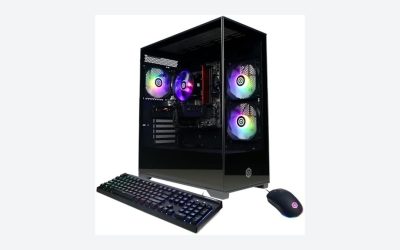
Many creative professionals make the costly mistake of assuming any high-end computer can handle professional video editing. They buy flashy gaming rigs covered in RGB lighting, or they purchase refurbished office desktops on a tight budget, only to watch their timelines stutter, their export times drag, and their software crash mid-render. Gaming systems prioritize rapid frame rates and GPU rendering for real-time play, whereas video editing demands massive system memory, multi-threaded CPU processing power, sustained storage read/write speeds, and specific hardware decoders.
When searching for the ideal workstation, knowing what to look for in video editing pc configurations will save you thousands of dollars and endless hours of creative frustration. The ideal system must balance sustained processor performance under thermal stress with the specific hardware encoders required by your video editing software of choice.
As an Amazon Associate we earn from qualifying purchases at no extra cost to you.


Our Top Picks
Pros & cons
- Built-in 11.3 inch smart display shows live temps and usage
- 850W 80+ Gold PSU leaves headroom for upgrades
- Arrives fully assembled with Windows 11 Home installed
- Monitor must connect to the graphics card, not motherboard ports
- 360mm liquid cooler takes up significant case space
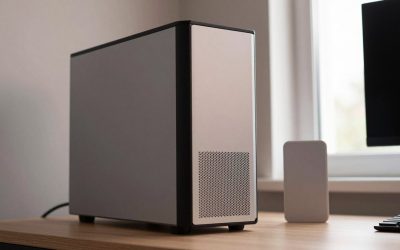
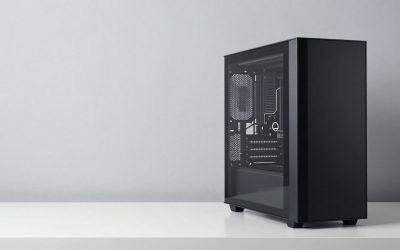
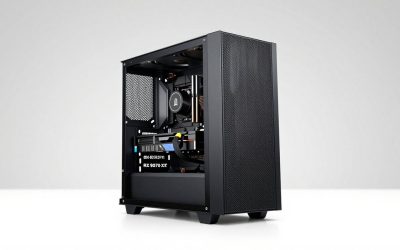
 HP Workstation PC Desktop Computer3.7 x 11.4 x 11.5 inches11.4 x 3.7 x 11.5 inches11.57 PoundsCheck on Amazon


Top 3 picks at a glance
Decide These 3 Things First
Before diving into individual hardware components, you must establish three baseline parameters that will dictate your entire system architecture:
- Your Primary Codec and Resolution: Are you cutting highly compressed 8-bit or 10-bit H.264/H.265 footage from a mirrorless camera, or are you processing massive, uncompressed 4K, 6K, or 8K ProRes and RAW files from cinema cameras? Highly compressed codecs require specialized hardware decoding blocks (like Intel QuickSync), while RAW formats demand massive storage bandwidth and GPU processing power.
- Your Editing Software Ecosystem: Your software determines where you should allocate your budget. Adobe Premiere Pro relies heavily on single-core CPU clock speeds, Intel QuickSync, and system RAM. DaVinci Resolve, on the other hand, is highly optimized for GPU performance and scales dramatically with multiple graphics cards and larger pools of Video RAM (VRAM).
- Your Spatial and Noise Tolerance: A high-performance workstation generates significant heat and noise. Decide whether you can accommodate a full-sized tower under your desk, or if your workspace requires a compact, whisper-quiet system that sits directly on your desktop.
Chassis Size and Footprint
The physical footprint of your workstation dictates its cooling efficiency, upgrade path, and desk placement. You will generally choose between three chassis sizes:
- Full Towers: Typically measuring 22 x 9 x 20 inches and weighing between 30 and 50 pounds when fully configured. These cases offer maximum interior volume, accommodating up to two graphics cards, multiple storage drives, and massive liquid-cooling radiators. They must sit on the floor or on a heavy-duty side table.
- Mid-Towers: The industry standard, measuring roughly 18 x 8 x 18 inches and weighing 20 to 35 pounds. Mid-towers strike the perfect balance, fitting comfortably on a standard 30-inch-deep desk while still accommodating standard ATX motherboards, full-sized graphics cards, and dual-fan radiators.
- Small Form Factor (SFF): Compact enclosures measuring under 14 x 8 x 12 inches and weighing under 15 pounds. While they save valuable desk space, they limit upgrade options to mini-ITX motherboards, require specialized low-profile components, and run significantly warmer and louder under heavy rendering loads.
Chassis Materials and Build Quality
The structural integrity of a workstation matters because video editing computers run at high temperatures for hours during rendering, causing subtle thermal expansion and contraction. Look for cases constructed from structural SGCC or SECC steel with a thickness of at least 0.8mm to prevent chassis flex and minimize vibration noise from mechanical hard drives and high-RPM cooling fans.
Avoid systems made primarily of thin plastic panels, which trap heat and degrade over time. Premium workstations feature anodized aluminum exterior panels and thick tempered glass side panels. If noise reduction is your primary goal, seek out specialized silent chassis lined with high-density, bitumen-based acoustic dampening foam on the side, top, and front panels to absorb high-frequency fan whine.
Thermal Construction and Cooling Infrastructure
Video editing subjects both the CPU and GPU to 100% workloads for extended periods. Without adequate cooling, components will “thermal throttle,” intentionally slowing themselves down to prevent damage. When examining a system’s cooling build, look for these minimum specifications:
- CPU Cooling: For mid-range to premium processors, look for either a dual-tower air cooler with at least six copper heat pipes and dual 140mm fans, or an All-in-One (AIO) liquid cooler with a 280mm or 360mm radiator. Avoid small, single-fan 120mm liquid coolers, as they lack the thermal capacity for sustained rendering.
- Chassis Airflow: The case must feature a mesh front panel rather than a solid plastic or glass front. It should have a minimum of three 120mm or two 140mm intake fans at the front, and one 140mm exhaust fan at the rear to maintain positive air pressure and constant fresh air delivery.
- Power Supply Unit (PSU) Efficiency: High-end cooling requires clean, stable power. Look for a PSU rated at 80 Plus Gold or 80 Plus Platinum. For mid-range systems, an 850-watt PSU is ideal, while premium systems running top-tier GPUs require a 1000-watt to 1200-watt power supply to handle transient power spikes safely.
Hardware Performance and System Synergy
A video editing PC is only as fast as its slowest component. To prevent bottlenecks, your processor, graphics card, memory, and storage must be carefully matched to work in harmony.
The Central Processing Unit (CPU) is the brain of your editing rig. It handles the timeline calculations, effects processing, and file encoding. Look for high core and thread counts combined with high boost clock speeds. Modern high-end processors, such as the 24-core Intel Core Ultra 9 285K (with boost speeds up to 5.7GHz) found in elite workstations, offer the parallel processing power needed to render complex multi-cam timelines without dropping frames.
The Graphics Processing Unit (GPU) accelerates effects rendering, color grading, and timeline playback. For professional workflows, video memory (VRAM) is more important than raw gaming frame rates. If you edit in 4K, a GPU with at least 8GB to 12GB of VRAM (such as the NVIDIA GeForce RTX 5070) is essential. For 8K workflows, 3D modeling, or heavy DaVinci Resolve grading, look for professional-grade workstation GPUs like the NVIDIA Quadro RTX 2000 Ada, which feature specialized drivers designed for stability in creative applications.
System memory (RAM) holds your active timeline assets. If your system runs out of RAM, it will write temporary data to your storage drive, slowing performance to a crawl. Do not settle for less than 32GB of dual-channel DDR5 RAM running at 5200MHz or higher. For intensive 4K and 8K workflows, 64GB or 128GB of RAM is highly recommended.
Storage must be split into multiple drives for optimal performance. Never edit off a single drive. Look for a system configured with at least two separate drives: a fast 1TB NVMe PCIe Gen 4 SSD dedicated solely to your operating system and editing software, and a secondary 2TB or 4TB high-speed NVMe SSD (with read speeds of at least 5000MB/s) dedicated exclusively to your active media cache and project files. Long-term archive storage can be handled by larger, slower mechanical hard drives (HDDs).
Price Tiers and Value Propositions
Understanding what you get at different price points helps you allocate your budget effectively without overpaying for performance you won’t use.
Budget Tier: $500 to $1,000
Systems in this tier, such as renewed commercial workstations, are designed for beginners, students, and 1080p video editors. They typically feature older Intel Core i5 or Xeon processors, 16GB to 32GB of older DDR4 RAM, and entry-level or legacy workstation GPUs like the NVIDIA Quadro K1200 with 4GB of VRAM. While they can handle basic cutting and joining of H.264 footage, they will struggle with color grading, complex transitions, and 4K resolutions.
Mid-Range Tier: $1,500 to $2,500
The sweet spot for independent content creators, YouTubers, and wedding videographers. Systems in this range, like the Alienware Aurora or specialized prebuilts featuring AMD Ryzen 7 9700X or Intel Core Ultra 7 processors, deliver incredible value. Paired with 32GB of DDR5 RAM and an RTX 5070 graphics card, these machines easily glide through complex 4K timelines, heavy color grading, and moderate visual effects work.
Premium Professional Tier: $3,000 to $5,000+
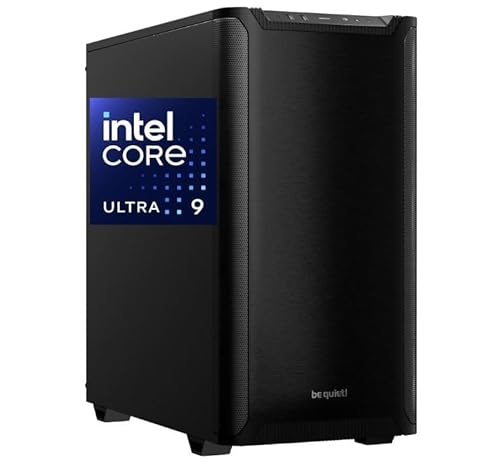
Designed for production houses, colorists, 3D animators, and cinema-grade workflows. These enterprise-grade workstations, such as the CPU Solutions VidCore series, utilize top-tier components like the Intel Core Ultra 9 285K, 64GB to 128GB of high-speed DDR5 RAM, and professional Quadro RTX Ada GPUs. Built with premium cooling, heavy steel chassis, and ultra-reliable power supplies, these systems are engineered to run at maximum capacity 24/7 without crashing.
Warranty and Enterprise Support
For professional editors, downtime equals lost revenue. Standard consumer warranties typically offer a 1-year limited mail-in service, which requires you to pack up your entire computer, ship it to a repair center, and wait two to three weeks for its return.
When purchasing a professional workstation, look for manufacturers that offer dedicated workstation support. This includes 3-year warranties with next-business-day on-site service, where a certified technician comes directly to your studio with replacement parts to fix the system. Additionally, look for systems with Independent Software Vendor (ISV) certifications, which guarantee that the hardware has been rigorously tested and optimized for stability with software like Adobe Creative Cloud, DaVinci Resolve, and Autodesk.
Delivery, Packaging, and Out-of-Box Setup
High-end workstations are heavy, delicate instruments. Ensure your system ships in double-walled corrugated cardboard boxes with custom-molded, high-density Instapak foam inserts that suspend the computer chassis away from the box edges. The shipping weight of a mid-to-full tower system packaged securely can range from 40 to 65 pounds.
Upon delivery, always perform these critical setup steps before powering the system on:
- Open the side panel and inspect the interior for any components that may have shaken loose during transit. Check that the graphics card is firmly seated in its PCIe slot, the RAM modules are locked down, and all power cables are plugged in securely.
- Remove any protective expanding foam packaging from the inside of the case. Leaving this packaging inside will block airflow and cause immediate overheating.
- Ensure a GPU sag bracket is installed if your system features a heavy, triple-fan graphics card. This metal support bracket prevents the heavy card from cracking the motherboard’s PCIe slot during shipment or long-term desk use.
Spec Checklist
Use this convenient checklist to compare hardware configurations across different budget tiers when shopping for your editing workstation.
| Hardware Component | Budget Tier ($500 – $1,000) | Mid-Range Tier ($1,500 – $2,500) | Premium Tier ($3,000 – $5,000+) |
|---|---|---|---|
| Processor (CPU) | Intel Core i5 / Older Xeon (6-8 Cores) | Intel Core Ultra 7 / AMD Ryzen 7 (8-16 Cores) | Intel Core Ultra 9 / AMD Ryzen 9 (16-24+ Cores) |
| Graphics (GPU) | NVIDIA Quadro K1200 / GTX 1650 (4GB VRAM) | NVIDIA RTX 4070 / RTX 5070 (12GB VRAM) | NVIDIA Quadro RTX 2000 Ada / RTX 4090 (16GB-24GB VRAM) |
| System Memory (RAM) | 16GB – 32GB DDR4 | 32GB DDR5 (5200MHz+) | 64GB – 128GB DDR5 (6000MHz+) |
| Primary OS Drive | 512GB – 1TB SATA SSD | 1TB NVMe PCIe Gen 4 SSD | 2TB NVMe PCIe Gen 5 SSD |
| Media Cache Drive | None (Shared with OS) or 2TB HDD | 1TB – 2TB NVMe PCIe Gen 4 SSD | 2TB – 4TB high-speed NVMe SSD |
| Power Supply (PSU) | 500W Standard | 750W – 850W 80+ Gold | 1000W – 1200W 80+ Platinum |
Red Flags
Avoid purchasing any desktop system that exhibits these performance-throttling red flags:
- Single-Channel RAM Configurations: If a prebuilt system advertises 32GB of RAM but uses only a single 32GB memory stick rather than two 16GB sticks, it cuts your system’s memory bandwidth in half. This severely bottlenecking real-time timeline playback.
- Proprietary Motherboards and Power Supplies: Many large office PC brands use proprietary motherboard shapes and non-standard power connectors. This makes it impossible to upgrade your power supply or motherboard in the future, forcing you to buy an entirely new computer when you need a minor upgrade.
- Outdated Workstation Labels: Beware of sellers offering cheap “workstation” PCs featuring 10-year-old Intel Xeon processors or outdated Quadro cards. While they sound professional, modern entry-level consumer chips easily outperform these legacy enterprise components.
- Solid Glass or Plastic Front Panels: Cases that lack mesh front ventilation do not allow sufficient cool air intake. High-performance video editing components will overheat quickly inside these enclosures, causing severe thermal throttling.
FAQ
Is a gaming PC good for video editing?
Yes, gaming PCs can handle video editing because they share high-end CPUs and GPUs. However, gaming systems often lack sufficient RAM (16GB vs the recommended 32GB/64GB for editing) and rarely include the secondary high-speed NVMe SSDs required for dedicated scratch disk and media cache storage. You will often need to upgrade the memory and storage of a gaming PC to make it a reliable editing workstation.
How much VRAM do I need for editing 4K footage?
For smooth 4K editing, color grading, and exporting, your graphics card should have a minimum of 8GB of VRAM. If you work with highly compressed 10-bit footage, use noise reduction plug-ins, or edit multi-cam timelines, 12GB to 16GB of VRAM is highly recommended to prevent out-of-memory errors and software crashes during rendering.
Should I choose an Intel or AMD processor for video editing?
Both brands offer fantastic performance, but they excel in different areas. Intel processors featuring integrated graphics include “QuickSync,” a hardware decoding technology that drastically speeds up the editing and playback of compressed H.264 and H.265 files. AMD Ryzen processors, however, often offer superior raw multi-threaded performance and better power efficiency, making them excellent choices for rendering raw formats and 3D scenes.
Why is SSD speed more important than capacity during an active edit?
As we look toward 2026, the volume of high-bitrate RAW footage continues to grow, making storage speed a critical bottleneck. While a slow mechanical hard drive can hold terabytes of archived footage, it cannot read the massive file sizes of modern video formats fast enough for real-time playback. A high-speed NVMe SSD with read speeds over 5000MB/s ensures your editing software can instantly access frames without lagging, stuttering, or dropping frames on your timeline.
Related guides
- Best Gaming PC for Fortnite: Eight Prebuilt Desktops Sorted by Refresh Rate Goal (2026)
- Best RX 9070 XT Prebuilt Gaming PCs: Seven Desktops and Three Cards Compared: 10 Compared (2026)
- CyberPowerPC vs iBUYPOWER Gaming PC: How the Two Brands Compare
- Best RX 9070 XT Prebuilt Gaming PC (2026): 5 Picks Compared