Most people shopping for a streaming PC make the same three mistakes: they overspend on graphics power they’ll never use, they ignore the CPU entirely, and they buy hardware that can’t handle encoding video while a game is running. Streaming is fundamentally a multitasking workload — you’re playing a game, capturing it, compressing it in real time, and pushing it to Twitch or YouTube all at once. A machine that games well isn’t automatically a machine that streams well, and knowing the difference is exactly what this guide is for.
The good news: a genuinely capable streaming setup costs less than most people think. You can build a solid budget streaming PC for $700–900, a mid-range workhorse for $1,000–1,400, and a premium dual-PC or top-tier single-PC rig for $1,500–2,500. The trick is knowing which components actually move the needle — and which ones just inflate the price tag.
As an Amazon Associate we earn from qualifying purchases at no extra cost to you.


Our Top Picks


Top 3 picks at a glance
Decide These 3 Things First
1. What are you streaming? Competitive shooters like Valorant or CS2 at 1080p are CPU-light on the game side but demand consistent frame delivery. AAA single-player titles at 1440p lean heavily on the GPU. Variety streams with heavy overlays, multiple browser sources, and alerts need extra RAM and cores. Your content type determines roughly half your budget allocation.
2. One PC or two? A single PC handles both gaming and encoding if you have enough CPU cores and a modern GPU encoder. A dual-PC setup — one gaming machine, one dedicated encoding box sending video over a capture card — costs $400–600 more but guarantees zero in-game performance loss. Most streamers under 500 concurrent viewers should start with one PC.
3. What resolution and framerate are you actually broadcasting? The overwhelming majority of streams deliver 1080p at 60 fps or 936p at 60 fps. You don’t need a machine that renders games at 4K to stream at 1080p — you need one that renders your game at your target resolution while keeping 15–25% of headroom free for encoding. Buy for the broadcast, not the monitor.
Answer those three questions and the specs below become much easier to prioritize.
CPU: Cores Matter More Than Clock Speed
Streaming software like OBS needs dedicated CPU threads to encode video when you’re using x264 software encoding, which is why core count is the single biggest differentiator between a gaming PC and a streaming PC. The practical floor is 6 cores and 12 threads; 8 cores and 16 threads is the sweet spot for single-PC streaming.
Modern chips like the Ryzen 7 8700F — an 8-core, 16-thread processor that appears in several prebuilt streaming/desktop configurations in the $1,300–1,700 range — sit squarely in that sweet spot. If you plan to use NVENC or QuickSync hardware encoding instead, the CPU demands drop significantly and even a 6-core chip will do the job, but the extra cores still help with overlays, alerts, and Discord running alongside your game.
Concrete target: 8 cores / 16 threads minimum for a single-PC streamer who wants headroom. Budget builders can drop to 6 cores if they commit to GPU encoding. Avoid anything with 4 cores in 2026 — it will stutter the moment you add a webcam source and a chat overlay.
GPU: Let the Encoder Do the Work
Here’s what surprises most first-time buyers: the graphics card matters as much for its built-in video encoder as for its gaming performance. NVIDIA’s NVENC encoder (available on RTX cards) produces near-x264 quality at a fraction of the CPU cost. AMD cards have their own encoder (VCN), which has improved but still trails NVENC in quality-per-megabit on Twitch.
For 1080p60 streaming, an RTX 5060 or RTX 5060 Ti with 8GB of VRAM handles both modern games at 1080p/1440p and a constant NVENC encoding load without breaking a sweat. Prebuilts pairing an 8-core Ryzen with an RTX 5060 Ti 8GB currently run roughly $1,400 with 16GB of RAM or $1,650 with 32GB — both viable mid-range streaming machines.
VRAM note: 8GB is fine for 1080p gaming and streaming. If you game at 1440p with high texture settings while streaming, 12GB+ gives you breathing room. Don’t pay a premium for 16GB+ VRAM purely for streaming purposes — the encoder doesn’t use it.
RAM: 32GB Is the New Baseline
Streaming software, your game, your browser with 20 chat tabs, Discord, and your alerts all live in memory simultaneously. 16GB works for a minimalist setup, but 32GB of DDR5 removes all memory pressure for about $50–70 more — the best value upgrade in any streaming build.
Concrete target: 32GB DDR5 at 5,600–6,000 MT/s for mid-range and premium builds. Budget builds can start at 16GB DDR5 but should be configured so a second stick can be added later. Speed matters less than capacity; don’t chase 6,400+ MT/s kits at the expense of going from 16GB to 32GB.
Storage: NVMe Only, 1TB Minimum
Recording VODs, storing clips, and installing modern games (which routinely run 100–150GB each) chew through storage fast. A 1TB NVMe SSD is the practical floor — expect 700–800GB of usable space after Windows. If you plan to record local archives of every stream, add a second 2TB NVMe or SATA drive for $80–110 rather than juggling files.
Look for: PCIe 3.0 NVMe at minimum (3,500 MB/s reads); PCIe 4.0 drives (5,000–7,000 MB/s) cost barely more in prebuilts. Avoid any build shipping with a SATA SSD or — worse — a hard drive as the boot drive.
Webcam, Audio, and Lighting: Where Small Money Buys Big Quality
Viewers forgive average gameplay; they don’t forgive bad image and audio quality. This is where $20–60 spent wisely beats $500 spent on GPU headroom.
A quality webcam is non-negotiable for facecam streams. The Logitech Brio 101 (1080p, around $36) is the reliable default — accurate color, dependable autofocus, and plug-and-play simplicity. On the ultra-budget end, the TRAUSI 1080P webcam at around $17 offers noise-canceling mic, auto light correction, a privacy cover, and a wide-angle lens, making it a surprisingly capable starter option if you’re also buying a separate microphone.
Audio priority: a dedicated USB microphone ($60–130, e.g., dynamic mics like the popular entry-level models from major brands) beats any built-in webcam mic. Pair it with a boom arm ($20–35) and a pop filter ($8–15). Lighting: a single key light or ring light ($25–60) transforms any webcam — even a $18 camera looks decent with proper front-facing light. Total webcam/audio/lighting budget: $100–200 for a setup that looks and sounds like double that.
Price Tiers: What Each Dollar Buys You
Budget ($700–900): 6-core CPU, RTX 4060/5060-class GPU with NVENC, 16GB DDR5, 1TB NVMe. Streams 1080p60 with GPU encoding. Expect to drop overlays and effects if the game is demanding.
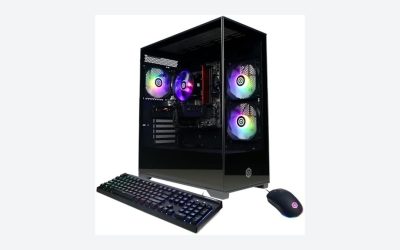
Mid-range ($1,000–1,700): 8-core CPU like the Ryzen 7 8700F, RTX 5060 Ti 8GB, 16–32GB DDR5, 1TB NVMe. This is the sweet spot — full 1080p60 streams with overlays, a facecam, and 1440p gaming on the side. The two KOTIN prebuilts in this class ($1,399 with 16GB, $1,649 with 32GB) illustrate the tier well: same CPU/GPU, and the only meaningful difference is memory headroom.
Premium ($1,800–2,500+): 12–16 cores, RTX 5070 Ti or better, 32–64GB DDR5, 2TB+ NVMe. Justified for 1440p/4K streaming, dual-PC encoding rigs, or content creators who edit video on the same machine.
Spec Checklist
| Spec | Budget | Mid | Premium |
|---|---|---|---|
| CPU | 6 cores / 12 threads | 8 cores / 16 threads (e.g., Ryzen 7 8700F) | 12–16 cores |
| GPU | RTX 4060 / 5060, 8GB | RTX 5060 Ti, 8–16GB | RTX 5070 Ti+, 16GB |
| RAM | 16GB DDR5 | 16–32GB DDR5 | 32–64GB DDR5 |
| Storage | 1TB NVMe | 1TB NVMe + optional 2TB second drive | 2TB+ NVMe |
| Encoding | NVENC | NVENC | NVENC or dedicated dual-PC encoder |
| Webcam | 1080p, $18–40 | 1080p with light correction, $35–70 | 1080p/4K + key light, $100–250 |
| PSU | 550–650W, 80+ Bronze | 650–750W, 80+ Gold | 850W, 80+ Gold |
| Total price | $700–900 | $1,000–1,700 | $1,800–2,500+ |
Red Flags
Unbranded or missing PSU details. A “600W PSU” with no efficiency rating or brand name is a fire risk waiting to happen. Look for 80+ Bronze minimum from a name you can find reviews for.
Single-channel RAM. One 16GB stick instead of two 8GB sticks costs you real performance in CPU-bound games. Ask, or check photos of the internals.
Proprietary motherboards and cases. Some big-box prebuilts use custom boards and power supplies that make future upgrades impossible. Standard ATX/mATX parts only.
“Gaming” marketing on 4-core CPUs. A machine advertised as a gaming rig with a 4-core CPU and a powerful GPU is built for screenshots, not streaming.
Hard drive or SATA SSD boot drives in any build over $700 — unacceptable at modern prices.
No-name webcams bundled in “streaming bundles.” A $10 webcam bundled to justify a higher price is worse than buying the $36 Logitech Brio 101 or even a around $17 TRAUSI separately.
FAQ
Do I need a capture card to stream from one PC?
No. A single PC captures its own gameplay through software (game capture or display capture in OBS). Capture cards are only needed for dual-PC setups, streaming from consoles, or hooking up a DSLR as a webcam via HDMI.
Is 16GB of RAM enough for streaming?
It’s workable for a lean setup — game, OBS, Discord, and one browser window — but 32GB is the safer baseline, especially for variety streamers with heavy overlays. The upgrade typically costs $50–70 and eliminates stutters caused by memory pressure.
Should I use x264 or NVENC for encoding?
On an NVIDIA RTX card, use NVENC. It frees your CPU for the game and produces quality nearly identical to x264 medium at typical Twitch bitrates (6,000–8,000 kbps). Reserve x264 for dual-PC setups or CPUs with many idle cores.
How much should I spend on my first streaming PC?
Between $1,000 and $1,700 for a complete setup including a webcam, microphone, and lighting. Something like an 8-core Ryzen 7 with an RTX 5060 Ti and 16–32GB of DDR5 covers 90% of new streamers’ needs for years, and spending beyond that buys headroom you won’t use until your audience demands it.
Related guides
- Best Gaming PC for Fortnite: Eight Prebuilt Desktops Sorted by Refresh Rate Goal (2026)
- Best RX 9070 XT Prebuilt Gaming PCs: Seven Desktops and Three Cards Compared: 10 Compared (2026)
- CyberPowerPC vs iBUYPOWER Gaming PC: How the Two Brands Compare
- Best RX 9070 XT Prebuilt Gaming PC (2026): 5 Picks Compared