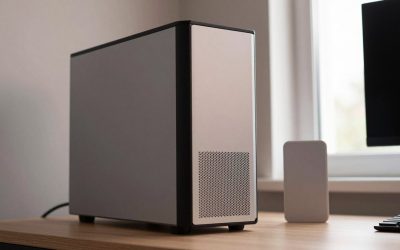
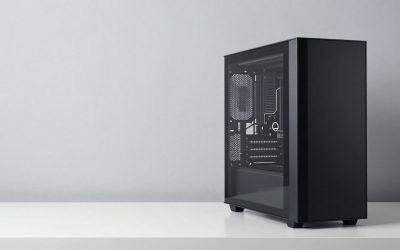
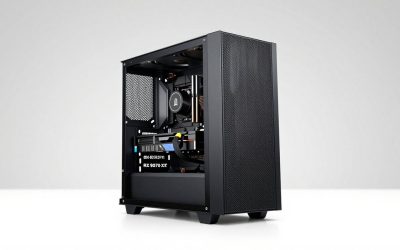
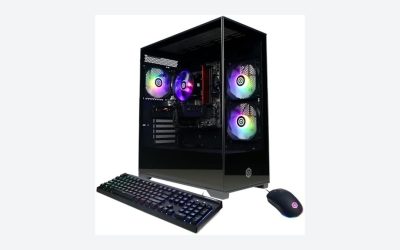
Buying a prebuilt desktop PC is one of the most convenient ways to upgrade your home office or gaming setup. You skip the headache of sourcing individual components, managing complex wiring, and troubleshooting compatibility errors out of the box. However, many buyers fall into a common trap: they purchase a prebuilt system based solely on its current processor and graphics card, completely ignoring what happens when they need to upgrade a year or two down the road.
The biggest mistake people make when shopping for a prebuilt PC is assuming that every computer can be easily upgraded. In reality, many mass-market prebuilts use proprietary parts, cramped cases, and locked down motherboards that make adding more storage, memory, or a faster graphics card nearly impossible. If you buy a system with zero expansion headroom, you are essentially purchasing a disposable machine that must be entirely replaced the moment it slows down. To avoid this costly mistake, you must look closely at the chassis, motherboard, and power supply before handing over your credit card.
As an Amazon Associate we earn from qualifying purchases at no extra cost to you.


Our Top Picks


Top 3 picks at a glance
Decide These 3 Things First
Before diving into individual technical specifications, you need to establish a clear baseline for how you plan to use and upgrade your computer over its lifespan. Deciding these three things first will save you from overspending on features you do not need, or worse, buying a system that locks you out of future improvements.
- Internal vs. External Upgrades: Determine if you are comfortable opening up your PC case to install internal hardware, or if you prefer plug-and-play external options. If you want hassle-free storage, a simple external drive—ranging from a budget-friendly $35 500GB external hard drive to an $85 1TB portable HDD—can expand your space via a USB port. However, if you need maximum speed for gaming or video editing, you must look for a system that supports internal PCIe 4.0 NVMe M.2 SSDs.
- System Integrator vs. Major OEM: Decide whether to buy from a major Original Equipment Manufacturer (OEM) or a System Integrator (SI). Major OEMs often use proprietary motherboards, custom power connectors, and non-standard case designs. System Integrators, on the other hand, build PCs using standard, off-the-shelf components that you can easily swap out, upgrade, or replace using standard tools.
- Your Future Component Goals: Be realistic about what you actually want to upgrade. If you only plan to add more RAM and an extra storage drive, a compact Micro-ATX system is perfectly fine. If you plan to upgrade to a massive, high-end graphics card and a liquid CPU cooler in the future, you will absolutely need a full-sized mid-tower case with a heavy-duty power supply.
Chassis Size and Physical Clearance
The physical size of your prebuilt PC’s case determines what you can fit inside it. Many budget prebuilts use compact, slimline cases to save desk space, but these cases severely restrict your expansion options. A standard mid-tower case, typically measuring around 18 inches high, 8 inches wide, and 18 inches deep, is the sweet spot for home offices and gaming setups alike.
When evaluating a case, physical clearance is the most critical metric. Modern graphics cards are incredibly large, often requiring 300mm to 340mm of horizontal clearance and up to three expansion slots of vertical space. If your prebuilt’s case is too short, a new GPU physically will not fit. Additionally, look for dedicated drive bays. A good expandable case should offer at least two 2.5-inch SSD mounting brackets and one or two 3.5-inch hard drive bays to accommodate internal storage expansion as your library of files grows.
Chassis Material, Ventilation, and Thermal Design
Adding high-performance components to your PC generates significant heat. If your prebuilt PC has a sealed plastic or solid metal front panel with no ventilation holes, your upgraded components will quickly overheat and throttle their performance. Look for a chassis constructed from high-quality SPCC steel (at least 0.6mm thickness) with a mesh front panel that allows cool air to flow freely into the system.
Cooling expansion is just as important as component expansion. A quality prebuilt chassis should have mounting points for at least three 120mm or two 140mm intake fans at the front, and at least one 120mm exhaust fan at the rear. If you plan to install liquid cooling down the line, verify that the case top or front can support a 240mm or 280mm radiator. Tempered glass side panels are not just for aesthetics; they are generally more scratch-resistant than cheap acrylic panels and indicate a higher-quality overall chassis build.
Motherboard Construction and Expansion Slots
The motherboard is the nervous system of your PC, and its design dictates your internal expansion limits. First, check the motherboard form factor. Standard ATX and Micro-ATX (mATX) boards are easy to replace or upgrade. Avoid proprietary, non-standard shapes that cannot be swapped into a new case.
Next, count the expansion slots. You need at least one PCIe x16 slot (preferably PCIe 4.0 or PCIe 5.0) for your graphics card. Below that, look for extra PCIe x1 or x4 slots for add-in cards like Wi-Fi adapters, sound cards, or capture cards. For storage, look for at least two M.2 NVMe slots directly on the board. Premium motherboard builds will include integrated metal heatsinks over these M.2 slots to keep high-speed internal SSDs cool under heavy read/write workloads, preventing thermal throttling.
Power Supply Wattage and Cable Infrastructure
You cannot upgrade your graphics card or processor if your power supply unit (PSU) cannot deliver enough electricity. Many cheap prebuilts ship with bare-minimum power supplies rated at 400 watts or 500 watts. If you try to install a mid-to-high-end graphics card on a weak PSU, your system will crash under load.
For reliable expansion, look for a prebuilt that includes a 750-watt to 850-watt power supply with an 80-Plus Gold certification, which guarantees high energy efficiency and less wasted heat. Furthermore, pay attention to the cabling. A modular or semi-modular power supply allows you to plug in only the cables you actually need, saving space and improving airflow. If the PSU is non-modular, make sure there are unused PCIe 8-pin (6+2) power connectors and SATA power cables tucked away in the basement of the case, ready for your future upgrades.
Component Price Tiers and Upgradability
Understanding the market cost of expansion components helps you budget for your system over time. When you buy a prebuilt, you are paying for the baseline configuration, but you should know what it costs to scale up.
At the entry level, adding simple external storage is highly affordable, with 500GB to 1TB external HDDs costing between $35 and $90. These are excellent for basic backups and document storage. In the mid-range tier, upgrading to 16GB or 32GB of DDR5 RAM costs between $60 and $150, while standard 1TB internal Gen4 NVMe SSDs sit between $80 and $130. Premium internal upgrades, such as high-performance 1TB or 2TB Gen4 M.2 SSDs with integrated heatsinks designed for gaming and heavy creative workloads, run from $170 to over $250. Knowing these price ranges prevents you from buying a prebuilt with overpriced proprietary upgrade kits.
Warranty Policies and Support Terms
A major downside to upgrading a prebuilt PC is the potential to void your manufacturer’s warranty. Some big-box computer brands place “Warranty Void if Removed” stickers over the side panel screws or the internal component brackets. If you open the case to install a new SSD or clean out dust, you lose your tech support and hardware repair coverage.
Always read the fine print of the prebuilt manufacturer’s warranty policy. Look for companies that offer a 1-year to 3-year comprehensive warranty that explicitly permits users to open the chassis and install standard upgrades (like RAM and storage) without voiding the coverage on the original parts. Some premium system builders even offer lifetime customer support, meaning their technicians will help guide you through the process of upgrading your system years down the road.
Delivery, Packaging, and Out-of-Box Assembly
Because prebuilt PCs are heavy, fragile pieces of equipment, how they are shipped and assembled matters. A standard mid-tower prebuilt PC weighs anywhere from 25 to 45 pounds. Ensure the manufacturer ships the unit with high-density foam packaging that suspends the PC securely inside the box, protecting it from drop damage during transit.
Inside the case, high-quality builders use expanding foam inserts to support the heavy graphics card and CPU cooler, preventing them from snapping off the motherboard during shipping. When the PC arrives at your home, the out-of-box experience should be seamless. Look for systems that feature toolless entry—such as hand-tightened thumbscrews or magnetic latching side panels—so you can easily access the interior for maintenance, cleaning, and eventual hardware upgrades without needing a toolbox.
Spec Checklist
Use this quick-reference table to evaluate the expansion potential of any prebuilt PC you are considering, categorized by tier.
| Feature / Spec | Budget (Basic Upgrades) | Mid-Range (Balanced Upgrades) | Premium (Maximum Future-Proofing) |
|---|---|---|---|
| Motherboard Size | Proprietary or Mini-ITX | Micro-ATX (mATX) | Standard ATX |
| PCIe x16 Slots | 1 (PCIe 3.0 or 4.0) | 1 (PCIe 4.0) + 1 extra slot | 2+ (PCIe 5.0 compatible) |
| M.2 NVMe Slots | 1 slot (often occupied) | 2 slots (1 free for expansion) | 3+ slots with integrated heatsinks |
| Power Supply (PSU) | 400W – 500W (Non-certified) | 600W – 700W (80-Plus Bronze) | 750W – 1000W+ (80-Plus Gold, Modular) |
| Chassis Clearance | Under 280mm GPU length | Up to 320mm GPU length | 340mm+ GPU length / 360mm Radiator |
| Front I/O Ports | 2x USB-A (2.0 / 3.0) | 2x USB-A 3.2 + Headphone Jack | Multiple USB-A 3.2 + USB-C (Gen 2×2) |
Red Flags to Avoid
When shopping for a prebuilt PC, walk away immediately if you spot any of the following design choices:
- Proprietary Power Connectors: Look closely at the motherboard photos. If the board uses a proprietary 6-pin or 10-pin power connection instead of the industry-standard 24-pin ATX connector, you will never be able to upgrade the power supply.
- Soldered Components: Avoid compact, ultra-small form factor prebuilts where the RAM or the storage drive is soldered directly onto the motherboard. If a single stick of memory fails, or if you run out of space, the entire system is ruined.
- Completely Sealed Front Panels: A solid glass or plastic front panel with no side vents or mesh is a thermal trap. It will choke your components, resulting in loud fan noise and shortened hardware lifespans.
- No Free RAM Slots: If a system advertises 16GB of RAM but uses two 8GB sticks that occupy the only two slots on the motherboard, you cannot easily add more memory. You would have to throw away the existing sticks to upgrade. Look for boards with four DIMM slots.
FAQ
Can I add an internal SSD to any prebuilt PC?
Not always. While most modern prebuilt PCs have room for at least one extra drive, some ultra-compact or budget models lack free M.2 slots on the motherboard or do not have spare SATA power cables running from the power supply. Always check the motherboard specifications for “free M.2 slots” or “SATA ports” before buying.
How do I know if my prebuilt’s power supply can handle a new graphics card?
You need to check the wattage rating on the power supply’s physical label and compare it to the recommended system power listed by the graphics card manufacturer. For example, a mid-range graphics card typically requires a minimum of a 600W to 650W power supply, while high-end enthusiast cards require 750W to 850W or more.
Should I choose external or internal storage expansion?
Choose external storage (like a portable USB hard drive) if you need to store large media files, documents, and backups that do not require instant load speeds. Choose internal expansion (like a PCIe 4.0 NVMe M.2 SSD) if you are installing modern games, running operating systems, or editing high-resolution video, as internal drives are significantly faster than USB options.
Does upgrading my prebuilt PC void the manufacturer’s warranty?
This depends entirely on the brand. System Integrators generally allow you to open the case and swap components like RAM, storage, and graphics cards without voiding your warranty on the remaining original parts. However, major office brands often use warranty-voiding stickers. Always check the manufacturer’s specific upgrade policy before making alterations.
Looking forward to 2026, keeping your system adaptable is the single best way to protect your investment. By prioritizing standard form factors, robust power supplies, and spacious cases today, you ensure your home desktop remains fast, quiet, and highly capable for years to come.
Related guides
- Best Gaming PC for Fortnite: Eight Prebuilt Desktops Sorted by Refresh Rate Goal (2026)
- Best RX 9070 XT Prebuilt Gaming PCs: Seven Desktops and Three Cards Compared: 10 Compared (2026)
- CyberPowerPC vs iBUYPOWER Gaming PC: How the Two Brands Compare
- Best RX 9070 XT Prebuilt Gaming PC (2026): 5 Picks Compared