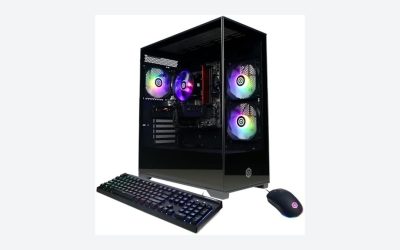
When you are setting up a dedicated home studio or gaming corner, the computer is the undisputed centerpiece. However, shopping for a prebuilt machine can feel like navigating a minefield of flashy marketing. The single biggest mistake buyers make when researching what to look for in prebuilt streaming pc is falling for the “RGB trap.” They see a case glowing with vibrant LED lights and assume it can effortlessly broadcast high-frame-rate gameplay. In reality, that glowing box might have terrible airflow, a loud fan profile that ruins your audio feed, or a cheap power supply prone to failing under a sustained load.
Another common misstep is overspending on the processor (CPU) while ignoring the graphics card (GPU) and its built-in hardware encoder. Or worse, buyers purchase a proprietary system from a mass-market brand, only to realize later that they cannot upgrade the motherboard, power supply, or cooling system. To get a system that keeps your stream smooth and your workspace quiet, you need to look past the aesthetics and focus on the internal architecture.
As an Amazon Associate we earn from qualifying purchases at no extra cost to you.


Our Top Picks


Top 3 picks at a glance
Decide These 3 Things First
Before you start comparing graphics cards and RAM speeds, you must establish the baseline parameters of your streaming setup. Answering these three questions will instantly narrow down your choices and prevent buyer’s remorse.
- Your Target Streaming Resolution and Frame Rate: Are you aiming to broadcast at 1080p at 60 frames per second (the sweet spot for Twitch and YouTube), or are you planning to stream in 4K? Playing a game at 1440p or 4K while simultaneously downscaling and encoding a 1080p stream requires significantly more computing power than simply playing and streaming at 1080p.
- Single-PC vs. Dual-PC Setup: A single-PC setup handles both the gaming and the encoding on one machine. This requires a beefy multi-core processor and a modern graphics card with a dedicated hardware encoder. A dual-PC setup offloads the streaming work to a secondary, less powerful machine. If you choose a single-PC setup (which most modern streamers do), your prebuilt PC must be a powerhouse.
- Desk Real Estate and Room Noise: Consider where this machine will live. A massive desktop tower sitting on your desk takes up valuable real estate that could be used for audio mixers, macro pads, and multiple monitors. Furthermore, if the PC has to sit right next to your microphone, fan noise becomes a critical factor. You will need a system with excellent thermal efficiency so the fans do not have to spin at maximum, noisy speeds while you are live.
1. Case Size and Footprint
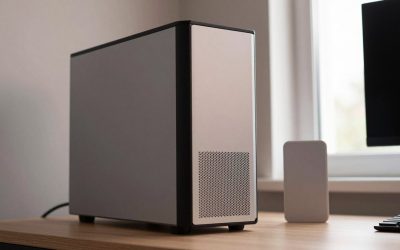
Prebuilt PCs generally fall into three size categories, measured by the form factor of the motherboard and case. Mid-tower cases are the industry standard, typically measuring around 18 inches high, 8.5 inches wide, and 18 inches deep. They weigh anywhere from 25 to 35 pounds depending on the components inside. Mid-towers offer the best balance of desk compatibility, thermal performance, and room for future upgrades.
Full-tower cases are massive behemoths, often exceeding 22 inches in height and weighing over 40 pounds. While they offer superb airflow and space for massive triple-fan graphics cards, they are incredibly difficult to fit on a standard 60-inch home office desk. Small Form Factor (SFF) or Mini-ITX builds are incredibly compact (often under 13 inches tall and weighing less than 15 pounds), but they run hotter, louder, and are exceptionally difficult to upgrade down the line. For a streaming setup, a mid-tower is almost always the smartest choice.
2. Materials and Case Build Quality
The materials used in your PC’s chassis affect its durability, noise dampening, and aesthetics. Look for cases constructed from structural steel (SPCC steel with a thickness of at least 0.6mm to 0.8mm) or thick anodized aluminum. Cheap prebuilt PCs often use thin sheet metal that flexes under pressure and rattles when the internal fans spin up, creating annoying low-frequency hums in your streaming audio.
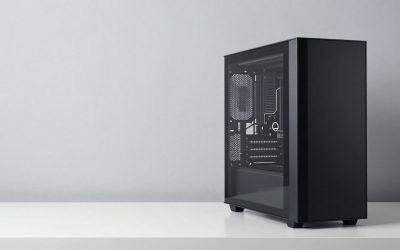
For side panels, tempered glass (typically 4mm thick) is highly durable, scratch-resistant, and lets you monitor your internal components for dust buildup. Avoid cheap acrylic or plastic side panels; they scratch easily, yellow over time, and do not block system noise as effectively as tempered glass. Ensure the front bezel of the case is made of a breathable mesh rather than solid plastic or solid glass, as components need a direct path to pull in cool air.
3. Thermal Construction and Cooling
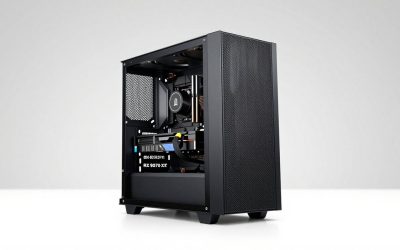
Streaming puts a continuous, heavy load on both your CPU and GPU for hours at a time. This is not like typical gaming, where loads spike and drop; streaming is a marathon. Therefore, thermal design is paramount. Look for a prebuilt PC that features an active liquid cooling system (an All-in-One, or AIO, liquid cooler) with at least a 240mm or 280mm radiator for the CPU. If you prefer air cooling, ensure the system uses a dual-tower heatsink with at least a 120mm fan rather than a cheap, low-profile stock cooler.
The fan configuration should establish a positive pressure system: more intake fans pulling cool air in through dust filters than exhaust fans pushing warm air out. Look for a minimum of three 120mm or two 140mm intake fans at the front, and at least one exhaust fan at the rear. Power supply units (PSUs) also generate heat; ensure the prebuilt has a dedicated PSU shroud at the bottom of the case to isolate power supply heat from the rest of your components.
4. Streaming Performance and Hardware Encoders
When broadcasting, your computer must compress raw video frames into a streamable format in real time. Doing this via the CPU (software encoding) can tank your game’s frame rate. Instead, modern streamers rely on hardware encoders built directly into the graphics card.
As we look at the hardware landscape of 2026, dedicated hardware encoding has become incredibly efficient. You should prioritize graphics cards that feature dedicated AV1 encoders. NVIDIA’s NVENC (found on the RTX 40-series and the newer RTX 50-series, such as the RTX 5070 and RTX 5060 Ti) and AMD’s AMF encoder (found on RX 7000-series and newer) allow you to stream high-quality video with almost zero impact on your in-game performance. Pair this GPU with a modern multi-core processor (such as an Intel Core Ultra 7 or an AMD Ryzen 7 9700X) and a minimum of 32GB of DDR5 RAM running at 5600MHz or higher to handle multitasking, overlays, alerts, and browser tabs simultaneously.
5. Price Tiers and Value Mapping
Understanding what your budget actually buys you in the prebuilt market prevents you from overpaying for underperforming hardware. The market is generally divided into three distinct price tiers:
- Budget ($800 – $1,200): These systems are perfect for entry-level 1080p streaming. They typically feature older generation or entry-level processors (like the AMD Ryzen 7 5700X) paired with mid-tier graphics cards (like the RTX 3060 Ti or RTX 4060). They usually come with 16GB of RAM and a 1TB solid-state drive (SSD).
- Mid-Range ($1,300 – $2,000): This is the sweet spot for serious creators. Expect modern components like the AMD Ryzen 7 9700X or Intel Core Ultra 7, paired with high-performance graphics cards like the RTX 5060 Ti or the RTX 5070. These systems handle 1440p gaming with ease while encoding a flawless 1080p/60fps stream using AV1 or NVENC, and almost always include 16GB to 32GB of fast DDR5 RAM.
- Premium ($2,000 – $3,000+): Built for professional creators, these systems feature top-tier graphics cards (like the RTX 5070 Ti, RTX 5080, or RTX 5090), high-end liquid cooling, 32GB to 64GB of DDR5 RAM, and multi-terabyte NVMe SSDs. They can handle heavy multitasking, 4K gaming, 3D rendering, and VR streaming without breaking a sweat.
6. Warranty and Technical Support
A desktop computer is a significant investment. If a component fails mid-stream, you need a reliable safety net. Standard prebuilt PCs come with a 1-year parts and labor warranty. Premium system integrators often offer 2-year or 3-year warranties, sometimes with lifetime technical support via phone or chat.
Pay close attention to the shipping policy in the warranty fine print. If a component fails, does the manufacturer cover the cost of shipping a heavy, 30-pound box back to their repair facility? Some brands require the customer to pay for shipping, which can easily cost $80 to $150 depending on your location. Furthermore, choose system builders that use standard, off-the-shelf parts. If a proprietary motherboard or power supply fails outside of the warranty period, finding a replacement can be nearly impossible, forcing you to buy an entirely new system.
7. Delivery, Unboxing, and Setup Ease
Shipping a prebuilt PC is a hazardous process. Heavy components like the graphics card and CPU cooler can easily rip away from the motherboard if the package is dropped or jarred during transit. High-quality prebuilt brands use custom-molded, expanding foam inserts (such as Instapak) inside the computer case itself to lock the internal components securely in place during shipping.
Upon unboxing, the setup should be straightforward. The manufacturer should provide a clear quick-start guide detailing where to plug in your monitor (directly into the graphics card, not the motherboard’s integrated port). The operating system should be clean and free of performance-hogging bloatware (like trial antivirus programs or proprietary assistant software) that runs in the background and steals precious CPU cycles away from your stream.
Spec Checklist
Use this quick reference table to match key hardware specifications to your target streaming tier when evaluating prebuilt configurations.
| Component | Budget Tier ($800–$1,200) | Mid-Range Tier ($1,300–$2,000) | Premium Tier ($2,000+) |
|---|---|---|---|
| Processor (CPU) | AMD Ryzen 7 5700X / Intel Core i5-13400 | AMD Ryzen 7 9700X / Intel Core Ultra 7 265F | AMD Ryzen 9 9900X / Intel Core Ultra 9 285K |
| Graphics Card (GPU) | NVIDIA RTX 3060 Ti / RTX 4060 (8GB) | NVIDIA RTX 5060 Ti / RTX 5070 (8GB-12GB) | NVIDIA RTX 5070 Ti / RTX 5080 (16GB+) |
| System Memory (RAM) | 16GB DDR4 @ 3200MHz | 16GB – 32GB DDR5 @ 5600MHz+ | 32GB – 64GB DDR5 @ 6000MHz+ |
| Storage (SSD) | 1TB PCIe Gen 3 NVMe SSD | 1TB – 2TB PCIe Gen 4 NVMe SSD | 2TB+ PCIe Gen 4 or Gen 5 NVMe SSD |
| Power Supply (PSU) | 550W – 650W (80-Plus Bronze) | 750W – 850W (80-Plus Gold) | 850W – 1000W+ (80-Plus Gold/Platinum) |
| Cooling Solution | 120mm Single-Tower Air Cooler | 240mm AIO Liquid Cooler / Dual-Tower Air | 360mm AIO Liquid Cooler / Custom Loop |
Red Flags
When shopping for a prebuilt streaming PC, walk away immediately if you encounter any of the following warning signs:
- Single-Channel RAM Configurations: If a listing specifies “16GB RAM” but uses a single 16GB stick rather than two 8GB sticks, the system will run in single-channel mode. This severely chokes memory bandwidth, leading to micro-stutters in games and dropped frames on your stream.
- Proprietary Motherboards and Power Supplies: Some major mass-market brands use custom-shaped motherboards and proprietary power supply connectors. This means you cannot upgrade the power supply to support a newer graphics card, or swap the motherboard into a better-ventilated case down the road.
- Vague Hardware Listings: Listings that say “Intel Core i7 Processor” or “NVIDIA GeForce RTX Graphics Card” without listing the exact model number (e.g., Core i7-14700 or RTX 4070) are usually trying to hide older, obsolete hardware. Always demand exact model numbers.
- Solid Glass or Plastic Front Panels: If a case has a solid sheet of glass or plastic directly in front of the intake fans with only tiny, millimeter-wide side slits for air, the components inside will bake under load. This thermal throttling will degrade your PC’s performance and shorten its lifespan.
FAQ
Is 16GB of RAM enough for a streaming PC?
While 16GB of RAM is technically the minimum requirement for a gaming and streaming PC, it leaves very little breathing room. When you have a modern game open alongside OBS Studio, a chat bot, Discord, a web browser with multiple tabs, and music streaming software, your memory usage can easily exceed 16GB. For a smooth, stutter-free experience, upgrading to 32GB of DDR5 RAM is highly recommended.
Do I need a liquid-cooled PC for streaming?
No, you do not strictly need liquid cooling, but it helps keep your environment quiet. A high-quality, dual-tower air cooler can keep a modern CPU perfectly cool. However, because streaming requires long hours of sustained performance, liquid coolers (AIOs) take longer to saturate with heat, allowing the system fans to run at lower, quieter speeds, which prevents loud background hums from bleeding into your microphone.
What GPU is best for streaming?
For the best streaming quality, look for a graphics card that supports AV1 hardware encoding, such as the NVIDIA RTX 40-series, the newer RTX 50-series (like the RTX 5070), or AMD’s RX 7000-series. NVIDIA’s NVENC encoder remains the industry standard due to its widespread software integration and superior low-bitrate quality on platforms like Twitch.
Can I upgrade a prebuilt streaming PC later?
Yes, provided you purchase a prebuilt PC that uses standardized, non-proprietary components. System integrators that use off-the-shelf parts (like standard ATX motherboards, standard power supplies, and standard mid-tower cases) allow you to easily swap out your graphics card, add more RAM, install extra storage drives, or upgrade your CPU cooler as your streaming career grows.
Related guides
- Best Gaming PC for Fortnite: Eight Prebuilt Desktops Sorted by Refresh Rate Goal (2026)
- Best RX 9070 XT Prebuilt Gaming PCs: Seven Desktops and Three Cards Compared: 10 Compared (2026)
- CyberPowerPC vs iBUYPOWER Gaming PC: How the Two Brands Compare
- Best RX 9070 XT Prebuilt Gaming PC (2026): 5 Picks Compared