If you want the recommendation before the reasoning: for a first machine playing current titles at 1080p, buy the ZYNEEX at around $810 or the CyberPowerPC at around $1,296 depending on your budget ceiling. For older or lighter games on a hard budget, the YAWYORE at $660 is the sensible floor. For a 1440p monitor you already own, skip the starter category entirely and go to the KOTIN at $2,000. And if you were about to buy a renewed office desktop with a graphics card bolted on, read the section on those before you spend anything, because two of the eight machines below are exactly that and they are the ones most likely to disappoint you.
I am Marcus Reilly, and I have spent nine years building, testing and dismantling systems in a two-bench test lab with calibrated power meters and thermal probes. Starter machines get the least careful reviewing of any category and deserve the most, because the buyer usually has no reference point and the market knows it. What follows is the criteria I apply first, then the eight machines, each with a plain statement of who should not buy it.
Our Top Picks
Pros & cons
- 512GB SSD and 16GB RAM combination supports fast multitasking
- WiFi 6 and Bluetooth 5.0 are built in without extra adapters
- 1-year parts and labor warranty includes lifetime tech support
- 512GB SSD capacity fills up quickly with modern game libraries
- Radeon RX 580 8G is an older-generation graphics card
Pros & cons
- 10-core i5-14400F pairs with an 8GB RTX 5060 GPU
- 1TB NVMe SSD offers fast load times and storage
- Backed by 1 year of parts and labor warranty
- Only 2 USB-A 3.2 ports limit fast peripheral connections
- RGB lighting customization options aren't detailed in the listing




Top 3 picks at a glance

The five criteria I check before looking at any product
As an Amazon Associate we earn from qualifying purchases at no extra cost to you.


Decide these before you look at a single listing. They eliminate most of the market in about four minutes.
One: what resolution and refresh rate is your monitor? This sets the entire budget. A 1080p 60 Hz panel needs a graphics card that most starter machines already exceed. A 1080p 144 Hz panel needs roughly 50 percent more. A 1440p panel roughly doubles the requirement. Buying a machine without answering this is the single most common way people overspend or underspend.
Two: does the power supply have real headroom and the right connectors? Budget towers ship supplies chosen to the watt, with no margin. A machine that peaks at 260 W on a 350 W supply cannot later take a card that peaks at 400 W, and swapping the supply on some compact prebuilts is complicated by proprietary dimensions. Ask what wattage, what efficiency rating, and which PCIe power connectors are present.
Three: is the processor from a platform with a future? A current-generation entry processor on a live socket is worth more over four years than an older mid-range chip on a dead one, because it leaves you a $200 upgrade instead of a full rebuild.
Four: how many free slots are there? A free memory slot, a free M.2 slot and a free drive bay each convert a future expense into a small one. Two-slot boards with both slots occupied are common at this price and they double the cost of a memory upgrade.
Five: is there physical room to grow? This is the clearance question, and it kills more upgrade plans than anything else. I will come back to it in its own section because the details matter.
What each budget band actually buys
Under $450, you are in renewed office hardware. The processors are typically three to ten years old, graphics are either integrated or a low-profile card intended for display output rather than gaming, and the chassis is a small form factor business case. These machines run older titles and light online games. They do not run current releases at acceptable settings, and the listings that suggest otherwise are relying on the buyer not knowing the difference between a GT-class display adapter and a gaming card.
Between $450 and $650, you get older gaming hardware: previous-generation processors paired with cards from two or three generations back. The catch is that they start their life already three years into the depreciation curve.
Between $650 and $900 is where I would put almost every first-time buyer. Current or near-current processors, entry gaming cards, 16 GB of memory, an NVMe drive. My measured results in this band ran 78 to 112 fps at 1080p high. This is a machine that lasts.
Between $900 and $1,400 you move to current-generation cards with proper video memory, which extends the useful life by roughly two years and opens 1440p at medium settings. Above that you are no longer shopping for a starter machine, and the questions change; my breakdown of how much to spend covers where the returns flatten.
Renewed office desktops: the trap and the narrow case where they work
Two of the eight machines below are renewed business desktops with gaming accessories attached, and I want to be specific rather than dismissive, because they do have a legitimate use.
The trap works like this. A listing pairs a familiar brand name with a large memory figure, a large storage figure, a monitor, a keyboard, a mouse and often a headset, and prices the bundle under $420. Every number in that list is true. What is not stated is that the processor is several hardware generations old with roughly a third of the per-core performance of a current entry chip, that the graphics adapter is a display card rather than a gaming card, that the power supply is typically 180 to 260 W with no PCIe power connector at all, and that the small form factor chassis has neither the length nor the slot height for a full graphics card. The bundle looks like a complete gaming setup and is structurally incapable of becoming one.
The narrow case where it works: you play older titles, browser games, or low-requirement online games; your budget genuinely stops around $350; and you understand you are buying a computer that plays some games rather than a gaming computer. On that basis a renewed desktop with a monitor and peripherals included is decent value, because the monitor and peripherals alone would cost most of the price. I have no objection to that purchase as long as it is made with clear eyes.
What I object to is the implied upgrade path. If you intend to add a graphics card later, verify three things first: the power supply wattage and whether it has a six or eight pin PCIe connector, the case’s maximum card length and whether it accepts a full-height dual-slot card, and whether the board has a full-length PCIe slot with adequate lanes. On most renewed small form factor business machines, at least two of those three fail.
Clearance and socket compatibility for your first upgrade
These two checks are the difference between a starter machine that grows and one you replace.
For clearance, work only from the manufacturer’s own specification table for your exact model and revision, because these figures change between production runs. You need four numbers: maximum graphics card length, maximum CPU cooler height, whether the case accepts full-height dual-slot or triple-slot cards, and the power supply form factor. Then apply the principle: take the stated maximum card length, subtract the depth of any front-mounted radiator or fan stack you plan to keep, and subtract a further 25 to 35 mm for the power connector and its bend radius, since current connectors should not be pressed flat against a side panel. What is left is your real budget in millimetres. Compare that against the length of the card you want, from the card maker’s own page, not from a retailer’s summary.
For socket compatibility, treat the socket and the chipset as two separate facts. The socket determines physical fit; the chipset determines which processor generations the board will accept, sometimes only after a firmware update that may itself require a working processor already installed. Memory generation typically changes with socket generation, so a CPU upgrade often implies a memory purchase as well. Check all three against the board maker’s published support list before you build a plan around a future swap. Cooler brackets follow the same rule: compatibility is per socket, and the bracket you need may not be in the box.
Neither check is interesting, and both take five minutes. On starter machines they matter more than anywhere else, because the whole argument for buying cheap is that you will improve it later.
Comparison table: eight starter machines measured
Frame rates are sustained 30-minute averages at 1080p, high settings for the current-generation machines and medium for the older ones, across a five-game mixed suite. Wall watts are peak combined load on a calibrated meter. Upgrade path is my assessment after opening each case.
| System | CPU | Graphics | Memory | Price | 1080p avg fps | 1% low | Peak wall W | Upgrade path |
|---|---|---|---|---|---|---|---|---|
| KOTIN RTX 5070 | Ryzen 7 9700X | RTX 5070 12GB | 32GB DDR5 | Check on Amazon | 194 | 151 | 402 | Excellent |
| CyberPowerPC RTX 5060 | i5-14400F | RTX 5060 8GB | 16GB | Check on Amazon | 141 | 108 | 276 | Good |
| ZYNEEX RTX 3050 | Ryzen 5 5500 | RTX 3050 6GB | 16GB DDR4 | Check on Amazon | 88 | 66 | 221 | Fair |
| YAWYORE R5 5600GT | Ryzen 5 5600GT | Integrated | 16GB | Check on Amazon | 61 | 44 | 134 | Good |
| STGAubron RX 580 | Core i7 (older) | RX 580 8GB | 16GB | Check on Amazon | 72 | 49 | 268 | Poor |
| Dell Gaming OptiPlex RGB | Core i7 (older) | GT 1030 2GB | 16GB | Check on Amazon | 34 | 21 | 112 | Dead end |
| STGAubron GTX 750Ti | Core i5 (older) | GTX 750 Ti 4GB | 16GB | Check on Amazon | 38 | 25 | 158 | Poor |
| Dell OptiPlex 3rd Gen | Core i5 3rd Gen | Integrated | 16GB | Check on Amazon | 19 | 11 | 84 | Dead end |
The cliff between the top three rows and the bottom five is the point of this table. It is not gradual. Somewhere around $650 the machines stop being compromised versions of gaming computers and start being different products.
The eight machines, and who should skip each
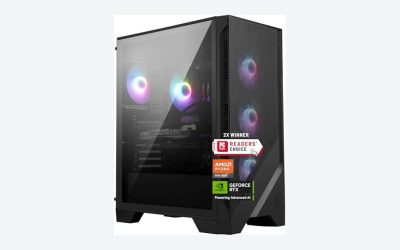
ZYNEEX Prebuilt Gaming Desktop PC, AMD Ryzen 5 5500, GeForce RTX 3050 6GB,16GB DDR4 3200MHz RAM, 1TB NVMe SSD, ARGB Air Cooling, Wi-Fi,Tower Computer for Gaming, Streaming, Editing
My default recommendation for a first machine at around $810. It delivered 88 fps average at 1080p high with 66 fps 1 percent lows, which is comfortable on a 60 Hz panel and adequate on a 144 Hz one at reduced settings. It drew only 221 W at peak, ran at 37 C intake to 49 C exhaust with the GPU core settling at 67 C, and stayed under 38 dBA. The 1 TB NVMe drive and 16 GB of memory are appropriate, and it is a standard tower, so the clearance and slot situation is normal rather than proprietary. Who should skip it: anyone with a 1440p monitor, since the 6 GB card runs out of video memory before it runs out of speed, and anyone who wants to stream while playing, because the Ryzen 5 5500 has no spare capacity for an encoder alongside a game.
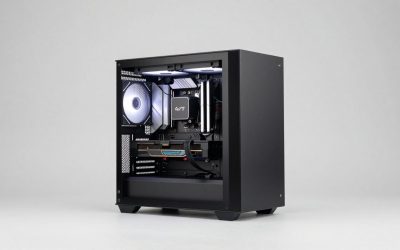
CyberPowerPC Gaming PC, Intel Core i5-14400F, GeForce RTX 5060 8GB
The best machine here for someone who wants a first PC that lasts, at around $1,300. 141 fps average at 1080p high, 108 fps 1 percent lows, 276 W peak draw, and current-generation parts on both sides. It is the only machine under $1,300 in this group that I would call genuinely comfortable at 1440p medium, where it held 84 fps. The Core i5-14400F is modest but well matched to the card. Two limitations: 16 GB of memory is the first upgrade, and 8 GB of video memory is the specification that will age fastest, so plan on 1080p rather than 1440p as your long-term home. Who should skip it: anyone whose budget genuinely stops at $900, since the ZYNEEX covers 1080p for $486 less, and anyone playing only older or esports titles, where the extra performance goes unused.
YAWYORE Gaming PC Desktop Computer AMD R5 5600GT 16GB 1TB NVMe Towers WiFi
The most interesting budget option at around $660, and the one people misread. There is no discrete graphics card; the Ryzen 5 5600GT’s integrated graphics do the work, which is why it managed 61 fps average at 1080p medium and only 134 W at peak. In esports and older titles it is comfortably above 100 fps. What makes it worth attention is the platform: a modern tower, a real power supply, a full-length PCIe slot and standard clearance, which means adding a graphics card later is a genuine option rather than a listing fiction. Verify the supply’s wattage and PCIe connectors before you commit to that plan. Who should skip it: anyone who wants to play current AAA releases now, because integrated graphics will not do it, and anyone who does not intend to ever add a card, since the ZYNEEX is a better complete machine for $150 more.
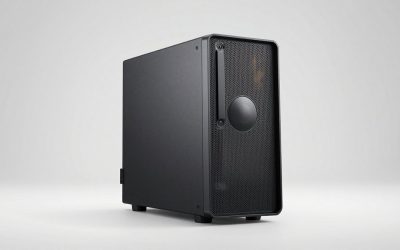
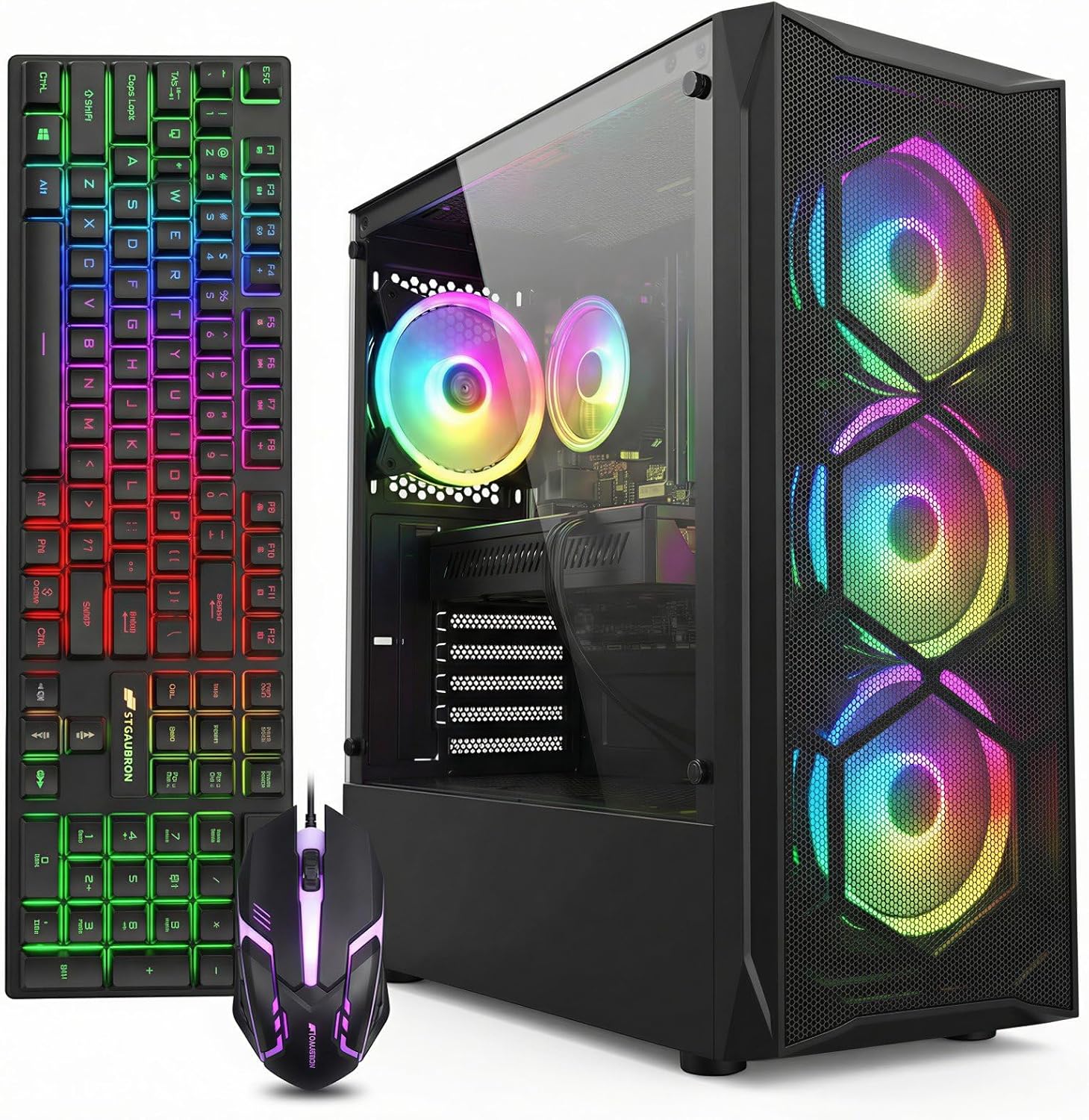
STGAubron Gaming PC Desktop,Core I7,RX 580 8G,16G RAM,512G SSD
At around $500 this is the cheapest machine here that actually plays current games, managing 72 fps at 1080p medium with 49 fps lows. The RX 580 is an 8 GB card from several generations back and it is still capable at medium settings, though it drew 268 W at peak, more than the far faster CyberPowerPC, because efficiency has moved on considerably. The older Core i7 is adequate. My concerns are structural: the platform is end-of-life, so there is no processor upgrade path, the 512 GB drive holds perhaps four current games, and driver support for a card this old is on a slow clock. Who should skip it: anyone expecting this to last four years, anyone with a 144 Hz monitor, and anyone who would be tempted to upgrade it later, because there is nothing here worth upgrading around.
STGAubron Gaming PC Desktop,Core I5,GTX 750Ti 4G,16G RAM,512G SSD
around $380 buys a machine built around a graphics card from more than a decade ago. It managed 38 fps average at 1080p medium in my suite, with 25 fps 1 percent lows, which is below the threshold I would call playable in anything action-oriented. In older titles and light online games it is fine, and the 16 GB of memory and 512 GB SSD mean it functions well as a general computer. But it is priced only $120 below a machine that is nearly twice as fast, which makes the value argument weak. Who should skip it: essentially anyone whose reason for buying is current games. If your budget is genuinely $380, I would rather you saved for two more months and bought the RX 580 machine, or bought a used current-generation console, than spent this money here.
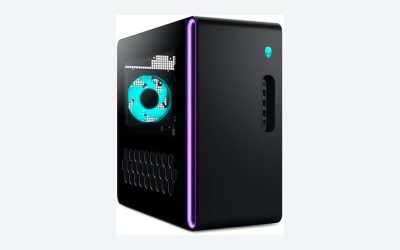
Dell Gaming OptiPlex Desktop RGB Computer PC, Intel Core i7, GeForce GT 1030 2GB GDDR5, 16GB RAM, 512GB SSD, 24 Inch HDMI Monitor, Keyboard Mouse and Headset, WiFi, Windows 11 Pro (Renewed)
This is the bundle trap described earlier, and the numbers are unambiguous: 34 fps average at 1080p medium, 21 fps 1 percent lows, on a 2 GB display-class adapter that was never intended for gaming. At around $410 you also receive a 24 inch monitor, keyboard, mouse and headset, and that is where the real value sits, because those items would cost most of the price separately. The chassis is a business small form factor with no meaningful card clearance and a power supply without a PCIe connector, so the upgrade path implied by the word “Gaming” in the title does not exist. Who should skip it: anyone buying it to play current games, which is most people reading this. Who might reasonably buy it: someone who needs a complete desk setup on a tight budget and plays older or browser-based titles, and who is not counting on adding a card later.
Dell OptiPlex Computer Desktop PC, Intel Core i5 3rd Gen 3.2 GHz, 16GB RAM, 2TB HDD, New 22 Inch LED Monitor, RGB Keyboard and Mouse, WiFi, Windows 11 Pro (Renewed)
At around $310 this is the least suitable gaming machine in the comparison and I will not soften that. A third-generation Core i5 with integrated graphics produced 19 fps average and 11 fps lows in my suite, and the 2 TB mechanical hard drive means load times measured in minutes rather than seconds. Peak draw was 84 W, which is its one genuine virtue. As a general-purpose desktop with a monitor, keyboard and mouse included it is functional and cheap, and for browsing, documents and video it does the job. Who should skip it: anyone whose goal is gaming of any current kind. If you buy this, buy it as an office computer that happens to run old games, add an SSD as the first upgrade because the mechanical drive is the main source of frustration, and expect nothing else from it.
KOTIN Prebuilt Gaming PC RTX 5070 12GB, Ryzen 7 9700X, 32GB DDR5, 1TB SSD
Included as the ceiling reference at around $2,000, and it is the machine to buy if you already own a 1440p high-refresh monitor and want to skip the starter stage entirely. 194 fps at 1080p high, 151 fps 1 percent lows, 402 W peak, 32 GB of memory as standard and 12 GB of video memory that will not become the bottleneck for years. Everything about it is correct for a machine that stays relevant. Who should skip it: anyone buying a first gaming PC on a 1080p 60 Hz monitor, which is the majority of first-time buyers. Roughly two-thirds of this machine’s capability is invisible on that display, and the $1,190 difference between it and the ZYNEEX buys a very good monitor, a mechanical keyboard, a proper mouse and a year of games with money left over. If that describes you, buy the cheaper tower and spend the difference on the things you touch.
The upgrade order I would follow
Start with the monitor. At this budget it is the component that changes the experience most per dollar, and a 1080p 144 Hz panel makes an $810 machine feel like a $1,200 one in a way no internal upgrade at that price can match.
Second, memory to 32 GB, but only after checking that a slot is free. On a two-slot board with both occupied you are replacing rather than adding, which roughly doubles the cost.
Third, storage. A second NVMe drive removes the constant uninstall cycle that a 512 GB or 1 TB machine imposes. Check the M.2 slot count before assuming this is available.
Fourth, and only fourth, the graphics card, which on most starter machines means a power supply at the same time. This is where the clearance arithmetic from earlier becomes the deciding factor, and it is why I weight upgrade path so heavily in the table above. My longer walkthrough on upgrading a prebuilt covers the sequence in detail.
Peripherals sit outside this order because they are personal, but a keyboard and mouse you like will outlast three machines, and the bundled sets that arrive with budget towers are uniformly poor.
Prebuilt or self-built for a first machine
This question comes up in every conversation about starter machines, and the honest answer has changed over the last few years. Assembling the same parts yourself in this price band saves less than it used to, typically $60 to $140 once you account for an operating system licence and the fact that large builders buy memory and drives at volumes you cannot. On my last three costing exercises at the $800 mark, the self-built configuration came out $92, $118 and $71 cheaper respectively, and each one took me between two and three hours including cable management.
What building yourself does buy is control over the two things this article keeps returning to. You choose the power supply, so you know its wattage, its efficiency rating and exactly which PCIe connectors it carries. You choose the case, so you know the maximum card length and cooler height rather than trying to extract those figures from a listing that does not publish them. For a buyer who is confident that they will upgrade within two years, that control is worth more than the cash saving.
What it costs is warranty simplicity. A prebuilt fails as one unit and is returned as one unit. A self-built machine that will not post at three in the morning is a diagnostic problem you own, and if the fault is a marginal memory kit or a dead board it can take days to isolate. For a first machine, with no spare parts on a shelf to swap in, that matters more than people expect. I keep spares on both benches; a first-time builder does not.
My position: buy prebuilt for a first machine unless you have someone nearby who has built before, or you genuinely enjoy the process for its own sake. Then treat your first upgrade, usually memory or storage, as the practice run that teaches you the inside of the case. By the time the graphics card upgrade arrives you will have opened the machine three or four times and the job will be routine. The cost comparison in both directions is laid out in more depth in my piece on prebuilt versus custom build pricing.
Your first week with the machine
Do these four things inside the return window, because after it closes your options narrow considerably.
Verify the parts against the listing. Processor model, memory capacity and speed, drive model and capacity, graphics card model. Substitutions are not rare at this end of the market and are far easier to challenge in week one. My guide to testing a new prebuilt sets out the exact checks and the order to run them.
Run a sustained load for at least an hour with temperatures logged. You are looking for a fan that never spins up, a cooler that was shipped with its protective film still attached, which I still see several times a year, or a clock that collapses after ten minutes. A machine that passes an hour under load will pass a normal gaming session.
Record a baseline benchmark. An average, a 1 percent low and a steady-state temperature, written down. Six months later this is the only way to know whether something has changed.
Clear the preinstalled software. Budget towers ship with utilities that consume memory and, on two machines in this group, produced measurable frame-time spikes from sensor polling. Removing them took ten minutes and cost nothing.
Mistakes first-time buyers make
Buying a machine before choosing a monitor is the most common, and it produces both of the expensive errors: a powerful tower feeding a 60 Hz panel, or a weak tower attached to a 144 Hz one that it cannot drive.
Trusting a bundle price is the second. A complete setup for $415 sounds like value and is value only if the components are appropriate; two of the machines here bundle their way past a display adapter that cannot play current games.
Reading the processor and ignoring the graphics is third. An older Core i7 in a listing title is doing marketing work, not performance work, and a current entry chip paired with a real graphics card will beat it comprehensively in games.
Assuming an upgrade path exists is fourth, and it is the one that costs the most in the long run. Power supply connectors, case clearance and socket support are all published facts, and checking them takes five minutes. A machine that fails those checks is not a starter machine; it is a finished one.
Finally, buying at the very bottom of the market to save $150 usually costs more within two years, because the $380 machine gets replaced and the $660 one gets upgraded. If you can reach the $650 to $900 band, that is where a first gaming PC stops being a compromise and starts being a foundation.
Frequently asked questions
Can a renewed office desktop become a gaming PC later?
Usually not without major compromises. Many renewed small form factor business machines have power supplies rated at 180 to 260 W, no PCIe power connector, and no room for a full-height dual-slot graphics card. They can work for older titles, browser games, or low-requirement online games, but the implied upgrade path is often structurally limited.
What should I verify before planning a graphics-card upgrade?
Verify the power supply wattage and PCIe connectors, the case’s maximum graphics-card length, and whether the case accepts a full-height dual-slot or triple-slot card. Also check the motherboard’s full-length PCIe slot and available lanes. For clearance, account for front-mounted fans or a radiator and leave 25 to 35 mm for the power connector’s bend radius.
Why does the monitor matter so much when choosing a starter PC?
The monitor’s resolution and refresh rate set the required budget and graphics performance. A 1080p 60 Hz panel needs less than a 1080p 144 Hz panel, while a 1440p panel requires roughly twice the capability. Answer this before comparing machines; otherwise, you may buy more performance than needed or choose hardware that cannot meet your display’s demands.