Our Top Picks


Top 3 picks at a glance
The Short Answer
For serious video editing, plan on at least 2TB of fast SSD storage for your operating system, editing software, and active projects, plus a separate 8TB or larger hard drive for archiving finished footage. Most professional editors work with a three-drive setup: a 500GB–1TB NVMe boot drive, a 1TB–2TB project/scratch drive, and one or more bulk-capacity HDDs for raw footage and backups. If you’re editing 4K footage regularly, double those numbers — a single hour of uncompressed 4K can consume 300GB or more on its own.
Budget-wise, expect to spend $100–$300 on storage upgrades for an existing machine, or $2,500–$2,800 for a turnkey editing desktop that already includes a 2TB SSD alongside a capable GPU.
As an Amazon Associate we earn from qualifying purchases at no extra cost to you.


Standard Sizes
“Size” here means two things: storage capacity and the physical dimensions of the drives themselves. Both matter — capacity determines what you can store, while physical size determines what fits inside your case or on your desk. Here are the common form factors:
| Drive Type | Typical Capacity | Physical Dimensions (inches) | Physical Dimensions (cm) | Typical Price Range |
|---|---|---|---|---|
| 3.5″ Internal HDD | 4TB–20TB | 5.8 x 4.0 x 1.0 in | 14.7 x 10.2 x 2.6 cm | $80–$300 |
| 2.5″ Internal/External HDD | 500GB–5TB | 3.9 x 2.8 x 0.4 in | 10.0 x 7.0 x 0.9 cm | $35–$130 |
| M.2 NVMe SSD (2280) | 250GB–4TB | 3.1 x 0.9 x 0.1 in | 8.0 x 2.2 x 0.3 cm | $30–$400 |
| 2.5″ SATA SSD | 250GB–4TB | 3.9 x 2.8 x 0.3 in | 10.0 x 6.9 x 0.7 cm | $25–$350 |
| Portable External HDD | 500GB–5TB | ~4.5 x 3.1 x 0.8 in | ~11.5 x 8.0 x 2.0 cm | $35–$120 |
| Desktop External HDD | 4TB–20TB | ~6.7 x 4.0 x 7.8 in | ~17.0 x 10.4 x 19.8 cm | $110–$400 |
As a concrete reference point, a high-capacity internal drive like the Seagate 8TB BarraCuda (ST8000DM004) uses the standard 3.5-inch form factor at roughly 5.8 x 4.0 x 1.0 inches and weighs about 1.4 pounds (635g). It sells for around $250, which works out to roughly $31 per terabyte — far cheaper per gigabyte than any SSD. At the other end of the scale, a compact portable drive such as the YOTUO 500GB USB 3.0/USB-C external HDD costs about $34 and fits in a jacket pocket, making it fine for backups and file transfers but too small and too slow for active 4K editing work.
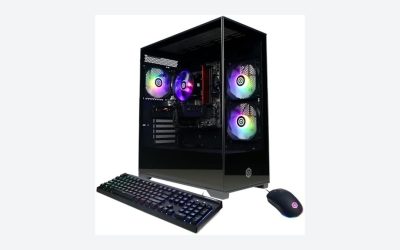
If you’d rather buy a complete machine than build storage into an existing one, prebuilt editing PCs come with capacity already configured. The STROMCRAFT Skyhawk (RTX 5070 Ti, 32GB DDR5, 2TB SSD) at around $2,600 is sized appropriately for 4K work out of the box, while a budget tower like the STGAubron (Core i5, RTX 2060, 512GB SSD) at around $540 will need a storage add-on of $100–$250 before it’s practical for anything beyond 1080p projects.
How to Measure Your Space
Physical fit matters most when adding internal drives or placing external units on a desk. Follow these steps:
- Check your drive bays. Open your case (power off, cable unplugged) and count the 3.5-inch bays — most mid-towers have 2–4, located behind the motherboard or at the front. Each 3.5″ HDD needs roughly 5.8 x 4.0 x 1.0 inches of bay space.
- Look for M.2 slots. Locate the horizontal M.2 connectors on your motherboard, usually below the CPU or between the PCIe slots. Most boards have 1–3. Measure available clearance if a large GPU may overhang the slot — some drives with tall heatsinks need up to 0.5 inches of vertical room.
- Verify your SATA power and data cables. Each 3.5″ or 2.5″ drive needs one SATA power lead from the PSU and one data cable to the motherboard. Count spare connectors before buying.
- Measure external drive desk space. Allow at least 7 x 5 x 9 inches (18 x 13 x 23 cm) per desktop external drive for the unit plus cable bends and ventilation. Portable 2.5-inch drives need only a few square inches but shouldn’t be stacked, since they rely on passive cooling.
- Confirm PSU wattage headroom. A 3.5″ HDD draws about 5–9W during operation and up to 25–30W at spin-up. If your system already runs near its PSU limit, add 30W of headroom per added hard drive. A 650W PSU comfortably supports a GPU-based editing rig plus four drives.
- Plan the cable route. Leave 4–6 inches behind the case’s motherboard tray for cable routing so side panels close without pinching SATA lines.
By Room or Use Case
Home Office / Hobbyist Editing
If you cut 1080p footage a few hours a week, a single 1TB–2TB NVMe SSD ($60–$120) may be all you need. You’ll want roughly 200GB free at all times for cache and render files, so a 1TB drive realistically holds 2–3 active projects. Add a $35–$60 portable external drive for a second copy of finished work. Total investment: under $200.
Dedicated Editing Desk / Content Creator
For regular 4K work, dedicate two drives: a 1TB NVMe for the OS and applications, and a 2TB NVMe or SATA SSD for projects and cache. Add one 8TB internal or desktop external HDD ($150–$250) for raw footage archives. Physically, that’s one M.2 slot and one 3.5-inch bay, or one 8 x 5-inch footprint on the desk for an external unit. Budget $250–$450 for the full storage layer.
Studio / Multi-Camera Production
Commercial work with multicam 4K/6K files benefits from three or four drives: a fast boot SSD, a 2TB–4TB project SSD, and two 8TB+ HDDs configured so one is always a mirror or offsite copy. At roughly 30W of combined drive draw and one to two 3.5-inch bays per 8TB drive, ensure your case has three open bays and 15 x 8 inches of shelf space for any external RAID units. Storage spend here typically runs $500–$900.
Gaming/Editing Hybrid Setup
If the machine splits duty between gaming and editing, start from a 2TB SSD and treat anything under 1TB of free space as full. Systems shipping with a 512GB SSD — common on budget desktops — should get a $100–$180 upgrade to 2TB before editing projects land on them. One 8TB archival HDD covers both game libraries and finished video exports.
Common Sizing Mistakes
- Buying one huge drive instead of two drives. Editing directly off a single HDD that also holds your OS leads to stuttering playback and slow renders. Separating OS, project, and archive duties onto different drives is the single biggest performance win per dollar.
- Counting advertised capacity literally. A “2TB” drive formats to about 1.8TB usable, and editors should keep 15–20% free for cache. Treat a 2TB drive as roughly 1.4TB of real working space.
- Underestimating 4K file sizes. An hour of compressed 4K at 100 Mbps is about 45GB; hour-long ProRes 422 files run near 120GB; camera RAW formats can exceed 300GB per hour. Multiply by your shooting ratio — most editors record 5–10 hours for every finished hour.
- Skipping the backup drive. One copy of footage is zero copies. Any drive, at any price, can fail; an 8TB archive drive costs about $250, far less than reshooting a client project.
- Choosing a portable HDD as a working drive. A pocket drive spinning at 5,400 RPM over USB will choke on multicam 4K timelines. Keep portables for transport and backup, not active editing.
- Ignoring physical fit. M.2 heatsinks, GPU overhang, and full drive bays are the most common reasons a purchased drive doesn’t install. Measure before ordering.
FAQ
Is 512GB enough for video editing?
Only for light 1080p work. After Windows or macOS plus editing software, you’ll have roughly 350GB free, which fills fast once project files and cache accumulate. Treat 512GB as a starting point and budget $60–$120 to add a second 1TB–2TB drive.
Is SSD or HDD better for video editing?
Use both. SSDs (ideally NVMe) handle the OS, software, and active projects because they read and write several times faster than hard drives. HDDs win on cost per terabyte — around $25–$35 per TB versus $60–$100 per TB for SSDs — so they’re ideal for archiving raw footage and completed projects.
How much storage do I need for 4K video editing?
Plan for 4TB of total storage minimum: 1TB boot SSD, 1TB–2TB project SSD, and an 8TB HDD for archives if you shoot regularly. Editors working daily with RAW or multicam formats should scale to 6TB–12TB of combined storage.
Can I add storage to a prebuilt PC later?
Almost always. Most desktops include at least one spare SATA bay or M.2 slot — check the motherboard specifications before buying. A 3.5″ drive drops into a bay with two screws and two cables in about ten minutes; an M.2 drive seats directly onto the board with a single retaining screw. If internal options are exhausted, a USB 3.0 external drive requires no opening of the case at all.
Related guides
- Best Gaming PC for Fortnite: Eight Prebuilt Desktops Sorted by Refresh Rate Goal (2026)
- Best RX 9070 XT Prebuilt Gaming PCs: Seven Desktops and Three Cards Compared: 10 Compared (2026)
- CyberPowerPC vs iBUYPOWER Gaming PC: How the Two Brands Compare
- Best RX 9070 XT Prebuilt Gaming PC (2026): 5 Picks Compared