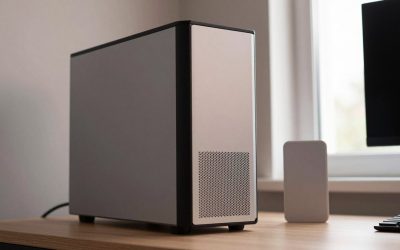
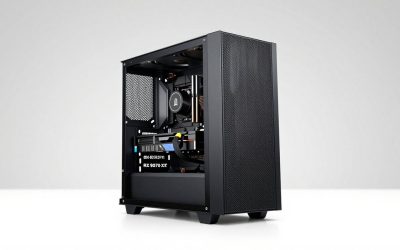
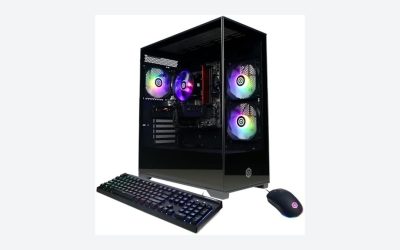
Our Top Picks
Pros & cons
- Built-in 11.3 inch smart display shows live temps and usage
- 850W 80+ Gold PSU leaves headroom for upgrades
- Arrives fully assembled with Windows 11 Home installed
- Monitor must connect to the graphics card, not motherboard ports
- 360mm liquid cooler takes up significant case space

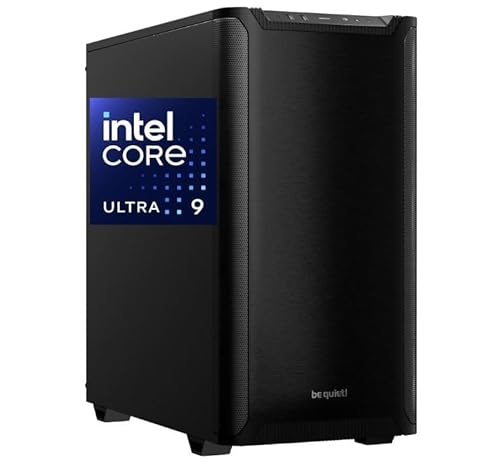
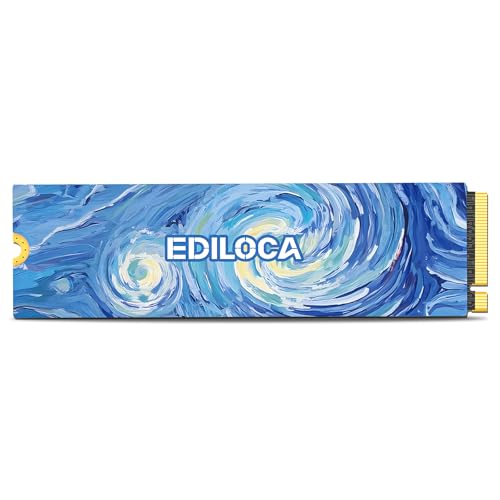

Top 3 picks at a glance
The Short Answer
For a dedicated 4K video editing PC, plan for at least 2TB of fast internal storage, and ideally 4TB if you edit regularly. A 1TB drive fills up shockingly fast with 4K footage, and it leaves no room for cache, previews, and exports.
Here is the practical breakdown: 1TB lets you handle a single small project at a time, 2TB is the sweet spot for most solo creators and YouTubers working on one to two projects simultaneously, and 4TB or more is best for professionals juggling multiple clients, multicam 4K, or RAW footage. Raw 4K at 24fps can consume 300GB to 400GB per hour depending on codec, while compressed 4K like H.264/H.265 from a mirrorless camera uses roughly 45GB to 135GB per hour. Add 15% to 20% extra for proxies, scratch disks, and final exports.
As an Amazon Associate we earn from qualifying purchases at no extra cost to you.




The best current setup in 2026 is a two-drive system: a 1TB to 2TB NVMe SSD as your boot and application drive, plus a second 2TB to 4TB high-speed NVMe for active projects. An additional large HDD or external drive from 8TB to 16TB is then used for archiving finished work.
Standard Sizes
Storage for video editing is measured in capacity, but physical size still matters when you are building or upgrading a PC. You need to know what fits inside your case, how much desk space your tower needs, and what your motherboard supports. Most modern editing PCs use compact M.2 NVMe drives for speed, while larger 2.5-inch and 3.5-inch drives provide affordable bulk storage.
| Component | Form Factor | Dimensions (inches) | Dimensions (cm) | Typical Capacity Range | Typical Weight |
|---|---|---|---|---|---|
| Primary NVMe SSD | M.2 2280 | 3.15 x 0.87 x 0.15 in | 8.0 x 2.2 x 0.38 cm | 1TB – 4TB | 0.25 oz (7g) |
| Secondary SATA SSD | 2.5-inch | 3.95 x 2.75 x 0.28 in | 10.0 x 7.0 x 0.7 cm | 1TB – 8TB | 1.6 – 2.1 oz (45-60g) |
| Archive HDD | 3.5-inch | 5.75 x 4.0 x 1.03 in | 14.6 x 10.2 x 2.6 cm | 4TB – 22TB | 1.4 – 1.5 lb (635-680g) |
| Mid-Tower Editing PC Case | ATX Mid-Tower | 18.5 x 8.5 x 19.5 in | 47.0 x 21.6 x 49.5 cm | Holds 2-4 drives | 22 – 32 lb (10-14.5 kg) |
| Compact Editing PC Case | Micro-ATX | 16.5 x 7.5 x 17.0 in | 41.9 x 19.1 x 43.2 cm | Holds 1-3 drives | 18 – 25 lb (8.2-11.3 kg) |
On the capacity side, most prebuilt editing systems now ship with a 1TB or 2TB NVMe as standard. For example, systems like the KOTIN Prebuilt Gaming PC with a 1TB SSD around $2,100 are suitable for light editing but will require an immediate second drive for serious 4K work. A more editing-focused configuration like the STROMCRAFT Skyhawk Gaming PC with a 2TB SSD near around $2,600 gives you breathing room for active timelines. High-end workstations such as the CPU Solutions VidCore with 2000GB NVMe SSD and 64GB RAM in the $3,300 to $3,400 range are built for that 2TB+ active workflow from day one. If you are adding storage yourself, a 2TB PCIe 4.0 or 5.0 NVMe like the Ediloca EN1400 Pro in the $180 to $310 range offers read speeds up to 14,000 MB/s, which dramatically shortens 4K timeline scrubbing and export caching.
How to Measure Your Space
Before you buy a drive or a new tower, confirm what you can physically install and where it will live in your workspace. A five-minute measurement can prevent returns.
- Check your motherboard M.2 slots. Open the case or check the manual and count the M.2 slots. Most ATX boards have two to three slots, Micro-ATX often has two. Note whether they support PCIe 4.0 or PCIe 5.0 and whether they are 2280 length. Measure clearance above the slot if you plan to use a drive with a heatsink, you need about 0.5 inches or 1.3 cm of vertical clearance.
- Measure drive bays. Look for 2.5-inch bays behind the motherboard tray and 3.5-inch cages at the bottom front of the case. Use a tape measure to confirm you have at least 6.0 x 4.5 inches or 15.2 x 11.4 cm of open space for an additional 3.5-inch HDD, plus cable routing room.
- Measure your desk footprint. Measure the width and depth allocated for the tower. A standard mid-tower needs a footprint of about 9 x 20 inches or 23 x 51 cm. Leave 4 to 6 inches or 10 to 15 cm of clearance behind the case for airflow and cables, and 2 inches or 5 cm on the side panel if it is vented.
- Measure ventilation and power headroom. Ensure the PC will not be enclosed in a cabinet. Video editing under sustained load draws 450 to 850 watts depending on the CPU and GPU combination. Check your power supply wattage on its label and leave 150 to 200 watts of headroom above your measured load if you add more drives.
- Plan external storage space. If you use external HDDs or a RAID enclosure for archiving, measure shelf or desk space for the enclosure. A 4-bay enclosure is typically 6.5 x 5.5 x 9.5 inches or 16.5 x 14.0 x 24.1 cm and weighs 6 to 9 lb or 2.7 to 4.1 kg when loaded.
By Room or Use Case
The right amount of storage depends on your codec, how long your videos are, and how many projects you keep active. Use these scenarios to size correctly.
Small Home Office or Bedroom Studio: Hobbyist and YouTube Creator
You shoot compressed 4K from a Sony, Canon, or iPhone and produce one video per week under 15 minutes. A 2TB total setup is ideal. Use a 1TB NVMe for Windows, Premiere Pro or DaVinci Resolve, and cache, and a second 1TB to 2TB NVMe for active footage. Expect to offload finished projects to a single 8TB to 12TB external HDD that sits on your desk. This keeps your tower compact and quiet, which matters in a small room where a large tower and multiple spinning drives add heat and noise.
Dedicated Editing Room: Freelance Professional
You handle client work, 30 to 90-minute timelines, and often keep two to three projects live. Start at 4TB internal. A recommended layout is a 2TB PCIe 4.0 or 5.0 NVMe boot drive plus a 2TB to 4TB secondary NVMe for media and scratch. Budget $280 to $550 for the secondary drive depending on speed and DRAM cache. Add a 16TB to 20TB 3.5-inch HDD or a two-bay NAS for nearline backup. This setup lets you store about 30 to 50 hours of compressed 4K or 8 to 12 hours of ProRes 4K without constantly archiving.
Living Room or Shared Space: Compact Build
If your PC shares space and needs to look clean, you will likely choose a Micro-ATX or small mid-tower. These cases often limit you to one 3.5-inch drive and two M.2 slots. Maximize M.2 capacity instead of adding bulk. Choose a single 2TB or 4TB M.2 2280 for everything, and handle archiving with a slim external 5TB 2.5-inch drive that can be stored in a drawer when not in use. Avoid filling a compact case with multiple HDDs, as airflow is restricted and drive temperatures can rise 10 to 15 degrees Fahrenheit.
High-End 4K RAW and 8K Workflow: Production House
If you edit Blackmagic RAW, RED RAW, or ProRes RAW at 4K or 8K, storage needs multiply. One hour of 4K RAW can exceed 400GB to 750GB. For this workflow, 6TB to 8TB of internal NVMe is common, often configured as 2TB boot plus 4TB to 6TB RAID 0 or RAID 5 media array. These users also need a large desk or rack footprint for a 4-bay to 8-bay RAID enclosure providing 32TB to 80TB of archive. Power draw is higher, so a 750W to 1000W 80 Plus Gold power supply is standard, and case weight will be at the upper end of the range due to additional drives and cooling.
Common Sizing Mistakes
The biggest mistake is buying only 1TB and assuming you will manage. With cache files, proxies, and versioned exports, a 20-minute 4K project can quietly consume 250GB to 400GB of working space. Once an SSD passes 85% full, sustained write speeds drop and timeline performance stutters, especially on DRAM-less drives.
A second mistake is choosing a single large HDD to save money. A 3.5-inch HDD tops out around 250 MB/s to 280 MB/s, which is not enough for smooth 4K multicam. Use an NVMe with 5,000 MB/s to 14,000 MB/s for active editing and reserve HDDs strictly for backup and archiving.
Another common error is ignoring the scratch disk. Premiere Pro, After Effects, and DaVinci Resolve create gigabytes of preview and cache files per hour of footage. If your boot drive is small, these files choke your system drive. Assign a dedicated 500GB to 1TB partition or a second physical drive as your scratch disk.
Finally, do not overfill your case without measuring. A thick PCIe 5.0 SSD with a large heatsink can interfere with a GPU in compact cases, and adding two 3.5-inch drives without extra fan capacity can raise internal case temperatures by 5 to 10 degrees Celsius. Always leave 20% to 25% free space on every drive for optimal performance and longevity.
FAQ
Is 1TB enough for 4K video editing?
Only for very light, occasional editing. A 1TB drive holds the operating system, editing apps, and roughly 7 to 20 hours of compressed 4K footage before you account for cache. For most creators, 1TB means constant file shuffling. If you already own a 1TB system like many entry gaming PCs, add a second 1TB to 2TB NVMe for active projects and keep an external 8TB drive for archiving to avoid running out of space mid-project.
Do I need an SSD or will an HDD work for 4K editing?
You need an SSD for active editing. NVMe SSDs provide 3,500 MB/s to 14,000 MB/s, which lets you play back, scrub, and render 4K without dropped frames. HDDs are excellent for long-term storage and backups at a lower cost per terabyte, typically $15 to $25 per TB versus $45 to $80 per TB for quality NVMe, but they are too slow as a primary editing drive. The ideal pairing is SSD for work, HDD for storage.
How much storage does one hour of 4K footage actually use?
It depends on the codec. Compressed 4K from most mirrorless cameras and drones at 100 to 150 Mbps uses about 45GB to 70GB per hour. Higher bitrate 4K at 300 Mbps uses about 135GB per hour. Professional formats like ProRes 422 at 4K use about 300GB to 330GB per hour, and 4K RAW can use 400GB to 750GB per hour. Always multiply by 1.5 to account for proxies, renders, and multiple takes.
Should I get one big drive or two smaller drives?
Two drives perform better and are safer. A dedicated boot drive keeps your system fast even when the project drive is full, and separating read/write tasks reduces thermal throttling. For example, a 1TB boot plus a 2TB project drive will outperform a single 3TB partition in daily editing. Two drives also isolate risk: if the project drive fails, your system remains bootable, and if the OS needs reinstalling, your footage stays untouched on the second drive.
Related guides
- Best Gaming PC for Fortnite: Eight Prebuilt Desktops Sorted by Refresh Rate Goal (2026)
- Best RX 9070 XT Prebuilt Gaming PCs: Seven Desktops and Three Cards Compared: 10 Compared (2026)
- CyberPowerPC vs iBUYPOWER Gaming PC: How the Two Brands Compare
- Best RX 9070 XT Prebuilt Gaming PC (2026): 5 Picks Compared