As an Amazon Associate we earn from qualifying purchases at no extra cost to you.



Buying a prebuilt PC for video editing looks simple from the outside — until you realize most prebuilts are tuned for gaming, not for timelines, exports, and color-graded 4K footage. The most common mistake buyers make is fixating on the GPU. A shiny RTX 5070 paired with 16GB of RAM and a slow 512GB drive will choke on a multicam 4K project faster than a modest GPU with 64GB of memory and fast storage ever would. The second mistake is ignoring the power supply and cooling — editors run sustained full loads for hour-long exports, which is a different stress profile than a gaming session. And the third is buying on specs alone without checking what’s actually inside the case, since some budget builders swap in no-name power supplies and single-channel RAM to hit a price point.
This guide walks through what actually matters, in the order you should think about it.
Our Top Picks


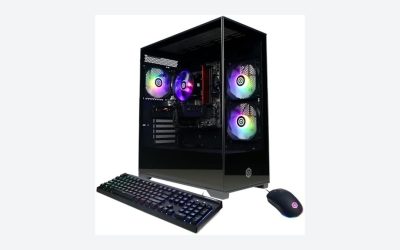
Top 3 picks at a glance
Decide These 3 Things First
1. What resolution and codec are you editing? This single question drives every other decision. 1080p editing with lightly compressed footage runs fine on a $700–900 machine. 4K H.264/H.265 from a mirrorless camera wants a 6+ core CPU, 32GB of RAM, and hardware encoding support. 6K/8K RAW, ProRes, or RED footage demands 64GB of RAM, top-tier cores, and GPU VRAM of 12GB or more — and often proxy workflows regardless.
2. What software do you use? Adobe Premiere Pro and DaVinci Resolve lean heavily on the GPU, so NVIDIA cards with ample VRAM pay off. Final Cut Pro is Mac-only, so if that’s your editor, a Windows prebuilt is off the table entirely. Resolve in particular loves VRAM — 8GB is workable, 12–16GB is comfortable, and Studio-grade effects can eat more.
3. What’s your realistic total budget? Set the number and stick to it, but know where the money goes: roughly 25–30% CPU, 25–30% GPU, 10–15% RAM, 10% storage, and the rest on PSU, cooling, case, and motherboard. A machine at $1,200 spent well beats a $1,600 machine spent badly every time.
CPU: Cores and Clock Speed Both Count
Video editing is one of the few workloads where core count genuinely matters — exports, rendering, and noise reduction scale with cores — but single-core speed still governs timeline playback and effects scrubbing.
– 1080p editing: 6 cores minimum. An Intel Core i5-class chip or AMD Ryzen 5 in the 4.5GHz+ boost range is plenty.
– 4K editing: 8 cores is the sweet spot. Think Intel Core Ultra 7 or i7, or Ryzen 7, with boost clocks of 5GHz or better.
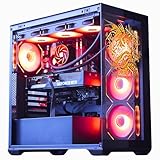
– Heavy 4K/6K, multicam, long exports: 12–16 cores. A Core i9 or Ryzen 9 running 5.4GHz+ boost, as you’d find in machines like the Horizon Autherium Dragon tier (around $3,200, i9 up to 5.4GHz, 64GB RAM), turns hour-long exports into minutes.
Also check the CPU’s integrated graphics if you plan to use Intel Quick Sync — it dramatically accelerates H.264/H.265 decode in Premiere. Chips with an “F” suffix (like the Core Ultra 7 265F in the Alienware Aurora at around $2,000) lack integrated graphics, so Quick Sync acceleration is off the table; that’s fine for Resolve-heavy workflows, less ideal for Premiere users.
GPU: VRAM Matters More Than the Model Name
The GPU handles playback acceleration, effects, color grading, and NVENC hardware encoding. What matters most:
– VRAM: 8GB minimum for 4K work; 12GB+ for effects-heavy grading or 6K footage. The RTX 5070’s 12GB, for example, is a comfortable 4K editing card.
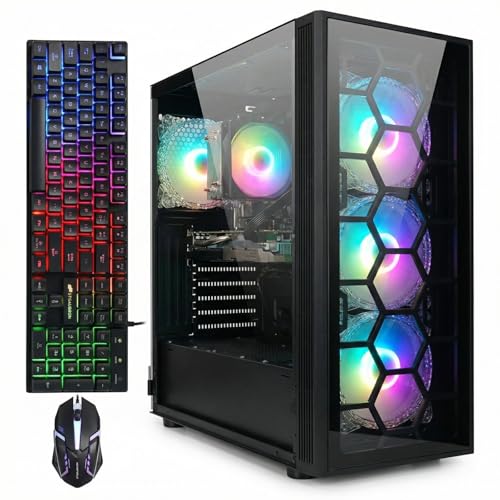
– NVENC encoder: any RTX card from the last several generations includes it, which is why even the budget RTX 3050 6GB (found in the around $830 STGAubron Ryzen 7 build) helps export times in Premiere and Resolve.
– Watch the 6GB cards: the RTX 2060 6GB in the around $540 STGAubron build is fine for 1080p timelines, but it will hit a VRAM wall with 4K effects and LUTs. Fine for a starter rig, a real limitation within a year or two.
One caveat: “OC” (overclocked) GPU labels in prebuilts are marketing more than substance — expect 2–5% difference. Don’t pay a premium for it.
RAM: 32GB Is the New Baseline
This is where budget prebuilts quietly hurt you most.
– 16GB: workable for 1080p only. The 16GB DDR4 in the sub-$850 STGAubron machines is the first thing you’d want to upgrade.
– 32GB: the realistic floor for 4K editing, especially with After Effects in the mix.
– 64GB: for 6K+, multicam, or heavy motion graphics — the configuration in the around $3,200 Horizon build is properly specified for that workload.
Check two details in the listing: speed (DDR5-5600 or better for current Intel/AMD platforms; DDR4-3200 is acceptable on older Ryzen builds) and configuration. Dual-channel is essential — a single 32GB stick performs measurably worse than 2x16GB. Many listings don’t say; if it doesn’t specify, ask or assume the worst.
Storage: Two Drives, Fast Second Drive
A single SSD crammed with OS, apps, cache, and media is the classic prebuilt bottleneck.
– Boot/app drive: 1TB NVMe minimum (the 512GB SSD in the around $540 STGAubron fills up almost immediately with Adobe’s cache alone).
– Media/cache drive: a second NVMe Gen4 drive rated 5,000MB/s+ read keeps scratch disks and proxies off your boot drive.
– Archive: bulk footage archives cheaply on a 4–8TB HDD, or just add an external drive later for under $100.
Prioritize NVMe over the raw capacity in listings like “5TB storage” — find out whether that’s 5TB of fast NVMe or 1TB SSD plus 4TB slow HDD before you buy.
PSU and Cooling: The Parts Listings Hide
Editors run long sustained exports — a 45-minute render is harder on a machine than a gaming session with load spikes.
– PSU wattage: 650W quality unit minimum for a midrange GPU; 750–850W (80+ Gold) for anything with an RTX 5070-class card or higher. If the listing doesn’t name the PSU brand or rating, that’s a warning sign — generic 500W units in cheap builds are the first failure point.
– Cooling: air towers (120mm+ dual-fan coolers) handle midrange chips fine. A 360mm AIO, as specced on the Horizon build, is appropriate for i9-class heat. Check case airflow too: at least two intake and one exhaust fan, or expect thermal throttling during exports.
– Noise: sustained rendering makes cheap coolers scream. If you record voiceovers in the same room, this matters more than any benchmark.
Price Tiers: What Your Money Actually Buys
Budget ($500–900): 6-core CPU, 16GB RAM, 8GB-or-less GPU, 512GB–1TB SSD. The STGAubron builds (around $540 and around $830) sit here. Honest 1080p starter machines; budget another $100–150 for RAM/storage upgrades if you’ll touch 4K.
Midrange ($1,000–2,200): 8-core CPU, 32GB RAM, 12GB+ GPU, 1–2TB NVMe. The Alienware Aurora (RTX 5070, Core Ultra 7 265F, around $2,000) is a strong 4K editing machine — you give up Quick Sync with the F-suffix chip and some upgrade room in the proprietary case, but the core specs are right.
Premium ($2,500–3,500): 12–16 cores, 64GB RAM, high-VRAM GPU, 2TB+ fast storage, serious cooling. The Horizon Autherium Dragon (around $3,200) fits this tier and is configured for heavy 4K/6K work rather than gaming spec-sheet padding.
Spec Checklist
| Spec | Budget ($500–900) | Mid ($1,000–2,200) | Premium ($2,500–3,500) |
|---|---|---|---|
| CPU | 6 cores, 4.5GHz+ boost | 8 cores, 5GHz+ boost | 12–16 cores, 5.4GHz+ boost |
| GPU VRAM | 6–8GB | 12GB | 16GB+ |
| RAM | 16GB DDR4 (upgrade later) | 32GB DDR4/DDR5, dual-channel | 64GB DDR5, dual-channel |
| Storage | 512GB–1TB NVMe | 1TB NVMe + 1TB secondary | 2TB+ NVMe Gen4/5 |
| PSU | 550–650W, named brand | 750W 80+ Gold | 850W 80+ Gold |
| Cooling | Stock or basic tower | Dual-tower air or 240mm AIO | 360mm AIO |
| Best for | 1080p editing | 4K timelines | 6K/8K, multicam, motion graphics |
Red Flags
– Unbranded power supply or no PSU details at all. The single most common failure point in cheap prebuilts.
– “Up to” clocks with no named CPU model. Listings like “Core i9 up to 5.4GHz” should name the exact chip (e.g., i9-14900K vs. an older i9-10900K — same marketing, very different performance). Ask before buying.
– Single-stick RAM or unspecified configuration. Kills memory bandwidth.
– Hard drive listed as primary storage. Anything spinning at 5,400RPM as your boot drive will make the whole machine feel broken.
– Proprietary parts in big-brand cases. Some major-brand desktops use custom motherboards, PSUs, and coolers — upgrades get expensive or impossible. Fine if you buy the right spec up front; painful if you planned to grow into it.
– Gaming-focused RGB as the headline feature. Lighting tells you nothing about sustained render performance; it usually means the budget went to the visible parts.
– No OS license mentioned. “Windows 11 Pro” spelled out (as in the Horizon listing) versus vague “OS included” is worth checking.
FAQ
Is a gaming PC good for video editing?
Often yes — modern gaming builds and editing builds overlap heavily, since both want a strong GPU, fast CPU, and NVMe storage. The gaps are RAM (gamers can live with 16GB; 4K editors can’t) and storage layout (editors benefit from a separate cache/media drive). A gaming prebuilt with 32GB+ RAM is a genuinely good editing machine.
Should I just build it myself to save money?
If you’re comfortable assembling parts, building typically saves 10–15% and guarantees every component. A prebuilt makes sense if you value a single warranty, don’t want to troubleshoot assembly, or find a sale where the builder’s component pricing beats retail — which happens with smaller system integrators more often than with big brands.
How much RAM do I need for 4K video editing?
32GB is the practical minimum for 4K in Premiere or Resolve, and 64GB if you regularly stack effects, run After Effects alongside, or edit multicam. RAM is the cheapest upgrade you can do yourself later — just confirm the machine has free slots and isn’t using proprietary memory.
Can I upgrade a prebuilt PC for video editing later?
Usually, with caveats. RAM slots, M.2 slots, and GPU swaps are straightforward on standard ATX/micro-ATX builds. Check the listing or spec sheet for: number of free RAM slots, spare M.2 slots, PSU wattage headroom (leave 150W+ for a future GPU), and physical GPU clearance in the case. Proprietary big-brand cases are the exception — verify upgrade paths before buying, not after.
Related guides
- Best Gaming PC for Fortnite: Eight Prebuilt Desktops Sorted by Refresh Rate Goal (2026)
- Best RX 9070 XT Prebuilt Gaming PCs: Seven Desktops and Three Cards Compared: 10 Compared (2026)
- CyberPowerPC vs iBUYPOWER Gaming PC: How the Two Brands Compare
- Best RX 9070 XT Prebuilt Gaming PC (2026): 5 Picks Compared