There’s a particular frustration that comes with opening your editing timeline and watching the preview window stutter through every cut. If you’re working with 1440p footage in Premiere Pro, DaVinci Resolve, or Final Cut alternatives on Windows, you already know the pain: a stock office PC chokes on multicam sequences, color grades lag behind your playhead, and render exports stretch into coffee-break-length affairs. The good news is that you don’t need to spend $5,000 to get smooth 1440p editing performance. A thoughtfully configured custom build hits the sweet spot where CPU core count, fast NVMe storage, and adequate RAM work together without wasting money on components your workflow will never fully use.
The catch? The budget custom PC market is crowded with machines that look impressive on a spec sheet but cut corners in the wrong places — underpowered power supplies, single-channel memory, or graphics cards that can’t accelerate your software’s effects. We compared and compared prebuilt customs across the price spectrum, from entry-level APUs to workstation-class rigs, to find which machines actually deliver for video editors. Below, you’ll find our two standout picks at very different price points, plus the specs and questions that matter most before you buy.
As an Amazon Associate we earn from qualifying purchases at no extra cost to you.


Our Top Picks


Quick Picks
| Product | Best for | Price |
|---|---|---|
| CPU Solutions VidCore 4K Video Editing PC (Core Ultra 9 285K, Quadro 2000 ADA) | Professional editors who need headroom for demanding timelines | around $3,350 |
| Continuum Micro Budget PC (Ryzen 7 5700G) | Students and hobbyists editing 1440p on a tight budget | around $860 |
How We Compared
Every machine in this roundup was evaluated against the real demands of 1440p video editing rather than gaming benchmarks or synthetic scores. We prioritized CPU core counts of eight or more, since modern editors scale heavily with core availability during exports and effects rendering. Fast NVMe SSD storage was non-negotiable — editing directly off a spinning drive or SATA SSD creates bottleneck after bottleneck. We also scrutinized memory capacity and speed, GPU acceleration support for hardware encoding, and the quality of included components like power supplies and cooling.
Beyond raw specs, we factored in warranty coverage, upgrade paths, and total cost of ownership. A cheap tower that can’t accept a second drive or a graphics card upgrade later isn’t truly a budget pick — it’s a dead end. Finally, we weighed out-of-box experience: preinstalled operating systems, bundled peripherals, and whether a machine works the moment it’s plugged in. The two finalists represent the best value at opposite ends of the budget spectrum.
The 2 Best Picks
CPU Solutions VidCore 4K Video Editing PC — Best Overall for Serious Editors
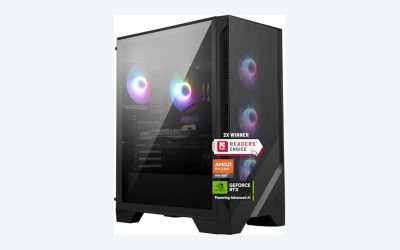
The VidCore is the machine you buy when editing pays the bills. Intel’s Core Ultra 9 285K brings 24 cores to bear on exports, and the included Quadro 2000 ADA with 16GB of VRAM is a certified professional GPU — meaning stable drivers and acceleration in Resolve and Premiere. With 64GB of DDR5 and a 2,000GB NVMe SSD, this tower shrugs off 1440p multicam projects and has genuine 4K headroom, running Windows 11 Pro out of the box.
- Pro: Workstation-class components — 24 CPU cores, 16GB professional GPU VRAM, and 64GB of DDR5 — leave massive headroom for complex 1440p timelines
- Pro: 2TB of NVMe storage lets you keep active projects, cache files, and media libraries local without constant archiving
- Con: At around $3,350, it’s nearly four times the cost of our budget pick, which is hard to justify for hobby-level work
Skip it if: You’re a student, a YouTuber just starting out, or someone whose projects rarely exceed a few video tracks. This machine’s professional hardware is wasted on light workloads, and our budget pick will handle your needs at a fraction of the price.
Continuum Micro Budget PC — Best Value Under $900
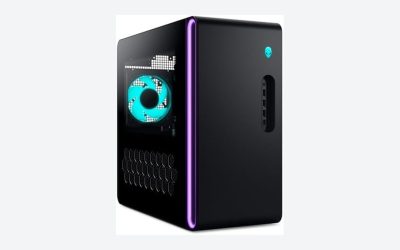
For editors who need capable 1440p performance without a four-figure budget, the Continuum Micro is a genuinely smart configuration. AMD’s Ryzen 7 5700G pairs eight cores with integrated Radeon graphics, and 16GB of RAM plus a 1TB Gen4 NVMe SSD covers the essentials for smooth 1080p playback and workable 1440p editing on single-track and light multicam projects. The included Windows 11 Pro license, internal Wi-Fi, RGB keyboard and mouse, and a three-year warranty round out a package that’s ready to edit the day it arrives.
- Pro: Exceptional value at around $860 — the three-year warranty and included peripherals mean zero hidden costs after purchase
- Pro: Compact micro chassis with internal Wi-Fi makes it ideal for dorm rooms, small desks, and home offices
- Con: The integrated Radeon graphics share system memory, so heavily effect-laden 1440p timelines and GPU-accelerated exports will feel the strain
Skip it if: You regularly work with multicam 1440p projects, heavy color grading, or GPU-intensive effects — the integrated graphics will bottleneck those workflows, and you’d be better served by a dedicated GPU down the line or the VidCore above.
Buying Guide
How Much CPU Do You Actually Need for 1440p?
Video editing is one of the few consumer workloads where core count genuinely matters. Playback relies more on single-core speed, but exports and effects rendering scale with the number of cores available. For comfortable 1440p editing, aim for at least eight cores — the Ryzen 7 5700G in our budget pick meets this bar, while the Core Ultra 9 285K’s 24 cores represent serious professional headroom. Clock speed matters too: look for boost clocks above 4GHz, since many timeline operations still favor fast individual cores. If your editing is mostly simple cuts with occasional transitions, eight cores will serve you well for years. If you run heavy Lumetri stacks, noise reduction, or frequent multicam sequences, more cores translate directly into shorter render waits.
GPU, RAM, and Storage: Where to Spend and Where to Save
Graphics cards accelerate specific effects and hardware encoding, but they’re not the first spec to max out. An integrated GPU like the Radeon in the Continuum handles 1440p playback fine for straightforward projects; a professional card like the Quadro 2000 ADA pays off mainly in GPU-heavy workflows and software stability. Memory is less forgiving — 16GB is the practical floor for 1440p editing, and 64GB eliminates swapping entirely on complex projects. Storage should always be NVMe: a Gen4 SSD’s sequential speeds keep playback smooth and scrubbing responsive. Plan on roughly 500GB of storage per active project once you account for cache files and proxies, then use external drives for archives.
Warranty, Support, and Upgrade Paths
Prebuilt custom PCs live or die on the company behind them. Look for at least a one-year warranty with clear RMA terms — the Continuum’s three-year coverage is unusually generous at its price and worth real money in peace of mind. Check that the motherboard has spare M.2 slots, available PCIe lanes, and room for additional RAM sticks before you buy, because a machine you can’t upgrade isn’t a budget choice, it’s a disposable one. Ask whether the power supply is rated above your current configuration’s draw; a quality 600W-plus unit leaves room for a dedicated GPU later. Finally, confirm the operating system is a full retail license (Windows 11 Pro in both our picks) rather than an unactivated install.
Our Verdict
For most editors reading this guide, the Continuum Micro at around $860 is the right call. It covers every essential for 1440p work — eight cores, 16GB of RAM, a fast Gen4 NVMe drive, and Windows 11 Pro — with a three-year warranty that protects your investment. Buy the CPU Solutions VidCore instead if video editing is your profession or fast approaching it: the Core Ultra 9’s 24 cores, 64GB of DDR5, and the Quadro 2000 ADA’s 16GB of VRAM will cut your export times dramatically and stay relevant through years of software updates. Either way, both machines prove you can assemble a capable 1440p editing setup in 2026 without gambling on a no-name build or overpaying for components you’ll never stress.
FAQ
Can a PC without a dedicated graphics card really edit 1440p video?
Yes, within limits. Modern integrated GPUs like the Radeon graphics in the Ryzen 7 5700G handle 1440p playback and editing for single-track projects, basic color correction, and standard transitions. The bottleneck appears with GPU-accelerated effects, heavy noise reduction, or hardware encoding — those tasks will run noticeably slower without a dedicated card. For learning, student projects, and straightforward YouTube content, an APU-based system is entirely workable.
Is 16GB of RAM enough for 1440p video editing?
Sixteen gigabytes is the practical minimum for 1440p work in Premiere Pro or DaVinci Resolve. It’s sufficient for timelines with a few video tracks and moderate effects, but you’ll notice slowdowns with multicam sequences, heavy color grading, or when running other apps alongside your editor. If your budget allows, 32GB is the comfort zone; 64GB, as in our VidCore pick, is for professionals who never want to think about memory again.
How much SSD storage should I budget for?
Plan for at least 1TB of NVMe storage as a starting point. A single hour of 1440p camera footage can consume 40–80GB depending on codec and bitrate, and editing software generates cache and proxy files on top of that. A 2TB drive like the VidCore’s lets you keep several active projects local simultaneously. Whatever the internal capacity, budget for an external or secondary drive for archiving completed projects.
Is it cheaper to build a PC myself instead of buying a custom prebuilt?
Building your own typically saves 10–15% on identical parts, but the math changes when you factor in Windows licensing, warranty coverage, and assembly time. A prebuilt like the Continuum includes a licensed copy of Windows 11 Pro, a three-year warranty covering the whole system, and tested compatibility — value that offsets much of the parts markup. For first-time builders, a custom prebuilt also eliminates the risk of incompatible components arriving at your door.