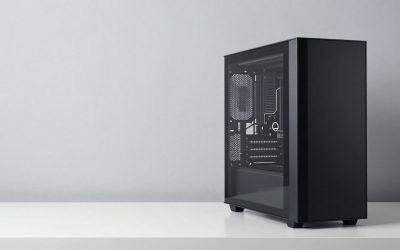
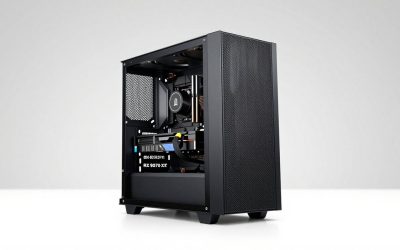
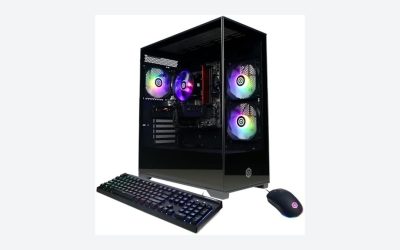
When planning a high-performance home office or design studio, a professional 3D CAD workstation is the ultimate centerpiece. Most buyers spend weeks comparing processors and graphics cards, only to select a motherboard as an afterthought. This is a critical mistake. The motherboard is the literal foundation of your computer. It determines how stable your system remains during a 12-hour rendering session, how fast your storage drives transfer multi-gigabyte assembly files, and whether your components can run at their maximum advertised speeds without throttling.
A cheap or poorly matched motherboard will bottleneck even the most expensive components. If you pair a top-tier processor like the AMD Ryzen 9 9950X or the Intel Core Ultra 9 285K with a low-end motherboard, the board’s voltage regulator modules (VRMs) will overheat. When this happens, your system automatically reduces CPU performance to prevent physical damage, leaving you with sluggish CAD viewport frame rates and agonizingly slow render times. To build a system that stands up to heavy modeling, simulation, and rendering workloads, you must understand what actually matters when choosing a motherboard.
As an Amazon Associate we earn from qualifying purchases at no extra cost to you.


Our Top Picks


Top 3 picks at a glance
Decide These 3 Things First
Before diving into individual specifications, you must define the scope of your workstation. Answering these three questions immediately narrows down your options to a manageable selection of compatible, high-performance boards.
- Your CPU Platform (Intel vs. AMD): Motherboards are built around specific CPU sockets. You must decide whether you are building around AMD’s AM5 platform (utilizing chipsets like the X870) or Intel’s latest LGA1851 platform (utilizing chipsets like the Z890). These platforms are not interchangeable.
- Your Expansion Requirements: Determine how many PCIe expansion cards you will need. If you are running a single dedicated GPU, such as an entry-level professional SENECESLI T400 4GB or a modern RTX A400, a standard board is fine. If you plan to run dual GPUs for GPU-accelerated rendering engines like V-Ray or Octane, you will need a motherboard that supports multi-GPU lane splitting (x8/x8 configuration).
- Your Rendering Workload Intensity: Do you mostly design 3D parts in SolidWorks, or do you run continuous, overnight rendering queues? Heavy rendering requires continuous maximum power delivery, meaning you must prioritize heavy-duty power phases and massive VRM heatsinks.
Size and Form Factor
Motherboard size dictates the physical dimensions of your workstation chassis and the number of expansion slots available. For a professional 3D CAD PC, size directly correlates with thermal capacity and expansion capability.
The standard ATX form factor (measuring 12 x 9.6 inches) is the industry benchmark for CAD builds. ATX boards provide the physical space required for robust VRM cooling, four DDR5 memory slots, and multiple PCIe slots. If you want a more compact setup for a small home office, Micro-ATX (9.6 x 9.6 inches) is an alternative, though it reduces the number of PCIe and M.2 storage slots. Avoid Mini-ITX (6.7 x 6.7 inches) for serious CAD workstations; these tiny boards struggle with thermal dissipation under sustained rendering loads and limit you to just two RAM slots, capping your total memory capacity.
Material and Thermal Construction
The physical build quality of a motherboard determines its lifespan and stability. Because CAD workloads keep processors at high utilization rates for hours, look closely at the materials used in the board’s construction.
First, inspect the printed circuit board (PCB) layers. High-end motherboards utilize 8-layer or 10-layer PCBs with thick copper traces (often advertised as “2oz copper”). This extra metal improves signal integrity for high-speed PCIe Gen 5 data paths and helps dissipate heat away from critical components.
Second, evaluate the voltage regulator module (VRM) heatsinks. Look for boards featuring dual-stacked aluminum heatsinks connected by a nickel-plated copper heatpipe. Premium boards feature heatsinks weighing between 350 grams and 600 grams. This mass is essential for absorbing and dissipating the heat generated by the power phases when supplying 200W to 300W of clean power to a heavy-duty CPU during complex simulation runs.
Performance and Connectivity Features
A professional 3D CAD workflow relies on rapid data transfer. Your motherboard must act as a high-speed highway between your storage, system memory, and graphics processing units.
For system memory, look for a motherboard that supports at least 192GB of DDR5 RAM across four DIMM slots. While a standard system like an Adamant Custom workstation might ship with 32GB or 48GB of DDR5, having the headroom to expand is vital as your project files grow.
Storage connectivity is equally critical. Ensure the board offers at least one dedicated PCIe Gen 5 M.2 slot for your primary boot drive, alongside two or three PCIe Gen 4 M.2 slots for secondary project drives. This allows you to load multi-gigabyte CAD assemblies instantly. For external connectivity, prioritize boards featuring onboard USB4 or Thunderbolt 4 ports (supporting 40 Gbps transfer speeds). This enables rapid transfers to external high-speed RAID arrays or network-attached storage (NAS).
Price Tiers and Value Analysis
Motherboard pricing varies wildly, but for a professional workstation, you should avoid both the absolute cheapest budget boards and the over-hyped, ultra-premium gaming boards.
- Budget ($130 to $190): These boards (typically utilizing B650 or B760 chipsets) offer basic functionality. They are suitable for entry-level CAD students or those doing light 2D drafting. However, they feature lighter VRM heatsinks and fewer high-speed USB ports, meaning they will struggle to run high-end processors at maximum boost clocks for extended periods.
- Mid-Range ($200 to $380): This is the sweet spot for professional designers. Boards in this tier, such as the Prime X870 or Prime Z890 series, offer heavy-duty power phases (typically 14+2+1 or higher), excellent VRM cooling, integrated I/O shields, and PCIe Gen 5 support. They easily handle high-performance CPUs like the Ryzen 9 9950X3D without thermal throttling.
- Premium Creator/Workstation ($400 to $700+): These specialized boards are designed specifically for heavy production environments. They feature dual Thunderbolt 4 ports, onboard 10 Gbps Ethernet for lightning-fast network rendering, and server-grade components rated for continuous 24/7 operation.
Warranty and Long-Term Reliability
System downtime equals lost revenue. When choosing a motherboard, look for manufacturers that stand behind their products with robust warranties and reliable firmware support.
Most consumer-grade motherboards come with a standard 3-year warranty. However, creator-focused and workstation-class motherboards often extend this coverage to 5 years. Additionally, prioritize manufacturers known for frequent and long-term BIOS updates. As we look ahead toward 2026, the demand for complex real-time simulation and AI-assisted CAD tools means motherboard bandwidth is more critical than ever. Buying from a manufacturer that actively updates their firmware ensures your system remains compatible with new hardware and secure against emerging vulnerabilities.
Delivery, Installation, and Chassis Assembly
Installing a motherboard requires care, as a single static discharge or slipped screwdriver can ruin the board. When your motherboard arrives, inspect the packaging for any signs of impact or moisture exposure.
Modern mid-range and premium motherboards feature an integrated I/O shield. This pre-attached backplate eliminates the frustrating step of snapping a sharp metal shield into your computer case, and it provides superior electromagnetic interference (EMI) protection. Ensure your PC chassis has pre-installed brass standoffs matching your motherboard’s form factor (ATX or Micro-ATX). Finally, because high-end CAD processors require substantial power, make sure your power supply unit (PSU)—such as an 850W Gold certified unit—features dual 8-pin EPS power connectors to plug directly into the top of the motherboard, ensuring stable power delivery under maximum load.
Spec Checklist
Use this quick-reference table to compare motherboard specifications across different budget tiers to find the perfect fit for your CAD workstation.
| Feature/Specification | Budget Tier ($130 – $190) | Mid-Range Tier ($200 – $380) | Premium Creator Tier ($400 – $700+) |
|---|---|---|---|
| Chipset Options | AMD B650 / Intel B760 | AMD X870 / Intel Z890 | AMD X870E / Intel W790 |
| VRM Power Phases | 8+2+1 Phases (50A – 60A) | 14+2+1 to 16+2+2 Phases (80A – 90A) | 18+2+1 to 20+2+1 Phases (110A+) |
| Max RAM Capacity | 96GB DDR5 (often 2 slots) | 192GB DDR5 (4 slots) | 192GB – 256GB+ DDR5 (ECC supported) |
| Primary PCIe Slot | PCIe 4.0 x16 | PCIe 5.0 x16 | Dual PCIe 5.0 x16 (Supports x8/x8) |
| M.2 Storage Slots | 2x PCIe 4.0 M.2 | 1x PCIe 5.0 + 2x PCIe 4.0 M.2 | 2x PCIe 5.0 + 3x PCIe 4.0 M.2 |
| Networking / LAN | 1 Gbps or 2.5 Gbps Ethernet | 2.5 Gbps Ethernet + Wi-Fi 7 | 10 Gbps + 2.5 Gbps Dual LAN + Wi-Fi 7 |
| Thunderbolt / USB4 | Rarely included | Often 1x USB4 port (40 Gbps) | Dual Thunderbolt 4 / USB4 ports |
Red Flags
When shopping for a motherboard to power a 3D CAD system, watch out for these warning signs that indicate a board is unsuitable for heavy professional workloads:
- Unshielded/Bare VRMs: If you can see the bare metal power phases around the CPU socket without any aluminum heatsinks covering them, avoid the board. It will overheat and throttle your CPU during long renders.
- No BIOS Flashback Button: This rear-panel button allows you to update the motherboard BIOS using a USB thumb drive without installing a CPU first. Without it, upgrading to a newer generation CPU can turn into a logistical nightmare.
- Only Two RAM Slots: Unless you are intentionally building an ultra-compact system, a board with only two DIMM slots severely limits your ability to upgrade your system memory as your CAD projects grow more complex.
- Thin, Flexing PCBs: Cheap motherboards feel thin and flex easily under hand pressure. A heavy professional graphics card or a large dual-tower air cooler can warp a cheap board over time, cracking the internal copper traces and causing intermittent system crashes.
FAQ
Why does the motherboard matter so much for 3D rendering?
During 3D rendering, your CPU or GPU runs at 100% capacity for extended periods. This draws massive amounts of electrical current. The motherboard’s VRMs are responsible for converting high-voltage power from your power supply into clean, low-voltage power for your processor. If the motherboard has cheap VRMs or inadequate cooling, it will overheat, causing your system to crash mid-render or throttle your rendering speeds significantly.
Can I use a gaming motherboard for a CAD workstation?
Yes, high-quality gaming motherboards (such as those in the mid-range and premium segments) make excellent foundations for CAD workstations. They are engineered to handle high power draws and offer excellent cooling. However, avoid gaming boards that waste budget on excessive RGB lighting instead of practical features like extra M.2 slots, 10 Gbps Ethernet, or Thunderbolt connectivity.
Do I need PCIe 5.0 support on my motherboard?
While current entry-level professional GPUs like the T400 or RTX A400 run perfectly on PCIe 4.0, having at least one PCIe 5.0 x16 slot and one PCIe 5.0 M.2 slot is highly recommended for future-proofing. Next-generation professional graphics cards and ultra-fast NVMe solid-state drives will fully utilize the doubled bandwidth of PCIe 5.0, helping you load massive datasets and render complex scenes much faster.
Is Wi-Fi necessary on a CAD workstation motherboard?
While a wired Gigabit or 10 Gbps Ethernet connection is always preferred for transferring massive CAD files and accessing local servers, having onboard Wi-Fi (especially Wi-Fi 6E or Wi-Fi 7) is highly beneficial. It serves as an excellent backup connection if your local network goes down, and it often includes built-in Bluetooth, which is necessary for connecting wireless space mice, drafting tablets, and other professional peripherals.
Related guides
- Best Gaming PC for Fortnite: Eight Prebuilt Desktops Sorted by Refresh Rate Goal (2026)
- Best RX 9070 XT Prebuilt Gaming PCs: Seven Desktops and Three Cards Compared: 10 Compared (2026)
- CyberPowerPC vs iBUYPOWER Gaming PC: How the Two Brands Compare
- Best RX 9070 XT Prebuilt Gaming PC (2026): 5 Picks Compared