The best laptops for network engineers in 2026 are business-class models with 32GB of RAM, a current Ryzen 7 or Core Ultra 7 processor, reliable Linux support, and enough USB-C, USB-A, and Ethernet flexibility for your lab equipment.
As an Amazon Associate we earn from qualifying purchases at no extra cost to you.



Our Top Picks
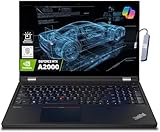
 Lenovo ThinkPad P15 Mobile Workstation64GB RAM|2TB SSD14.24 x 9.67 x 0.96 inches3.99 PoundsCheck on Amazon


Top 3 picks at a glance
Quick recommendations
| Best for | Recommended model or class | Target configuration | Typical market range |
|---|---|---|---|
| Most network engineers | Lenovo ThinkPad T14 Gen 5 AMD | Ryzen 7 PRO, 32GB RAM, 1TB SSD | Usually $900–$1,500 |
| Linux and repairability | Framework Laptop 13 AMD | Ryzen 7, 32GB RAM, 1TB SSD | Usually $1,000–$1,600 |
| Heavy virtual labs | Lenovo ThinkPad P16v or similar mobile workstation | Core Ultra 7 or Ryzen 7/9, 64GB RAM, 1TB–2TB SSD | Usually $1,500–$2,500 |
| Affordable lab machine | Business laptop with Ryzen 5 or Core Ultra 5 | 16GB minimum, preferably upgradeable to 32GB | Usually $500–$900 |
| Maximum battery portability | Lenovo ThinkPad T14s or comparable 14-inch business laptop | 32GB RAM, 1TB SSD, 50Wh or larger battery | Usually $1,000–$1,800 |
What network engineers should prioritize
1. RAM comes before a high-end GPU
RAM is usually the first limit in EVE-NG, GNS3, Containerlab, and nested virtualization. A small topology may use only a few gigabytes, but a realistic lab can include several routers, firewalls, Linux servers, monitoring tools, and a management desktop at the same time.
- 16GB: workable for studying, Packet Tracer, a few lightweight virtual machines, and remote lab access.
- 32GB: the practical sweet spot for most network engineers running local labs.
- 64GB: worthwhile for CCIE-level topologies, multiple firewall appliances, Kubernetes, security testing, or nested hypervisors.
- 96GB or more: useful only when the laptop supports it and your lab regularly contains many heavy virtual machines.
Do not assume a laptop can be upgraded. Some thin models have soldered memory, so select the required capacity at purchase. A modest processor with 64GB is often more useful for network labs than a fast processor restricted to 16GB.
2. Virtualization support must be explicit
Choose a modern 64-bit Intel or AMD processor with hardware virtualization enabled: Intel VT-x and VT-d, or AMD-V and IOMMU. These features support hypervisors such as VMware Workstation, VirtualBox, Hyper-V, KVM, and Proxmox test environments.
In the firmware settings, look for options named Intel Virtualization Technology, VT-d, SVM Mode, or IOMMU. Enable them before creating a lab. Windows users should also check whether Hyper-V, Virtual Machine Platform, or Windows Hypervisor Platform is already active, because competing virtualization layers can affect the behavior of some VMware and VirtualBox configurations.
For network labs, CPU core count matters more than a dedicated graphics card. Six to eight modern performance cores is a strong starting point; higher core counts help when several appliances boot simultaneously. Integrated graphics are sufficient unless the laptop also serves as a gaming or GPU-compute machine.
3. Plan Ethernet instead of assuming the laptop has it
Built-in RJ-45 Ethernet is convenient for console servers, managed switches, isolated management networks, and troubleshooting DHCP or wireless problems. Many thin laptops omit it, so a USB-C Ethernet adapter or dock may be necessary.
Prefer a 2.5GbE adapter if you regularly move virtual-machine images, capture traffic, or connect to a high-speed NAS. A reliable 1GbE adapter is sufficient for ordinary switch configuration and internet access. For serious work, keep a second adapter available so one interface can serve management traffic while another connects to a test network.
USB Ethernet adapters based on widely supported chipsets generally work more easily under Linux than obscure proprietary devices. Check driver support for your intended distribution before buying, especially if the adapter must work during installation or in a minimal rescue environment.
4. Count ports for the equipment you actually carry
A useful minimum is two USB-C ports, two USB-A ports, HDMI or DisplayPort output, and either built-in Ethernet or room in your budget for a tested adapter. USB-C ports should ideally support charging, display output, and USB 3.x data rather than charging only.
USB-A remains valuable for console cables, USB-to-serial adapters, flash drives, security keys, and older network equipment. If you use a dock, confirm that its Ethernet, displays, USB devices, and charging all work together under your operating system. A dock can simplify a desk setup but is less convenient than direct ports when visiting a wiring closet.
Best laptop choices by use case
Lenovo ThinkPad T14 Gen 5 AMD: the balanced choice
The AMD version of the ThinkPad T14 Gen 5 is a strong general-purpose option for engineers who want a traditional business laptop, a comfortable keyboard, good port selection, and a 14-inch format. Configure it with a Ryzen 7 PRO processor, 32GB of RAM, and a 1TB SSD where available.
Its main advantage is balance: enough CPU performance for local labs without the size and weight of a workstation. Check the exact memory configuration before ordering, because upgradeability and maximum capacity can vary by generation and configuration. A 14-inch display with a 16:10 aspect ratio gives more vertical room for terminals, documentation, and topology tools.
Framework Laptop 13 AMD: the Linux-friendly, maintainable option
The Framework Laptop 13 is attractive for engineers who value repairability, replaceable ports, and Linux compatibility. Its modular expansion cards let you choose combinations such as USB-C, USB-A, HDMI, DisplayPort, or Ethernet through an adapter.
It is particularly useful if your port needs change between office work and field work. Choose 32GB for normal lab use and 64GB if the configuration supports your workload and budget. The trade-off is that you may need to carry a dedicated Ethernet adapter, and a compact 13-inch chassis has less thermal headroom than a larger workstation.
ThinkPad P16v: for large local topologies
A mobile workstation such as the ThinkPad P16v is the better fit when 64GB of RAM, sustained multicore performance, multiple storage devices, or a larger screen matter more than weight. It can handle heavier combinations of virtual routers, firewall appliances, Linux servers, packet-analysis tools, and documentation.
Do not buy a workstation solely for its discrete GPU. Select one for its memory capacity, cooling, CPU performance, and storage options. A discrete GPU increases cost, weight, and power consumption while contributing little to most EVE-NG or GNS3 workloads.
Business laptops with Ryzen 5 or Core Ultra 5: the budget route
A current business laptop with a Ryzen 5 or Core Ultra 5 can be an excellent training machine when paired with 16GB or 32GB of RAM. Models in the business ranges from Lenovo, Dell, and HP are usually preferable to similarly priced consumer laptops because they tend to offer better keyboards, service documentation, docking support, and enterprise-oriented Linux configurations.
For a budget purchase, prioritize upgradeable memory or a 32GB factory configuration, a replaceable SSD, and a 1080p-or-better display. Avoid spending the budget on a gaming GPU while accepting only 16GB of soldered RAM.
Worked RAM calculation for a virtual network lab
Suppose your lab contains six virtual routers using 1.5GB each, two firewalls using 4GB each, two Linux servers using 3GB each, and a desktop environment needing 6GB. The calculation is:
(6 × 1.5GB) + (2 × 4GB) + (2 × 3GB) + 6GB = 29GB.
That leaves almost no room for the host operating system, browser tabs, snapshots, or hypervisor overhead on a 32GB laptop. In practice, this lab calls for 64GB, or a redesign using lighter images and remote servers. This is why counting virtual machines is more useful than selecting a laptop by CPU branding alone.
Battery life, Linux, and field work
Network engineers often spend more time in terminals and documentation than in graphics-heavy applications. A 50Wh–60Wh battery is a sensible minimum for a portable lab machine. Actual runtime depends on screen brightness, wireless activity, CPU load, and virtualization.
A simple planning estimate is:
Runtime ≈ battery capacity × 0.85 ÷ average system power.
For a 55Wh battery and an average 10W workload, the estimate is 4.7 hours. A virtual lab drawing 25W reduces that estimate to about 1.9 hours. The 0.85 factor allows for conversion losses and the portion of the battery that is not practically usable. Treat this as a planning calculation, not a guarantee.
For Linux, look for laptops with working Wi-Fi, suspend, audio, fingerprint-reader, webcam, and dock support in the distribution you plan to use. Ubuntu and Fedora tend to be the easiest starting points on current Intel and AMD business hardware. Before replacing Windows, test a live USB: verify the wireless adapter, Ethernet adapter, external display, keyboard shortcuts, sleep and wake, and hardware virtualization.
Decision matrix
| Your situation | Choose | Why |
|---|---|---|
| Studying networking with small topologies | 16GB, Ryzen 5/Core Ultra 5, 1TB SSD | Controls cost while supporting terminals, simulators, and a few VMs |
| Running several virtual routers and firewalls | 32GB, six or more modern cores | Balances memory capacity, boot times, and portability |
| Large EVE-NG or GNS3 labs on the laptop | 64GB, eight or more strong cores, workstation cooling | Reduces swapping and maintains performance during concurrent starts |
| Frequent switch-room or customer-site visits | 14-inch business laptop with built-in Ethernet or compact adapter | Provides durability, practical ports, and easier field maintenance |
| Linux is the primary operating system | Framework Laptop 13 AMD or Linux-compatible business laptop | Improves driver, repairability, and hardware-support prospects |
Frequently asked questions
Is 16GB of RAM enough for a network engineering laptop?
It can be enough for studying, Packet Tracer, a few lightweight virtual machines, and remote lab access. For local labs in EVE-NG, GNS3, or Containerlab, 32GB is the practical sweet spot for most engineers. If your workload includes several heavy appliances or nested virtualization, 64GB may be worthwhile.
How can I check whether a laptop supports hardware virtualization?
Check the processor specifications and firmware settings for hardware virtualization support. The article identifies Intel VT-x and VT-d, or AMD-V and IOMMU, and says firmware options may be named Intel Virtualization Technology, VT-d, SVM Mode, or IOMMU. Enable the relevant options before creating a lab.
Do I need a dedicated graphics card for network labs?
Usually, no. The article says CPU core count matters more than a dedicated graphics card for network labs, and integrated graphics are sufficient unless the laptop will also be used for gaming or GPU-compute work. Prioritize memory, CPU performance, cooling, and storage for heavier local topologies.
What should I check before buying a USB-C Ethernet adapter for Linux?
Check that the adapter’s chipset is supported by your intended Linux distribution. The article notes that USB Ethernet adapters based on widely supported chipsets generally work more easily than obscure proprietary devices. Confirm support before buying if you need Ethernet during installation or in a minimal rescue environment.
How much laptop battery capacity should I look for?
The article recommends 50Wh–60Wh as a sensible minimum for a portable lab machine. Actual runtime varies with screen brightness, wireless activity, and CPU load. For a rough estimate, it gives the formula: runtime ≈ battery capacity × 0.85 ÷ average system power.
Final buying checklist
- Buy 32GB RAM unless your work is limited to lightweight simulations; choose 64GB for large local labs.
- Confirm Intel VT-x/VT-d or AMD-V/IOMMU support and that firmware exposes the settings.
- Prefer a 1TB NVMe SSD; virtual-machine images and snapshots consume space quickly.
- Count USB-A, USB-C, display, Ethernet, and serial-adapter requirements before choosing a dock.
- Check Linux support with a live USB if Linux is important to your workflow.
- Choose battery capacity and cooling over a dedicated GPU unless the laptop has other demanding uses.
- Keep at least 20% of the SSD free so snapshots, updates, and temporary lab files do not stall the system.