Two terabytes is the capacity where most people stop playing storage Tetris. A single 1TB drive forces a choice every time a new 120GB game arrives, while 2TB holds a Windows install, a rotating game library and a working folder without a weekly purge. That is why the real question behind this keyword is not just which NVMe drive is fastest, but which kind of 2TB drive suits the machine you are building: a custom gaming tower, a thin laptop with one slot, or a handheld console that gets a storage swap.
The seven candidates below range from a PCIe 5.0 flagship quoting 14,700MB/s down to a Gen3 QLC drive quoting 3,200 MB/s, and the listed speeds are only part of the story. Flash type, interface generation, caching approach and the target device matter as much as the headline number. In 2026 the useful gap between a mainstream Gen4 drive and a premium one is smaller than the spec sheets suggest, so this guide spends its words on what you give up at each step, using only what the listings state.
Our Top Picks


Top 3 picks at a glance
Quick Picks
As an Amazon Associate we earn from qualifying purchases at no extra cost to you.


| Product | Best for | Key spec from the title |
|---|---|---|
| Samsung 990 PRO 2TB | High-end Gen4 gaming and heavy workloads | PCIe 4.0 M.2 2280, up to 7,450 MB/s |
| Samsung 9100 PRO 2TB | Gen5 builds and AI computing | PCIe 5.0×4 M.2 2280, up to 14,700MB/s |
| Crucial P310 2TB | Laptops, desktops and handheld consoles | PCIe Gen4 NVMe M.2 2280, up to 7,100MB/s |
| Samsung 990 EVO Plus 2TB | Everyday PC and laptop upgrades | PCIe Gen 4×4 or 5×2, up to 7,250 MB/s, HMB |
| Sandisk Optimus 5100 2TB | Balanced read and write performance | PCIe 4.0, up to 7,100MB/s read, 6,700MB/s write |
| Kingston NV3 2TB | Budget-minded Gen4 storage | PCIe 4.0 Gen 4×4, up to 6000 MB/s |
| WD Green SN350 2TB | Light use and older systems | Gen3 PCIe, QLC, up to 3,200 MB/s |
The 7 Best Options
Samsung 990 PRO 2TB
The 990 PRO is the established high-end Gen4 option in this roundup. Its title lists a 2TB capacity, PCIe 4.0 on an M.2 2280 card, up to 7,450 MB/s, and a pitch aimed at high-end computing, gaming and heavy-duty work. Gen4 tops out near this speed on a four-lane link, so the drive sits close to the practical ceiling of its interface. For buyers who want a premium Gen4 drive without moving to Gen5 heat and cost, it is the reference point for the rest of the list. Its 2TB size also leaves room to partition a fast work area from a game library without running short on either.
- The listed 7,450 MB/s is the highest Gen4 read figure among the seven picks.
- The title explicitly targets heavy-duty workloads, which signals a performance-first design.
- M.2 2280 PCIe 4.0 fits nearly every modern desktop board and many laptops.
- It carries a premium-tier cost compared with the mainstream Gen4 picks that follow.
- The speed edge over cheaper Gen4 drives is rarely visible in boot times or game loading.
Who it suits: a workstation or gaming tower where the drive will be hammered by large transfers, such as a video editor or a streamer capturing gameplay while playing. It also suits a second, project-focused drive where sustained speed matters more than cost.
Skip it if your computer mostly runs office software and browsers, or if your slot cannot dissipate heat. Next comes the 9100 PRO, which uses the same brand but moves to a faster interface and a different thermal profile.
Samsung 9100 PRO 2TB
The 9100 PRO is the Gen5 sibling. The title lists PCIe 5.0×4, M.2 2280, up to 14,700MB/s, 2TB, and positions the drive for AI computing, gaming and heavy-duty work. Doubling the interface speed matters most when you copy huge files or load enormous datasets, and the listing says as much. It also demands a Gen5-capable slot and good airflow, so the drive is a system-level decision rather than a simple swap. Reading the motherboard manual before ordering is the cheapest insurance you can buy.
- The listed 14,700MB/s is roughly double the Gen4 picks in this guide.
- 2TB is a comfortable size for a single-drive Gen5 system.
- The AI computing wording suits local model workflows that read large files repeatedly.
- Cooling is a requirement, and the title does not mention a bundled heatsink.
- Gen5 speed gives little benefit for ordinary game loading compared with a good Gen4 drive.
Who it suits: a builder with an AM5 or recent Intel motherboard who wants a drive that will not become a bottleneck for several years. A creator who ingests raw footage and wants the shortest copy time is the clearest target.
Skip it if your board has no Gen5 slot, because the drive will drop to Gen4 speeds and you will have paid for bandwidth you cannot use. The Crucial P310 that follows is the practical opposite: slower on paper, easier to cool and broader in device support.
Crucial P310 2TB
The P310 aims at the widest set of devices. Its title lists PCIe Gen4 NVMe, M.2 2280, up to 7,100MB/s, and says it is for laptops, desktops and handheld gaming consoles, with Acronis data recovery software mentioned in the bundle text. The handheld console reference is notable, because a 2TB drive is an attractive swap for a device with limited built-in storage, provided the slot size matches. Because the title also lists desktops and laptops, a single purchase can follow you across devices as you upgrade.
- The listing explicitly names laptops, desktops and handheld consoles.
- A listed 7,100MB/s keeps it within a few hundred MB/s of the faster Gen4 picks.
- Bundled recovery software is mentioned, a small extra for cloning or backups.
- The title does not state the flash type, so endurance should be checked on the specification page.
- It is not the fastest Gen4 option, which matters only for sustained heavy transfers.
Who it suits: someone upgrading a single-slot laptop or a compact handheld who wants to double storage without changing the rest of the machine. It also suits a desktop buyer who wants a balanced Gen4 drive and does not want to pay for the top tier.
Skip it if you want a drive that lists a heatsink, a Gen5 interface or the highest sequential speed. Compared with the 990 EVO Plus next, the P310 is the more portable-oriented pick, while the Samsung leans toward PC and laptop upgrades.
Samsung 990 EVO Plus 2TB
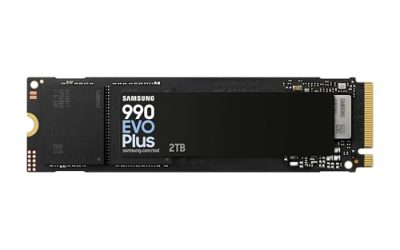
The 990 EVO Plus is the quirky choice here. Its title lists PCIe Gen 4×4 or 5×2, up to 7,250 MB/s, a 2TB capacity, and mentions HMB technology, meaning it borrows system memory for caching rather than carrying its own DRAM. That design keeps costs down while still reaching a speed in the same band as the pricier 990 PRO. The dual-interface wording means the drive can negotiate two different lane configurations, which broadens its compatibility. Buyers should still confirm which mode their own slot supports, because the speed you get follows the slot, not the label.
- The listed 7,250 MB/s is only about 200 MB/s behind the 990 PRO.
- Support for Gen 4×4 and 5×2 link modes broadens where the drive can run at full speed.
- The title targets PC and laptop upgrades directly, a clear everyday use case.
- HMB relies on system memory, which can matter when a machine is short on RAM.
- The title lacks a heatsink mention, so rely on the motherboard or laptop cooling.
Who it suits: a buyer upgrading an existing PC or laptop who wants strong speed and a brand-name drive without a flagship cost. It is a strong fit for gaming rigs that boot, load and store, rather than ingest.
Skip it if you run a small amount of RAM or care about the highest sustained write performance. The Sandisk Optimus 5100 follows with a title that discloses both read and write speeds.
Sandisk Optimus 5100 2TB
The Optimus 5100 is a straightforward PCIe 4.0 M.2 2280 drive with a title that spells out up to 7,100MB/s read and up to 6,700MB/s write. That write figure is unusually high for a mainstream Gen4 drive, and it suggests a design that cares about sustained transfers as well as quick reads, which is the sort of behavior that shows up when you duplicate a large folder or restore a backup. For buyers who copy large folders regularly, a visible write speed on the listing is a helpful signal.
- Both read and write speeds are disclosed in the title.
- The 6,700MB/s write figure is near the read figure, an unusually balanced pairing.
- PCIe 4.0 with M.2 2280 keeps compatibility broad on current boards.
- The visible title does not state the flash type or any cache design.
- The Optimus name is less established than long-running consumer lines, so warranty terms are worth reading.
Who it suits: a general-purpose desktop or laptop owner who occasionally moves big folders, such as photo libraries or game backups, and wants a Gen4 drive with balanced numbers. It makes a good second drive for projects.
Skip it if you want a Gen5 interface or a drive from a long-established consumer line. The Kingston NV3 comes next and moves down in speed and cost.
Kingston NV3 2TB
The NV3 is a budget-oriented PCIe 4.0 Gen 4×4 drive in M.2 2280 form, listing up to 6000 MB/s with a 2TB capacity. At that speed it is a clear step below the premium picks, but still several times faster than any SATA drive. For many buyers, that is plenty: a drive that quickly loads games and applications without chasing synthetic records is a sensible target for a mainstream gaming build. Because the title is short on extras, the decision comes down to capacity and cost rather than features.
- The Gen 4×4 interface is stated, so it uses the full four-lane link.
- A listed 6000 MB/s is more than fast enough for gaming and general use.
- 2TB at this tier helps a build stay within a modest budget.
- The listed speed trails the higher Gen4 picks by 1,000 MB/s or more.
- The title does not state flash type, heatsink or write speed.
Who it suits: a first-time builder or a parent upgrading a family gaming PC who wants the 2TB size more than the top speed. It is also a fair choice for a secondary game library drive.
Skip it if your work involves frequent very large writes or if you want a Gen5 drive. The WD Green SN350 is the last pick and moves down another interface generation.
WD Green SN350 2TB
The SN350 is the value anchor of this list. Its title lists Gen3 PCIe, QLC flash, M.2 2280 and up to 3,200 MB/s with 2TB of space. That is slow by current standards and QLC trades endurance for density, yet it still outpaces SATA SSDs and hard drives for everyday use. Honest labeling helps: the title states QLC, so buyers know what they are getting. Treat it as a capacity drive first and a performance drive second.
- It sits at the budget end of the 2TB NVMe options in this list.
- Gen3 PCIe runs cooler and works in older systems that lack Gen4 slots.
- The listing states QLC plainly, which is useful transparency.
- The 3,200 MB/s ceiling is the lowest in the list.
- QLC flash tends to slow down during long, sustained writes.
Who it suits: an older desktop or a light-duty laptop where the goal is simply a big, quick drive for documents, media and casual games. It also works as a second drive for archives.
Skip it if you edit video, install many large games at once, or want a drive that stays fast under long writes. Compared with the NV3 above, it gives up roughly half the headline speed in exchange for the lowest tier.
Who Needs a 2TB NVMe Drive
A 2TB NVMe drive is the size that suits most gaming and creative workloads, but the reason you need it determines how much speed to buy.
Gamers with a rotating library
Modern titles frequently exceed 100GB, and patches keep growing them. A 2TB drive lets you keep ten to fifteen large games installed, which ends the habit of uninstalling and redownloading. Here a Gen4 drive such as the Crucial P310 or the Kingston NV3 is usually enough, because load times differ by seconds at most. If you also keep a mod collection, screenshots and capture clips on the same drive, the extra room will be used within a year.
Creators and video workflows
Video cutters, photographers and 3D artists need space for source files, cache and exports. A drive with a disclosed write speed, like the Sandisk Optimus 5100, or a premium option like the Samsung 990 PRO, reduces waiting on exports and on-disk caches. Photographers with large raw libraries gain from the 2TB size more than from any speed jump, so a mainstream drive often covers the need.
Laptop and handheld owners
Single-slot devices cannot add a second drive, so choosing 2TB up front prevents a second upgrade. Check the physical size and the cooling clearance first. The P310 explicitly names handheld consoles and laptops, which makes it a natural place to begin. Before ordering, measure the slot length and note whether your device has room for a heat spreader, since a bare drive is often the only option in tight chassis. Treat the 2TB capacity as the main purchase and any speed above 5,000 MB/s as a bonus that a handheld processor may not exploit.
How to Choose a 2TB NVMe SSD
Interface generation and your slot
PCIe 3.0 x4 tops out near 3,500 MB/s, PCIe 4.0 x4 near 7,500 MB/s, and PCIe 5.0 x4 near 15,000 MB/s. Match the drive to the slot you actually have, because a faster drive in a slower slot simply runs at the slower speed. Most mainstream buyers get the best value from Gen4, which is also easier to keep cool. A quick rule: if your board lists a Gen5 M.2 socket and you move files above 50GB regularly, Gen5 is worth considering; if not, Gen4 is the target. Gen3 only makes sense for older boards that cannot run anything faster.
Flash type: TLC versus QLC
TLC stores three bits per cell and holds speed better during long writes than QLC at four bits. For a boot and game drive, TLC is the safer choice. QLC, as in the WD Green SN350, is acceptable for light use and archives. If a title does not name the flash type, read the manufacturer specification page before buying. As a rough guide, a QLC drive that is more than 80 percent full can fall to a fraction of its listed speed on long writes, which is why free space matters as much as the label.
Cache design: DRAM, HMB or neither
A DRAM cache holds the mapping table and keeps random performance consistent. HMB, mentioned in the Samsung 990 EVO Plus title, borrows a slice of system memory instead, which is cheaper and works well for typical desktop loads. Drives with neither can slow down sharply when full. A system with 16GB of RAM or more handles HMB comfortably, while an 8GB machine will notice the cost. When a title does not mention DRAM or HMB, treat the cache design as unknown and rely on the maker specification.
Endurance and warranty
For a 2TB drive, look for an endurance figure of at least 600 terabytes written for mainstream models, and higher for premium ones. A warranty of five years is a strong baseline, three years is acceptable, and anything shorter should lower the drive in your ordering. Also confirm that the maker provides a utility for firmware updates, because fixes for compatibility and heat behavior are often released after launch.
Thermals and form factor
Every drive here is M.2 2280, but laptops and handhelds sometimes accept only single-sided drives. Gen4 drives usually cope with a motherboard shield, while Gen5 drives need real airflow. Avoid sandwiching any fast drive beneath a hot graphics card without ventilation. A good threshold is a heatsink or shield that covers the controller on any drive quoting above 7,000 MB/s, and a case with at least one intake fan pushing air across the motherboard. Laptops and handhelds rely on thin pads, so verify the thickness limit.
What to ignore and where budget drives cut corners
Ignore peak sequential differences under 500 MB/s, because daily tasks rarely depend on them. Budget models often cut corners with QLC flash, no DRAM, smaller cache and shorter warranties. Those compromises show up when the drive fills up or when you copy tens of gigabytes at once, not in the first week of use. Also be wary of marketing words such as ultimate or extreme, which describe nothing you can check. The checkable items are interface, capacity, flash type, endurance figure, warranty length and the stated device support.
Premium, Mainstream or Budget: Which Tier Fits
| Factor | Premium (990 PRO, 9100 PRO) | Mainstream (P310, 990 EVO Plus, Optimus 5100) | Budget (NV3, SN350) |
|---|---|---|---|
| Listed read speed | 7,450 to 14,700 MB/s | 7,100 to 7,250 MB/s | 3,200 to 6000 MB/s |
| Interface | PCIe 4.0 or 5.0 | PCIe 4.0 | PCIe 4.0 or Gen3 |
| Best workload | Heavy transfers and creation | Gaming and daily use | Light use and secondary storage |
| Thermal needs | Higher, especially Gen5 | Moderate | Low |
| Typical trade-off | Cost and heat | Fewer extras | QLC or slower speeds |
Why mainstream usually wins
For most gaming rigs, the mainstream tier reaches speeds close to the premium drives while avoiding the heat and cost of Gen5. The practical difference shows up mainly when you transfer files measured in tens of gigabytes. For a single drive in a typical build, a mainstream Gen4 model is the sensible default. The premium tier justifies itself when the drive is a work tool: if a faster export saves ten minutes a day, the extra spending pays back over a year of use, while a gaming-only machine rarely sees that return.
When to step up or down
Step up when your workload is write-heavy or when you plan a long-lived workstation. Step down when the drive will serve as secondary storage, when the host system is older, or when the budget is tight and capacity matters more than speed. Taking the budget route is fine, as long as you accept lower sustained speeds. A sensible compromise is a mainstream boot drive plus a budget 2TB drive for the game library, since games are read far more than they are written.
Setup, Compatibility and Upgrade Tips
What to check before buying
Confirm that your device uses an M.2 2280 slot with NVMe support, not a SATA-only M.2 slot, and that the slot supports the PCIe generation you intend to use. Check the clearance for a heatsink if you plan to add one, and measure the thickness limit in laptops and handhelds, which often cannot fit a drive with a thick label or a bulky cooler. For desktops, check how many M.2 sockets the board offers and which of them is wired to the CPU, since that socket usually delivers the highest speed.
What to upgrade first
If your system boots slowly, the culprit may be a nearly full drive, too little memory, or a hard disk. Replacing a hard disk with any NVMe drive delivers the largest jump. Moving from Gen4 to Gen5 is a much smaller change, so spend on capacity before spending on the interface generation. If your board has two M.2 sockets, keeping the old drive as secondary storage costs nothing and removes the need to copy every file at once.
Common compatibility traps
Some motherboards disable certain SATA ports when a second M.2 slot is used. Some laptops limit the M.2 slot to Gen3 speeds even though the slot looks identical. Consoles and handhelds may require a specific size and a heatsink. Cloning tools also need the new drive initialized, so keep the original until the new drive boots successfully. After the swap, update the BIOS and the drive firmware, and confirm the link speed in a monitoring tool so that you know the drive is running on the generation you paid for.
Which One Fits Your Situation
You are building a gaming tower with a modern board
The Samsung 990 EVO Plus 2TB provides strong speeds in a recognized brand and fits the needs of a library of large games without paying for Gen5.
You edit footage and care about export time
The Samsung 990 PRO 2TB offers a high Gen4 ceiling, while the Samsung 9100 PRO 2TB is the pick if your motherboard and cooling support Gen5.
You are upgrading a laptop or a handheld console
The Crucial P310 2TB names laptops, desktops and handheld consoles in its title, which is the clearest compatibility signal in the group.
You need the most storage for the least outlay
The Kingston NV3 2TB keeps PCIe 4.0 speed at a lower tier, and the WD Green SN350 2TB is the fallback for older systems where Gen3 is all the slot offers.
Common Mistakes
- Paying for Gen5 speed and then installing the drive in a Gen4 or Gen3 slot.
- Buying on peak sequential speed while ignoring flash type and sustained write behavior.
- Skipping a heatsink on a high-speed drive in a compact case.
- Forgetting that some laptops and consoles have height limits for M.2 drives.
- Filling a QLC drive to the brim and then wondering why it slows down.
- Throwing away the old drive before confirming the new one boots and holds all your data.
Related guides
- How To Check Gpu Compatibility With Your Motherboard And Cpu
- High-Performance Gaming Desktop Specifications
- Prebuilt Gaming Pc Rtx 5070 Under 1500
Frequently Asked Questions
Is 2TB enough for a gaming PC?
For most players, yes. It holds a Windows install and a dozen or more large games with room for updates. If you capture video or install every new release, plan for a second drive.
Is a Gen5 2TB drive worth it?
Only if you transfer large files often and your motherboard has a Gen5 slot with good cooling. For gaming alone, a Gen4 drive such as the 990 PRO or P310 is faster than you can feel in daily use.
Is QLC bad for a 2TB drive?
QLC is fine for light use, archives and read-heavy storage. It tends to slow during long writes and offers lower endurance than TLC. The WD Green SN350 states QLC plainly, so you can judge the trade-off.
Will the Crucial P310 work in a handheld console?
Its title names handheld gaming consoles as a target device. Confirm the size and height your specific console accepts, and check whether it needs a heatsink or has other requirements.
What does HMB mean on the Samsung 990 EVO Plus?
HMB stands for host memory buffer. The drive uses a small part of system RAM as a cache instead of its own DRAM chip. It works well on typical desktops and laptops with enough memory.
Should I buy two 1TB drives instead of one 2TB drive?
Two smaller drives use two slots and can split workloads, but a single 2TB drive is simpler and often better value per terabyte. Single-slot laptops and handhelds make 2TB the only practical option.
Final Words
For most buyers the best 2TB NVMe drive is a mainstream Gen4 model with TLC flash and a respectable warranty, which in this list points toward the Samsung 990 EVO Plus, the Sandisk Optimus 5100 or the Crucial P310. Step up to the 990 PRO or the 9100 PRO only when large transfers define your day, and step down to the NV3 or SN350 when capacity matters more than speed. Check your slot, your cooling and the flash type, and the rest takes care of itself, whether you are filling a family desktop, a creator rig or a handheld with room to spare.