To build a gaming PC on a budget, fix your RAM and SSD costs first, spend the largest share on the graphics card, choose a mid-range processor rather than a flagship, and refuse to cut corners on the power supply and CPU cooler. Where you save matters more than how much you save. This guide shows where budget builds can save safely, which parts you should never cheap out on, how to weigh used against new parts in 2026, and whether AM4 or AM5 is the smarter platform right now.
Memory prices have made 2026 an odd year for budget builders. Several outlets, including XDA Developers and darkFlash, reported steep DDR5 price increases this year, tied to chipmakers moving capacity toward AI memory. That changes the usual advice, which is why platform choice gets a section of its own below.
As an Amazon Associate we earn from qualifying purchases at no extra cost to you.


Our Top Picks


Top 3 picks at a glance
Quick answer
| Part | Safe to save? | Budget approach |
|---|---|---|
| Graphics card | Spend here first | Largest share of the budget; consider a good used card with caution |
| Processor | Save moderately | Mid-range six or eight core; skip flagships |
| Motherboard | Save carefully | Entry or mid-range chipset with decent power delivery |
| RAM | Save on capacity before speed | 16 GB dual-channel is the floor |
| Storage | Never go below an SSD | 1 TB NVMe is a sensible minimum; a 500 GB drive fills up quickly |
| Power supply | Never cut | Reputable brand, right wattage, proper warranty |
| CPU cooler | Never cut | An inexpensive tower air cooler beats the weakest bundled cooler |
| Case | Save, but check airflow | Mesh front, basic fans, no RGB extras |
| Operating system | Plan for it | Windows 11 licence is a real line item |
Step 1: Set a budget that includes the hidden costs
A budget is not just the parts list. Add every cost that is easy to forget:
- A Windows 11 licence, unless you already have one to transfer.
- A monitor, keyboard and mouse if you do not own them.
- Thermal paste if your cooler does not include any.
- A USB flash drive of at least 8 GB for the Windows installer.
- Delivery, taxes and a small cushion for a part that arrives faulty.
Then set the fixed costs. Because memory and storage prices have swung so much, price the RAM kit and SSD first and subtract them from the total. Whatever remains is for the graphics card, processor, motherboard, case, cooler and power supply.
A starting allocation
Published budget guides usually treat the graphics card as the biggest line. As a planning aid rather than a rule, use this split of the parts budget and adjust to current prices:
| Part | Share of parts budget | Notes |
|---|---|---|
| Graphics card | 35 to 40 percent | Moves up if memory prices are lower |
| Processor | 15 to 18 percent | Mid-range, not flagship |
| Motherboard | 10 to 12 percent | Enough VRM and M.2 slots |
| Memory | 8 to 15 percent | Higher on DDR5 in 2026 |
| Storage | 6 to 10 percent | NVMe SSD |
| Power supply | 7 to 9 percent | Quality over wattage extras |
| Case and fans | 5 to 7 percent | Airflow over looks |
| CPU cooler | 2 to 4 percent | Basic tower air cooler |
As a worked example, take a parts budget of 100 units. If memory prices push RAM to 15 units, the graphics card slides from 40 toward 35. The principle is simple: treat the fixed costs as non-negotiable and flex the graphics card and processor, not the power supply.
Step 2: Choose the platform, AM4 or AM5
The platform choice is where budget builders can save or waste the most in 2026.
| Factor | AM4 (DDR4) | AM5 (DDR5) |
|---|---|---|
| Memory cost | Lower; DDR4 kits cost far less than DDR5 according to 2026 coverage | Higher; DDR5 prices rose sharply this year |
| Processors | Ryzen 5000 series and budget chips such as the Ryzen 5 5500F | Ryzen 7000 and 9000 series |
| Upgrade path | Effectively a dead end | Newer AMD processors are built for AM5 |
| Motherboard options | A520, B450, B550, X570 | A620, B650, B850, X670, X870 |
| Best for | Tight budgets and 1080p gaming | Builders who want to upgrade the CPU later |
XDA Developers argued in 2026 that AM4 remains the best platform for a budget gaming PC while memory is expensive, because the money saved on RAM can go to a better graphics card, which does more for frame rates. darkFlash reaches a similar conclusion for tight budgets but notes that AM5 is the better long-term investment if you plan to upgrade the processor. A few guides suggest a middle path on AM5: start with 16 GB of DDR5 instead of 32 GB, and add a second kit later.
Decision rule: if you intend to keep the PC as built for two to three years, AM4 is the value pick. If you want to swap in a faster processor in the future, accept the memory cost and choose AM5. Intel’s older LGA1700 sockets are another value path, since boards exist for both DDR4 and DDR5, but check the board listing for the memory type before buying.
Step 3: Where to save
Case
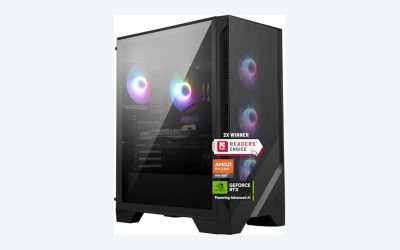
A basic mesh-front case with two or three fans cools better than many glass-front cases and costs less. Skip RGB fans, extra panels and fancy cable covers. Check the case spec sheet for the maximum graphics card length and cooler height instead of relying on the photos.
Motherboard
Choose an entry-level or mid-range chipset that supports your processor out of the box, with at least one NVMe slot, enough USB ports and decent power delivery. You do not need an overclocking board for a mid-range processor. Check that the BIOS supports your processor out of the box, or that the board has BIOS Flashback.
Memory speed
Capacity matters more than speed on a budget. A 16 GB dual-channel kit at a sensible speed beats a single 16 GB module at a high speed, because dual-channel gives more bandwidth. Enable the EXPO or XMP profile in the BIOS so you actually get the rated speed.
RGB, extras and brand premiums
RGB, branded heatsinks and large coolers add cost and little frame rate. Save the money for the graphics card.
Step 4: What you should never cut
The power supply
A weak or poor-quality power supply risks every component in the system. Aim for a reputable brand, an 80 Plus certification and at least a multi-year warranty. Use the graphics card maker’s recommended wattage as the minimum. A quick estimate is graphics card power plus processor power plus about 100 W, then add headroom. A 220 W card and a 105 W processor give roughly 425 W, and a 550 to 650 W quality unit covers that with margin. Check that the PSU has the PCIe connectors your card needs.
The CPU cooler
Many mid-range processors need a separate cooler, and the weakest bundled coolers run hot and loud. A basic tower air cooler is inexpensive and durable, and it prevents thermal throttling. Check the cooler’s height against your case limit, and confirm it supports your socket.
The SSD
A hard drive as the boot drive makes Windows and games feel slow. An NVMe SSD is the default, and 1 TB is a practical minimum for a gaming library. Avoid very cheap drives without a known controller or warranty. Always check the warranty length and the independent reviews for sustained write speeds.
Dual-channel memory
Two sticks cost the same or little more than one of double capacity and they perform better. Always buy a matched pair or kit, and install it in the slots named in your motherboard manual.
Step 5: New versus used parts
Used parts can save money, but the risks differ for each component.
| Part | Used risk | Verdict |
|---|---|---|
| Graphics card | Mining or heavy use, worn fans, no warranty | Acceptable from a seller with returns; inspect and stress test on arrival |
| Processor | Low; CPUs rarely wear out | Often a good buy if the socket pins or pads are intact |
| Motherboard | Bent pins, old BIOS | Risky; check the BIOS version and socket condition |
| RAM | Low, but not always matched | Fine if sold as a kit |
| SSD | Unknown wear | Avoid; check health data if you must |
| Power supply | Unknown age and capacitor condition | Do not buy used |
| Case | Cosmetic wear | Safe, a good place to save |
How to check a used graphics card
- Ask for photos of the card running with a visible monitoring window, and for the purchase date or warranty status if any.
- On arrival, inspect the fans, backplate and PCIe contacts.
- Install it and run a long game or benchmark loop while watching temperatures and clock speeds.
- Listen for fan rattle and watch for artefacts or crashes.
- Return it within the return window if anything looks wrong.
Used cards with a fresh warranty or return policy are the sensible compromise. A used card with no protection at a too-good price is the classic trap.
Step 6: Build it in the right order
- Install the processor, memory and M.2 SSD on the motherboard outside the case.
- Mount the cooler, using the instructions for your socket.
- Fit the standoffs, I/O shield and motherboard into the case.
- Install the power supply and route the 24-pin and 8-pin CPU cables first.
- Connect the front panel and USB headers.
- Install the graphics card and plug in its power connectors.
- Connect the monitor to the graphics card, boot, and enter the BIOS.
- Enable the memory profile and install Windows 11 from a USB flash drive.
Step 7: Plan the upgrade path
A budget build is a starting point, not a dead end. Plan these upgrades from day one:
- Graphics card: the first upgrade most people make. Make sure the PSU and case can handle a larger card.
- RAM: on AM5, a second kit can double capacity later if memory prices fall.
- Storage: a second NVMe slot or SATA bay for a bigger library.
- Processor: AM5 allows newer Ryzen chips; AM4 tops out at the Ryzen 5000 series.
- Case fans: inexpensive and effective if temperatures run high.
Buy the power supply with a little spare wattage so a bigger graphics card later does not mean buying a new PSU.
Common budget mistakes
| Mistake | Why it hurts | Fix |
|---|---|---|
| Cheap no-name PSU | Can damage parts, unstable under load | Buy a reputable unit with a warranty |
| Single memory stick | Lower bandwidth, lower frame rates | Use two matched sticks |
| Spending on a flagship CPU, weak GPU | Games are GPU-bound | Shift money to the graphics card |
| Forgetting Windows and peripherals | Budget overrun | List them from the start |
| Not enabling EXPO or XMP | RAM runs at default speed | Enable the profile in BIOS |
| Buying a DDR5 board with DDR4 RAM | RAM will not fit | Check the memory type in the board listing |
| Skipping the cooler | Thermal throttling | Buy a basic tower cooler |
Safety and troubleshooting
Switch off and unplug the PSU before connecting parts, and touch bare metal to discharge static. If the PC will not start:
- Reseat the RAM, since it is the most common cause of no-boot.
- Check the 8-pin CPU power cable and the 24-pin cable.
- Plug the monitor into the graphics card, not the motherboard.
- Check that the board supports your processor at its current BIOS version; use BIOS Flashback if it does not.
- Check the debug LEDs on the motherboard.
A decision walkthrough: three budget situations
The same checklist leads to different builds depending on your starting point. These scenarios use tiers rather than prices, so they stay useful as the market moves.
| Situation | Platform | Where the money goes | What to postpone |
|---|---|---|---|
| Very tight budget, 1080p monitor already owned | AM4 with DDR4, or an older Intel DDR4 board | Best graphics card the remaining budget allows, quality 550 to 650 W PSU | Second SSD, RGB, second memory kit |
| Moderate budget, wants a longer-lived build | AM5 with 16 GB DDR5 | Balanced mid-range card and processor, 1 TB NVMe | Second 16 GB memory kit |
| Already owns a PSU and case from an older PC | Depends on the board and memory you can reuse | Graphics card first, then processor | New case and fans |
Reusing parts from an old PC
If you are upgrading rather than starting from nothing, check what can carry over. Cases, drives and sometimes coolers are safe to reuse. Check a reused cooler’s mounting bracket, because sockets need different brackets. Reuse a power supply only if it is still within warranty or is a known quality unit, has the connectors the new graphics card needs, and has enough wattage. A very old unit that lacks modern PCIe connectors or a CPU 4+4 pin cable is a reason to buy a new one rather than a reason to adapt it.
Watching prices without waiting forever
Prices on graphics cards and memory move quickly. Build a full parts list, note the total, and re-check it every few days. Buy when the total fits your budget, and compare listings from several sellers. Seasonal sales can help, but 2026 guides caution that waiting is not a guaranteed saving when memory costs are climbing. A realistic rule: if the list fits your budget and the parts are in stock, buy.
How we compared
We compared manufacturer manuals, specifications and independent guides named below. We did not build or benchmark these systems ourselves.
Sources
- XDA Developers, 2026 article on RAM prices and AM4 for budget gaming PCs
- darkFlash, AM4 versus AM5 in 2026 build guides
- Notebookcheck, 2026 reporting on DDR4 and DDR5 memory costs
- Microsoft, Windows 11 system requirements
- Graphics card manufacturers, recommended power supply specifications
- AMD, AM4 and AM5 platform documentation
Frequently Asked Questions
Is it cheaper to build a gaming PC or buy a prebuilt?
Often building is cheaper for the same performance, but promotions and memory prices change this. Compare a complete parts list with current prebuilt listings before deciding.
How much RAM do I need for a budget gaming PC?
Sixteen gigabytes in dual-channel is the practical minimum. You can add a second kit later if the platform allows it and prices are reasonable.
Should I buy AM4 or AM5 in 2026?
AM4 with DDR4 saves money while DDR5 is expensive and suits a build you will keep as is. AM5 costs more upfront but gives an upgrade path to newer processors.
Can I use a used graphics card?
Yes, if you buy from a seller with a return policy, inspect it on arrival and stress it with a long gaming session. Avoid cards with no protection at prices that seem too good.
What is the cheapest part I should not skimp on?
The power supply. It protects every other part, so a quality unit with a proper warranty is the one place not to save.
Do I need a separate CPU cooler?
Many mid-range processors include a basic cooler, but some do not. A basic tower air cooler is inexpensive and quieter than the weakest bundled models.
How can I save on storage?
Start with a single 1 TB NVMe SSD and add a second drive later. Avoid a hard drive as your boot drive.
Is it worth waiting for prices to drop?
Some 2026 guides say waiting does not help when forecasts point to further increases. If your current PC is unusable, build now with the cost-saving choices above; if you can wait, watch seasonal sales.