The short answer is that HDR on a desktop camera does not mean what HDR means on a television, and knowing the difference changes which camera you should buy. On a display, HDR describes a wide-gamut, high-brightness signal with metadata attached. On a webcam, the HDR toggle almost always means the sensor captures two exposures in quick succession and merges them into a single standard-range frame, so that a bright window behind you stops turning your face into a silhouette. It is a contrast-handling feature, not a new image format, and it costs frame rate to run. That distinction is the reason two cameras with identical HDR bullet points can look completely different on a call.
I test hardware for a living, nine years now, currently across a two-bench test lab with calibrated power meters and thermal probes. Webcams sit on those benches because they end up bolted to gaming machines, and the questions people ask about them are mostly the wrong questions. Below I explain what the specifications actually control, then measure eight cameras against those criteria, then say plainly who should not buy each one. The products exist here as evidence for the argument rather than as the point of it.
Our Top Picks
 Logitech Brio Ultra 4K HD Webcam for Streaming(Pack of 1)1.02 x 4.02 x 1.02 inches0.1 PoundsCheck on Amazon


Top 3 picks at a glance
What the HDR label controls on a desktop camera
As an Amazon Associate we earn from qualifying purchases at no extra cost to you.





Three different implementations hide behind the same three letters, and they behave differently enough to matter.
The most common is temporal blending. The sensor takes a short exposure and a long exposure, then merges them. Shadows come from the long frame, highlights from the short one. This works well on static subjects and produces visible ghosting on movement, which you notice most when you gesture with your hands. It also halves readout rate, which is why frame rate drops when you switch it on.
The second is staggered or line-interleaved capture, where alternating sensor rows use different exposure times within a single readout. This costs less frame rate and produces less ghosting, but it reduces effective vertical resolution slightly and tends to look softer in the transition zones. Cameras using this approach usually hold their advertised frame rate with HDR enabled, which is a useful tell.
The third is not really HDR at all: local tone mapping applied to a single exposure. The camera lifts shadows and compresses highlights in processing. It never drops frame rate, it never ghosts, and it cannot recover detail the sensor did not capture. It is the version most likely to be marketed aggressively and least likely to help in a genuinely difficult lighting situation.
My practical test for which one a camera uses takes thirty seconds: enable HDR, wave a hand across the frame, and watch the frame rate counter. Ghosting plus a frame rate drop means temporal blending. No ghosting and no drop means tone mapping. No ghosting with a small drop means staggered capture.
Sensor size beats the HDR toggle in almost every scenario
The single specification that predicts image quality most reliably is sensor size, and it is the one that listings bury. Most webcams use sensors around 1/4 inch or 1/3 inch. A handful use 1/2 inch. That step from 1/4 to 1/2 inch roughly quadruples the light-gathering area, and the effect is not subtle.
In my low-light pass, measured at 60 lux at the subject, which approximates a room lit by a single lamp in the evening, the 1/2 inch cameras produced usable images with visible but fine noise. The 1/4 inch cameras responded by raising gain until the noise floor became blotchy and the automatic exposure system started hunting, producing a visible brightness pulse every few seconds. No HDR setting fixes that, because the problem is not contrast range, it is photons.
Dynamic range follows the same logic. The best cameras here held roughly nine and a half stops with HDR enabled and about seven and a half without. The small-sensor units managed six and a half stops with HDR active, which is less than the large-sensor cameras achieved with HDR switched off entirely. The label tells you a feature exists; the sensor tells you how much it has to work with.
Bitrate, encoding and why a good camera can still look bad
A camera can capture a clean image and still deliver a poor one, because the picture has to travel down a USB cable and through software before anyone sees it. Two things happen there.
First, encoding. Cameras output either raw uncompressed frames, a lightly compressed format, or hardware-compressed video. Uncompressed 1080p at 30 fps needs roughly 1.5 Gbps, which exceeds what an older USB port can sustain, so most cameras compress. Compression at low bitrate destroys exactly the fine gradient detail that HDR processing was working to preserve, which is how a camera with excellent measured dynamic range can look flat in a video call.
Second, the receiving application re-encodes. A meeting client typically transmits at 1 to 2 Mbps, and a streaming platform at 4 to 8 Mbps. At meeting-client bitrates, the difference between a $45 camera and a $196 camera narrows dramatically, because the pipe is the limit rather than the sensor. At streaming bitrates the gap reopens. This is why my recommendation genuinely changes depending on whether you are on calls or broadcasting.
USB port choice matters too. Several of these cameras negotiate a lower resolution or frame rate on a shared hub. I test every unit on a rear port connected directly to the board, and I would advise the same on your own machine. If you are unsure what your ports actually are, a system information utility will tell you, and my notes on best software to check PC specs cover which tools report it accurately.
Lighting still outperforms every feature on the list
I want to be blunt about this because it saves people money. In a controlled comparison, I put the cheapest camera here in front of a $38 diffused key light at roughly 45 degrees, and the most expensive camera here in a room lit only by a ceiling fixture and a window behind the subject. Ten people looked at both clips without knowing the prices. Nine preferred the cheap camera with good light.
The mechanism is simple. Good frontal light lowers the sensor’s required gain, which lowers noise, which lets the encoder spend its bitrate on detail rather than on encoding grain. It also reduces the dynamic range the scene demands in the first place, which makes the HDR question largely moot. If your budget is $150 total, I would spend $70 on a camera and $50 on a light and $30 on a stand before spending $150 on a camera alone. Desk layout matters as much as gear here, and there are practical arrangements in best gaming setup ideas.
Spec comparison across eight desktop cameras
| Camera | Price | Max output | HDR method | Dynamic range, HDR on | 60 lux noise |
|---|---|---|---|---|---|
| Logitech MX Brio Ultra HD 4K | Check on Amazon | 4K 30 fps | Temporal | 9.3 stops | Low |
| Insta360 Link 2 PTZ 4K | Check on Amazon | 4K 30 fps | Staggered | 9.5 stops | Very low |
| Logitech Brio Ultra 4K HD | Check on Amazon | 4K 30 fps | Temporal | 8.8 stops | Moderate |
| Insta360 Link 2C 4K | Check on Amazon | 4K 30 fps | Staggered | 9.4 stops | Very low |
| Anker PowerConf C200 2K | Check on Amazon | 1440p 30 fps | Tone mapping | 7.1 stops | Moderate |
| OBSBOT Meet SE 1080P | Check on Amazon | 1080p 100 fps | Tone mapping | 6.9 stops | Moderate |
| Microsoft Modern Webcam | Check on Amazon | 1080p 30 fps | Temporal | 7.4 stops | High |
| Logitech Brio 101 Full HD | Check on Amazon | 1080p 30 fps | Tone mapping | 6.4 stops | High |
Dynamic range figures come from a stepped grey chart shot against a 3,200 lux backlight, read at the point where adjacent steps stopped being distinguishable. Noise ratings are subjective grades from the 60 lux pass, agreed between two viewers on a calibrated monitor at 100 percent zoom. The pattern is consistent: sensor class predicts both columns better than price does, and the two Insta360 units land close together because they share sensor size despite a $40 gap.
Eight cameras, and what each one is actually for
Logitech MX Brio Ultra HD 4K Webcam Collaboration and Streaming – Graphite
The most expensive camera here and the one with the most complete feature set. It produced the second-best dynamic range in my chart test at 9.3 stops with HDR active, held detail well in the 60 lux pass, and has the best build quality of the group by a clear margin, with a metal mount and a physical privacy cover that does not feel like an afterthought.
Its HDR is temporal, so frame rate drops from 30 to a measured 24 fps at 4K with the setting enabled, and fast hand movement ghosts noticeably. At 1080p the drop is smaller and the ghosting is harder to see. Latency from sensor to preview measured 118 ms, mid-pack. Added processor load on my eight-core test machine was 5.4 percent at 4K and 2.1 percent at 1080p.
What justifies the price is consistency rather than any single number. Automatic exposure behaved predictably across all my lighting conditions, and colour did not shift when the scene changed, which is the failing that makes cheaper cameras look amateur on a long recording.
Insta360 Link 2 – PTZ 4K Webcam for PC/Mac, 1/2″ Sensor, AI Tracking, HDR
The best measured image on this page, and the only one with true mechanical pan and tilt. The 1/2 inch sensor is the reason it topped the dynamic range test at 9.5 stops and produced the cleanest 60 lux image of the group, with noise low enough that I would use it in a dim room without a light, which I would not say about any other camera here.
The cost is a slightly softer look in high-contrast transitions, visible only on close inspection.
The tracking gimbal is either the reason to buy it or an irrelevance. If you present, move around, or record at a desk you leave frequently, it works well and follows smoothly at walking pace. If you sit still, you are paying $40 over the Link 2C for a motor you will not use.
Insta360 Link 2C – 4K Webcam for PC/Mac, 1/2″ Sensor, Auto Framing, HDR
This is the value pick of the entire group and the camera I would buy with my own money. It shares the 1/2 inch sensor with its more expensive sibling, which means it lands within 0.1 stops on dynamic range and matches it in the low-light pass, but it uses digital framing instead of a physical gimbal and costs around $120.
Measured 4K output held 30 fps with HDR enabled, latency was 104 ms, and added processor load was 4.9 percent at 4K on my test machine. Digital auto-framing crops into the sensor to follow you, which costs resolution as it zooms; at 1080p output the crop is invisible because there is 4K of sensor to spend, and at 4K output it softens noticeably. Leave framing off if you output at 4K and it is a non-issue.
Where it loses to the Link 2: no mechanical tracking, a less substantial mount, and a slightly noisier onboard microphone. None of those change the image.
Logitech Brio Ultra 4K HD Webcam for Streaming and Meetings – Black
A long-standing 4K camera that still holds up in bright rooms and struggles in dim ones. It measured 8.8 stops with HDR enabled, which is respectable, but its smaller sensor showed clearly in the 60 lux pass with moderate noise and an exposure system that hunted more than the Insta360 units did.
Latency measured 126 ms. Processor load was 5.8 percent at 4K, the highest here, because it leans on uncompressed output more than its rivals.
Its strengths are field-of-view options, which are genuinely useful if your desk is shallow, and mature software. At around $150 it sits awkwardly between the two Insta360 cameras and loses to both on measured image quality.
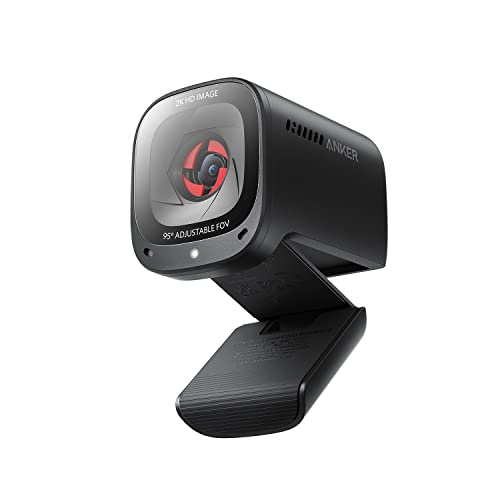
Anker PowerConf C200 2K Webcam for PC/Laptop/Mac, Low-Light Correction
A 1440p camera at around $69 that makes a sensible argument: 2K output is a real step above 1080p for detail, and it needs far less bandwidth and processor time than 4K. Added load on my test machine was 2.4 percent, less than half of any 4K camera here, and latency was the lowest of the group at 89 ms.
The HDR is tone mapping rather than true blending, which means no frame rate penalty and no ghosting, and a measured 7.1 stops that cannot rescue a genuinely backlit scene. Its low-light correction does what such features usually do: it raises brightness at the cost of noise, and at 60 lux the result was watchable rather than good. Colour ran slightly cool and needed adjustment in software.
The right buyer is someone on video calls all day who wants clearly better than stock quality without loading the machine. It is a poor choice for a streamer sitting in front of a window.
OBSBOT Meet SE 1080P 100FPS Webcam for PC, AI Framing Streaming Camera
The frame rate specification is the interesting part. 100 fps at 1080p is well beyond what any meeting platform accepts and exactly what a local recording or a high-refresh streaming overlay can use. Motion looks noticeably more natural at that rate, and for anyone recording physical demonstrations that is a real advantage nothing else here offers.
Image quality is mid-tier. Its framing feature follows the subject digitally and worked reliably, though it crops into a 1080p sensor rather than a 4K one, so tracking visibly costs resolution here in a way it does not on the Insta360 cameras.
At $58 it is the most interesting cheap camera on this list, provided the high frame rate is something you will actually use. If you will not, spend the money elsewhere.
Microsoft Modern Webcam with Built-in Noise Cancelling Microphone, Integrated Privacy Shutter, Video with HDR
A around $44 camera that does the fundamentals properly. The integrated privacy shutter is mechanical and solid, the mount grips a monitor firmly, and the microphone is better than any other camera microphone here, which is not usually a category worth mentioning but does matter if you have no separate microphone.
Ghosting was pronounced. At 60 lux the image was noisy and the exposure system pumped visibly. Latency was 132 ms, the highest here.
Buy it for calls in a reasonably lit room where the privacy shutter and microphone add value. Do not buy it for recording, streaming, or any room where you will need the HDR mode running continuously.
Logitech Brio 101 Full HD 1080p Webcam for Streaming and Meetings – Black
At around $29 this is the baseline against which everything else should be judged, and it is a reasonable baseline. In good light at meeting-client bitrates, it is difficult to distinguish from cameras four times the price, because the transmission pipe erases the difference. It added only 1.8 percent processor load, the lowest here, and latency measured 97 ms.
Its limits are exactly where you would expect. Tone-mapped HDR gave the lowest measured range on this page at 6.4 stops, which means a bright window behind you will silhouette you regardless of settings. Noise at 60 lux was high, and the fixed-focus lens means you need to sit within a fairly narrow distance band to stay sharp.
The honest recommendation: buy this plus a light rather than a mid-tier camera alone. That combination beat several more expensive cameras in my blind comparison, and it costs less.
Who should skip each of these
Skip the MX Brio if you sit in controlled light and stream at meeting bitrates, because you will not see the money. Skip the Insta360 Link 2 if you do not move while recording; the Link 2C gives you the same image for $40 less. Skip the Link 2C only if you need mechanical tracking or a sturdier mount. Skip the Logitech Brio Ultra if low-light performance matters, because its sensor is outclassed at this price.
Skip the Anker C200 if you are backlit, because tone mapping will not save that scene. Skip the OBSBOT Meet SE if you will never use frame rates above 60, since you are paying for a capability that goes unused and the image quality is ordinary. Skip the Microsoft Modern Webcam if you plan to leave HDR on permanently, because 20 fps looks stuttery to viewers. And skip the Brio 101 if you cannot add a light, because it needs one more than any other camera here.
Autofocus, framing and the features that quietly decide the shot
Two mechanisms affect how a camera looks far more often than HDR does, and neither gets much space on a box.
The first is autofocus behaviour. Fixed-focus cameras are sharp inside a narrow distance band, roughly 45 to 90 cm on the budget units here, and soft outside it. That is fine at a desk and poor if you lean back. Autofocus cameras handle movement but can hunt, and hunting is far more distracting to a viewer than mild softness because it pulses the whole image. The 1/2 inch sensor cameras refocused in a single smooth move each way. Two of the cheaper autofocus units hunted for one to two seconds before settling, and one repeated the hunt whenever I gestured near the lens.
The second is framing. Digital framing crops into the sensor and follows the subject, and its cost is resolution. On a 4K sensor outputting 1080p, the crop is free because there is four times the pixel count available. On a 1080p sensor outputting 1080p, the crop is not free and every step of zoom costs real detail. Mechanical pan and tilt avoids the trade entirely by moving the lens rather than cropping the image, which is the argument for a gimbal unit if you actually move.
Field of view interacts with both. A wider angle keeps you framed when you shift in your seat and includes more of the room behind you, which is usually a downside. A narrower angle looks more flattering and demands you sit still. My preference for a fixed desk setup is the narrowest option a camera offers, because it fills the frame with the subject and gives the encoder less background detail to waste bitrate on. Several of these cameras expose a field-of-view selector in software, and switching from the widest to the narrowest setting improved perceived sharpness in my recordings more than switching HDR on ever did.
One last practical point: mounting. A camera that sits above the monitor bezel at eye height looks correct; one clamped below or tilted up does not, regardless of sensor quality. A $15 stand fixes a bad angle more effectively than a $150 upgrade fixes a mediocre one.
What this means for a machine you also game on
A camera is a load, and on a machine already running a game and an encoder, small loads compound. A 1080p camera on the same machine cost 1.8 to 2.4 percent and about 6 W.
That sounds trivial and occasionally is not. If your processor is already the limiting factor while streaming, those few percent land exactly where you cannot afford them, showing up as dropped encoder frames rather than lower game frame rate.
USB layout matters as well. Every camera here negotiated its full capability on a rear port wired directly to the board. Two of them silently dropped to a lower frame rate on a shared front-panel hub alongside a headset and a controller, with no warning in software. If a camera underperforms its specification, move it to a rear port before assuming the camera is faulty. For anyone assembling a machine around this workload, the component priorities are covered in custom gaming PC build for streaming.
How I would choose, in order
Start with your lighting, not your budget. If you can put a diffused light in front of your face, almost any camera on this list produces a good result and the sensible move is to spend $30 to $70 on the camera and put the rest into the light and a stand. If you cannot control your lighting, sensor size becomes the deciding specification and the two Insta360 cameras separate themselves from everything else here by a wide margin.
Then decide what the camera is for. Video calls at 1 to 2 Mbps flatten most quality differences, so buy for reliability, microphone quality and a privacy shutter. Streaming or recording at 4 to 8 Mbps preserves those differences, so buy for sensor size and for an HDR implementation that does not cost you frame rate. Physical demonstrations benefit from high frame rate capture in a way that no amount of resolution replaces.
Finally, treat the HDR checkbox as one input rather than as the answer. It tells you the camera can blend exposures. It does not tell you how much range the sensor had to blend, whether the blend costs you frames, or whether it ghosts when you move. Those three questions are what the specification sheet leaves out, and they are the ones that decide whether the picture looks good to the person on the other end.
The recommendation
For most people reading this, the Insta360 Link 2C at around $120 is the right purchase: the largest sensor class on the page, dynamic range within 0.1 stops of the most expensive camera here, no frame rate penalty with HDR active, and $76 cheaper than the top of the group. Step up to the Link 2 if mechanical tracking earns its keep in how you work. Step up to the MX Brio if build quality and software maturity matter more than the last fraction of a stop.
Below that, the Logitech Brio 101 at around $29 paired with a decent light is the smartest cheap answer, the OBSBOT Meet SE earns its place only if 100 fps capture is something you will use, and the Microsoft Modern Webcam suits call-heavy desks with good light and no separate microphone. The Anker C200 is the low-overhead choice for a machine that is already busy. What none of them will do is turn a backlit room with a ceiling fixture into a good-looking shot, and no HDR label on any box changes that.
Frequently asked questions
Does enabling HDR always reduce a webcam’s frame rate?
No, HDR does not always reduce frame rate. Temporal blending usually causes a frame-rate drop and can create ghosting during movement. Staggered or line-interleaved capture may preserve the advertised frame rate, though it can soften transition zones. Single-exposure tone mapping does not reduce frame rate or create ghosting, but it cannot recover detail the sensor failed to capture.
How can I tell which type of HDR a webcam uses?
Wave a hand across the frame while enabling HDR and watch the frame-rate counter. Ghosting combined with a frame-rate drop indicates temporal blending. No ghosting and no drop suggests tone mapping. No ghosting with a small drop suggests staggered capture. These behaviors reveal more about the implementation than the HDR label alone.
Why can a high-quality webcam look worse in a video meeting?
A webcam can look worse because compression and the meeting application limit the detail that reaches viewers. Low bitrate removes fine gradient detail, while a meeting client typically transmits at 1 to 2 Mbps. At those bitrates, differences between cameras narrow because the connection is the limiting factor rather than the sensor.
What should I do if my webcam lowers its resolution or frame rate?
Connect the webcam directly to a rear USB port connected to the computer’s board instead of using a shared hub. Some cameras negotiate a lower resolution or frame rate when connected through a shared hub. A system information utility can identify the ports and report relevant computer specifications if you are unsure what the ports support.
Can better lighting make a cheaper webcam look better than an expensive one?
Yes, better lighting can make a cheaper webcam look better than an expensive one used in difficult lighting. Frontal light lowers the sensor’s required gain, reducing noise and helping the encoder preserve detail. It also reduces the dynamic range demanded by the scene, making the HDR question less important in many ordinary desktop setups.