
If you have just finished your first build and pressed Delete at boot, the screen you landed on was almost certainly UEFI firmware — even though everyone still calls it “the BIOS.” The two words get used interchangeably, but they describe different generations of the low-level software that starts your motherboard before Windows loads. Knowing the difference matters because features like Resizable BAR, Secure Boot, fast NVMe booting, and drives larger than 2 TB all depend on running in true UEFI mode.
As an Amazon Associate we earn from qualifying purchases at no extra cost to you.


Our Top Picks


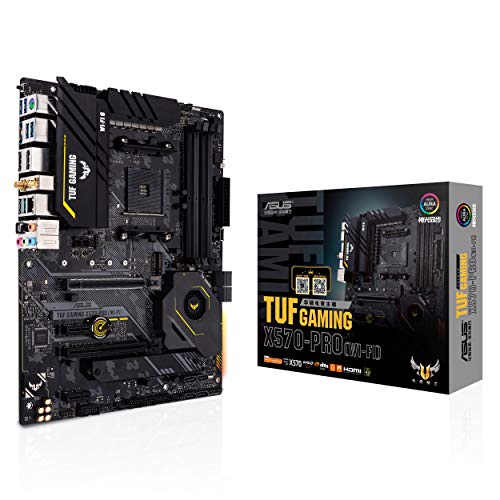
Top 3 picks at a glance
What the firmware actually does
The firmware is the first code your CPU runs at power-on. It initializes the memory controller, trains your RAM, detects storage and USB devices, and then hands control to a bootloader. Legacy BIOS dates back to the early 1980s and used 16-bit code with a 1 MB memory ceiling and MBR partitioning. UEFI (Unified Extensible Firmware Interface) is the modern replacement: 32/64-bit, mouse-driven menus, GPT partitioning, and a modular driver model.
Why builders should care
Booting in legacy/CSM mode quietly disables several things gamers want. Secure Boot and a measured TPM state — both required for a clean Windows 11 install — need UEFI. GPT disks unlock capacities past 2.19 TB and allow more than four primary partitions. And UEFI’s parallel initialization is a big reason a modern PC can reach the desktop in 10–15 seconds.
BIOS vs UEFI at a glance
| Feature | Legacy BIOS | UEFI |
|---|---|---|
| Max boot disk size | ~2.19 TB (MBR) | 9.4 ZB (GPT) |
| Primary partitions | 4 | 128 |
| Interface | Text, keyboard only | Graphical, mouse support |
| Secure Boot | No | Yes |
| Typical cold-boot time | 25–40 s | 10–18 s |
| Resizable BAR | No | Yes |
How to tell which mode you are in
In Windows press Win+R, type msinfo32, and read the “BIOS Mode” line — it will say Legacy or UEFI. If it says Legacy but your board supports UEFI, you generally have to reinstall Windows on a GPT disk (or convert with mbr2gpt) to switch cleanly. For a fresh build, always create your Windows USB so it boots the UEFI entry, not the legacy one.
CSM: the compatibility bridge
Most boards ship with a Compatibility Support Module that emulates legacy BIOS for old GPUs and drives. Leave CSM disabled on a new gaming PC unless you are running hardware from before roughly 2013. Disabling it is what lets Secure Boot and Resizable BAR appear in the menus.
Practical setup checklist
After POST on a new build, enter firmware and confirm four things: memory profile (EXPO/XMP) enabled, Resizable BAR on, Secure Boot ready, and boot order pointing at your NVMe drive. Those four toggles turn a technically-working PC into one that boots fast and squeezes free frames out of the GPU.
Recovering from a bad firmware state
Modern UEFI is resilient, but a failed update or a wrong overclock can leave a board unable to POST. Two features save you here: a Clear CMOS jumper or button that resets firmware to defaults, and BIOS Flashback, which rewrites the firmware from a USB stick with no CPU or RAM installed. Before you assume dead hardware, clear CMOS by shorting the jumper or pulling the coin battery for a minute. Knowing these recovery paths turns a scary black screen into a two-minute fix, and it is why you should never panic the first time a memory profile refuses to boot.
FAQ
Is UEFI faster than legacy BIOS for gaming?
Not in-game — frame rates are identical because the firmware is out of the picture once Windows loads. UEFI is faster only at boot, and it unlocks Resizable BAR, which can add roughly 5–10% in some titles.
Do I need to update UEFI before installing a new CPU?
Often yes. A motherboard bought before a CPU’s launch may need a firmware update to POST with it. Many AM5 and LGA 1700 boards include BIOS Flashback so you can update without a working CPU installed.
Bottom line
UEFI is simply the modern firmware every current build should run, and “BIOS” is just the old name that stuck. Disable CSM, install Windows in UEFI mode on a GPT drive, and enable Secure Boot, Resizable BAR, and your memory profile. Do that once and you get faster boots, full drive capacity, Windows 11 compatibility, and a little free gaming performance — no extra hardware required.

