Buying a prebuilt workstation for your home office is a significant investment, but most buyers make the same critical mistake: they focus entirely on processing speed, RAM, and graphics cards while completely ignoring the fine print of the warranty. We often treat the warranty as an afterthought—something to click “agree” to during checkout—only to regret it when a motherboard fails three months later and we are left paying for shipping, parts, and labor out of pocket.
When you are setting up a professional workspace, downtime equals lost income. A consumer-grade desktop might come with a basic return-to-depot warranty that leaves you without a computer for three weeks. On the other hand, a business-class workstation often includes on-site service where a technician arrives at your door the next business day. Understanding the nuances of hardware coverage is the difference between a seamless home-office experience and a logistical nightmare.
As an Amazon Associate we earn from qualifying purchases at no extra cost to you.


To help you navigate this complex landscape, we have broken down exactly how to evaluate prebuilt systems, analyze warranty structures, and select a machine that keeps you productive without unexpected repair bills.
Our Top Picks



Top 3 picks at a glance
Decide These 3 Things First
Before you start comparing specifications and warranty terms, you need to establish three baseline parameters for your home office setup. Making these decisions early will narrow down your options and clarify what kind of protection plan you actually need.
- New vs. Renewed (Refurbished): A brand-new workstation, like a premium All-in-One, comes with a fresh manufacturer warranty (typically 1 to 3 years). However, renewed business-class machines (such as a refurbished HP EliteDesk or Dell OptiPlex) offer incredible value, often priced under $250. With renewed units, you must decide whether a 90-day third-party warranty is sufficient, or if you should purchase an extended protection plan to cover older components.
- On-Site Service vs. Depot Repair: Decide how long your home office can afford to be offline. “Depot repair” means you must box up your 15-pound workstation, pay for shipping, and wait 10 to 14 business days. “On-site service” means a certified technician comes to your home within 24 to 48 hours to swap out the broken components on your desk.
- Form Factor and Space Constraints: The physical size of your workstation dictates its repairability. A ultra-compact mini PC (typically under 2 inches tall and weighing less than 3 pounds) is highly space-efficient but uses proprietary, soldered components that are difficult to repair at home. A traditional mid-tower (measuring roughly 14″ x 6″ x 11″) takes up more desk real estate but allows for quick, toolless part replacements that keep warranty repair times to a minimum.
1. Size, Form Factor, and Footprint
The physical footprint of your prebuilt workstation directly impacts your desktop organization, cooling efficiency, and how easy it is to service under warranty. Workstations generally fall into three form factor categories:
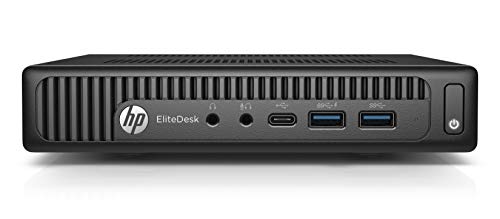
- Mini PCs (Ultra-Small Form Factor): These tiny units, like the HP EliteDesk Mini, measure roughly 7″ x 7″ x 1.3″ and weigh around 2.5 to 3 pounds. They can easily mount behind a monitor. However, because their internal layouts are incredibly dense, a single component failure (like a blown capacitor on the motherboard) usually requires replacing the entire unit rather than a single part.
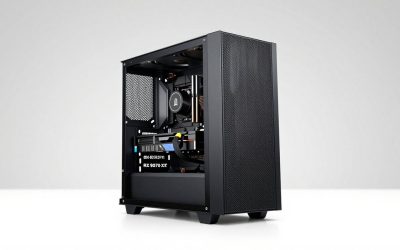
- Mid-Towers (Micro-Towers): Standard towers, such as the Dell OptiPlex MT, measure approximately 13.7″ x 6.1″ x 10.8″ and weigh between 11 and 15 pounds. These systems have spacious interiors, allowing for superior airflow, quieter fan operation, and easy access to individual components like the RAM, storage drives, and power supply.
- All-in-One (AIO) Desktops: Systems like the Dell 27″ All-in-One merge the computer components directly into the monitor housing. While this eliminates cable clutter and saves massive amounts of desk space, servicing an AIO is complex. If the display panel fails, the entire computer must be shipped in for service, leaving you completely without a machine.
2. Chassis Material and Internal Construction
A workstation’s exterior housing and internal frame determine its durability and ease of maintenance. Cheap consumer desktops rely heavily on thin plastic bezels and flimsy, stamped-steel chassis sheets (0.5mm thick or less) that flex under pressure. Premium business-class workstations utilize thick, industrial-grade steel frames (0.8mm to 1.0mm) and aluminum panels designed to withstand years of daily use.
More importantly, look for a toolless chassis design. High-quality prebuilt workstations feature quick-release latches, captive thumbscrews, and color-coded internal release tabs. This construction allows you to open the side panel and swap out a faulty drive or stick of RAM in under two minutes without using a screwdriver. If your warranty includes self-service parts delivery (where the manufacturer mails you a replacement part to install yourself), a toolless chassis is an absolute lifesaver.
3. Cooling Systems and Power Supply Efficiency
Heat is the number-one killer of computer hardware. When evaluating a prebuilt workstation, look closely at the cooling configuration and power supply unit (PSU). Budget systems often feature generic, low-wattage power supplies (180W to 240W) with proprietary connectors, making them impossible to upgrade later. They also tend to use small, high-RPM 80mm exhaust fans that whine loudly under load, exceeding 40 decibels (dB).
A professional-grade workstation should feature a power supply rated at 300W to 500W (or higher if you plan to add a dedicated graphics card) with an 80 Plus Bronze or Gold certification. This certification guarantees that the power supply operates at 85% to 90% efficiency, reducing waste heat and lowering your electricity bill. The cooling system should utilize larger 120mm fans that move more air at lower speeds, keeping noise levels below a whisper-quiet 30 dB during your daily Zoom calls.
4. Understanding the Warranty: What Actually Matters
When researching
- Parts vs. Labor Coverage: Some warranties cover replacement parts for three years but only cover the labor costs to install them for the first year. Ensure your warranty specifies “3-Year Parts and 3-Year Labor.”
- On-Site vs. Mail-In: For professional home offices, on-site service is the gold standard. If a component fails, the manufacturer dispatches a technician to your home. Mail-in warranties require you to find a box, pack your heavy desktop, and ship it away, risking shipping damage in the process.
- Customer Self-Replaceable (CSR) Parts: Many modern warranties allow the manufacturer to mail you simple replacement parts (like a keyboard, mouse, or external power brick) for you to install yourself. This is often the fastest way to get back up and running without waiting for a technician to visit.
- Accidental Damage Protection: Standard warranties only cover manufacturer defects and component failures. If you spill coffee across your All-in-One desktop or drop your mini PC during a move, a standard warranty will not help. If you are prone to workspace accidents, look for optional “Accidental Damage Protection” (ADP) add-ons.
5. Return Policies and Shipping Costs
Even if a workstation looks perfect on paper, you may get it home and realize the fan noise is too loud, or the port selection doesn’t match your dual-monitor setup. This is why the return policy is just as important as the warranty.
Always check for restocking fees. Some major retailers and direct manufacturers charge a 15% to 20% restocking fee on opened computers, which can easily cost you $100 to $200 just to return a machine that didn’t fit your needs. Additionally, verify who pays for return shipping. Shipping a heavy 15-pound mid-tower desktop across the country can cost $40 to $80. Look for sellers that offer a 30-day return window with zero restocking fees and free return shipping labels.
6. Price Tiers and Value Propositions
To help you contextualize your options, we have categorized prebuilt workstations into three distinct price tiers based on their hardware capabilities and warranty structures:
- Budget Tier ($200 to $400): This tier consists primarily of renewed business desktops, such as older Intel Core i7 OptiPlex or HP EliteDesk models. These systems are incredibly cost-effective for basic office tasks, web browsing, and spreadsheets. However, they typically come with limited 90-day third-party warranties and older DDR3 or early DDR4 RAM configurations.
- Mid-Range Tier ($500 to $900): This tier features modern consumer and entry-level business towers, like the Acer Aspire TC series. You get up-to-date processors (8th Gen to 12th Gen Intel Core i5/i7), faster NVMe solid-state drives, and 1-year manufacturer warranties. These machines offer excellent performance for multitasking, light photo editing, and database management.
- Premium Tier ($1,000+): This category includes high-end All-in-One systems, advanced business workstations, and content creation PCs. These machines feature the latest processors, high-speed DDR5 RAM, and robust cooling systems. Most importantly, they frequently include 3-year commercial warranties with next-business-day on-site support, making them the ultimate choice for professionals who cannot afford downtime.
Spec Checklist
Use this convenient checklist to compare hardware specifications and warranty terms across different budget levels as you plan your home office upgrade:
| Feature / Spec | Budget Tier ($200–$400) | Mid-Range Tier ($500–$900) | Premium Tier ($1,000+) |
|---|---|---|---|
| Processor (CPU) | Older Intel Core i7 (e.g., i7-3770 or i7-6700T) | Intel Core i5 / i7 (8th to 11th Gen) | Intel Core i5 / i7 (12th Gen+ or Ultra Series) |
| System Memory (RAM) | 8GB to 16GB DDR3 / DDR4 | 8GB to 16GB DDR4 (Dual Channel) | 16GB to 32GB DDR5 |
| Storage Type | 256GB SATA SSD | 512GB to 1TB NVMe PCIe SSD | 1TB to 2TB High-Speed NVMe SSD |
| Warranty Duration | 90-Day Refurbisher Warranty | 1-Year Manufacturer Warranty | 3-Year Commercial Warranty |
| Support Type | Mail-in Repair or Self-Return | Depot Repair (User Pays Shipping) | Next-Business-Day On-Site Support |
| Chassis Access | Standard screws (requires tools) | Thumb-screws / basic access | 100% Toolless internal access |
Red Flags
When shopping for a prebuilt workstation, keep a sharp eye out for these common warning signs that indicate potential trouble down the road:
- “As-Is” or “No Returns” Listings: If a seller refuses to offer at least a 30-day return window, walk away. This is especially common with low-cost refurbished machines sold online.
- Proprietary Motherboards and Power Supplies: Some manufacturers use non-standard power connectors and motherboard shapes. If your power supply dies outside of the warranty period, you won’t be able to buy a cheap replacement at a local store; you will be forced to buy an expensive, proprietary part directly from the manufacturer.
- “Void If Removed” Stickers: In the United States, the Magnuson-Moss Warranty Act protects your right to open your computer chassis to clean out dust or upgrade your RAM/storage without voiding your warranty. If a manufacturer uses stickers to threaten your warranty coverage for simply opening the case, it is a major red flag.
- Third-Party Warranty Companies with Poor Ratings: If you buy a renewed machine and the warranty is fulfilled by an unknown third-party insurer rather than the original manufacturer (OEM) or a reputable refurbisher, getting a claim approved can be an absolute nightmare of bureaucracy.
FAQ
What is the difference between a manufacturer warranty and a refurbisher warranty?
A manufacturer warranty (OEM) is provided directly by the company that built the computer (like Dell, HP, or Acer) and is backed by their national network of technicians and parts warehouses. A refurbisher warranty is provided by a third-party company that repaired and resold the computer. Refurbisher warranties are typically shorter (usually 90 days) and require you to ship the machine back to their specific facility for repair.
Does upgrading my workstation’s RAM or SSD void the warranty?
No, under federal law in the United States, upgrading your RAM or adding a second storage drive does not void your warranty. However, if you physically damage the motherboard or other components while installing the new parts, that specific damage will not be covered under the warranty. It is always a good idea to keep your original parts in case you need to send the machine back for factory service.
Is an on-site warranty really worth the extra cost for a home office?
For most remote workers and business owners, yes. If your computer breaks and you have a mail-in warranty, you will have to pack up your computer, mail it away, and wait up to two weeks for its return. An on-site warranty ensures that a technician comes to your home workspace to repair the machine, minimizing your downtime to just 24 to 48 hours. As we head into 2026, maintaining continuous uptime is more critical than ever for remote professionals.
What components are most likely to fail during the warranty period?
Mechanical parts are the most common points of failure in any workstation. This includes cooling fans, traditional hard disk drives (HDDs), and power supply units. Solid-state drives (SSDs) and motherboards can also fail due to power surges or manufacturing defects. Because these components are vital to the daily operation of your system, ensuring they are fully covered under a comprehensive parts-and-labor warranty is essential.
Related guides
- Best Gaming PC for Fortnite: Eight Prebuilt Desktops Sorted by Refresh Rate Goal (2026)
- Best RX 9070 XT Prebuilt Gaming PCs: Seven Desktops and Three Cards Compared: 10 Compared (2026)
- CyberPowerPC vs iBUYPOWER Gaming PC: How the Two Brands Compare
- Best RX 9070 XT Prebuilt Gaming PC (2026): 5 Picks Compared