Our Top Picks
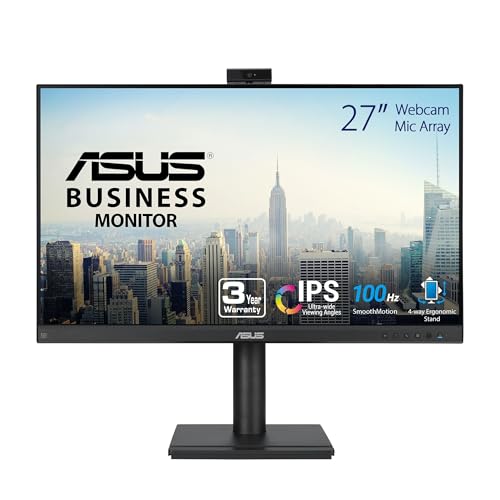 ASUS BE24EQK 24 Inch 1080P Computer Monitor24 Inch24.02 x 19.45 x 6 Inches12.8 PoundsCheck on Amazon


Top 3 picks at a glance
The Short Answer
For most custom video editing builds in 2026, a 27-inch monitor is the sweet spot. It gives you enough screen real estate for a full timeline, preview window, and tool panels without forcing you to turn your head constantly. If you are working in 4K with a high-end GPU, step up to a 32-inch 4K display. If your desk is under 48 inches wide or you sit closer than 28 inches from the screen, stick with a 24-inch or 27-inch model.
Here is a quick rule of thumb by resolution and viewing distance:
As an Amazon Associate we earn from qualifying purchases at no extra cost to you.



- 24-inch at 1920×1080: Best for tight desks, 24 to 30 inches viewing distance, and budget builds under $200.
- 27-inch at 2560×1440: Best all-rounder for editing, color work, and multitasking. Ideal at 28 to 34 inches viewing distance. Quality IPS panels typically run $250 to $400.
- 32-inch at 3840×2160: Best for 4K editing, full-resolution preview, and color grading. Ideal at 32 to 40 inches viewing distance. Expect $400 to $800 for a calibrated IPS or mini-LED.
- 34-inch ultrawide at 3440×1440: Best for extended timelines without a dual-monitor setup. Ideal if you have at least 55 inches of desk width.
Choose size based on your desk depth and resolution, not just diagonal inches. A 32-inch 1080p panel will look soft up close, while a 27-inch 4K panel may force you to scale the interface to 150 percent, which reduces usable workspace.
Standard Sizes
Monitor size is measured diagonally, but what matters for your build is the actual width, height, and depth with the stand. Use this table to plan desk fit, wall clearance, and mount compatibility. Dimensions are approximate for modern flat-panel IPS displays with slim bezels and included stands. Ultrawide and curved models will be wider.
| Advertised Size (Diagonal) | Common Resolution | Width with Stand (inches / cm) | Height with Stand (inches / cm) | Depth with Stand (inches / cm) | Panel Width x Height (inches / cm) | Typical Weight with Stand | Typical Power Draw |
|---|---|---|---|---|---|---|---|
| 24 inch | 1920 x 1080 | 21.3 in / 54.1 cm | 15.9 – 19.1 in / 40.4 – 48.5 cm (height adjustable) | 7.5 – 8.5 in / 19.1 – 21.6 cm | 20.9 x 11.8 in / 53.1 x 30.0 cm | 7.5 – 10.5 lbs / 3.4 – 4.8 kg | 18 – 35 watts |
| 27 inch | 2560 x 1440 | 24.3 in / 61.7 cm | 17.5 – 21.3 in / 44.5 – 54.1 cm | 8.0 – 9.5 in / 20.3 – 24.1 cm | 23.5 x 13.2 in / 59.7 x 33.5 cm | 9.5 – 14.5 lbs / 4.3 – 6.6 kg | 22 – 45 watts |
| 32 inch | 3840 x 2160 | 28.5 in / 72.4 cm | 19.5 – 23.8 in / 49.5 – 60.5 cm | 9.0 – 11.2 in / 22.9 – 28.4 cm | 27.9 x 15.7 in / 70.9 x 39.9 cm | 14.0 – 19.5 lbs / 6.4 – 8.8 kg | 30 – 65 watts |
| 34 inch Ultrawide (21:9) | 3440 x 1440 | 32.0 in / 81.3 cm | 17.0 – 22.5 in / 43.2 – 57.2 cm | 9.5 – 12.0 in / 24.1 – 30.5 cm | 31.4 x 13.1 in / 79.8 x 33.3 cm | 16.0 – 22.0 lbs / 7.3 – 10.0 kg | 35 – 80 watts |
| 7 inch Field Monitor (Reference) | 1920 x 1080 | 7.1 in / 18.0 cm | 4.9 in / 12.4 cm | 0.9 in / 2.3 cm (panel only) | 6.0 x 3.4 in / 15.2 x 8.6 cm | 0.6 – 0.9 lbs / 0.27 – 0.41 kg | 8 – 15 watts |
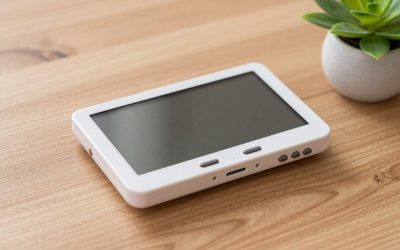
For context on price and use: compact 7-inch field monitors such as 1920×1080 touch models often sell for $250 to $300 and are designed for on-camera monitoring, not desktop editing. Desktop 24-inch 1080p monitors with USB-C and webcams typically range from $150 to $220, while color-accurate 27-inch WQHD photo and video editing monitors with 100 percent sRGB coverage often range from $280 to $350.
How to Measure Your Space
Before you order, measure your actual workspace. Manufacturers list diagonal size, but your desk determines what fits comfortably. Follow these steps with a tape measure:
- Measure desk width and depth. Measure the full top surface. For video editing, you need at least 48 inches wide for a 27-inch display plus speakers, or 60 inches wide for a 32-inch or ultrawide. Depth should be at least 24 inches for a 24-inch monitor and 28 to 30 inches for a 27-inch or larger display.
- Check viewing distance. Sit in your editing chair in your normal posture. Measure from your eyes to where the front of the screen will sit, not the wall. Aim for 24 to 30 inches for 24-inch, 28 to 34 inches for 27-inch, and 32 to 40 inches for 32-inch.
- Account for the stand footprint. Standard stands are 8 to 11 inches deep and 10 to 12 inches wide at the base. If your desk is shallow, plan for a VESA arm. Most 24-inch to 32-inch monitors use 75x75mm or 100x100mm VESA patterns. A clamp arm needs about 2 to 3 inches of clearance behind the desk and a desk thickness of 0.75 to 3.0 inches.
- Measure vertical clearance. Measure from the desk surface to any shelf, cabinet, or window sill above it. A 27-inch monitor on its stand can reach 21.3 inches tall at maximum height. Allow 3 to 4 inches above for ventilation and 2 inches below for cable routing.
- Map cable and power space. Leave 3 to 4 inches behind the monitor for DisplayPort, HDMI, and USB-C cables plus a power brick if included. Confirm you have a grounded outlet within 48 inches. Monitors draw 18 to 80 watts depending on size and brightness, so a typical 6-outlet surge protector rated at 1200 to 1800 watts is more than sufficient for a single or dual display setup.
- Test the height for ergonomics. The top of the viewable screen should be at or slightly below eye level. If your eyes are 44 to 48 inches from the floor when seated, the center of a 27-inch screen should sit around 16 to 18 inches above the desk. Height-adjustable stands offer 4.0 to 5.5 inches of travel; a monitor arm adds 10 to 13 inches of adjustment.
By Room or Use Case
Small Desk or Bedroom Studio (Under 45 Inches Wide)
Stay with a single 24-inch or 27-inch monitor. A 24-inch 1080p display fits desks as narrow as 38 inches and keeps pixel density comfortable at close range. A 27-inch WQHD display works if you have at least 28 inches of desk depth, but avoid 32-inch here because you will be too close to see the full frame without head movement. Mount the monitor on an arm to reclaim 6 to 8 inches of desk depth for a keyboard, jog wheel, or audio interface. Weight matters on compact desks: a 24-inch monitor at 7.5 to 10.5 pounds puts less stress on a lightweight particleboard top than a 32-inch at 14 to 19.5 pounds.
Dedicated Home Office or Edit Suite (48 to 72 Inches Wide)
This is where a 27-inch to 32-inch setup shines. For most editors, a single 27-inch 2560×1440 calibrated IPS at 100 percent sRGB/Rec.709 with Delta E less than 2 is the best balance of color accuracy, sharpness, and performance. It handles 1080p and 4K timelines with proxy workflows without demanding a top-tier GPU. If you deliver in 4K and want a 1:1 preview, choose a 32-inch 3840×2160. At 32 inches, 4K yields about 138 pixels per inch, so text remains readable at 100 percent scaling. Allow 28.5 inches of width plus 4 inches on each side for speakers. For dual monitors, plan for 60 to 72 inches of width total. Two 27-inch monitors side by side need about 49 inches before bezels and stands.
Color Grading and Client-Facing Color Work
Prioritize panel quality over sheer size. A 27-inch or 32-inch IPS with factory calibration, 100 percent sRGB and 95 to 100 percent DCI-P3, hardware calibration support, and a hood is more valuable than a larger but less accurate screen. A 27-inch WQHD ProArt-style display can be calibrated to Delta E less than 2 and is widely used for Rec.709 work. For grading, consider a 32-inch 4K reference monitor as your primary plus a smaller secondary for scopes and bins. Keep the primary at eye level and the secondary angled 30 to 35 degrees to the side at the same viewing distance to avoid color shift from off-angle viewing, which is more pronounced on VA panels than IPS.
Ultrawide Timeline Editing and Multitasking
A 34-inch 3440×1440 ultrawide replaces a dual 24-inch setup without a center bezel. It shines for long Premiere Pro or DaVinci Resolve timelines where you can keep the timeline expanded across 32 inches while keeping effects controls and preview visible. You need a deep desk (at least 30 inches) and a viewing distance of 32 to 38 inches to take in the full width comfortably. Note that ultrawides are 32 inches wide physically, so measure carefully if your desk is against a wall. Curvature of 1800R to 1900R helps reduce edge distortion but does not change the width. Power draw is higher, often 50 to 80 watts at typical brightness of 250 to 350 nits.
Portable and On-Set Monitoring
A 7-inch field monitor is not a replacement for your desktop display, but it is essential for camera builds and client review on set. These 1920×1080 touch panels are 7.1 inches wide and weigh under a pound, so they mount directly to a camera cage. They typically run on NP-F batteries or DC input and draw 8 to 15 watts at up to 2000 nits for daylight visibility. Use it to check focus and exposure on location, then do your critical edit and grade on your calibrated 27-inch or 32-inch desktop monitor.
Common Sizing Mistakes
Buying too big for your desk depth. A 32-inch monitor at 24 inches viewing distance forces constant head panning and makes it harder to judge the whole image. If you cannot get at least 32 inches from eye to screen, choose 27-inch maximum. An arm can add 4 to 6 inches of distance compared to the included stand.
Choosing 4K at the wrong size. A 27-inch 4K display looks extremely sharp but requires 150 to 175 percent scaling in Windows or macOS for readable text, which reduces effective desktop space to something close to 2560×1440 anyway. If you want true 4K workspace without heavy scaling, go 32-inch.
Ignoring pixel density and GPU load. Editing 4K on a 32-inch 4K monitor demands more from your GPU than a 27-inch WQHD. If your custom build uses an entry-level or mid-range GPU, a 2560×1440 display will feel smoother for playback and effects while still giving you sharp previews. Driving a 3440×1440 ultrawide is roughly 1.2 times the pixels of WQHD, and 4K is 2.25 times WQHD.
Forgetting height adjustment and tilt. Fixed-stand monitors may sit too high or too low, causing neck strain during long sessions. Look for at least 4.7 inches of height adjustment, -5 to +20 degrees of tilt, and 90-degree pivot for vertical review. If the monitor lacks this, budget $35 to $80 for a VESA arm.
Mixing mismatched sizes for dual displays. Pairing a 24-inch 1080p with a 32-inch 4K creates jarring differences in scale, color, and height that slow you down when dragging timeline panels between screens. For dual setups, use two identical 27-inch or 32-inch models from the same line for consistent brightness, color, and bezel alignment.
Overlooking bezels and wall fit. The advertised diagonal does not include the stand width or the need for airflow behind the display. Always add 2 inches to each side of the panel width when planning against walls, cabinets, or corner desks.
FAQ
What is the best monitor size for 4K video editing on a custom PC?
32-inch at 3840×2160 is best for native 4K editing because you can view a 4K preview at near full resolution while keeping timeline and tools open. The viewable image is about 27.9 inches wide and 15.7 inches tall, so you can see fine detail without scaling. If your desk is shallower than 30 inches or your GPU struggles with 4K playback, a color-accurate 27-inch 3840×2160 or 27-inch 2560×1440 with a good proxy workflow is a more comfortable alternative.
Is a 27-inch or 32-inch monitor better for color grading?
Both can be excellent if they are IPS panels with 100 percent sRGB, wide DCI-P3 coverage, and factory calibration under Delta E less than 2. Choose 27-inch if you sit 28 to 34 inches away and want the sharpest Rec.709 workflow at WQHD resolution. Choose 32-inch if you want a larger 4K canvas for client review and more precise mask and qualifier work. Whichever you choose, calibrate with a hardware colorimeter every 150 to 200 hours and work in a dim, neutral environment with the monitor brightness set to 100 to 120 nits for grading.
Can I use a 34-inch ultrawide instead of two monitors?
Yes, for timeline-heavy workflows. A 34-inch 3440×1440 ultrawide gives you about 33 percent more horizontal space than a 27-inch WQHD, so you can keep a long timeline open without scrolling as much. It is best if you have 55 to 65 inches of desk width and sit 32 to 38 inches back. For color work that requires a dedicated full-screen preview on a second display, two 27-inch monitors may still be more flexible because you can set one to full-screen playback while keeping scopes and bins on the other.
How far should I sit from my editing monitor?
Measure from your eyes to the screen surface. Use 24 to 30 inches for 24-inch, 28 to 34 inches for 27-inch, and 32 to 40 inches for 32-inch or 34-inch ultrawide. A good test: when showing a full-screen 16:9 image, you should see the entire frame without turning your head, with the top bezel at or just below eye level. If you see individual pixels on text or need to move your head to see the timeline ends, you are too close or the monitor is too large for your desk.