As an Amazon Associate we earn from qualifying purchases at no extra cost to you.


Choosing storage is the single most underestimated part of a 4K video editing PC build. Most people fixate on the GPU and CPU, then treat storage as an afterthought—buying one big drive, plugging everything into the same disk, and wondering why their timeline stutters when they scrub through multicam footage. Others overspend on speeds their workflow will never touch. The truth is that 4K editing doesn’t just need fast storage; it needs the *right* storage, organized into tiers, sized for your footage volume, and paired with a backup plan.
This guide walks through what actually matters: capacity math, drive types, interfaces, sustained write speeds, and how to allocate your budget sensibly—whether you’re building from scratch or buying a prebuilt machine like the workstations listed below.
Our Top Picks
Pros & cons
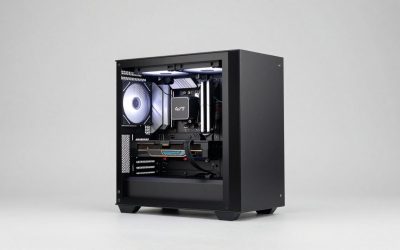
- Built-in 11.3 inch smart display shows live temps and usage
- 850W 80+ Gold PSU leaves headroom for upgrades
- Arrives fully assembled with Windows 11 Home installed
- Monitor must connect to the graphics card, not motherboard ports
- 360mm liquid cooler takes up significant case space
 CPU Solutions Express 4K Video Editing PC8.07 x 18.11 x 13.78 inches18.11 x 8.07 x 13.78 inches45 PoundsCheck on Amazon


Top 3 picks at a glance
Decide These 3 Things First
Before looking at a single product, answer these questions. They determine everything else.
1. How much footage do you generate per project? This is the number that matters most. A rough rule of thumb: ProRes 422 HQ runs about 780 GB per hour of footage; H.264/H.265 camera files from a mirrorless camera run 50–150 GB per hour; RAW formats (BRAW, R3D, ProRes RAW) can hit 1–2 TB per hour. Multiply by your project length, add 30% for caches and renders, and you have your working capacity per project.
2. Do you work off one project at a time or many? Editors juggling multiple active projects need more concurrent working space. Single-project editors can archive more aggressively and get by with less.
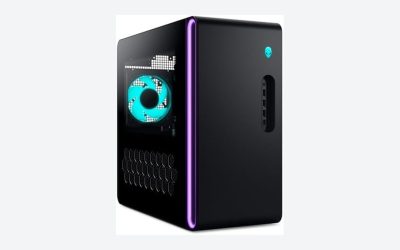
3. What’s your total budget for the whole machine? Storage should realistically claim 15–25% of a video editing build budget. On a $2,000 build, that’s $300–500; on a $3,500 build, $500–900. Prebuilts force this tradeoff for you: the $2,099 KOTIN prebuilt includes 1 TB, which is tight for serious 4K work, while the $3,299–3,349 CPU Solutions workstations ship with 2 TB NVMe drives—enough for roughly 2–3 active 4K projects before you need external or secondary storage.
Factor 1: Capacity — Do the Footage Math
Undersized storage is the number one mistake in editing builds. A 1 TB drive sounds generous until you realize one hour of ProRes HQ eats most of it.
Use this rough planning framework:
– OS + applications: 250–500 GB (Windows 11 itself wants 64 GB minimum; Adobe Creative Cloud, DaVinci Resolve, and plugins push this up fast)
– Active project footage: your per-project figure × projects in flight
– Cache, previews, and renders: 100–300 GB
– Free headroom: always keep 20–25% of an NVMe drive empty—SSDs slow down and wear faster when nearly full
For most 4K editors, the practical tiers are:
– 1 TB: workable only for compressed footage (H.264/H.265) with disciplined archiving. Fine as a boot drive in a multi-drive setup.
– 2 TB: the sweet spot for most editors. Comfortable for 2–3 active projects plus OS and software.
– 4 TB: the comfort tier for RAW shooters, multicam work, or anyone who hates constantly shuffling files. NVMe prices have dropped enough that 4 TB is no longer exotic.
– 8 TB+: for archiving, NAS setups, or very high-volume RAW work.
Budget rule: spend less per terabyte on your archive drive, more per terabyte on your working drive.
Factor 2: Drive Tiers — Separate Boot, Project, and Archive
The biggest single performance win isn’t buying a faster drive—it’s separating your workloads. Scrubbing through 4K footage on the same drive your OS and software are reading from causes stutter.
The classic three-drive layout:
1. Boot drive (500 GB–1 TB NVMe): OS, applications, and cache files only. Cache on the same fast NVMe as the OS is fine; just don’t put footage here.
2. Project/scratch drive (2–4 TB NVMe): active footage, project files, and media cache. This is where sustained write speed matters most.
3. Archive drive (4–8 TB, SATA SSD or HDD): completed projects. A 7,200 RPM HDD is fine here—you’re not editing off it, just storing files. HDDs still offer the best cost per terabyte, roughly $15–25 per TB versus $50–80 per TB for NVMe.
If your build only supports two drives, combine boot and cache on one NVMe and keep projects plus archive on the second.
Factor 3: Interface and Speed — What the Numbers Actually Mean
Marketing loves sequential read speeds, but video editing lives and dies on sustained writes and random I/O. Here’s what to look for:
– NVMe PCIe 4.0: the sensible choice for editing drives in 2026. Look for sustained (not just peak) write speeds of at least 2,000 MB/s—most quality PCIe 4.0 drives manage 3,000–5,000 MB/s sequential reads and writes.
– NVMe PCIe 5.0: technically faster (10,000–14,000 MB/s) but runs hot, often needs a heatsink, and delivers a modest real-world editing benefit for 2–4 stream 4K work. Worth it for 6K/8K RAW or heavy multicam; otherwise skip.
– SATA SSD: capped around 550 MB/s. Fine for archives and older machines, but avoid for active 4K projects.
– USB external drives: acceptable for backup only, or fast portables for offloading on location. The Integral 512 GB Turbo-C flash drive, for example, advertises up to 2,000 MB/s reads and 1,700 MB/s writes over USB 3.2 Gen 2×2—genuinely useful as a location offload or transfer drive, though its 512 GB capacity and small size make it a companion, not a primary editing volume. Note you’ll need a USB 3.2 Gen 2×2 (20 Gbps) port to see those speeds; on a standard 10 Gbps port you’ll cap around 1,000 MB/s.
How many streams can you edit? Even a solid PCIe 3.0 drive handles several streams of 4K H.264 or a couple of ProRes streams. RAW formats and 4K multicam are where PCIe 4.0 sustained speeds earn their keep.
Factor 4: Endurance, Cache, and DRAM
Three specs separate good editing drives from cheap ones:
– DRAM cache: choose a drive with DRAM (typically 1 GB per 1 TB of capacity). DRAM-less (HMB-only) drives slow down significantly during the long, sustained writes typical of offloading footage.
– TBW endurance rating: terabytes written over the drive’s lifespan. Video editors write enormous volumes—caches alone can churn through hundreds of GB per project. A 2 TB drive with a 1,200 TBW rating is a reasonable floor; premium drives hit 2,000+ TBW.
– SLC cache behavior: cheap drives advertise huge peak speeds that collapse once the pseudo-SLC cache fills—sometimes dropping below 1,000 MB/s mid-transfer. Check reviews for post-cache sustained write speeds, which is exactly why you shouldn’t judge a drive by its box spec alone.
Factor 5: Price Tiers — What Your Money Buys
– Budget ($250–450 storage allocation): 1 TB PCIe 4.0 NVMe + 4 TB HDD archive. Works for compressed-footage workflows.
– Mid-range ($450–750): 1 TB boot NVMe + 2 TB project NVMe + 4–8 TB HDD archive. Covers most professional 4K work.
– Premium ($750–1,200+): 2 TB boot + 4 TB PCIe 4.0 project drive + 8–16 TB archive, or a NAS. For RAW, 8K, and high-volume studios.
Buying prebuilt shifts these numbers around. The $2,099 KOTIN machine’s single 1 TB SSD means budgeting another $100–200 for a second NVMe if your case and motherboard support one. The CPU Solutions workstations at $3,299–3,349 include 2 TB NVMe plus workstation-class components (Ryzen 9 9950X or Core Ultra 9 285K, 64 GB RAM, 16 GB professional GPUs), so their storage allocation is the mid-range tier already—just verify they have a free M.2 slot for expansion.
Factor 6: Backup — Non-Negotiable
Storage isn’t just speed; it’s not losing your work. The 3-2-1 rule applies to every editor: three copies of your footage, on two different types of media, one copy offsite. Minimum implementation: internal working drive + external HDD backup + cloud or an offsite drive for irreplaceable raw footage. Budget $80–150 for a dedicated backup drive—it’s the cheapest insurance in this entire guide. RAID is not backup; a RAID array protects against a single drive failure, not deletion, corruption, or theft.
Spec Checklist
| Spec | Budget | Mid-Range | Premium |
|---|---|---|---|
| Boot drive | 500 GB–1 TB NVMe (shared) | 1 TB PCIe 4.0 NVMe | 2 TB PCIe 4.0/5.0 NVMe |
| Project drive | Shared with boot | 2 TB PCIe 4.0 NVMe, DRAM cache | 4 TB PCIe 4.0 NVMe, 2,000+ TBW |
| Archive | 4 TB HDD | 8 TB HDD or SATA SSD | 16 TB HDD or NAS |
| Sustained write speed | 1,500+ MB/s | 2,500+ MB/s | 4,000+ MB/s |
| Endurance (TBW, 2 TB drive) | 600+ | 1,200+ | 2,000+ |
| Portable offload drive | Optional | 512 GB–1 TB USB 3.2 Gen 2 | 1–2 TB USB 3.2 Gen 2×2 |
| Backup solution | External HDD | External HDD + cloud | NAS + offsite |
| Storage share of build budget | ~15% | ~20% | 25%+ |
Red Flags
– Peak speeds quoted with no sustained write figure. If a drive only advertises sequential reads, its write performance probably collapses under long transfers.
– DRAM-less drives sold as editing drives. Fine for game launches, poor for continuous footage offloads.
– Single-drive prebuilts marketed as “4K editing PCs.” One 1 TB drive means your OS, software, cache, and footage all fight for the same bandwidth—and you’ll run out of space within two projects.
– QLC NAND on a high-capacity “bargain.” QLC drives slow dramatically on sustained writes. TLC NAND is the standard you want.
– USB flash drives marketed as editing solutions. Fast portables are great for transfers, but sustained video work belongs on internal NVMe.
– “RAID = backup” claims. It isn’t. Ever.
– No free M.2 slots. Check expansion before buying any prebuilt—storage needs grow, guaranteed.
FAQ
Is 1 TB enough for 4K video editing?
Only for compressed footage (H.264/H.265) with aggressive archiving. One hour of ProRes 422 HQ is roughly 780 GB, so 1 TB fills fast. Treat 1 TB as a boot drive in a multi-drive setup, or a minimum floor for hobby-level work. Most serious editors should start at 2 TB of project storage.
Do I need PCIe 5.0 storage for 4K editing?
Usually no. PCIe 4.0 drives with 3,000+ MB/s sustained writes handle most 4K workflows, including multicam, without bottlenecking. PCIe 5.0’s extra speed mostly helps 6K/8K RAW, heavy scratch disk usage, and massive file transfers—and it runs hotter, requiring a heatsink and good motherboard airflow.
Should I edit footage directly from an external SSD?
You can, if the drive connects over Thunderbolt or USB 3.2 Gen 2×2 and sustains 1,500+ MB/s writes. But internal NVMe is faster, cheaper per terabyte, and more reliable for sustained work. Use external fast drives for location offloading and backup, not as your main editing volume.
How much free space should I leave on my editing drive?
Keep at least 20–25% free. NVMe drives slow down when nearly full because the controller has fewer free blocks to work with, and sustained write speeds drop noticeably at 80%+ capacity. Plan your capacity around usable space, not the number on the box.