Our Top Picks
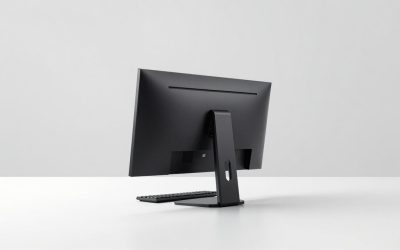
 CUNPU 27 Inch QHD 1440P 200Hz Gaming Monitor27 Inch7.5 x 24.1 x 20.9 inches14.9 PoundsCheck on Amazon
 ArcticPro 27 Inch Gaming Monitor QHD 1440p27" 210Hz QHD IPS2.68 x 24.17 x 14.27 inchesCheck on Amazon

Top 3 picks at a glance

The Short Answer
A 1440p gaming PC doesn’t need a monster power supply. For most builds pairing a mid-range or upper-mid GPU with a QHD monitor, a quality 650W–750W PSU is the sweet spot. If you’re running a power-hungry card like an RTX 3080 Ti, which draws around 350W on its own, step up to an 850W unit to give yourself headroom. Systems with lower-draw GPUs like an RTX 4060 or RX 7600 can run comfortably on 550W–650W. The 1440p monitor itself is a rounding error in the power budget — most 27-inch QHD displays pull just 25–45W at full brightness.
As a rule of thumb: take your GPU’s recommended system wattage and add 100–150W of headroom. That covers CPU boost spikes, drive spin-up, fan ramping, and capacitor aging over the life of the build.
As an Amazon Associate we earn from qualifying purchases at no extra cost to you.


Standard Sizes
“Size” for a 1440p gaming setup means two things: the electrical sizing of your power supply and the physical footprint of your gear. Here’s how both typically break down.
| Component | Typical Wattage Draw | Typical Physical Size | Weight |
|---|---|---|---|
| 27″ 1440p monitor (e.g., a 200Hz Fast IPS model at $130–$150) | 25–45W | 24.1″ W x 14.4″ H x 7.5″ D with stand (61 x 37 x 19 cm); panel without stand approx. 24.1 x 14.3 x 1.8″ (61 x 36 x 4.5 cm) | 9–13 lb (4–6 kg) with stand |
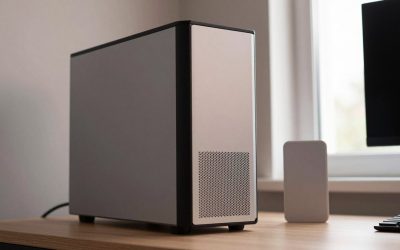
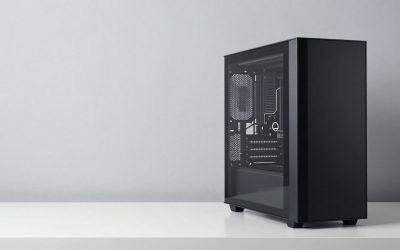
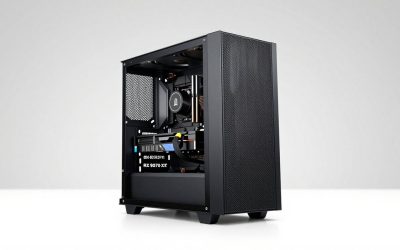
| Mid-tower ATX case | N/A (houses components) | 18–20″ H x 8–9″ W x 16–18″ D (46–51 x 21–23 x 41–46 cm) | 15–25 lb (7–11 kg) empty |
| ATX power supply, 650W–850W | Delivers up to rated wattage | 5.9″ W x 3.4″ H x 5.5–7.1″ D (15 x 8.6 x 14–18 cm) | 3–4.5 lb (1.4–2 kg) |
| High-end GPU such as an RTX 3080 Ti class card | 300–350W under load | 11–12.2″ L x 4.4–5.4″ W, 2–3 slots (28–31 x 11–13.7 cm) | 3–3.5 lb (1.4–1.6 kg) |
| Mid-range CPU (65W–105W TDP class) | 65–142W peak | Roughly 1.6 x 1.6″ socket footprint (4 x 4 cm) | 1.5–2 oz with cooler mount |
| Complete 1440p gaming system, total wall draw | 350–550W gaming; 50–80W idle | Fits a desk footprint of about 24 x 18″ (61 x 46 cm) | 25–35 lb (11–16 kg) assembled |
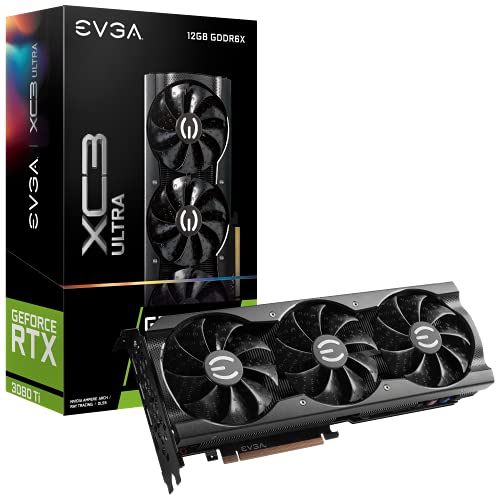
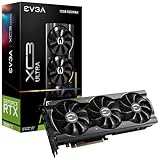
Note that a GPU like the EVGA RTX 3080 Ti XC3 Ultra measures approximately 11.2 inches long (28.5 cm) and 4.4 inches wide (11.2 cm), occupying nearly three slots. That physical size matters as much as its 350W appetite — measure your case clearance before buying.
How to Measure Your Space
- Measure your desk depth. A 27-inch 1440p monitor is roughly 24 inches wide; with the stand, plan for at least 8 inches of depth. You want 24–32 inches of viewing distance, so a desk under 24 inches deep forces the monitor to the edge.
- Check monitor height clearance. A 27-inch 16:9 panel stands about 14.4 inches tall plus 2–7 inches of stand. Confirm you have 20+ inches of vertical clearance under shelves or cabinets.
- Verify case clearance. Measure the interior of your case: GPUs up to 12.2 inches long need at least 13 inches of clearance, and an 850W ATX PSU can run 7.1 inches deep, which eats into cable management space in compact cases.
- Confirm your wall outlet circuit. A gaming PC plus monitor plus peripherals rarely exceeds 600W total, well under a standard 15-amp (1,800W) North American circuit. But if the same circuit carries a space heater, laser printer, or air conditioner, redistribute the load.
- Plan cable runs. Leave 6–8 inches behind the desk for the monitor’s power and DisplayPort cables to bend without strain. Measure the distance from desk to floor outlet; most PSU and monitor cords run 6 feet.
- Weigh your desk’s capacity. A monitor (9–13 lb), PC tower (25–35 lb), and accessories add up. Most sturdy desks handle this easily, but lightweight or glass desks often rate under 50 lb total.
By Room or Use Case
Dedicated gaming den or bedroom desk
A single system drawing 400–550W under load adds gentle heat to a small room — roughly equivalent to one old incandescent bulb bank. In a 10 x 10-foot room with the door closed for hours, expect a 3–5°F temperature rise in summer. Ventilation matters more than wattage here: don’t shove the tower into an enclosed cabinet, which can raise internal component temperatures 10–15°F.
Shared living room or open-plan space
Open rooms dissipate heat effortlessly, so wattage is a non-issue. Focus instead on physical fit: a mid-tower at 18–20 inches tall fits under most TV consoles, and a 27-inch monitor ($132–$240 for capable QHD models like the Acer Nitro XV272U tier) suits couch distances of 3–4 feet better than a 32-inch panel does at a desk.
Small home office doubling as a gaming station
Total draw including a monitor, router, lamp, and laptop charger typically stays under 500W — no electrical concerns. Choose a 650W–750W 80 Plus Gold PSU ($70–$110) for quiet, efficient operation at the 30–50% loads where these units are most efficient. A monitor pulling under 40W also keeps idle system draw low enough that leaving it on all day costs pennies.
Competitive/esports setup
High-refresh 1440p gaming (180–210Hz panels) pushes GPUs harder at frame caps, adding maybe 20–40W versus 60Hz play, but esports-title GPUs often draw less overall. A 650W Gold unit covers most builds; the real sizing priority is a monitor that matches your frame rate — a 200Hz Fast IPS display around $140 pairs sensibly with mid-range silicon.
Streamer or creator build
Add a capture card (5–10W), a second monitor (20–30W), studio lighting (20–60W), and streaming overhead on the CPU (10–30W). Your gaming draw of 450W can climb toward 600W, which puts an 850W PSU back in the recommended column — still with comfortable headroom under a 15-amp circuit.
Common Sizing Mistakes
- Buying a 1000W PSU “just in case.” An oversized unit running at 15% load operates outside its peak-efficiency band and wastes money. A 750W Gold unit costs $80–$120 and covers nearly every 1440p build.
- Ignoring transient power spikes. Modern GPUs can spike 1.5x their rated draw for milliseconds. That’s why a 350W GPU wants an 850W PSU with quality capacitors, not a barely-rated 750W budget unit.
- Confusing monitor resolution with power draw. 1440p itself costs almost nothing electrically — the GPU working harder to render those 3.7 million pixels is what raises wattage, not the panel.
- Sizing the case around the GPU after buying it. A 12.2-inch triple-slot card physically won’t fit many compact mid-towers rated for 11 inches of GPU clearance. Check the spec sheet first.
- Daisy-chaining two 8-pin PCIe connectors from one cable on a high-draw GPU. Use two separate cables for cards pulling 300W+ to keep per-cable current safe.
- Underestimating stand footprint. Some 27-inch monitors ship with V-shaped stands spanning 8–9 inches of depth; a 24-inch-deep desk leaves you leaning forward.
FAQ
Is 650W enough for a 1440p gaming PC?
Yes, for most builds. A system with a GPU drawing up to 250W and a mainstream CPU runs comfortably on 650W with 30–40% headroom. Step to 750W if your GPU’s official recommendation says 700W, and to 850W for 300W+ cards like an RTX 3080 Ti.
How many watts does a 1440p 144Hz monitor use?
Typically 25–45W. A standard 27-inch QHD IPS monitor draws roughly 30W at default brightness and peaks near 40–45W at 100% brightness with HDR active. Over a year of heavy evening use, that’s about $10–$15 in electricity at average U.S. rates.
Does a 1440p PC use more power than a 1080p PC?
The components can be identical; only the GPU works harder. Rendering at 2560 x 1440 pushes a GPU 30–50% harder than 1080p in the same game, which can add 50–100W of draw. The monitor itself adds essentially nothing.
Will a 750W PSU handle an RTX 3080 Ti at 1440p?
Officially it’s borderline — most 350W-class GPUs carry an 850W recommendation due to transient spikes. A high-quality 750W unit can work, but an 850W Gold or better PSU ($100–$140) removes the risk and leaves room for a future GPU upgrade, which matters if you’re planning builds through 2026 and beyond.
Related guides
- Best Gaming PC for Fortnite: Eight Prebuilt Desktops Sorted by Refresh Rate Goal (2026)
- Best RX 9070 XT Prebuilt Gaming PCs: Seven Desktops and Three Cards Compared: 10 Compared (2026)
- CyberPowerPC vs iBUYPOWER Gaming PC: How the Two Brands Compare
- Best RX 9070 XT Prebuilt Gaming PC (2026): 5 Picks Compared