Choosing RAM for a video editing build is easy to overcomplicate—and just as easy to get wrong by focusing on the wrong specification. Many buyers purchase the fastest kit they can find, only to discover that 32GB fills quickly once they open a 4K timeline, After Effects composition, browser tabs, audio tools, and background applications. Others buy a large amount of inexpensive memory without checking whether it matches their motherboard, CPU, or preferred editing software.
For video work, capacity is usually the first priority, followed by platform compatibility and stable speed. RAM will not replace a capable CPU, GPU, or fast NVMe storage drive, but too little memory can make an otherwise strong computer feel slow, unstable, and frustrating. This guide explains how to choose RAM for video editing build projects without paying for specifications that will not make a practical difference.
As an Amazon Associate we earn from qualifying purchases at no extra cost to you.


Our Top Picks
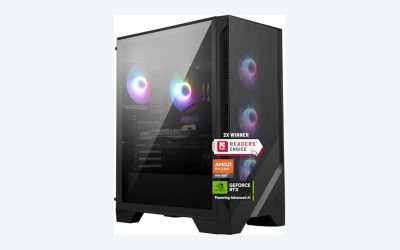
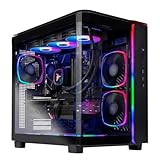
 iBUYPOWER Element Gaming PC Desktop Computer AMD Ryzen20 x 9.1 x 17.4 inches36 poundsCheck on Amazon

Top 3 picks at a glance
Decide These 3 Things First
- What resolution and codec will you edit? Basic 1080p projects are relatively forgiving. Multi-camera 4K, RAW footage, 6K or 8K projects, high-frame-rate video, and heavily compressed codecs require substantially more memory.
- Which editing programs will run at the same time? Premiere Pro, DaVinci Resolve, Final Cut Pro, After Effects, Photoshop, Audition, Blender, and a web browser can all compete for memory. Motion graphics and compositing generally raise RAM needs faster than simple cutting and trimming.
- Are you building a desktop or buying a laptop? Desktop RAM can usually be upgraded later. Many thin laptops, including some Apple models, use unified memory that cannot be upgraded after purchase. Buy enough memory on day one if the machine has soldered or integrated memory.
RAM Capacity: Buy for Your Real Timeline Size
Capacity is the most consequential RAM decision for video editors. When physical memory runs low, the operating system begins moving active data to the SSD. Even a quick NVMe drive is far slower than RAM, and this can lead to lag while scrubbing, longer exports, stuttering playback, or slow switching between applications.
16GB is the practical minimum for light editing. It can suit short 1080p projects, social videos, basic cuts, and a limited number of applications open at once. It is not a comfortable long-term target for serious 4K work.
32GB is the best starting point for most dedicated 4K editors. It provides useful breathing room for Premiere Pro or Resolve, browser research, basic photo work, audio editing, and moderate color correction. The iBUYPOWER Element desktop listed with 32GB DDR5 RAM is an example of a system positioned in this sensible mainstream range.
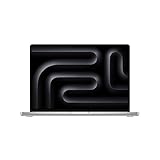
48GB to 64GB is a stronger choice for frequent 4K editing, multicam timelines, larger projects, or workloads combining video editing with Photoshop and motion graphics. A 48GB unified-memory configuration, such as the referenced 16.2-inch MacBook Pro with an M5 Pro chip, makes more sense for a professional editor than a lower-memory configuration when upgrades are not possible.
96GB to 128GB is intended for demanding users: editors working with 6K or 8K footage, extensive After Effects compositions, large RAW projects, 3D scenes, virtual machines, or long-form timelines. This capacity is not necessary for every creator, but it can prevent memory pressure in complex workflows.
A practical rule: choose 32GB for straightforward 4K editing, 64GB for regular professional work and motion graphics, and 128GB only when your actual projects demonstrate the need. More memory does not automatically make a basic timeline export twice as fast; it mainly keeps demanding workflows from slowing down when several tasks overlap.
Memory Generation, Speed, and Latency: Match the Platform
Desktop builders generally choose between DDR4 and DDR5. These standards are physically different and are not interchangeable. A DDR4 motherboard requires DDR4 modules; a DDR5 motherboard requires DDR5 modules. Never attempt to force one type into the other.
For a value-oriented DDR4 editing build, DDR4-3200 or DDR4-3600 in a matched kit remains a reasonable target where the platform supports it. For a modern DDR5 build, DDR5-5600 to DDR5-6000 is a sensible range for many creators. Higher advertised speeds, such as 6400 MT/s or more, can be worthwhile on a compatible, well-tuned platform, but they should not take budget away from capacity, storage, or the GPU.
Latency is commonly shown as “CL” followed by a number, such as CL30, CL32, or CL36. Lower numbers can be better within the same memory generation and speed class, but latency is a secondary purchase criterion for most editors. A stable 64GB DDR5-5600 kit is generally a smarter purchase than a marginally faster 32GB kit.
Check the motherboard’s qualified memory support, CPU documentation, and BIOS settings before ordering. Many performance-rated kits need an XMP or EXPO memory profile enabled in the BIOS to reach their listed speed. Without that setting, a DDR5-6000 kit may initially operate at a lower default speed. Stability matters more than chasing a benchmark number: unreliable RAM can cause crashes, corrupted projects, or failed exports.
Module Configuration and Physical Construction: Use Matched Pairs
For most desktop editing systems, buy RAM as a matched kit rather than mixing separate modules purchased at different times. A 2 x 16GB kit is the standard route to 32GB, while 2 x 32GB delivers 64GB. Matched kits are designed and validated to work together at their rated settings.
Two matched modules also let mainstream desktop platforms use dual-channel memory operation. This improves available memory bandwidth compared with one module of the same total capacity. Avoid a single 32GB stick if a 2 x 16GB kit costs about the same and you have two available slots.
That said, expansion planning matters. If your motherboard has four DIMM slots and you expect to move from 32GB to 64GB soon, beginning with 2 x 16GB can be economical. If you want the simplest, most stable route to 64GB now, 2 x 32GB is often preferable to populating all four slots. Four DIMMs can work perfectly well, but high-speed DDR5 settings may be harder to run reliably with every slot filled.
Physical size can matter in compact builds. Standard desktop DIMMs are roughly 5.25 inches long, but heatsink height varies. Low-profile modules are often around 1.25 inches tall, while decorative RGB kits can approach 2 inches. Tall heat spreaders may interfere with a large air CPU cooler. Measure the cooler’s stated RAM clearance before buying.
For laptops, use only the memory type the manufacturer specifies—typically SO-DIMM modules where upgrades are supported. Do not assume that a laptop with a removable bottom panel has upgradeable RAM. Some models have memory soldered to the board, and Apple unified-memory configurations are selected at purchase rather than installed later.
Performance in an Editing Workflow: Balance RAM With the Rest of the Build
RAM is one part of a balanced workstation. A 64GB memory kit cannot compensate for a slow storage drive, undersized GPU, or aging processor. Video editing benefits from a fast internal NVMe SSD for current media, cache files, and previews. A useful baseline is a 1TB NVMe SSD, with 2TB or more being more comfortable for active 4K projects.
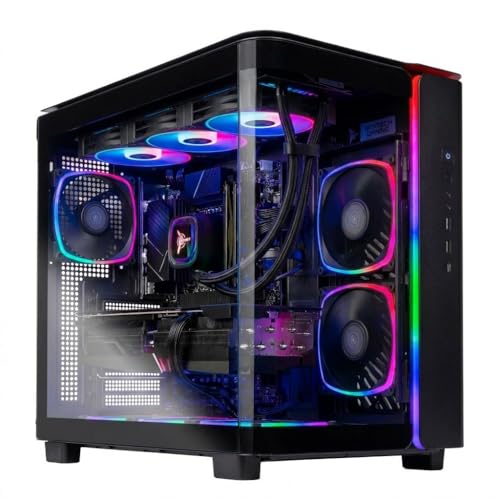
CPU and GPU choices affect which RAM level makes sense. A desktop such as the around $2,100 Skytech Gaming King 95 configuration, with a Ryzen 7 7800X3D and RX 9070 XT, has enough overall performance that 32GB may be a reasonable starting point for conventional 4K editing—but 64GB is worth considering if After Effects, complex grading, or large media libraries are part of the daily workflow.
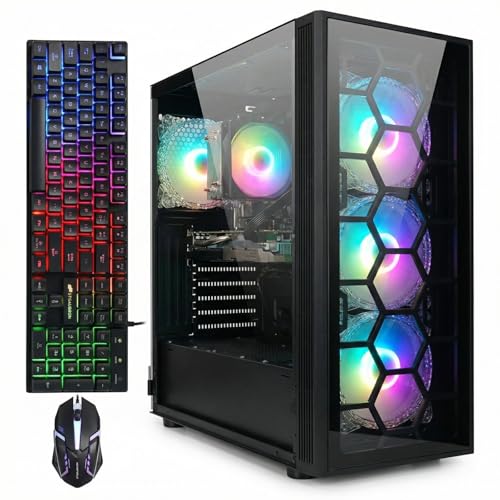
At the other end, a around $670 desktop with a Core i7, GTX 1660 Super, 32GB RAM, and 1TB SSD may provide enough memory for basic editing, but its older graphics hardware will likely become a more important limitation in GPU-accelerated effects and high-resolution workflows. Do not judge editing suitability by RAM alone.
Think of memory as workspace. More workspace helps keep active assets ready, but the CPU processes them, the GPU accelerates supported effects, and the SSD supplies media and cache data. For editing systems, it is usually wiser to split a fixed budget across 32GB or 64GB RAM, a capable GPU, and fast storage than to spend disproportionately on extreme-speed memory.
Price Tiers: Spend Where Capacity Has a Purpose
RAM prices change frequently, but capacity tiers are useful when setting a build budget. Expect a basic 32GB DDR4 kit to commonly fall around $50 to $90, depending on speed and brand. A mainstream 32GB DDR5 kit often lands around $80 to $140. A quality 64GB DDR5 kit typically requires roughly $150 to $260, while 96GB and 128GB kits can range from $250 to $500 or more.
For an approximately $700 desktop, 32GB is usually the ceiling worth targeting unless the rest of the system is already unusually strong. In the $1,500 to $2,300 range, 32GB is acceptable for general editing, but 64GB is a meaningful upgrade for a workstation-focused purchase. For a $3,000-plus laptop or desktop intended to last several years, 48GB, 64GB, or more can be justified when memory cannot be upgraded.
Skip expensive RGB lighting and elaborate heat spreaders if they add $20 to $50 over an equivalent non-RGB kit. RAM lighting does not improve rendering, playback, or export performance.
Warranty, Returns, and Installation: Favor a Low-Risk Upgrade
Choose RAM from an established manufacturer with a clear warranty and straightforward support process. Many reputable desktop-memory brands offer limited lifetime warranties, though terms vary by region and purchaser. Read the actual policy, especially for open-box products and prebuilt desktops.
For a self-build, installation takes about 5 to 15 minutes once the computer is powered down and unplugged. Open the motherboard’s DIMM latches, align the module notch correctly, and press evenly until the latches click into place. Most boards label the preferred two-module slots as A2 and B2; consult the motherboard manual rather than guessing.
After installation, confirm the total memory in the operating system and enable the intended XMP or EXPO profile if appropriate. Run a memory diagnostic before trusting the system with a major paid project. If a new kit causes crashes, first update the BIOS, verify module placement, and test at default settings. A slightly lower stable speed is better than an unstable overclock.
For prebuilt PCs, verify whether opening the case affects the seller’s return policy and whether the installed modules leave open slots. For laptops, confirm both upgrade access and maximum supported capacity before ordering.
Spec Checklist
| Spec | Budget | Mid | Premium |
|---|---|---|---|
| Recommended RAM capacity | 16GB to 32GB | 32GB to 64GB | 64GB to 128GB |
| Best use | 1080p, light 4K, short projects | Regular 4K, multicam, moderate effects | 6K/8K, RAW, heavy compositing, 3D |
| Typical configuration | 2 x 8GB or 2 x 16GB | 2 x 16GB or 2 x 32GB | 2 x 32GB, 2 x 48GB, or 2 x 64GB |
| Desktop speed target | DDR4-3200 or DDR5-5600 | DDR5-5600 to DDR5-6000 | DDR5-6000 or validated platform-specific speed |
| Active-project storage | 1TB NVMe SSD | 1TB to 2TB NVMe SSD | 2TB or larger NVMe SSD plus project backup |
| Typical RAM budget | $50 to $140 | $120 to $260 | $250 to $500+ |
Red Flags
- Buying DDR4 for a DDR5-only motherboard, or DDR5 for a DDR4-only board.
- Choosing 16GB for frequent 4K editing simply because the CPU and GPU are powerful.
- Mixing different RAM brands, capacities, speeds, or kits and expecting rated performance.
- Paying extra for 6400 MT/s or faster memory before reaching 32GB or 64GB capacity.
- Filling four DDR5 slots without confirming the board can support the desired speed and capacity.
- Ignoring CPU-cooler clearance when buying tall RGB desktop modules.
- Assuming a laptop’s memory can be upgraded after purchase.
- Using RAM capacity as the only measure of a prebuilt computer’s video editing value.
FAQ
Is 32GB RAM enough for video editing?
Yes, 32GB is enough for many 4K editing workflows, especially straightforward cuts, color correction, and short-to-medium projects. Move to 64GB if you regularly use After Effects, edit multicam footage, work with large RAW files, or keep several creative applications open simultaneously.
Does faster RAM make video exports faster?
Sometimes, but usually not as dramatically as more capacity, a faster CPU, a stronger GPU, or better storage. Once you have compatible DDR4-3200/3600 or DDR5-5600/6000 memory, prioritize stability and sufficient capacity over small speed gains.
Should I buy 2 x 32GB or 4 x 16GB for 64GB?
For most DDR5 editing builds, 2 x 32GB is the simpler recommendation. It leaves two slots open and is often easier to run at rated speeds. Four 16GB modules can be a good value on a compatible board, but check the motherboard’s memory support guidance first.
Is unified memory on a Mac the same as desktop RAM?
Unified memory serves as shared high-speed memory for the CPU, GPU, and other processing components. It is not upgraded like desktop DIMMs, so select the capacity carefully when ordering. For demanding editing, 48GB unified memory can offer more practical headroom than 16GB or 24GB configurations.