Choosing between 32GB and 64GB of RAM for a 3D CAD PC in your home is not just a spec comparison, it is a decision about how you actually work. If you are modeling a single-family home, a kitchen remodel, or a piece of custom furniture in AutoCAD, Revit, SolidWorks, or Fusion 360, both configurations will open your files. The real difference shows up when you have a 400MB Revit central model open while running Enscape, have Chrome with 20 tabs, Bluebeam, and a point cloud viewer all at once, or try to render while still modeling. For many home users, 32GB feels fast enough 90 percent of the time, but that last 10 percent is where lost hours, crashes, and slowdowns live. Going to 64GB is about eliminating bottlenecks for larger, more complex workflows without overpaying for headroom you may never use.
Our Top Picks
 Lenovo ThinkStation P3 Tiny Workstation Desktop8-64GB|256GB-2TB7.2 x 7 x 1.5 inches3.01 poundsCheck on Amazon


Top 3 picks at a glance

Quick Verdict
For most home-based 3D CAD users doing part modeling, assemblies under 1,000 components, and residential-scale architectural work, 32GB of DDR4 or DDR5 RAM is the sweet spot for cost, power, and performance. It handles multitasking well and leaves budget for a better CPU and GPU, which matter more for viewport speed.
As an Amazon Associate we earn from qualifying purchases at no extra cost to you.



Choose 64GB if you regularly work with large assemblies (1,000+ parts), complex Revit models over 300MB, point clouds, 4K rendering while modeling, or heavy multitasking with simulation and visualization tools running at the same time. As of 2026, many prebuilt workstations now offer 64GB as a standard option for this reason, and the price premium has narrowed enough that future-proofing makes sense if you plan to keep the PC for five or more years.
Side by Side
| Feature | 32GB RAM | 64GB RAM |
|---|---|---|
| Comfort (Daily Multitasking) | Smooth for one CAD app + browser + office apps. Heavy multitasking can push usage to 28-31GB, causing slowdowns. | Comfortable headroom. Typical heavy session uses 35-48GB, leaves 15-20GB free for background tasks with no stutter. |
| Durability (Longevity) | Will remain capable for 3-4 years for moderate files. May feel constrained as models and BIM libraries grow. | Built for 5-7 year lifespan. Handles next-generation CAD versions and larger texture libraries without an upgrade. |
| Price Range | DDR4 32GB kit (2x16GB): $65-$95. DDR5 32GB kit (2x16GB): $85-$130. Prebuilt tower with 32GB: around $700-$1,400. | DDR4 64GB kit (4x16GB or 2x32GB): $125-$185. DDR5 64GB kit (2x32GB): $165-$260. Prebuilt tower with 64GB: $1,100-$2,200. |
| Maintenance | Lower power draw, runs cooler. Easy to add two more sticks later if motherboard has four slots. | Slightly higher power (5-10 watts more) and heat. Populating all four DIMM slots can limit future XMP overclocking. |
| Space Needed | Standard DIMM height 31-44mm, no clearance issues. Ideal for compact systems like the Lenovo ThinkStation P3 Tiny Workstation Desktop, which measures about 7.2 x 7.0 x 1.4 inches and still supports 16GB/32GB/64GB RAM options. | Same physical size per module, but quad-stick or dual-rank kits need good airflow. Full towers like the PCSP Z4 G4 Workstation Tower offer more clearance and cooling headroom. |
| Look | Cleaner two-stick builds, better for small form factor and tempered glass builds where cable management matters. | Four-stick builds look fuller, often with RGB or heatsinks, but can crowd compact cases. |
| Resale | Strong demand on secondary market, easiest to sell as budget-friendly CAD or gaming PC. | Higher resale value for workstation buyers. Refurbished 64GB systems like the PCSP Z4 G4 with its Xeon W-2133 and Quadro M4000 8GB hold value well for pros. |
| Best For | Hobbyists, students, freelance designers, and home renovators working on single projects at a time. | Architects, engineers, and serious makers handling large assemblies, renderings, and simulations from a home office. |
| Power & Noise Impact | Total system draw typically 250-400 watts under CAD load with a mid-range GPU. Quieter cooling. | Total system draw 260-415 watts under same load. Negligible difference, fans may run 100-200 RPM higher. |
Where 32gb Wins
32GB wins on value and efficiency, which matters more in a home than in a corporate lab. For most SolidWorks, AutoCAD, and SketchUp Pro users, you will rarely exceed 22-26GB even with a large model open. That leaves enough headroom to keep Outlook, Teams, and a browser running without paging to your SSD.
It also lets you allocate budget where it counts. A jump from 32GB to 64GB costs $60 to $130 if you buy the RAM yourself. In a new build, that same money gets you a meaningful GPU step up, for example from an RTX 4060 to an RTX 4070, or a CPU bump that improves single-core viewport performance, which RAM cannot fix. For 3D CAD, viewport frame rates and rebuild times depend far more on CPU clock speed and GPU drivers than on RAM beyond 32GB.
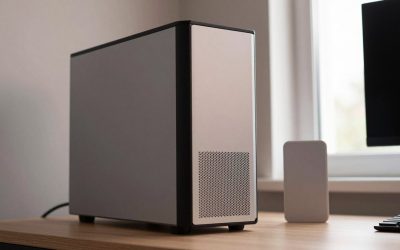
Compact living is another win. If your home office is a corner desk or a shared room, a small system that still takes 32GB is a major advantage. The Lenovo ThinkStation P3 Tiny Workstation Desktop is a good example of this category, packing an Intel i5-14500 vPro and support for up to 64GB but running perfectly balanced at 32GB for most users, all in a chassis you can tuck behind a monitor or mount under a desk. It idles around 35-55 watts and stays quiet, which is ideal when your PC lives in your living space.
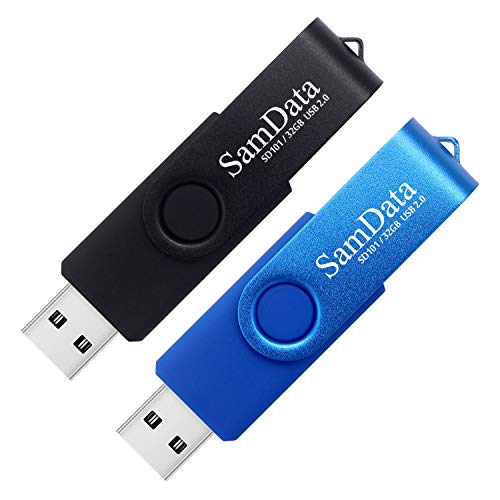
Finally, do not confuse system RAM with removable storage. We mention this because home users often conflate memory types while shopping. A SanDisk 32GB Ultra microSDHC 120MB/s A1 Class 10 UHS-I at around $20 or a SamData 32GB USB Flash Drives 2 Pack at around $16 is excellent for moving DWG files, backups, and photos to a client, but it does not add to your CAD performance. Those thumb drives and cards handle transport and archiving, while your 32GB of DDR4/DDR5 handles live modeling.
Where 64gb Ram for 3d Cad Pc Wins
64GB wins when your workflow stops being linear. If you open a 500MB Revit model that balloons to 38GB of RAM usage once loaded, or you import a 10-million-point LiDAR scan for an as-built, 32GB will force Windows to use your SSD as overflow memory. Even with a fast 512GB NVMe SSD, that paging causes freezes, lag when orbiting, and longer save times.
Large assemblies are the classic case. A SolidWorks assembly with 1,500 components, plus Toolbox hardware, plus PhotoView 360 rendering in the background, can easily consume 40-50GB. With 64GB, you can keep the assembly open, run a simulation, and still have a Chrome window with supplier spec sheets open. With 32GB, you will be closing programs to stay productive.
Rendering and visualization while modeling is the other clear win. If you use V-Ray, KeyShot, Lumion, or Enscape and like to keep the live render window open while you tweak materials, that renderer alone can reserve 12-20GB. Add a CAD model and you are over 32GB instantly. 64GB lets you render and model concurrently without compromise.
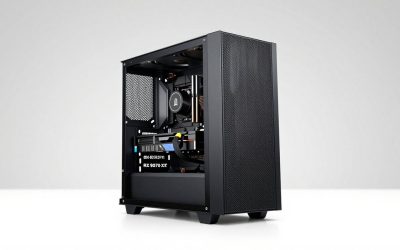
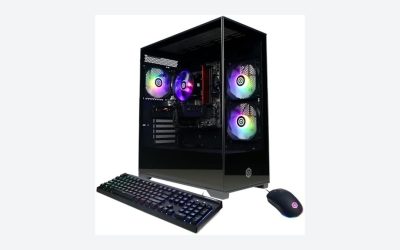
This is where a true workstation tower proves its worth. The PCSP Z4 G4 Workstation Tower, with its Intel Xeon W-2133 (6-Core up to 3.9GHz), 64GB DDR4, 512GB NVMe SSD + 2TB HDD, and Quadro M4000 8GB, is built for exactly that kind of sustained, heavy load. It has the DIMM slots, cooling, and ECC-capable platform to run 64GB at full stability for hours-long renders, something compact or consumer gaming boards handle less gracefully. At 38-45 pounds and roughly 17 x 17 x 6.5 inches for a typical mid-tower, it needs dedicated floor or desk space, but it delivers uninterrupted performance.
Cost Over 5 Years
Upfront, a DIY upgrade from 32GB to 64GB is modest: $60-$130 for DDR4 systems and $80-$140 for DDR5 in current U.S. retail ranges. On a prebuilt or refurbished workstation, the gap is larger because vendors bundle it with other workstation features. For example, a Lenovo ThinkStation P3 Tiny starting at around $700 with 16GB will cost about $150-$250 more to configure with 32GB versus 64GB, bringing a 64GB setup closer to $950-$1,150 total.
Over five years, the math flips if you actually need the capacity. If you buy 32GB now and need 64GB in year two, you will either replace your 2x16GB kit entirely ($85-$130 wasted) or try to match sticks, which risks instability. A clean 2x32GB 64GB kit from day one avoids that replacement cost. Energy cost is negligible: an extra 5-10 watts under load adds only $4-$8 per year if you run CAD 30 hours a week at around $0 per kWh.
The bigger cost is time. If limited RAM costs you even 15 minutes a day in waiting, closing and reopening files, or restarting after crashes, that is over 60 hours a year. For a home professional billing at $50-$90 per hour, 64GB pays for itself in weeks when your projects are large enough to need it. If your files are small, 32GB saves you money with no productivity penalty.
Which One for Your Home
Your home layout and how you live in it should influence the spec as much as the software does.
Small Apartment
Pick 32GB. Space, heat, and noise matter when your desk is in your bedroom or living room. A 32GB tiny workstation or small form factor build tucks away cleanly, draws less power, and handles apartment-scale projects like furniture design, 3D printing models, and condo renovations without issue. Keep your project archive on external drives rather than stuffing a large tower into a closet.
Family with Kids/Pets
Pick 32GB if CAD is a hobby alongside family use, and invest the savings in a system with good dust filters and a locked-down user account. If you work from home full-time and kids mean you cannot afford to lose work to crashes, 64GB adds stability when you have to leave five applications open while stepping away. Either way, put the tower off the floor, use a filtered intake, and schedule automatic backups to that 2TB secondary drive or to external USB storage.
Rental
Pick 32GB for flexibility. Renters move, and a compact, lighter PC is easier to transport and fits more desks. A 64GB refurbished tower is powerful but heavy and harder to relocate. If your lease is short or your workspace is temporary, the portability and lower upfront cost of 32GB makes more sense. You can always carry your files on a 32GB thumb drive between locations.
Long-Term Home
Pick 64GB if this is your dedicated home office or studio for the next five-plus years. A permanent setup with a full tower, dual 27-inch monitors, and a UPS has room for a workstation with proper cooling. The extra headroom means you will not need to open the case to upgrade as your library of models, textures, and BIM families grows. In a long-term home, the one-time premium for 64GB is the cheapest future-proofing you can buy.
FAQ
Will 64GB make my CAD viewport faster than 32GB?
Not by itself. Viewport orbiting, panning, and feature rebuilds depend on single-core CPU speed and GPU performance. If you are not exceeding 29-30GB of RAM usage, adding more RAM will not increase frame rates. Check Task Manager during your heaviest work; if committed memory stays under 30GB, invest in a faster CPU or a certified workstation GPU instead.
Can I start with 32GB and add more later?
Yes, if your motherboard has four DIMM slots and you buy a 2x16GB kit now, you can add a matching 2x16GB kit later. For best stability, buy the exact same model and speed, ideally as a single 64GB 2x32GB kit if you plan to upgrade. Tiny workstations with only two slots require replacing the sticks entirely, so check the slot count before you buy.
Is DDR4 64GB or DDR5 32GB better for 3D CAD?
For most home CAD work, DDR5 32GB is generally more balanced than DDR4 64GB unless you consistently need more than 32GB. DDR5 offers higher bandwidth (typically 4800-5600 MT/s versus 2666-3200 MT/s for DDR4), which helps with large file loads, while 64GB capacity helps with multitasking. If you must choose, prioritize capacity if you know you exceed 32GB; otherwise prioritize the newer DDR5 platform for longevity.
How much storage do I need alongside 32GB or 64GB?
Pair either RAM choice with at least a 512GB NVMe SSD for your OS, CAD apps, and active projects, plus a 1TB-2TB secondary drive for archives. When paging does occur, a fast NVMe drive reduces the penalty, but it is still far slower than real RAM. Use inexpensive removable media like microSD cards and USB flash drives only for transfer and backup, not as working drives for active CAD files.
Related guides
- Best Gaming PC for Fortnite: Eight Prebuilt Desktops Sorted by Refresh Rate Goal (2026)
- Best RX 9070 XT Prebuilt Gaming PCs: Seven Desktops and Three Cards Compared: 10 Compared (2026)
- CyberPowerPC vs iBUYPOWER Gaming PC: How the Two Brands Compare
- Best RX 9070 XT Prebuilt Gaming PC (2026): 5 Picks Compared