Our Top Picks
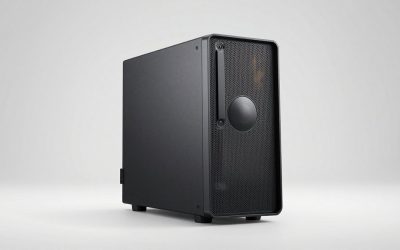
 Dell Optiplex 7060 Tower Desktop Computer32GB RAM | Content Creation10.7 x 6.1 x 13.7 inchesCheck on Amazon
The Short Answer
Yes — 32GB of RAM is worth it for video editing if you work with 4K footage, use effects-heavy timelines, or edit in DaVinci Resolve. If you only trim 1080p clips for social media, stick with 16GB and spend the savings on a faster SSD or GPU instead. That is the one condition that decides it: your resolution and workflow complexity, not the year or the software brand.
What You Actually Get
RAM is your editing timeline’s working memory. Every frame you scrub, every effect you preview, and every clip you layer gets pulled from storage into RAM. When RAM fills up, your system starts swapping data to your SSD, which is dramatically slower — that is when you get stuttering playback, dropped frames during previews, and render times that crawl.
As an Amazon Associate we earn from qualifying purchases at no extra cost to you.


With 16GB, a 4K timeline in Premiere Pro or Resolve will feel tight almost immediately. Add color grading, noise reduction, or a few adjustment layers and the system hits the ceiling. With 32GB, you get headroom for:
- Multi-cam edits with 4 to 8 camera angles at 4K
- H.264/H.265 10-bit footage from mirrorless cameras, which decodes into far more memory than the file size suggests
- After Effects compositions running alongside your NLE
- Browser, Slack, and music apps open without choking your render
The practical difference buyers notice: preview playback at full resolution instead of degraded proxies, and render exports that don’t require closing every other app. RAM itself draws relatively little power — a 32GB DDR4 setup adds roughly 6 to 10 watts over a 16GB one — so there is no meaningful heat or electricity penalty.
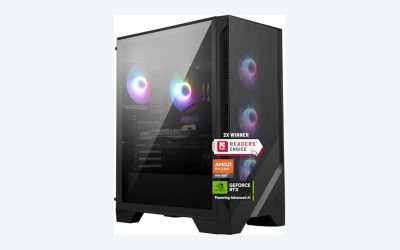
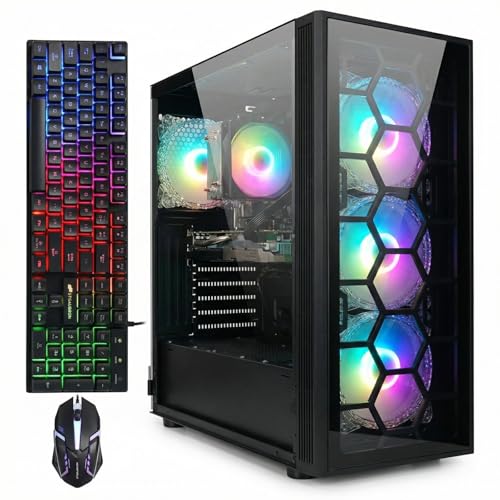
A note on buying: 32GB machines are no longer exotic. A renewed Dell Optiplex 7060 tower with an Intel i7-8700, 32GB DDR4, and a 1TB SSD sells for around $420, while a gaming-focused STGAubron build with a Core i7, RTX 3070 (8GB), 32GB RAM, and 1TB SSD runs about $770. Both are credible editing machines at their respective levels.
Pros
- Smooth 4K timelines. Full-resolution playback becomes realistic without generating proxies for every project.
- Multitasking headroom. Resolve using 20GB plus your browser and streaming software still fits comfortably in 32GB.
- Better GPU utilization. Modern GPUs like the RTX 3070 with 8GB of VRAM perform best when system RAM can feed them quickly; starved system memory bottlenecks the card.
- Future-proofing. Camera files keep growing — 6K and 8KRaw workflows are trickling down to consumer gear, and they eat RAM fast.
- Cheap per gigabyte. DDR4 upgrades often cost $50–$90 for the jump from 16GB to 32GB, one of the best price-to-performance moves in a build.
Cons
- Wasted money for 1080p editors. If your projects are short-form social clips, 32GB sits idle most of the session.
- Diminishing returns beyond 32GB. Jumping to 64GB or 128GB only pays off for 8KRaw, heavy Fusion compositing, or large After Effects projects.
- Not a substitute for a GPU. Effects like noise reduction and stabilization lean heavily on graphics hardware; 32GB of RAM with integrated graphics still stutters.
- Renewed-machine caveats. Budget towers like a renewed Optiplex often carry a 90-day warranty instead of a full year, and older i7-8700-class chips (65W TDP, six cores) will render slower than current CPUs.
- Speed matters too. 32GB of slow RAM can perform worse than 16GB of fast RAM in some workloads — check that DDR4-3200 or better spec.
Who Should Buy It
You edit 4K or higher on a regular basis, you run multi-cam or effects-heavy projects, or you bounce between Resolve, Premiere, and After Effects in the same session. You also benefit if you stream or record gameplay while editing, since capture software alone can consume 4–8GB. A machine like the STGAubron at around $770 — pairing 32GB RAM with a dedicated RTX 3070 — hits the sweet spot for freelance editors and serious hobbyists who need both memory and graphics muscle.
Who Should Skip It
If you cut 1080p vlogs, edit on a laptop you also carry to class or work, or your largest project is a two-minute slideshow, 16GB is genuinely enough. Put that money toward a faster NVMe SSD — editing directly off SSD storage improves scrubbing more than extra RAM does at low resolutions. Also skip 32GB if your budget is under $500 total: a balanced 16GB machine with a dedicated GPU will outperform a RAM-stuffed system with integrated graphics.
Cheaper Alternatives
| Option | Cost | Trade-off |
|---|---|---|
| 16GB RAM with a dedicated GPU (e.g., RTX 3060 class) | $600–$750 new | Handles 1080p and light 4K; need proxies for heavy 4K timelines |
| 16GB machine plus a later RAM upgrade | Roughly $50–$90 extra when you upgrade | Spreads cost over time; check the motherboard has free slots |
| Renewed business tower (Optiplex 7060 class, 32GB) | ~$420 | Weak or no dedicated GPU — fine for editing software basics, slow on GPU-accelerated effects; shorter warranty |
| Proxy workflow on your current 16GB machine | $0 | Extra editing steps and generate time, but smooth playback on modest hardware |
FAQ
Is 32GB RAM overkill for 1080p video editing?
Usually, yes. 1080p editing typically uses 8–12GB even in Premiere Pro, so 16GB leaves comfortable headroom. You would only feel cramped at 1080p if you run dozens of browser tabs, virtual machines, or After Effects simultaneously.
Is 32GB enough for 4K video editing?
Yes, for the vast majority of 4K work, including multi-cam and color grading. Resolve’s official guidance recommends 32GB for 4K work. You only need 64GB+ for 8K, heavy Fusion compositions, or large-scale motion graphics.
Does RAM speed matter more than RAM size for video editing?
Size matters more up to the point where you stop swapping to disk. Once you have enough (32GB for most 4K work), speed becomes the next lever — DDR4-3200 or DDR5-5200+ helps scrubbing and export times modestly, typically single-digit percentage gains.
Can I upgrade to 32GB later instead of buying it now?
Often, yes. Many desktops ship with two RAM slots and one module installed, so adding a matching stick later is a 10-minute job. Two things to verify: the motherboard supports your target capacity, and mixing modules of different speeds can force both to run at the slower rate — buy a matching kit when you upgrade. By 2026, expect 32GB to become the default config on even mid-range machines, which also makes later upgrades cheaper.