Buying RAM for a 3D CAD workstation sounds simple until you start comparing listings. Then you run into the same wall most builders hit: one system advertises 32GB DDR5, another offers 128GB, and a third lets you pick 16GB, 32GB, or 64GB at checkout with no guidance at all. The most common mistakes I see are buying too little RAM to save $100, buying far too much because a forum post said “more is better,” mixing mismatched sticks into an existing build, and ignoring speed and latency entirely because the capacity number was the only one that looked familiar. Another frequent error: assuming RAM is where rendering performance comes from. It usually isn’t — that’s your CPU and GPU — but insufficient RAM will stall everything downstream of them.
This guide walks through how to size, spec, and sanity-check memory for a custom 3D CAD PC, using real workstation listings as reference points — from a $699 Lenovo ThinkStation P3 Tiny up to an $8,099 Adamant build with an RTX A4500 and 128GB of DDR5.
As an Amazon Associate we earn from qualifying purchases at no extra cost to you.


Our Top Picks
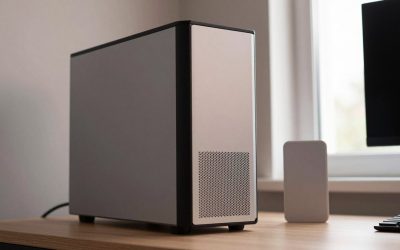
 Lenovo ThinkStation P3 Tiny Workstation Desktop8-64GB|256GB-2TB7.2 x 7 x 1.5 inches3.01 poundsCheck on Amazon


Top 3 picks at a glance
Decide These 3 Things First
Before you look at a single spec sheet, answer these:
1. What software are you running? SolidWorks, Fusion 360, and AutoCAD are comfortably happy in 32GB for most assemblies. NX, CATIA, Creo with large assemblies, and any scene-heavy Blender or Maya workflow scale past that fast. Simulation work (FEA, CFD) is the biggest memory hog of all — mesh sizes of 10 million+ elements can demand 64GB to 128GB on their own.
2. How large are your assemblies or scenes? A rough industry rule of thumb: budget 20–50 times the size of your largest source files in system RAM. A 500MB assembly file suggests 16–32GB as a floor. If your assemblies run 2–5GB, you’re in 64GB territory.
3. Is this a new build or an upgrade? New builds let you pick a clean DDR5 platform. Upgrades on older systems may lock you into DDR4, where 32GB kits cost a fraction of DDR5 but top out around 3,600MT/s on most consumer boards. Check your motherboard’s maximum supported capacity and how many slots are free before buying anything.
Capacity: How Much RAM You Actually Need
Capacity matters more than any other RAM spec. Here’s the honest breakdown:
- 16GB — workable for students and light 2D/3D drafting in AutoCAD or Fusion 360 with small models. You’ll feel the ceiling quickly. The base configuration of the ThinkStation P3 Tiny starts here, and it’s the first thing most buyers upgrade.
- 32GB — the sweet spot for professional CAD. Both Adamant reference builds (the $2,849 Ryzen 9 9950X system and the $3,199 Core Ultra 9 285K system) ship with 32GB DDR5, and that’s not a corner cut — it matches what most mechanical engineers need for assemblies up to roughly 1,000–2,000 parts.
- 64GB — the right call for large assemblies, simultaneous CAD plus rendering, or occasional simulation. It’s a common mid-config option on customized systems like the P3 Tiny and usually adds only $150–300 over 32GB at purchase time.
- 128GB — for heavy FEA/CFD, massive point clouds, or running multiple virtual machines. This is what the $8,099 Adamant flagship carries alongside its RTX A4500. If you’re not doing simulation or photoreal rendering of huge scenes, this is money better spent elsewhere.
Practical sizing tip: open Task Manager (or your equivalent) during your heaviest typical session. If peak usage exceeds 80% of installed RAM, double it. If you’re at 40% or below, don’t buy more.
Speed and Latency: DDR5 Numbers Decoded
DDR5 speeds on current workstations range from 4,800MT/s at the conservative end to 6,400MT/s and beyond on enthusiast boards like the Z890 and X870 platforms used in the Adamant builds. For CAD specifically:
- 5,200–6,000MT/s is the practical sweet spot. Viewport performance depends far more on GPU and single-core CPU speed than memory bandwidth, so paying a premium for 7,200MT/s+ gaming-oriented kits buys you almost nothing in SolidWorks.
- CAS latency: DDR5 latency numbers look high (CL30–CL40) versus DDR4 (CL16–CL18), but that’s normal — DDR5 does more per clock. A CL30–CL36 kit at 5,600–6,000MT/s is excellent. Don’t pay extra for CL28.
- Stability beats speed. A crashed 6-hour render costs more than any benchmark gain. Workstation-oriented builds often run slightly conservative memory profiles for exactly this reason, and that’s a feature, not a flaw.
Configuration: Sticks, Channels, and Headroom
How your RAM is arranged matters as much as how much you have:
- Use two sticks, not four, when possible. A 2x16GB kit for 32GB leaves slots open for expansion and is easier on the memory controller. Four-stick configurations often force lower stable speeds, especially on DDR5.
- Dual channel is mandatory. One 32GB stick performs noticeably worse than 2x16GB in bandwidth-sensitive tasks. Every prebuilt listed here ships in dual-channel configurations; keep it that way if you upgrade.
- Buy matched kits, not individual sticks. Mixing brands, speeds, or die revisions is the number-one cause of instability in upgraded workstations. If you’re adding to an existing system, replace the whole set with one matched kit.
- Plan headroom. On a two-slot small form factor machine like the P3 Tiny, decide your end-state capacity now — going 2x32GB later means either discarding or working around your original sticks.
ECC vs. Non-ECC: Do You Need It?
ECC (error-correcting code) memory detects and corrects single-bit errors — valuable for runs lasting days or mission-critical engineering data. But most consumer and prosumer platforms, including the Ryzen 9 9950X and Core Ultra 9 285K systems referenced here, use standard non-ECC DDR5. True ECC requires workstation chipsets (Intel W-series, AMD Threadripper Pro) and registered DIMMs, which adds meaningful cost. For freelance and small-studio CAD work, non-ECC DDR5 with a good backup routine is fine. DDR5’s on-die ECC helps with basic reliability anyway. Choose ECC only if your field (aerospace, medical, financial modeling) or software vendor requires it.
Price Tiers: What Your Budget Buys
- Budget ($700–$1,200 complete systems): Expect 16–32GB of DDR4 or entry DDR5. The ThinkStation P3 Tiny at around $700 is the archetype — certified ISV drivers, tiny 1L footprint, and RAM as your main upgrade lever. Buy the CPU/GPU configuration you need and add memory as workloads grow.
- Mid-range ($2,500–$3,500): 32GB DDR5 on current-generation platforms. The $2,849 Ryzen 9 9950X build and $3,199 Core Ultra 9 285K build sit here — 16–24 cores, RTX A400 professional graphics, and memory that won’t bottleneck CAD work for years.
- Premium ($5,000–$8,500+): 64–128GB, professional GPUs like the RTX A4500 (8GB+ VRAM), and multi-terabyte NVMe storage. The $8,099 flagship configuration is built for simulation-heavy and rendering-heavy pipelines where memory capacity directly equals capability.
Standalone RAM pricing context: a quality 32GB DDR5-6000 kit runs roughly $90–150; 64GB kits run $200–350; 128GB kits run $400–700. If a builder charges dramatically more than parts-plus-labor for memory, ask why.
Spec Checklist
| Spec | Budget | Mid | Premium |
|---|---|---|---|
| Capacity | 16–32GB | 32–64GB | 64–128GB |
| Type | DDR4 or DDR5 | DDR5 | DDR5 (ECC optional) |
| Speed | 3,200MT/s / 4,800MT/s | 5,600MT/s | 6,000–6,400MT/s |
| CAS latency | CL36–CL40 | CL36 | CL30–CL36 |
| Configuration | 2 sticks, dual channel | 2 sticks, dual channel | 2–4 sticks, matched kit |
| Full system price | $700–$1,200 | $2,500–$3,500 | $5,000–$8,500 |
| Upgrade headroom | 2 free slots ideal | 2 free slots ideal | Maxed or near-maxed |
Red Flags
- Unbranded or no-name memory in prebuilts. If a listing doesn’t name the memory manufacturer or at least the speed, ask. Kingston, Corsair, Crucial, G.Skill, and Micron are the safe names.
- Single-stick configurations advertised as “32GB DDR5” — check whether it’s 1x32GB or 2x16GB before buying.
- Speed stated without a voltage or profile. Kits running XMP/EXPO overclocked profiles in workstations should be disclosed; silently overclocked memory is a stability risk.
- Proprietary memory formats. Some small form factor machines use non-standard SO-DIMMs or soldered memory. Soldered means no upgrades, ever — confirm before buying a compact workstation.
- “Gaming” RAM marketed at CAD buyers. RGB lighting and 7,200MT/s ratings add cost without adding viewport frames in SolidWorks or Revit.
- Maximum capacity claims without slot counts. “Supports 128GB” means little if only two slots exist and you’d have to discard your sticks to get there.
FAQ
Is 32GB enough for SolidWorks?
For assemblies up to roughly 1,000–2,000 components, yes — 32GB is the professional standard. If you routinely open 3,000+ part assemblies, run Simulation studies alongside modeling, or notice RAM usage pegged above 85%, move to 64GB.
Does RAM speed matter for CAD and rendering?
Modestly. CAD viewport performance depends mostly on single-core CPU speed and GPU drivers. Rendering is CPU/GPU bound. Faster memory (5,600–6,000MT/s vs. 4,800MT/s) typically yields low single-digit differences. Prioritize capacity and stability over speed.
Should I choose DDR4 or DDR5?
For a new custom build in 2026, DDR5 — current Intel and AMD platforms require it, and prices have settled to reasonable levels. DDR4 only makes sense for upgrading an existing DDR4 system, where 32GB kits remain cheap and perfectly capable.
Can I mix old and new RAM sticks?
You can, but you shouldn’t. Mismatched sticks often force the whole system to run at the slowest stick’s speed, and differing die revisions cause boot failures and crashes. Sell or repurpose the old sticks and install one matched kit. Also note that filling all four slots on many DDR5 boards reduces maximum stable speed — two sticks is the safer configuration.
Related guides
- Best Gaming PC for Fortnite: Eight Prebuilt Desktops Sorted by Refresh Rate Goal (2026)
- Best RX 9070 XT Prebuilt Gaming PCs: Seven Desktops and Three Cards Compared: 10 Compared (2026)
- CyberPowerPC vs iBUYPOWER Gaming PC: How the Two Brands Compare
- Best RX 9070 XT Prebuilt Gaming PC (2026): 5 Picks Compared