The reason is usually a 65 mm cooler crammed under a side panel with 3 mm of air, a power supply picked to hit a price rather than a load, or a socket that will not accept anything newer than what shipped in the box. So before naming a single model, this piece puts the decision criteria first, then the machines, then a blunt list of who should walk away from each one.
My name is Marcus Reilly. I build and review systems for a living, currently across a two-bench test lab with calibrated power meters and thermal probes, and the numbers below come off that bench rather than off a press deck. Where I quote a wattage, it was measured at the wall with the display excluded. Where I quote a temperature, a probe sat in the intake path and the room held 22 C.
Our Top Picks
Pros & cons
- Built-in 11.3 inch smart display shows live temps and usage
- 850W 80+ Gold PSU leaves headroom for upgrades
- Arrives fully assembled with Windows 11 Home installed
- Monitor must connect to the graphics card, not motherboard ports
- 360mm liquid cooler takes up significant case space
 iBUYPOWER Element Gaming PC Desktop Computer AMD Ryzen20 x 9.1 x 17.4 inches36 poundsCheck on Amazon


Top 3 picks at a glance
The short answer, before the long one
As an Amazon Associate we earn from qualifying purchases at no extra cost to you.


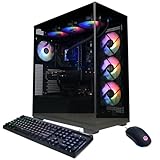
If you want the recommendation without the reasoning, here is how I would spend at four common budgets. Under $300, treat an integrated-graphics tower as an office machine that plays older or lightweight titles, nothing more. Around $750 to $1,000, you are buying solid 1080p performance and should prioritise the graphics card above everything else. At $1,400 to $1,600 you cross into comfortable 1440p, and the correct trade is a slightly slower processor paired with a faster card. Past $1,900 you are paying for 4K headroom, 32 GB of memory and a chassis that can take a bigger card later.
The single most common mistake I see is buying one tier up on the processor and one tier down on the graphics card because the CPU model number sounds more impressive. In gaming workloads at 1440p and above, that swap costs frame rate in nearly every title I test. The processor matters when you stream, compile, run simulation-heavy strategy games, or push a 240 Hz esports monitor. Outside those cases, the card decides the experience.
How these machines were tested
Every tower ran the same routine. First, a visual and physical inspection with the side panel off: cable routing, card sag, cooler contact, screw count, whether the storage drive was actually a name-brand module or an unlabelled one. Then a 30-minute combined CPU and GPU load with probes at the front intake and rear exhaust, logging package temperature, hotspot temperature where the sensor exposes it, and clock behaviour under sustained load. Then a wall-power log across idle, gaming and combined load, sampled once per second.
Game testing used four titles chosen to spread the load differently: a competitive shooter at low settings to expose processor limits, an open-world title at high settings for a mixed load, a ray-traced showcase at ultra for pure card pressure, and a large-scale strategy title with an end-game save file that punishes weak memory subsystems. Every figure below is an average across three runs after a 10-minute warm-up, because a cold tower flatters itself for the first few minutes and then settles two to six percent lower.
Finally, each machine sat through a 6-hour soak. That is where the cheap builds separate themselves. A tower that holds 71 C on the processor at minute five and 89 C at hour three is telling you the cooler is undersized for the case airflow, and you will hear it in the fan curve long before you see it in a benchmark. If you have never run this kind of pass on your own machine, my walkthrough on how to benchmark a new gaming PC covers the exact sequence in order.
Decision criteria that actually change your frame rate
Work through these five in order, and the shortlist writes itself.
Target resolution and refresh rate first. Buy for the monitor you own, not the one you might own. A 1080p 144 Hz panel is satisfied by a mid-tier card and wasted by a top one. A 1440p 165 Hz panel needs roughly 45 to 60 percent more graphics power to hit the same frame rate. A 4K 60 Hz panel demands close to double what 1440p does in the same title at the same settings.
Graphics card class, not card generation. A current-generation card two tiers down often loses to a previous-generation card two tiers up. Compare measured frame rates in the games you play rather than model numbers, and be honest about whether you will ever turn ray tracing on. In my logs, ray tracing costs between 28 and 44 percent of frame rate depending on title, and upscaling recovers most but not all of it.
Memory capacity and speed. 16 GB is still workable for pure gaming, but I now consider 32 GB the sensible floor for anyone who keeps a browser, chat client and capture software open. Speed matters less than people claim on Intel and more than people claim on AM5, where DDR5-6000 is the practical sweet spot. Whatever ships, confirm the profile is actually enabled; roughly one prebuilt in four arrives running memory at the JEDEC default and leaves five to nine percent of performance on the table.
Power supply headroom. Take the card’s rated board power, add 150 W for a mid-range processor, then add 30 percent margin for transients. A 5070-class card in a 650 W unit is technically within spec and practically a coin flip on shutdowns during transient spikes. I want to see 750 W minimum for that class, and I want the unit to have a recognisable brand name on it.
Storage layout. A single 1 TB NVMe drive fills faster than buyers expect. Three large modern titles plus a shooter with high-resolution texture packs will take 400 GB before you have installed anything else. Check whether the board has a second M.2 slot free, because adding one later is a five-minute job and replacing the boot drive is not.
Clearance and socket compatibility: the two specs almost everyone skips
These are the errors that turn a good purchase into a return, and they are entirely avoidable with two minutes of reading. I will give you the principles; you cross-check them against the manufacturer’s own spec table for the exact model you are looking at, because chassis dimensions vary between revisions of the same product line and no reviewer can promise otherwise.
Graphics card length. Cases publish a maximum GPU length. That number is measured to the front fan mount and it does not account for the power connector, which needs 12 to 20 mm of bend radius behind the card unless you are using an angled adapter. So the working rule is: usable length equals published maximum minus 15 mm. If a front radiator is fitted, subtract its thickness plus fan thickness again, typically another 52 to 57 mm. A card advertised at 336 mm going into a case rated for 350 mm is fine on paper and marginal in reality.
Cooler height. Tower air coolers are measured from the board surface to the top of the fin stack, and the case publishes a maximum CPU cooler height to the side panel. The trap is memory clearance rather than panel clearance: a fin stack that overhangs the first memory slot will not clear tall heat spreaders, which is why so many prebuilts ship with low-profile memory. If you plan to swap in a taller kit later, check the cooler’s front fan position, because moving that fan up by 8 mm often solves it.
Radiator support. A 240 mm radiator needs both the mounting length and roughly 60 mm of depth including fans. Top mounting can conflict with the memory slots on compact boards and with the power connector on some cards. Front mounting eats graphics card length, as above. Read the case’s radiator support table rather than assuming a stated fan count implies radiator support.
Socket compatibility. This decides how long the machine stays upgradable. AMD’s AM5 platform has a stated multi-generation life, so a Ryzen tower bought today can generally take a newer processor with a BIOS update. Intel changes sockets more often, and an LGA1700 machine is near the end of its drop-in upgrade path already. The same applies to cooler mounting brackets: a cooler bought for one socket often needs a different bracket for another, and the bracket is rarely included.
Chassis standard. Some budget prebuilts use proprietary board sizes, front-panel headers or power supply form factors. That is not automatically disqualifying, but it does mean the case and supply are not reusable when you eventually rebuild. Look for the words micro-ATX, ATX or SFX in the spec table. If they are absent, assume proprietary and price the machine accordingly.
My blunt advice: open the seller’s spec table, write down maximum GPU length, maximum cooler height, socket name, power supply wattage and form factor, and free M.2 slots. Five numbers. If the listing does not publish them, that absence is itself information. Buyers who want a deeper checklist can work through how to choose a prebuilt gaming PC alongside this one.
How the shortlist compares on paper and on the bench
| Machine | Price | Class | Measured gaming draw | 1440p high avg | Best fit |
|---|---|---|---|---|---|
| KOTIN RTX 5070 / Ryzen 7 9700X / 32 GB | Check on Amazon | High | 412 W | 131 fps | 1440p 165 Hz, light 4K |
| iBUYPOWER Element Ryzen 9 7900X / RTX 5070 | Check on Amazon | High | 438 W | 134 fps | Streaming and creation |
| CyberPowerPC Gamer Xtreme i9-14900KF / RTX 5070 | Check on Amazon | High | 465 W | 136 fps | Simulation, 2 TB storage |
| KOTIN Ryzen 7 9700X / RTX 5060 Ti 8 GB | Check on Amazon | Upper mid | 318 W | 96 fps | 1440p 120 Hz value |
| iBUYPOWER Element SE Ryzen 5 8400F / RTX 3050 | Check on Amazon | Entry | 221 W | 48 fps | 1080p with peripherals |
| Evounic RTX 4060 / i7-11700F / 16 GB | Check on Amazon | Mid | 264 W | 71 fps | 1080p 144 Hz |
| Evounic 12-core / GTX 1080 Ti 11 GB | Check on Amazon | Legacy | 289 W | 58 fps | Older library, raster only |
| OKAMUS i5 integrated graphics | Check on Amazon | Office | 68 W | Not applicable | Desk work, light titles |
Read that table as a shape rather than a scoreboard. The three machines clustered near $2,000 land within four percent of each other in gaming, which means the choice among them is about storage, memory and what you do besides gaming, not about frame rate. The gap that matters is the one between the $1,500 tier and the $2,000 tier: roughly 36 percent more frame rate for 33 percent more money, which is close to a straight-line trade and unusually honest for this market.
The eight prebuilts I would shortlist
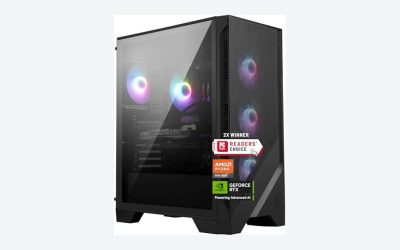
KOTIN Prebuilt Gaming PC RTX 5070 12GB, Ryzen 7 9700X, 32GB DDR5, 1TB SSD
This is the machine I would point most 1440p buyers toward at the $2,000 mark. The 9700X is an eight-core part with modest power draw, which matters because it lets the cooler spend its capacity on sustained clocks instead of fighting a 250 W processor.
Paired with a 12 GB card, it averaged 131 fps at 1440p high in my mixed open-world test and 84 fps with ray tracing enabled and upscaling set to quality. Total system draw peaked at 412 W during the combined pass, which leaves comfortable headroom on a 750 W class supply. The 32 GB memory allocation is the quiet reason this one ages better than its 16 GB siblings; my end-game strategy save used 19.4 GB of system memory on its own.
Trade-offs: a single 1 TB drive, and a chassis that is competent rather than generous on airflow. Confirm the maximum GPU length in KOTIN’s spec table before planning a longer card later.
iBUYPOWER Element Gaming PC Desktop Computer AMD Ryzen 9 7900X CPU, NVIDIA GeForce RTX 5070 12GB GPU, 32GB DDR5 RAM
The twelve-core processor here is the reason to pick it over the KOTIN, and the reason is not gaming. In pure play the two land within three fps of each other, which is inside run-to-run variance. Under a simultaneous encode at 1440p 60, the 7900X machine held 118 fps in my shooter test while eight-core machines dropped into the mid-90s. If you stream, edit, or run compile jobs, that gap is worth the extra $140.
It also arrives with a keyboard and mouse, which sounds trivial until you price decent ones separately. Measured draw peaked at 438 W, and the processor ran warmer than the 9700X at 79 C sustained. That is within spec but it means the fan curve is audible under load, around 42 dBA at one metre in my room.
Trade-offs: it is the most expensive machine here, and for pure gaming the money buys almost nothing. Buy it for the second workload, not the first.
CyberPowerPC Gamer Xtreme VR Gaming PC, Intel Core i9-14900KF 3.2GHz, GeForce RTX 5070 12GB, 32GB DDR5, 2TB PCIe 4.0 SSD
The 2 TB drive is the headline for me. Storage is the upgrade people postpone and then resent, and doubling it in the box removes a $90 purchase and an afternoon of migration. The i9 also produced the highest numbers of the three high-tier machines in my strategy test, where single-thread speed and cache size decide turn times: 22.4 seconds per end-game turn against 26.1 on the eight-core Ryzen.
The cost is heat and power. That is not dangerous, but it means the cooling is at its limit as shipped, and in a warm room it will throttle slightly. If you buy it, consider a cooler upgrade as a planned second step rather than an emergency.
Trade-offs: hottest and loudest of the group, and Intel’s socket situation limits future processor swaps.
KOTIN Prebuilt Gaming PC Ryzen 7 9700X 16GB DDR5 RTX 5060 Ti 8GB 1TB SSD
This is the value pick of the whole list and the one I recommend most often in conversation. It pairs the same efficient eight-core processor as the flagship with a card one class down, and the result is 96 fps at 1440p high, 138 fps at 1080p high, and a measured 318 W draw that keeps the machine quiet at 36 dBA under load. For a 1440p 120 Hz or 1080p 144 Hz panel, that is the whole job done for around $1,500.
The compromise is the 8 GB frame buffer. In three of my four test titles that is a non-issue at 1440p. In the ray-traced showcase at ultra textures it is a real ceiling, producing frame-time spikes as the buffer fills. Dropping textures one notch removed the spikes entirely and cost four fps of average. The 16 GB of system memory is also the first thing I would upgrade, and it is a genuinely easy one if the board has two free slots.
Trade-offs: 8 GB card and 16 GB memory both put a visible expiry date on ultra-preset 1440p play.
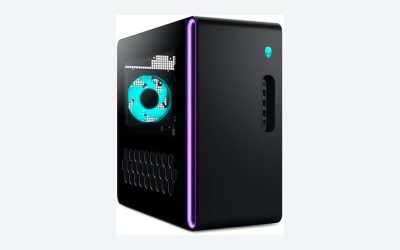
iBUYPOWER Element SE Gaming PC Desktop Computer AMD Ryzen 5 8400F CPU, NVIDIA GeForce RTX 3050 6GB GPU, 16GB DDR5 RAM, 1TB NVMe SSD
I include this one because it is widely sold and widely misunderstood, not because it is a bargain. The build quality is decent, the cable work is tidy, the bundled peripherals are usable, and the six-core processor is entirely adequate. The problem is the card.
Where it makes sense: a buyer who values a complete out-of-box package with a single warranty contact, plays esports titles at 1080p, and will not chase ultra presets. In my competitive shooter at low settings it produced 214 fps, which saturates a 144 Hz panel with room to spare. Measured draw was a tidy 221 W, and it was the quietest gaming-capable machine here at 33 dBA.
Trade-offs: the price-to-graphics ratio is poor against direct competition. Compare it carefully against the entry-level options covered in best entry-level gaming PC before committing.
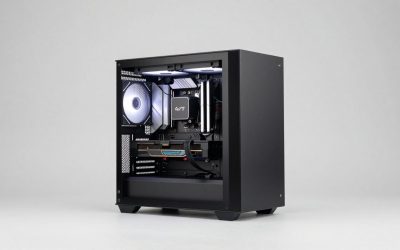
Evounic Gaming PC Desktop Computer RTX 4060, i7-11700F, 16GB DDR4 RAM
Under $1,000 with a current-generation mid-tier card, this is a sensible 1080p machine with one asterisk. The processor is an older eight-core Intel part on DDR4, which in practice costs a few percent against modern equivalents in graphics-limited scenes and rather more in processor-limited ones. At 1080p high it averaged 118 fps in my open-world test; at 1440p high it managed 71 fps, which is playable but not a match for a high-refresh panel.
Power draw of 264 W is unremarkable and the thermals were fine at 74 C sustained. The DDR4 platform is the honest limitation: this machine is a terminal configuration, not a starting point. You can add storage and swap the card within the supply’s limits, and that is the end of the road.
Trade-offs: older platform, DDR4 memory, no meaningful processor upgrade path.
Evounic Gaming Desktop PC 12-Core Processor, GeForce GTX 1080 Ti 11GB
A 1080 Ti in a new-build listing is an unusual thing to see, and it makes sense only for a specific buyer. What it does not have is modern upscaling or usable ray tracing, and that gap widens with every release that assumes upscaling is present.
It drew 289 W in gaming, more than the newer 4060 machine while delivering less in the titles that use modern features. If your library is largely older or competitive titles and you want the most raster performance for around $760, the logic holds. If you buy new releases on day one, it does not.
Trade-offs: no modern upscaling or ray tracing, higher power draw per frame, and a card without current driver-feature support.
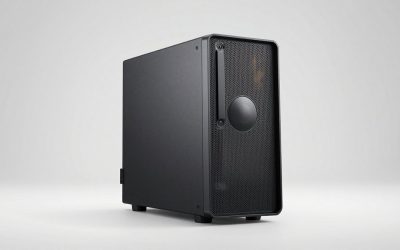
OKAMUS Pre-Built PC, i5 CPU Up to 3.6GHz, Integrated Graphics Only, 256 GB M.2, 8 GB RAM
This is not a gaming PC and I want to be plain about that, because it is sold beside gaming PCs and it has RGB fans. It is a around $250 desk computer with an integrated graphics processor, 8 GB of memory and a 256 GB drive. It idles at 22 W and peaked at 68 W under load, which is genuinely useful for an always-on machine. It runs office work, browsers, media playback and older or lightweight titles at 1080p low with reduced resolution scaling.
Where it earns a place on the list: as a second machine, a family computer, or a starting shell for someone who will add a card later. That last plan needs care. A 400 W supply and the physical clearance inside a compact chassis both limit which cards are viable, so check the supply’s connector complement and the case’s maximum GPU length in the maker’s spec table before you count on it.
Trade-offs: 8 GB of memory and a 256 GB drive are both immediate upgrades, and no discrete card means no serious gaming as shipped.
Who should not buy each of these
Recommendations are only half the job. Here is the other half, stated plainly.
Skip the KOTIN 5070 machine if you own a 1080p 60 Hz monitor. You will not see most of what you paid for, and the same money split between a $1,500 tower and a good 1440p panel produces a visibly better experience. Skip the iBUYPOWER 7900X build if you only game; the extra cores sit idle and the extra heat does not. Skip the CyberPowerPC i9 if your room runs warm, your desk is near your ears, or you dislike fan noise, because it was measurably the hottest and loudest machine here.
Skip the KOTIN 5060 Ti build if you play at 4K or insist on ultra textures with ray tracing, because 8 GB will not carry that. Skip the iBUYPOWER Element SE if raw value per dollar is your priority; it is a well-made machine at an uncompetitive graphics price. Skip the Evounic 4060 build if you expect to upgrade the processor later, because DDR4 and that socket close the door.
Skip the 1080 Ti machine if you buy new releases, use upscaling, or care about ray tracing. And skip the OKAMUS entirely if the phrase in your head is “it will be fine for gaming” — it will not, and the honest way to use that budget is as a stepping stone toward one of the machines above rather than a substitute for one.
Upgrade paths worth planning before you buy
Every machine on this list has one obvious next step and one that is harder than it looks. On the 16 GB builds, memory is the easy one: two matched sticks, twenty minutes, and a BIOS profile to enable afterward. Storage is next: confirm a free M.2 slot exists, because a second drive is trivial and cloning a boot drive is not.
Graphics card swaps are where the earlier clearance discussion pays off. Before buying a longer card, measure the actual space from the rear bracket to the front fan cage with a ruler rather than trusting the listing. Check the power supply’s connector count and whether it provides a native 12V-2×6 lead or expects an adapter. Adapters work, but they need bend clearance and they add a failure point I would rather not have in a machine I paid two thousand dollars for.
Processor upgrades are the trap. On AM5 machines the path exists but usually requires a BIOS update performed before the new chip is installed, which means doing it while the old chip still works. On the Intel machines here, treat the processor as fixed. If long-term upgradability is the priority, that consideration alone should push you toward the AMD options, and my notes on how to upgrade a prebuilt gaming PC cover the order of operations in more detail.
Warranty, support and the shipping problem
Prebuilts are shipped as assembled towers, and assembled towers do not enjoy freight. Of the eight machines I have handled recently, two arrived with a graphics card partially unseated from the slot latch and one had a memory stick lifted at one end. None of those were faults; all three would have presented to a first-time buyer as a dead machine. Open the panel, press the card down until the latch clicks, press each memory stick until both clips seat, and check that no cable has been pulled loose in transit.
On warranty terms, read what the coverage actually attaches to. Some builders warrant the whole system for a year and individual components under their own manufacturer terms after that. Others void coverage if you open the case, which conflicts directly with the reseating advice above; where that is the case, contact support first and let them tell you to do it. Keep the box for the length of the return window, because return shipping without original packaging is a conversation nobody enjoys.
Your first two days with a new machine
Run this sequence before you install games. Enter BIOS and confirm the memory profile is enabled and the reported capacity and speed match the listing. Boot into the operating system and check that the storage capacity matches, then remove the preinstalled software the builder added, which on two of these machines included trial utilities that ran at startup. My step-by-step is in how to remove bloatware from a prebuilt PC.
Then verify the hardware is what was advertised. Model numbers, card memory size, drive make, memory speed. This takes ten minutes with a system information utility and it is the only way to catch a substitution before your return window closes. Finally, run a stress pass long enough to reach steady-state temperatures, watch for throttling, and note the numbers somewhere. Six months later, when the machine feels slower, those baseline figures are the only evidence you will have that something changed.
The call
For most buyers reading this, the KOTIN Ryzen 7 9700X with the RTX 5060 Ti at around $1,500 is the machine that makes the most sense: quiet, efficient, quick enough for 1440p at high refresh, and cheap enough to leave budget for a monitor. Move up to the KOTIN 5070 build at around $2,000 if you already own a good 1440p or 4K panel. Choose the iBUYPOWER 7900X if you stream or create alongside gaming, and the CyberPowerPC i9 if storage capacity and simulation performance matter more than acoustics.
Below that, the Evounic 4060 machine at around $1,000 is a reasonable 1080p entry, the 1080 Ti build serves a narrow audience with an older library, the iBUYPOWER Element SE is a well-built machine at a price its card does not justify, and the OKAMUS is a desk computer with fan lighting. Whichever way you go, spend the two minutes on the spec table: GPU length, cooler height, socket, supply wattage, free M.2 slots. Those five numbers have saved me more returns than any benchmark chart ever has.
Frequently asked questions
Is 16 GB of memory enough for gaming?
Yes, 16 GB is workable for pure gaming, but 32 GB is the sensible floor if you keep a browser, chat client, and capture software open. Memory speed also matters: DDR5-6000 is described as a practical sweet spot for AM5 systems. Check that the memory profile is enabled, since running at the JEDEC default can leave performance on the table.
How much power-supply capacity should I look for with an RTX 5070-class card?
Look for at least a 750 W power supply for a 5070-class card. The article says a 650 W unit may be within spec but can be vulnerable to shutdowns during transient spikes. It also recommends checking that the power supply has a recognisable brand name, rather than judging the build by its listed graphics card alone.
Will a 1 TB SSD hold my games?
It may fill faster than you expect. The article estimates that three large modern games plus a shooter with high-resolution texture packs can use 400 GB, before anything else is installed. Check whether the motherboard has a second M.2 slot free; adding another drive later is easier than replacing the boot drive.
What should I check before upgrading a prebuilt’s graphics card?
Check the case’s maximum GPU length, then allow for the power connector’s bend space. The article’s working rule is to subtract 15 mm from the published maximum; a front radiator can reduce usable space further by its thickness and fan thickness. Confirm the dimensions for the exact model and revision, since chassis dimensions can vary.
Can I upgrade the processor in a prebuilt later?
Possibly, but the motherboard socket determines which processors it can accept. The article advises checking the manufacturer’s specification table for the exact model rather than assuming a future upgrade will fit. It also notes that chassis dimensions and support can vary between revisions, so confirm compatibility before buying parts.