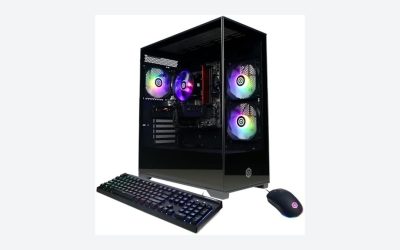
Stepping into the world of PC gaming is an exciting milestone, but for a beginner, the market can feel incredibly overwhelming. Walk into any online hardware forum and you will be inundated with jargon: clock speeds, thermal paste, bottlenecking, and form factors. In an attempt to bypass this complexity, many beginners fall into common traps. They buy massive, glowing desktop towers that crowd their home offices, purchase outdated hardware disguised as “high-end” rigs, or overspend on flashy RGB lighting while sacrificing the actual performance of the machine.
This is where a barebones gaming PC or a highly compact budget system comes into play. By focusing only on what actually matters—physical footprint, upgrade path, and core processing power—you can secure a system that fits your home beautifully without draining your savings. This barebones gaming pc buying guide for beginners is designed to cut through the marketing noise and help you select a system that balances performance, aesthetics, and value.
As an Amazon Associate we earn from qualifying purchases at no extra cost to you.


Our Top Picks


Top 3 picks at a glance
Decide These 3 Things First
Before you start comparing graphics cards or looking at chassis designs, you must establish the boundaries of your setup. Answering these three questions immediately eliminates 80% of the confusion on the market.
- Your Physical Space: Desktop Tower vs. Mini PC: Are you looking for a traditional tower that sits on or under your desk, or do you need a ultra-compact mini PC that can tuck behind a monitor or sit elegantly alongside a living room media console?
- Plug-and-Play vs. Some Assembly Required: A true “barebones” PC typically arrives as a chassis with a motherboard and power supply installed, leaving you to purchase and insert your own RAM, storage drive, and operating system. Alternatively, many beginners opt for budget-friendly, pre-assembled “stealth” systems that offer a barebones aesthetic and price point without the assembly homework.
- Your Target Resolution: Are you content with crisp, smooth 1080p gaming (the standard for most casual and competitive gamers), or are you trying to push high-frame-rate 1440p or 4K visuals onto a premium home theater screen?
1. Physical Size and Desk Footprint
As a home and furniture editor, I cannot stress this enough: a gaming PC is a physical object that must live in your home. You must consider its footprint, weight, and visual impact on your room design.
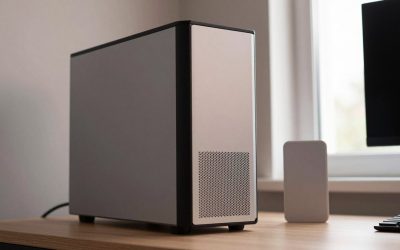
Traditional mid-tower gaming desktops typically measure around 18 inches tall, 8.5 inches wide, and 17 inches deep, weighing anywhere from 15 to 25 pounds. These require a dedicated surface or a sturdy under-desk mount. They offer excellent airflow but dominate a workspace visually.
Conversely, mini gaming PCs have revolutionized home offices. A typical barebones mini PC measures roughly 5.1 x 5.1 x 2.2 inches and weighs less than 2 pounds. These ultra-compact units can be mounted directly to the back of a VESA-compatible monitor, completely clearing your desk surface for a clean, minimalist aesthetic. As we look ahead to 2026, the trend of integrating high-performance computing into small, living-room-friendly form factors is only accelerating.
2. Chassis Material and Thermal Ventilation
A computer generates heat, and how that heat is managed determines both the lifespan of your components and the noise level in your room. When evaluating a barebones PC case, look closely at the construction materials.
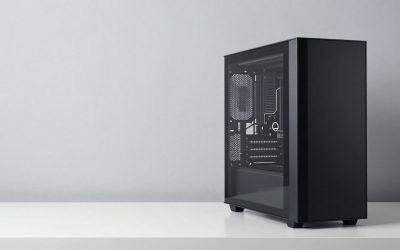
Cheap cases rely heavily on thin, rattling plastics that warp over time and fail to block fan noise. Look for a chassis constructed with an aluminum or steel frame. For larger towers, tempered glass side panels are excellent for durability and aesthetics, whereas acrylic panels scratch easily under normal cleaning routines.
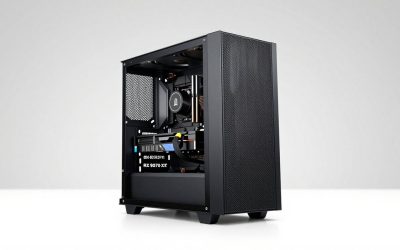
Ventilation is critical. A quality chassis should feature mesh paneling rather than solid plastic blockades. In small mini PCs, look for multi-sided copper mesh vents and dual-fan cooling systems. Adequate ventilation keeps your system operating under 80 degrees Celsius during heavy gaming sessions, preventing the internal fans from spinning up to their maximum speed and creating a distracting high-pitched whine in your living space.
3. Power Supply Unit (PSU) Capacity
The power supply is the unsung hero of any computer setup. It converts electricity from your wall outlet into usable power for your components. If your PSU is underpowered or poorly constructed, your system will suffer from random crashes, blue screens, or even permanent hardware damage.
For a mini PC or highly compact barebones unit, you will typically use an external power brick (similar to a laptop charger) rated between 120 watts and 180 watts. Ensure the power brick is UL-certified for safety.
For mid-tower or full-tower systems, you want an internal PSU with at least a 500-watt to 650-watt capacity. Look for an “80 Plus” certification (such as 80 Plus Bronze or Gold), which guarantees the unit operates at high electrical efficiency, reducing wasted heat and keeping your home energy bills in check.
4. Performance, Thermals, and Noise Levels
A powerful computer is of little use if it sounds like a jet engine taking off next to your keyboard. When components get hot, they slow themselves down to prevent damage—a process called thermal throttling.
When shopping, check user reviews specifically for noise levels measured in decibels (dB). A quiet home office sits at around 30 dB. Under full gaming load, a well-designed barebones PC should stay under 45 dB. Anything exceeding 50 dB will require you to wear noise-canceling headphones to enjoy your games comfortably.
Additionally, pay attention to where the hot air exhausts. You do not want a system that blows hot air directly onto your mouse hand or against a finished wooden wall, which can cause heat damage to delicate furniture finishes over time.
5. Price Tiers: What Your Budget Actually Buys
Understanding the price landscape prevents you from overpaying for older tech or buying a system that cannot run your favorite games.
- The Ultra-Budget Barebones Tier ($250 – $400): In this range, you will find highly compact barebones mini PCs. These units typically feature a capable processor (like a Ryzen 7 mobile chip) but require you to buy and install your own RAM and SSD. They are incredible space-savers and perfect for casual indie games, emulation, and home theater setups.
- The Entry-Level Desktop Tier ($500 – $700): This budget allows for fully assembled, entry-level gaming desktops. These systems often feature dedicated graphics cards like the NVIDIA RTX 2060 or AMD RX 5600 XT paired with a solid processor (such as an older Core i7 or modern Core i5) and a 512GB to 1TB SSD. These machines easily handle modern esports titles and AAA games at 1080p with moderate settings.
- The Mid-Range Custom Tier ($700 – $1,000): Here, you get modern components, larger power supplies, and room for significant future upgrades. You can expect newer processor generations, 16GB to 32GB of fast DDR4 or DDR5 RAM, and graphics cards capable of handling 1440p gaming smoothly.
6. Out-of-Box Assembly and Tool Requirements
If you choose a true barebones kit, you will need to do a small amount of hands-on installation. Fortunately, modern hardware is designed to be modular.
To assemble a barebones mini PC, you generally only need a magnetic Phillips #2 screwdriver. You will unscrew the bottom plate, slide your RAM sticks into their designated slots until they click, secure your M.2 solid-state drive with a single tiny screw, and replace the bottom cover. The entire process takes less than ten minutes.
If you are assembling a larger desktop barebones kit, you may also need to route power cables and mount a graphics card. Always ensure your workspace is clean, dry, and free of static-inducing carpets. Working on a clean wooden dining table or a dedicated craft mat is ideal.
Spec Checklist
To help you quickly evaluate listings while shopping, use this quick reference table to match system specifications against your budget and performance expectations.
| Component | Budget Tier ($250 – $400) | Mid-Range Tier ($500 – $700) | Premium Entry Tier ($800+) |
|---|---|---|---|
| CPU (Processor) | AMD Ryzen 7 (Mobile) or Intel Core i5 (Older Gen) | Intel Core i7-6700 / Ryzen 5 5600 | Intel Core i5-13400 / AMD Ryzen 5 7600 |
| Graphics (GPU) | Integrated Radeon Graphics | NVIDIA RTX 2060 (6GB) or AMD RX 5600 XT (6GB) | NVIDIA RTX 4060 (8GB) or AMD RX 7600 |
| RAM (Memory) | User-supplied (Typically 8GB – 16GB DDR4) | 16GB DDR4 (Pre-installed) | 16GB – 32GB DDR5 |
| Storage | User-supplied (M.2 NVMe SSD slot) | 512GB to 1TB NVMe SSD | 1TB to 2TB Gen4 NVMe SSD |
| Form Factor | Ultra-compact Mini PC (under 2 lbs) | Compact Mid-Tower or Mini PC | Standard Mid-Tower (Highly upgradeable) |
Red Flags to Avoid
When you are hunting for budget-friendly gaming hardware, there are several deceptive marketing practices you need to guard against:
- Vague Processor Names: Avoid listings that simply say “Intel Core i7 Processor” without giving the specific model number. An ancient 4th-generation Core i7 from a decade ago is vastly inferior to a modern budget Core i3 or Ryzen 5 processor. Look for explicit model numbers like “Core i7-6700” or “Ryzen 7 7735HS.”
- Proprietary Motherboards and Power Supplies: Some major office-brand manufacturers build PCs with custom shapes and power connectors. Avoid these. If a motherboard or power supply fails outside of warranty, you cannot replace it with standard, off-the-shelf parts, rendering your entire system e-waste.
- Single-Channel RAM Configurations: If a prebuilt system advertise 16GB of RAM but uses a single 16GB stick rather than two 8GB sticks, your gaming performance will suffer. Modern processors require “dual-channel” memory (two sticks running side-by-side) to reach their full processing potential.
- No Operating System Included: Many true barebones systems do not come with a Windows license. If you are not comfortable installing Windows from a USB drive and purchasing a digital key, look for options that explicitly state “Windows 11 Pro” or “Windows 11 Home” pre-installed.
FAQ
What is the difference between a barebones PC and a prebuilt PC?
A barebones PC is a partially assembled kit that typically includes only the case, motherboard, and power supply (and sometimes the CPU). The buyer must purchase and install their own RAM, storage drive (SSD), and operating system. A prebuilt PC arrives fully assembled and ready to plug in and use immediately out of the box.
Do I need a dedicated graphics card for casual gaming?
It depends on the games you play. Modern integrated graphics (like those found in AMD Ryzen 7 mini PCs) are highly capable and can easily run popular titles like Minecraft, League of Legends, and older esports games at 1080p. However, if you want to play demanding, visually intensive titles like Cyberpunk 2077 or Alan Wake 2, a dedicated graphics card (such as an RTX 2060 or RX 5600 XT) is highly recommended.
How difficult is it to upgrade a mini gaming PC in the future?
In a mini PC, upgrade options are generally limited to the RAM and the storage drive (SSD). Because of their compact size, you cannot swap out the processor or add a standard desktop graphics card later on. If you want a system that can be completely upgraded piece-by-piece over the next five years, a traditional mid-tower desktop chassis is a much safer investment.
Will a barebones PC work with my existing home television?
Yes, as long as the barebones PC has an HDMI port (which virtually all modern systems do). You can connect the PC directly to your television using a standard HDMI cable. If you plan to use a mini PC as a living room media console, look for a unit that features a quiet cooling fan so it does not distract from quiet movie scenes.
Related guides
- Best Gaming PC for Fortnite: Eight Prebuilt Desktops Sorted by Refresh Rate Goal (2026)
- Best RX 9070 XT Prebuilt Gaming PCs: Seven Desktops and Three Cards Compared: 10 Compared (2026)
- CyberPowerPC vs iBUYPOWER Gaming PC: How the Two Brands Compare
- Best RX 9070 XT Prebuilt Gaming PC (2026): 5 Picks Compared