When you sell, trade in, or recycle a gaming rig, the average buyer assumes that formatting a drive erases everything. It does not. Filesystem formatting only removes the directory index while the raw data remains recoverable with consumer-grade software that takes minutes to run. A dedicated wipe hard drive tool overwrites those sectors—sometimes multiple times with patterns that render recovery essentially impossible. This is the gap that every product below fills, and choosing the wrong one means your old save files, screenshots, and credentials stay readable for anyone with a USB-to-SATA adapter.
What separates a genuinely useful eraser from a mediocre one comes down to three things: hardware compatibility (HDD versus SSD versus NVMe), the verification method that proves the wipe actually completed, and the interface complexity between you and the finished task. Owner feedback consistently flags that many tools work on paper but fail with specific drive firmware or require a level of BIOS navigation that stops casual users cold. The seven products in this roundup each address that problem from a different angle, ranging from plug-and-play bootable USB sticks to standalone hardware bays designed for IT departments handling dozens of drives at a time.
As an Amazon Associate we earn from qualifying purchases at no extra cost to you.



Our Top Picks
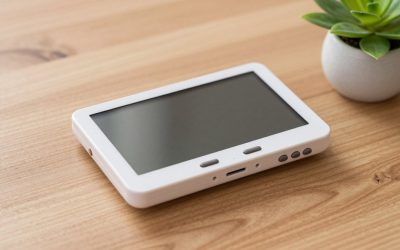
 StarTech.com Single Bay SSD/HDD Hard Drive Eraser1 Bay14.57 x 7.28 x 3.74 inches1.44 poundsCheck on Amazon


Top 3 picks at a glance
Quick Picks
| Product | Best For | Price |
|---|---|---|
| Lovell DESTRUCT PRO | Multi-drive households with mixed HDD and SSD hardware | Check on Amazon |
| Ralix USB Wiper | Budget buyers who need cross-platform compatibility | $18 |
| Secure Data Wipe USB | Users wanting a simple bootable solution for laptops and PCs | Check on Amazon |
| EZITSOL Eraser | Server admins or anyone needing a large-capacity utility drive | Check on Amazon |
| Beamo Bootable Eraser | Subscription-free owners who want a no-frills x64 tool | Check on Amazon |
| StarTech SDOCK1EU3P | IT departments or resellers sanitizing drives in bulk | Check on Amazon |
| Redkey USB++ | Compliance-driven environments needing certified secure erase | Check on Amazon |
How We Compared
We narrowed this list by weighing four criteria that owner reviews repeatedly flag as deal-breakers. First, hardware compatibility: a tool that fails on SATA SSDs or ignores 3.5-inch drives is useless to a gamer juggling multiple storage tiers. Second, wipe methodology and verification—does the product overwrite with a recognized pattern and provide a completion report you can trust? Third, the learning curve, which determines whether you actually finish the job or abandon the process halfway through a BIOS menu. Fourth, price-to-coverage ratio: a $18 USB stick that handles both internal and external drives delivers far more practical value than a $283 station unless you need to sanitize fifty drives in an afternoon.
The 7 Best Wipe Hard Drive in 2026
Lovell DESTRUCT PRO
This bootable USB targets users who cycle through drives regularly—upgraders who pull an old SSD from one build and slot it into another before eventually selling the pair. The three-phase cryptographic wipe gives you layered overwriting that exceeds a single-pass format, and SMART technology integration means the tool reads the drive’s own health data to adapt the process, speeding up healthy drives while still fully sanitizing failing ones. Compatibility with HDD, SSD, and external drives in a single package eliminates the frustration of needing separate tools for each format.
- Pro: SMART-adaptive wiping means the process is faster on drives that don’t need extended pass counts.
- Pro: Handles internal and external drives without software changes mid-session.
- Con: Owner feedback notes the BIOS boot sequence varies by manufacturer, and the included instructions assume a level of comfort that first-time users may not have.
Skip this if you only ever wipe a single drive and want the absolute cheapest path to a completed overwrite; a $18 option gets the same final result with fewer phases.
Ralix USB Wiper
At $18, this is the entry point that still delivers cross-platform coverage, working across Windows, Mac, and Linux without requiring you to purchase a different stick for each ecosystem. For a gamer who also maintains a hackintosh or runs a Linux partition for streaming, that single-USB convenience matters. The 32/64-bit compatibility ensures it boots on older hardware that newer tools have dropped, which is relevant if you are wiping drives pulled from machines several generations back.
- Pro: True multi-OS support means one purchase covers an entire mixed-platform household.
- Pro: Lowest price in the roundup while still providing a dedicated bootable wiping utility.
- Con: Owner reviews describe the interface as dated and the documentation as minimal, requiring some self-directed troubleshooting on unfamiliar systems.
Skip this if your drives are NVMe-based or if you need a formal wipe certificate for compliance purposes; it targets consumer-level overwriting, not audited sanitization.
Secure Data Wipe USB
This tool positions itself as a military-grade data sanitization option in a bootable USB format, appealing to users who want a recognized wipe standard without navigating complex software. The “easy” marketing claim is well-earned based on owner feedback—most report a straightforward boot-to-complete workflow with minimal configuration decisions required mid-process. It supports PC, laptop, HDD, and SSD, covering the hardware a typical enthusiast actually owns.
- Pro: Simplified boot-and-forget workflow reduces the chance of user error during the critical overwrite phase.
- Pro: Covers both HDD and SSD from a single bootable medium without separate utilities.
- Con: Limited documentation on exactly which overwrite pattern qualifies as “military-grade” may leave security-conscious buyers wanting more transparency.
Skip this if you need to wipe more than two or three drives in a session; the lack of a standalone hardware interface means you restart the boot process for each drive.
EZITSOL Eraser
What makes this unique in the budget tier is the 32GB USB capacity, which is far more generous than the few-gigabyte drives most competitors ship. That headroom means the stick also holds the bonus files eraser and data recovery software mentioned in its listing, turning it into a multi-purpose rescue drive rather than a single-use tool. For server administrators who keep a utility USB in a bag, the extra space and bundled recovery software justify a look.
- Pro: 32GB capacity allows the USB to serve as a general-purpose rescue drive beyond its primary wiping function.
- Pro: Bundled data recovery software adds value that standalone erasers at this price point do not offer.
- Con: Owner feedback indicates the included software suite feels somewhat dated compared to dedicated recovery tools.
Skip this if you have no use for the extra capacity and want the simplest possible interface; the additional software layers introduce minor complexity.
Beamo Bootable Eraser
Beamo’s pitch is refreshingly blunt: no subscription, no account, no phone-home. You buy it once and use it as long as the USB survives. For a x64 environment—and virtually every modern gaming PC is x64—this eliminates the recurring cost that some data-erasure utilities impose through licensing. The “compatible storage devices” language in the product description covers the practical range of drives most users encounter.
- Pro: No subscription or activation requirement; the tool works offline indefinitely once purchased.
- Pro: Streamlined interface that prioritizes getting the job done over presenting configuration options.
- Con: x64-only support means it will not boot on older 32-bit hardware, which could matter if you maintain legacy machines.
Skip this if your environment includes 32-bit systems or if you need a tool that runs within an existing OS rather than booting from USB.
StarTech SDOCK1EU3P
This is the hardware station that justifies its $283 price through throughput and standard compliance. A single-bay 2.5/3.5-inch SATA dock handles both laptop SSDs and desktop HDDs without adapters, and the nine built-in erasure modes—including NIST and DOD presets—mean IT departments can produce audit-ready documentation. The hostless design is key: the dock operates independently of any computer, so you plug in a drive and the LCD guides the process without needing a PC to host software. TAA compliance opens government procurement channels.
- Pro: Standalone hardware operation eliminates software conflicts and supports high-volume drive sanitization.
- Pro: NIST and DOD mode presets satisfy compliance requirements that consumer USB tools cannot address.
- Con: SATA-only interface excludes NVMe drives, which limits its usefulness as modern builds shift away from SATA storage.
Skip this if you are a single user wiping one or two drives per year; a $20 bootable USB accomplishes the same sanitization without the hardware investment.
Redkey USB++
Redkey occupies the compliance sweet spot between consumer tools and enterprise hardware stations. Certified secure erase with documented output satisfies IT audit requirements, and the expanded device support—PC, mobile, and more—means a small business managing a mixed fleet of laptops and phones can consolidate on one tool. The “industry standard” positioning reflects that this product is designed for environments where a wiped drive must produce a verifiable log, not just a completed process.
- Pro: Produces wipe certificates and compliance documentation that consumer tools cannot generate.
- Pro: Extends beyond traditional hard drives to mobile devices, useful for small IT teams managing mixed hardware.
- Con: At around $100, it carries a significant premium over bootable USB alternatives that achieve comparable overwriting without audit paperwork.
Skip this if you have no compliance or documentation requirement; the certified erase log is its primary value-add, and a budget tool will overwrite your data just as effectively.
Buying Guide
Wipe Methodology and Verification
A format command removes pointers to data; a true wipe overwrites the underlying sectors. Not all overwrites are equal—a single-pass zero-fill differs meaningfully from a three-phase cryptographic pattern in terms of recovery difficulty. The decisive question is whether your use case demands a recognized standard. Selling a GPU card reader to a friend requires a different level of thoroughness than sanitizing a drive before it crosses a corporate firewall. Look for products that explicitly state their overwrite pattern and provide a completion report rather than a generic “done” message.
Hardware Interface and Drive Support
The most common failure mode reported by owners is a tool that will not recognize their specific drive—particularly SSDs with aggressive power-management firmware that puts the drive to sleep mid-wipe. Bootable USB tools interact with the BIOS-level drive controller, which generally produces more reliable detection than software running within an OS. Standalone hardware docks bypass the OS entirely and communicate directly over SATA. If your drives are NVMe rather than SATA, verify that the product explicitly lists that interface; several options in this roundup do not cover it.
Workflow Friction and Repeatability
The best wipe hard drive tool is the one you actually complete using. A product requiring you to configure BIOS boot order, disable Secure Boot, change SATA modes to AHCI, and then navigate a text-based interface will see abandonment rates reflected in owner reviews. If you wipe drives infrequently—once a year at most—prioritize the simplest interface regardless of feature count. If you process drives regularly, a standalone hardware unit like the StarTech eliminates software variables entirely and turns the task into a plug-in-and-press-buttons operation that any colleague can repeat.
Our Verdict
The Lovell DESTRUCT PRO earns our top pick because it covers the widest practical hardware range—HDD, SSD, and external drives—while using SMART data to adapt the wipe to the drive’s condition. That intelligence means healthy drives finish faster without sacrificing thoroughness on slower ones. For budget buyers, the Ralix USB Wiper at $18 provides cross-platform coverage and 32/64-bit compatibility that no other product at that price point matches; it is the right answer for a mixed-OS household. However, the StarTech SDOCK1EU3P becomes the clear winner if your requirement is volume and compliance—sanitizing dozens of SATA drives in a day with NIST or DOD mode output simply cannot be accomplished with a bootable USB, and no other product in this list produces audit-ready documentation from hardware alone.
FAQ
Does overwriting an SSD actually erase all data?
SSDs with wear-leveling controllers can retain data in overprovisioned blocks that standard overwrites may not reach. Secure Erase commands issued through the drive’s own firmware address this by instructing the controller to reset all cells, which is why tools that leverage SMART and native ATA commands tend to produce more complete results on solid-state media than simple sector-by-sector overwrites.
Can I recover data after a proper wipe hard drive tool finishes?
A correctly executed multi-pass overwrite makes recovery impractical for anything beyond basic software tools. Professional forensic services can theoretically extract residual magnetic signatures from platter drives under laboratory conditions, but for SSDs where the firmware handles the erase, recovery after a confirmed secure wipe is considered infeasible with current consumer-accessible methods.
Do I need a separate tool for external USB drives?
Most bootable USB erasers recognize external drives connected during the wipe session because the BIOS-level interface treats them similarly to internal drives at the block level. The exception is hardware docks like the StarTech, which are designed for bare SATA connections and cannot communicate with drives inside a USB enclosure without first removing the drive from its housing.
Is booting from USB safe if I have Secure Boot enabled?
You will typically need to temporarily disable Secure Boot or enroll the tool’s signature in the BIOS to allow a third-party bootable drive to launch. This is a common source of the “it won’t boot” complaints seen in owner reviews, and the process varies by manufacturer—meaning the step-by-step difficulty depends entirely on your motherboard vendor rather than the eraser tool itself.