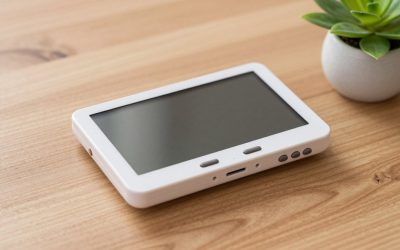
Building a high-performance gaming rig involves balancing raw computing power with precise thermal management. In 2026, hardware CPU monitors—ranging from dedicated desk-standing sensor panels and chassis-mounted secondary displays to vibrant liquid cooler screens—have transitioned from niche modder novelties into essential components of a well-tailored setup. These tiny secondary screens give you real-time telemetry on core temperatures, clock speeds, and memory usage without forcing you to alt-tab out of your favorite competitive titles.
However, not all hardware monitors are created equal. Walking into the market without a clear idea of what separates a quality display from a sluggish, bloated gimmick can lead to wasted money and software headaches. Evaluating these devices requires looking beyond flashy product renders and examining the core specifications that dictate daily usability, aesthetic integration, and system stability.
As an Amazon Associate we earn from qualifying purchases at no extra cost to you.

Understanding Display Types and Panel Technology
The foundation of any good CPU monitor is the underlying panel technology. The vast majority of compact desktop and internal chassis monitors utilize either IPS or AMOLED panels. IPS panels offer wide viewing angles and accurate color reproduction, which is crucial if you are matching the display’s color profile to your broader RGB lighting theme. On the other hand, AMOLED panels provide deep, true blacks and incredible contrast ratios, making text and graphs pop dramatically against a dark case interior. Avoid older TN panels entirely; their poor viewing angles mean that even a slight shift in your seating position will wash out your temperature readouts.
Resolution and Pixel Density (PPI)
When shopping for a screen that measures anywhere from three to seven inches diagonally, resolution matters just as much as it does on your primary gaming monitor. A low-resolution panel will render graphs jagged and text fuzzy, turning your high-end hardware telemetry into an eyesore. Look for a panel with a crisp native resolution that yields a high pixel-per-inch (PPI) count. Clean typography ensures that complex monitoring dashboards featuring multiple graphs, fan curves, and frequency metrics remain legible from a distance, whether the display sits inside your tempered glass side panel or on the corner of your desk.
Software Ecosystem and Resource Overhead
A gorgeous hardware display is completely undermined by terrible proprietary software. Before purchasing a CPU monitor, investigate the companion application required to drive it. Some brands rely on bloated software suites that consume noticeable CPU cycles and system memory just to render a basic temperature graph. Ideally, look for monitors compatible with lightweight, highly optimized monitoring tools or open-source software ecosystems. Efficient software ensures that your monitoring tool doesn’t inadvertently throttle the very hardware performance you are trying to track and protect.
Mounting Options and Chassis Compatibility
Form factor dictates where and how your monitor will live. Internal displays are typically designed to replace a standard fan slot, mount via magnetic brackets inside the PSU shroud, or integrate directly into an all-in-one liquid cooler pump block. External desktop monitors, meanwhile, rely on stable stands or desk mounts. Ensure your chosen form factor aligns with your case’s interior layout and clearance limitations. A massive internal panel might block long graphics cards or obstruct cable routing paths if you haven’t carefully measured your chassis dimensions beforehand.
Connectivity and Power Delivery
How the monitor interfaces with your system is a critical logistical detail. Most modern external and internal displays communicate via standard USB-C connections, handling both data transmission and power delivery through a single cable. For internal installations, pay close attention to whether the device requires an internal USB 2.0 header connection or a standard rear I/O passthrough. Running a cable out of a PCI slot cover to the back of your motherboard looks clean if managed correctly, but internal headers keep wires entirely hidden. Always verify what cables are included in the box to avoid unexpected adapter purchases.
Refresh Rates and UI Fluidity
While a CPU monitor does not need to match the blistering refresh rates of a competitive gaming display, frame pacing and refresh capability still impact the user experience. Cheaply made secondary panels often lock at low refresh rates, resulting in stuttery, sluggish animations when graphs update or page layouts transition. A smoother display rate ensures that real-time CPU utilization bars and moving fan speed indicators glide fluidly across the screen, elevating the overall polish of your build’s aesthetic.
When to Spend More on Premium Features
Entry-level CPU monitors will give you basic text readouts and simple graphs, but premium models command higher prices for a reason. Investing more gets you features like capacitive touchscreens for easy menu navigation, dual-zone displays, high-grade aluminum housings, and advanced custom skin builders. If you want a static hardware readout that you set once and forget, a budget model is plenty. However, if you plan to frequently swap themes, display custom GIFs, or interact directly with the mini-screen, spending extra on a refined ecosystem and premium build quality is well worth the investment.
Related Guides
To explore specific hardware recommendations that match your aesthetic and performance goals, check out our comprehensive Best CPU Monitor breakdown.
FAQ
Do CPU monitors slow down my gaming performance?
Most hardware monitors have a negligible impact on gaming frame rates because the heavy lifting is handled by the dedicated display controller and system monitoring software. However, poorly optimized software suites can occasionally create background overhead, so choosing a monitor with lightweight companion apps is always recommended.
Can I use a CPU monitor as a secondary Windows display?
Many USB-powered secondary screens are recognized by Windows as generic displays, allowing you to drag normal applications, chat windows, or video feeds onto them. Keep in mind that tiny resolutions can make standard Windows UI elements difficult to navigate without proper scaling adjustments.
What is the difference between an internal and external CPU monitor?
Internal monitors mount directly inside your PC case, often utilizing fan slots, magnetic mounting strips, or liquid cooler blocks to display stats through a glass panel. External monitors sit independently on your desk next to your keyboard, functioning much like a standalone mini-monitor.
How do I connect an internal CPU monitor to my PC?
Internal models typically connect via an internal USB 2.0 header on your motherboard for data, while power is drawn either directly from that header or a secondary power source. Some advanced units also feature a pass-through cable that routes out of the chassis to your graphics card or rear I/O.