The Short Answer
For hobbyist and student 3D CAD work, 4 GB of VRAM is the practical floor, and 6 GB is a comfortable entry point. For professional assembly work — large part files, complex assemblies, photorealistic rendering — 8 to 16 GB is the sweet spot, and 24 GB or more is reserved for simulation-heavy engineering, massive architectural scenes, and GPU rendering farms. Most CAD users in 2026 will be well served by an 8 GB or 12 GB card, because modern viewport performance depends less on raw VRAM than on how many polygons, textures, and display modes your software is juggling at once.
A useful rule of thumb: budget roughly 1 GB of VRAM per 5 to 10 million polygons in your active viewport, then add 2 to 4 GB of headroom for textures, shadows, and anti-aliasing. If your typical assembly file is under 200 MB on disk, a 6–8 GB card handles it. Files above 500 MB, or workflows that combine CAD with rendering and simulation on the same card, push you toward 12–24 GB.
As an Amazon Associate we earn from qualifying purchases at no extra cost to you.
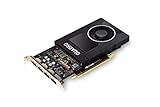
Price-wise, expect to pay $150–$350 for a used professional card like an NVIDIA Quadro P2000 (around $167 on the secondhand market) or entry-tier new workstation cards, $500–$1,200 for current mid-range professional GPUs, and $2,000+ for flagship workstation boards.
Standard Sizes
VRAM capacity is the headline spec, but physical card size matters just as much when you’re planning a build. Cards come in three slot-width classes and two length classes, and clearance mistakes are one of the most common build failures. Below are representative dimensions for the cards most people actually consider for CAD builds.
| Card Class | Typical VRAM | Length (in / cm) | Slots Used (in / cm tall) | TDP (watts) |
|---|---|---|---|---|
| Low-profile single-slot (e.g., Quadro P1000, T400) | 4–8 GB | 6.3 in / 16 cm | 1 slot / 0.7 in (1.8 cm) | 40–75 W |
| Compact dual-slot (e.g., Quadro P2000) | 5–8 GB | 7.9 in / 20.1 cm | 2 slots / 1.6 in (4.0 cm) | 75 W (no power connector) |
| Full-size workstation dual-slot (e.g., RTX A4000, RTX 4060 Ti) | 8–16 GB | 9.5 in / 24.1 cm | 2 slots / 1.6 in (4.0 cm) | 140–200 W |
| Flagship workstation (e.g., RTX A5000-class) | 24 GB | 10.5 in / 26.7 cm | 2 slots / 1.6 in (4.0 cm) | 230–300 W |
Note that consumer cards in the same VRAM class can run longer — 11 to 12 inches (28–30.5 cm) is common on triple-fan models — and some high-end cards occupy 2.5 to 3.5 slots, which effectively blocks adjacent expansion slots. Always check the manufacturer’s exact specification sheet for the specific board model, since two cards with the same GPU chip can differ by 2 inches in length.
How to Measure Your Space
Before you buy, confirm your case and motherboard can physically accommodate the card. Work through these steps in order:
- Measure GPU clearance in your case. Open the case and measure from the rear PCIe slot bracket forward to the first obstruction (usually the front fan mount or drive cage). Most mid-towers offer 12–14 inches (30.5–35.6 cm); compact cases may offer only 8 inches (20.3 cm).
- Count available slot widths. Look at the slot covers below your intended PCIe x16 slot. A dual-slot card needs two open slot positions; a 2.5- or 3-slot card needs the adjacent positions physically clear, even if those slots are unused.
- Check CPU cooler overlap. Tower air coolers can overhang the first PCIe slot. Measure from the top of the slot to the cooler’s edge — you need at least the card’s slot-height figure (typically 1.6 in / 4 cm) clear.
- Verify power connector clearance. Cards drawing more than 75 W need a 6-pin or 8-pin PCIe connector. Leave 1 inch (2.5 cm) of bend room above the card so the cable doesn’t press against the side panel.
- Measure PSU capacity. Add your card’s TDP to your other components; size the power supply at roughly double that total. A system with an 8 GB, 140 W card is comfortable on a 550–650 W unit; a 24 GB, 250 W card wants 750–850 W.
- Confirm case airflow width. Measure case width at the card location. A triple-fan card plus front radiators can require 8.5 inches (21.6 cm) of internal width.
By Room or Use Case
Think of VRAM sizing like room sizing: the right amount depends on what you do in the space, not on generic rules.
Student and Hobbyist CAD (SolidWorks parts, Fusion 360, SketchUp)
Part-level modeling with assemblies under 100 parts runs happily on 4–6 GB. A card like a used Quadro P2000 with 5 GB costs around $167 and handles these workloads with certified drivers. Physical footprint is small — a 7.9-inch (20.1 cm), single-power-connector-free board fits nearly any case, including small-form-factor builds, and sips only 75 W.
Professional Mechanical CAD (SolidWorks assemblies, Inventor, Creo)
Assemblies of 500 to 5,000 parts, large drawing views, and real-time section views need 8–12 GB. Expect cards in the $500–$1,000 range, roughly 9.5 inches (24.1 cm) long, drawing 140–200 W. Certified professional drivers matter as much as VRAM here — a consumer card with more VRAM can still trail a certified card with less.
Architecture and Visualization (Revit, ArchiCAD, Twinmotion, Enscape)
Large building models with high-resolution textures are VRAM-hungry; 12–16 GB is the working recommendation, and real-time rendering plugins perform dramatically better with 16 GB. Budget $800–$2,000 for the card, and plan case clearance for a 10–11 inch (25.4–27.9 cm), 2.5-slot board drawing 200–250 W.
GPU Rendering and Simulation (KeyShot, V-Ray, Blender Cycles, Ansys)
Offline GPU renderers load the entire scene into VRAM, so scene size equals minimum VRAM. 16–24 GB is standard; scenes with heavy geometry displacement or high-poly scans can exhaust 24 GB. Simulation solvers benefit from VRAM but also from VRAM bandwidth. These cards typically cost $2,000–$4,500, run 250–300 W, and require 750–1,000 W power supplies with proper case airflow.
Small-Form-Factor and Quiet Builds
If your build lives in a 10-liter case beside a monitor, prioritize low-profile single-slot cards with 6–8 GB, under 7 inches (17.8 cm) long and 40–75 W. You sacrifice rendering throughput but keep CAD viewport performance in a compact, quiet chassis.
Common Sizing Mistakes
- Buying VRAM you can’t physically fit. An 8 GB triple-fan card is useless if your case clears 8 inches. Measure clearance before choosing capacity.
- Chasing VRAM while ignoring drivers. For SolidWorks, Inventor, and Creo, certified workstation drivers often deliver better viewport stability than a consumer card with double the memory.
- Forgetting the power budget. A 300 W card on a 500 W supply with a power-hungry CPU will trip shutdowns under load. Size the PSU at roughly double your system’s peak draw.
- Overlooking slot blocking. 2.5- and 3-slot designs block adjacent PCIe slots. If you need a capture card, USB expansion, or NVMe adapter, this matters.
- Assuming more VRAM fixes slow viewports. If your model is slow at 4 GB, the bottleneck may be polygon count, driver certification, or CPU single-thread speed — more VRAM alone won’t rescue a heavy assembly.
- Buying new when certified used cards fit the task. A used professional card at $150–$300 often beats a new consumer card at the same price for pure CAD work.
FAQ
Is 4 GB of VRAM enough for CAD?
Yes for part-level modeling, learning, and small assemblies (under roughly 100 parts or 200 MB of file size). It becomes limiting once you add real-time rendered views, large texture libraries, or assemblies in the thousands of parts. Treat 4 GB as a starting point, not a long-term target.
Is 8 GB or 12 GB the better investment?
For most professional CAD users, 8 GB covers daily work and 12 GB adds comfortable headroom for rendering and heavier assemblies. The price premium for the step up is typically $150–$300. If your workflow already includes GPU rendering, go straight to 12–16 GB.
Do I need a workstation (Quadro/RTX A-series) card, or is a gaming card fine?
Gaming cards are excellent for SketchUp, Fusion 360, and hobby SolidWorks. For professional SolidWorks, Inventor, Creo, and NX, certified drivers on workstation cards reduce graphic glitches and improve viewport stability. Used workstation cards like the Quadro P2000 at around $167 are a proven budget path into certified performance.
How does VRAM relate to rendering performance?
Offline GPU renderers must fit the whole scene in VRAM; if the scene exceeds capacity, the render fails or spills to system memory and slows dramatically. Size VRAM to your largest realistic scene, and remember that bandwidth (GB/s) affects render speed while capacity affects whether the render runs at all.