Our Top Picks


The Short Answer
Yes — you need extra fans if your case has empty fan mounts and your GPU pulls more than roughly 300 watts under load. That’s the one condition. Airflow is a system, not a single component: cool air needs to enter, hot air needs to exit, and a single stock rear fan or a closed-off front panel can’t move enough cubic feet per minute to keep a hot-running graphics card and CPU from throttling. If your build ships with three or more intake fans, at least one exhaust, and a GPU in the 200–250W class, you’re probably fine as-is. Anything less, and a $30–$60 fan upgrade is the cheapest insurance you’ll ever buy for a $2,000 machine.
What You Actually Get
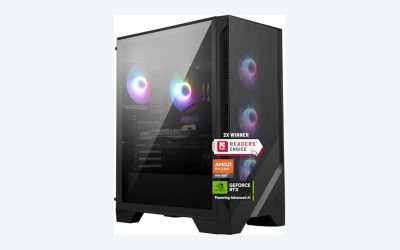
Most prebuilt and semi-custom gaming PCs — including popular lines like the Skytech Archangel and Azure series — arrive with a sensible baseline. The Archangel 5, for example, pairs a Ryzen 7 7700X with an RTX 5070 and includes a 360mm ARGB all-in-one liquid cooler on the CPU, which handles the processor’s ~105W thermal design power comfortably. What that AIO doesn’t do is move air across your GPU, motherboard VRMs, and SSD. Those components depend entirely on case fans.
As an Amazon Associate we earn from qualifying purchases at no extra cost to you.


Case fans themselves are cheap and standardized. A quality 120mm PWM fan costs $10–$25; a 140mm runs $15–$35. Typical gaming cases support three 120mm fans up front (intake), one or two on the rear/top (exhaust), and sometimes two more on the side or bottom. Standard 120mm units move 40–70 cubic feet per minute (CFM) at noise levels of 20–35 dBA. Positive-pressure setups — more intake than exhaust — also keep dust out of hard-to-clean crevices, since air only enters through filtered front and bottom vents.
Modern GPUs complicate the picture. An RTX 5060 Ti with 16GB draws around 180W, which nearly any configuration can handle. An RTX 5070 at 250W, or a fully unlocked flagship pulling 400–575W, dumps enormous heat into a mid-tower case that’s often only 16–18 inches deep and 8–9 inches wide. In a cramped chassis with weak airflow, that heat recirculates, GPU memory temperatures climb, and the card down-clocks to protect itself — costing you 5–15% of the performance you paid for.
Pros
- Recovers lost performance. A well-cooled GPU holds its boost clocks instead of throttling, which can be worth real frame rates in long gaming sessions.
- Extends component lifespan. Every 10°C reduction in operating temperature roughly doubles the life of capacitors, fans, and SSD controllers.
- Cuts fan noise. Counterintuitive but true: three fans running at 800 RPM are quieter than two struggling fans screaming at 2,000 RPM to move the same air.
- Reduces dust buildup. A positive-pressure layout with filtered intakes keeps dust from sneaking in through unfiltered gaps.
- Costs very little. A complete three-fan intake upgrade runs $30–$60. Compared to the price of the PC itself, it’s rounding error.
- Takes under an hour. Most 120mm fans mount with four screws and a single 4-pin header; no adapters or expertise required.
Cons
- More fans mean more dust. Faster airflow pulls in more particulates, so expect to clean filters every month or two instead of quarterly.
- ARGB models add cable clutter. Lighting fans need an extra connector or a controller hub, which means routing one more cable bundle.
- Mismatched airflow can hurt. Adding exhaust fans without matching intake can create negative pressure, actually pulling more dust in through unfiltered openings.
- Diminishing returns past five or six fans. Beyond a balanced 3-in/2-out setup, additional fans typically lower temperatures by only 1–3°C — real, but rarely worth the noise and cost.
- Case limits apply. Some compact cases support only two or three fans total; if yours does, better fans — not more fans — is the answer.
Who Should Buy It
Add fans if your build includes a high-wattage GPU (RTX 5070 class or above, or anything over 300W), if your case shipped with fewer than three intake fans, or if you game for multi-hour sessions in a warm room. It’s also a smart move if you’ve noticed GPU hotspot temperatures climbing past 90°C in monitoring software, or if your fans ramp to audible levels mid-game. Anyone running a mesh-front-panel case with empty front mounts should fill them — the mounting holes and filters are already there waiting.
Who Should Skip It
Skip the upgrade if your system already includes three front intakes, a rear exhaust, and a mid-range GPU drawing under 200W — an Azure 3 with its Ryzen 7 7800X3D and RTX 5060 Ti is a good example of a configuration that ships adequately cooled for its heat load. Also skip it if you’re an infrequent gamer playing esports titles, which rarely push GPU draw past 150W. And if your case is a silent, sealed-panel design, don’t fight the engineering; those cases rely on deliberate airflow paths, and bolting on random fans won’t help.
Cheaper Alternatives
| Option | Cost | Trade-off |
|---|---|---|
| Reposition existing fans (swap front to intake, rear/top to exhaust) | Free | Fixes reversed or poorly oriented setups, but can’t overcome having too few fans |
| Buy one quality 140mm rear/top exhaust fan | $15–$35 | Improves heat removal noticeably, but won’t increase cool-air supply |
| Clean filters and re-paste the GPU (if out of warranty) | $10–$15 | Restores lost cooling performance but takes an hour of careful work |
| Raise your fan curve in software (MSI Afterburner or motherboard BIOS) | Free | Lowers temperatures 3–8°C at the cost of several extra decibels |
| Full three-fan intake upgrade | $30–$60 | The complete fix — costs a little, solves nearly everything |
FAQ
How many fans does a gaming PC actually need?
Three is the practical minimum for a modern gaming build: two or three 120mm front intakes and one rear exhaust. Four to five fans is the sweet spot for systems with 250W+ graphics cards. Beyond six, returns drop sharply — you’re paying for noise, not cooling.
Should case fans push air in or pull it out?
Front and bottom fans should pull cool air in; rear and top fans should push hot air out. Aim for slightly more intake than exhaust (positive pressure) so dust enters only through filtered vents. A classic 3-in/1-out or 3-in/2-out layout works well in most mid-towers.
Will adding fans void my warranty?
Generally no. Opening a case to install standard case fans doesn’t tamper with sealed components or the CPU cooler, which is where most manufacturers draw the line. That said, check your specific builder’s policy — a few prebuilt brands require you to keep original parts in case of an RMA, and some apply a warranty sticker to the case latch.
Do I need extra fans if my PC already has an AIO liquid cooler?
Usually yes, and it’s a common misconception that you don’t. An AIO cools only the CPU. The radiator fans exhaust through the top or front, but your GPU, VRMs, and SSD still rely on separate case fans for airflow. Systems like the Archangel 5 pair a 360mm AIO with case fans for exactly this reason — the AIO alone would leave the rest of the components starved for moving air.