Our Top Picks


The Short Answer
Most new streamers do not need a capture card. You only need one if you want to stream gameplay from a console (PS5, Xbox Series X/S, or Nintendo Switch) while playing on a separate TV or monitor — or if you want to use a DSLR or mirrorless camera as a webcam feed. If you’re streaming PC games or chatting on camera, your existing hardware and free software already handle the job.
What You Actually Get
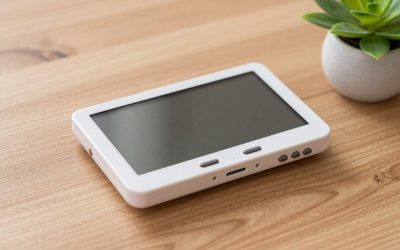
A capture card is a small device — typically a rectangular unit a few inches long, weighing between 2 and 5 ounces — that takes a video signal from an HDMI source and converts it into data your computer can record or broadcast. Models fall into two camps. Internal cards like the Elgato 4K S (around $150) slot into a PCIe port on a desktop motherboard and handle 4K60 passthrough with low latency. External dongles like a generic HDMI-to-USB 3.0 capture stick (around $25, roughly 4 x 2 x 0.7 inches) plug into any laptop or desktop and usually cap out at 1080p 60fps recording with 4K passthrough.
As an Amazon Associate we earn from qualifying purchases at no extra cost to you.


What you don’t get is magic. The card doesn’t improve your internet upload speed, your microphone, or your lighting. It’s a pipe, not a performance upgrade. If your PC can’t already encode a 1080p stream while running a game, a capture card won’t fix that.
Pros
- Console streaming done right. Capture gameplay from a PS5 or Xbox while playing on the couch, with the stream managed on a second screen or laptop.
- Better camera quality. Many DSLR and mirrorless cameras output clean HDMI, and a card turns them into a vastly sharper webcam than any $60 USB camera.
- Reduced load on your gaming PC. Dual-PC setups let one machine play and the other encode, which can stabilize frame rates in demanding games.
- Passthrough support. Quality cards pass the full 4K60 signal to your TV even while recording at 1080p, so your own gameplay looks unchanged.
- No drivers in most cases. USB 3.0 models are typically plug-and-play in OBS, Streamlabs, or any conferencing app.
Cons
- Extra cost of roughly $25 to $150 for something many streamers never use.
- Extra complexity. More cables, another HDMI input, one more thing to troubleshoot mid-stream.
- 1080p ceiling on cheap models. Budget USB sticks record at 1080p60; true 4K capture starts around $150.
- Laptop limitations. Some budget capture sticks draw power over USB and run warm during long sessions; a powered USB hub or a port on the opposite side of the laptop helps.
- Redundant for PC streamers. OBS captures your screen directly — no hardware needed.
Who Should Buy It
Buy a capture card if you stream console games seriously. A PS5 or Xbox owner who wants overlays, alerts, and a facecam feed in OBS should grab the Elgato 4K S (around $150) for clean 4K60 passthrough, or start with a $25 budget dongle to confirm the workflow clicks before spending more. Also buy one if you want a real camera as your webcam: any clean-HDMI mirrorless camera plus a basic capture card outperforms dedicated streaming webcams costing twice as much.
Who Should Skip It
Skip it if you stream PC games — OBS’s game capture mode is free, fast, and built in. Skip it if you’re a variety streamer who mostly talks, does Just Chatting, or plays browser and party games. Skip it if your upload bandwidth is under 6 Mbps; no card fixes a slow connection, and that money is better spent on a better microphone. And skip it if you’re brand new: stream for a month first, figure out what actually limits your stream quality, then decide.
Cheaper Alternatives
| Option | Cost | Trade-off |
|---|---|---|
| Console’s built-in streaming app | Free | No custom overlays, no facecam layout control, limited encoder settings |
| Console’s built-in clip capture | Free | Record and upload clips manually instead of live streaming |
| Budget HDMI-to-USB 3.0 capture stick | $20–$35 | 1080p60 max, slightly higher latency, basic build quality |
| Camera maker’s official USB webcam software | Free–$30 | Works with select Canon, Sony, and Fujifilm cameras — no HDMI card needed |
| Remote streaming via game-native PC play (PS Remote Play, Xbox app) | Free | Added input lag; image quality depends entirely on your home network |
FAQ
Can I stream a PS5 without a capture card?
Yes. Both the PS5 and Xbox Series X/S can stream directly to Twitch and YouTube from their built-in apps, and both record gameplay clips internally at up to 4K on supported titles. You lose custom overlays and multi-source scenes, but the barrier to entry is zero dollars.
Do capture cards add lag?
Passthrough lag on quality cards is nearly imperceptible — you play on the TV as if the card weren’t there. Budget USB sticks can introduce a noticeable delay on the recorded feed, which matters for recording but not for playing, since you view the passthrough output, not the stream feed.
Can a capture card work with a laptop?
Yes, as long as the laptop has a USB 3.0 or faster port. This is exactly the dual-device setup console streamers use: console feeds into the card, the laptop runs OBS, and you play on a TV or second monitor. Laptops can’t use internal PCIe cards, so external is your only option.
Is a $25 capture card worth it compared to a $150 one?
For learning the workflow, absolutely. A around $25-class 4K passthrough/1080p60 card covers the majority of streams, since most platforms and viewers are fine with 1080p. Step up to a around $150 Elgato 4K S when you specifically need 4K60 capture, lower latency, or rock-solid reliability for long sessions — by 2026, that’s the price range where true 4K capture realistically starts.