
The single biggest mistake first-time builders make is not picking the wrong CPU or the wrong case, it is splitting money badly across the whole parts list. A balanced allocation is what turns a pile of components into a machine that actually feels fast for what you do. This guide gives you a percentage-based framework you can apply at any budget, from a $700 starter rig to a $2,500 showcase build.
As an Amazon Associate we earn from qualifying purchases at no extra cost to you.


Our Top Picks


Top 3 picks at a glance
Start With the Job, Not the Parts
Before you touch a spec sheet, name the primary workload. A 1080p esports machine, a 1440p AAA gaming rig, and a video-editing workstation spend money in very different places. Gaming leans on the graphics card. Editing, rendering and compiling lean on cores, RAM and fast storage. Once you know the job, allocation stops being guesswork.
A Percentage Framework That Scales
The table below shows how a healthy budget tends to split for three common goals. Treat these as starting ranges, not laws, and adjust for parts you already own.
| Component | 1440p Gaming | Streaming / Hybrid | Editing Workstation |
|---|---|---|---|
| Graphics card (GPU) | 40-45% | 35% | 25-30% |
| Processor (CPU) | 15-18% | 20% | 25-30% |
| Memory (RAM) | 7-9% | 9% | 12-15% |
| Storage (SSD) | 7-9% | 9% | 12% |
| Motherboard | 10% | 11% | 11% |
| Power supply | 7% | 8% | 8% |
| Case + cooling | 9-11% | 10% | 9% |
Why the GPU Eats the Most in Gaming
In games, the graphics card decides your frame rate more than any other single part. Pairing a modest but capable CPU with the strongest GPU your budget allows is almost always the right call for a pure gaming machine. On a $1,200 build that might mean roughly $500-540 on the GPU and $200-230 on the CPU. Flip that ratio and you leave frames on the table.
Where Editing and Workstation Builds Diverge
Timeline scrubbing, exports and 3D viewport work reward core count, memory bandwidth and capacity. A 16-core CPU with 64GB of RAM will finish a 4K export far faster than a gaming-tuned 8-core with 16GB, even if the second machine posts higher game benchmarks. That is why the editing column pushes CPU and RAM up while trimming GPU share.
Do Not Starve the Boring Parts
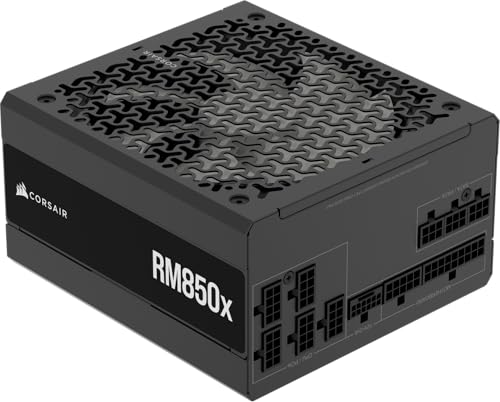
Power supply and motherboard are where budget builds quietly go wrong. A 650W-750W 80+ Gold unit from a reputable maker protects every other component and leaves headroom for a future GPU upgrade. Undersizing to save $25 invites instability. Likewise a board with weak VRMs can throttle a strong CPU, so keep motherboard spending near the 10-11% band rather than buying the cheapest compatible option.
Storage Is Cheap Performance
A 1TB NVMe Gen4 SSD as the boot and game drive is one of the most noticeable upgrades a person can feel day to day. Load times, application launches and shader compilation all improve. Budget for at least 1TB now and add a second drive later rather than starting at 500GB and immediately running out.
Adjust the Ratios for Parts You Already Own
The percentages assume a from-scratch build, but few people start with nothing. If you already own a 750W power supply, a decent case or a spare NVMe drive, remove those from the budget and redistribute the freed money toward the GPU or CPU. Carrying over a $120 case and a $90 power supply on a $1,000 build effectively hands you an extra 20% to spend where it counts. The framework is a starting map, not a fixed toll; the moment you own a quality part, its slice becomes fuel for the rest of the system.
The same logic applies in reverse when a category demands more than its share. A silent build justifies pushing case and cooling past 11%, and a large media library justifies a bigger storage slice. Move the money deliberately and note why, so a lopsided allocation is a choice you made rather than an accident you discover after the parts arrive.
FAQ
Should I ever spend more than 45% on the GPU?
Occasionally, yes. If you already own a solid CPU, RAM and PSU and only need a graphics upgrade, the GPU can take a much larger slice of a targeted budget. But in a fresh build, going far above 45% usually creates a bottleneck where the rest of the system cannot keep the card fed.
How much should I set aside for a monitor and peripherals?
Keep them in a separate budget. A great tower behind a 60Hz office panel wastes the hardware, so plan the display alongside the build but track it on its own line. A common split is 70-80% on the tower and 20-30% on monitor, keyboard and mouse combined.
Bottom Line
Allocation is strategy, not arithmetic. Decide the workload first, push money toward the part that governs that workload, and refuse to starve the power supply, board or storage to fund a slightly bigger headline component. Get the ratios right and a $1,000 build can feel more balanced and more satisfying than a carelessly assembled $1,500 one.

