For a streaming PC with two monitors, your priorities are different from a pure gaming rig. You want your game monitor to stay as responsive and consistent as possible while your second monitor handles OBS Studio, chat, browser sources, and monitoring tools without stealing GPU cycles or causing stutter. The biggest wins come from correctly assigning refresh rates per display, keeping color and scaling predictable between monitors, preventing Windows and your GPU driver from throttling background apps, and giving OBS a stable capture path that does not fight the game for exclusive fullscreen control.
As of early 2026, Windows 11 24H2 and current NVIDIA and AMD drivers handle mixed refresh rates much better than in the past, but you still need to configure display mode, HDR, hardware acceleration, and capture settings manually to avoid micro-stutter, dropped frames in OBS, or black screens on capture.
As an Amazon Associate we earn from qualifying purchases at no extra cost to you.
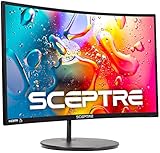


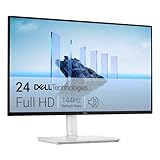


Our Top Picks
 Sceptre Curved 24-inch Gaming Monitor 1080p R1500 98%24-Inches16.04 x 21.61 x 9.06 Inches6 PoundsCheck on Amazon
 New! Sceptre 27-inch Prime Gaming Monitor DisplayPort x227 inches6.7 x 24.2 x 17.4 Inches7 PoundsCheck on Amazon
 Kado 2-Pack 27" 165Hz 1ms 1920x1080 Flat ScreenFlat 27" Dual 165Hz1.7 x 24.56 x 14.45 Inches8.8 PoundsCheck on Amazon


Top 3 picks at a glance
Quick Recommended Settings
| Setting | Recommended value | Why |
|---|---|---|
| Primary display mode | Native resolution at maximum stable refresh rate, set via Display Settings > Advanced display | Ensures the game runs at the panel’s native timing without driver scaling |
| Secondary display refresh rate | Leave at native (typically 60Hz or 75Hz), do not overclock | Prevents DWM stutter when displays mismatch by large multiples |
| Scaling | 100% on primary, 100% or 125% on secondary only if needed; GPU scaling Off | Avoids blur and extra GPU load from non-native scaling |
| HDR | Off for both monitors unless streaming HDR content | Avoids tone-mapping overhead and washed-out SDR capture in OBS |
| Windows Graphics > Hardware-accelerated GPU scheduling | On | Reduces latency and helps OBS composite on the second monitor |
| NVIDIA Control Panel > Manage 3D settings > Power management mode | Prefer maximum performance | Keeps clocks stable when game is focused and OBS runs on second display |
| OBS Studio > Settings > Video > Canvas / Output Resolution | Canvas 1920×1080, Output 1920×1080 or 1280×720 | Matches most panels and avoids resampling cost |
| OBS Studio > Settings > Output > Encoder | Hardware encoder (NVENC H.264 for NVIDIA, AMF H.264 for AMD) | Offloads encoding from CPU without competing with game rendering |
| In-game Display Mode | Borderless Windowed or Windowed Fullscreen | Allows smooth mouse movement to second monitor and stable Game Capture |
| Windows Display > Multiple displays | Extend these displays, primary set to gaming monitor | Required for independent refresh rates and dragging OBS preview |
Setting-by-Setting
Primary Monitor Resolution and Refresh Rate
Exact value: Settings > System > Display > Advanced display > Choose a display (select your gaming monitor) > Choose a refresh rate dropdown. Select the highest listed rate at native resolution, for example 2560×1440 at 165Hz or 1920×1080 at 240Hz. Also check Settings > System > Display > Graphics > Default graphics settings to confirm Variable refresh rate is On if your monitor supports FreeSync or G-Sync Compatible.
Trade-off: A higher refresh rate lowers input latency and motion blur but increases GPU load and may require DisplayPort 1.4 or HDMI 2.1 cable bandwidth. If the game cannot sustain the refresh rate, you will see tearing without V-Sync or added latency with V-Sync. Using a stable rate the GPU can approach consistently gives smoother OBS preview on the second monitor.
Secondary Monitor Refresh Rate and Alignment
Exact value: Same Advanced display menu, select the second monitor, set its native refresh rate, typically 60Hz, 75Hz, or 100Hz. Then go to Settings > System > Display and drag the display rectangles so the edges align exactly with no vertical offset. Set Scale to 100% if text is readable.
Trade-off: Running the second monitor at 60Hz while the primary runs at 144Hz or higher is fully supported now, but playing video or animated browser sources at 60Hz on the secondary can still cause occasional DWM sync hitches if hardware acceleration is misconfigured. Keeping the secondary at its factory default avoids forcing the compositor to resample constantly.
Scaling and GPU Scaling
Exact value: Settings > System > Display > Scale. Use 100% on the gaming monitor. For the secondary, use 100% or 125% maximum. In NVIDIA Control Panel > Adjust desktop size and position > Scaling tab, set Perform scaling on: Display and uncheck Override the scaling mode set by games. For AMD Software: Adrenalin Edition > Display > Scaling Mode > Preserve aspect ratio, with GPU Scaling Off.
Trade-off: Higher scale values make chat readable but force Windows to render at a larger internal resolution, costing a small amount of VRAM and introducing slight blur in OBS window captures. GPU Scaling On adds latency and can interfere with 1:1 pixel capture.
HDR and Color Profile
Exact value: Settings > System > Display > HDR > Use HDR Off for both displays unless you specifically stream in HDR. If HDR is needed, set SDR content brightness slider to 30 to 50 and in Windows Color Management > Advanced > Device profile set to sRGB IEC61966-2.1 for SDR streaming. File location for ICC profiles: C:\Windows\System32\spool\drivers\color\
Trade-off: HDR On looks better on HDR panels but OBS must be set to Rec. 2100 and your encoder must support HDR metadata, which most viewer platforms transcode poorly. With HDR Off you get accurate colors in SDR capture and avoid double tone-mapping.
Hardware-Accelerated GPU Scheduling and Variable Refresh Rate
Exact value: Settings > System > Display > Graphics > Default graphics settings > Hardware-accelerated GPU scheduling On > Restart PC. Also set Variable refresh rate On in the same menu. Key combo to check GPU scheduling status: Win + R, type dxdiag, Enter, Save All Information, open DxDiag.txt and search for Hardware Accelerated GPU Scheduling.
Trade-off: On reduces render queue latency and lets OBS composite with fewer hitches when the game is GPU bound, but on older GPUs with less than 6GB VRAM it can marginally increase VRAM reservation. If you see driver crashes, toggle it Off.
GPU Driver Power and Sync Settings
Exact value: NVIDIA Control Panel > Manage 3D settings > Global Settings > Power management mode: Prefer maximum performance; Low latency mode: On or Ultra for competitive shooters; Vertical sync: Use the 3D application setting; Max Frame Rate: Off unless you need a limiter. AMD Software > Gaming > Graphics > Anti-Lag On, Radeon Chill Off, Wait for Vertical Refresh Off, unless application specifies.
Trade-off: Prefer maximum performance prevents clocks from dropping when you click onto the chat monitor, which avoids encoder frame drops, but increases power draw and heat at idle. Low latency modes reduce queue depth but can reduce overall throughput if the encoder is saturated.
OBS Studio Video and Output Settings
Exact value: OBS Studio > Settings > Video > Base (Canvas) Resolution: 1920×1080, Output (Scaled) Resolution: 1920×1080, Downscale Filter: Lanczos 36 samples if downscaling, FPS: 60 or 30 matching your output. Settings > Output > Streaming > Encoder: NVIDIA NVENC H.264 or AMD HW H.264, Rate Control: CBR, Bitrate: 4500 to 6000 Kbps for 1080p60, Keyframe Interval: 2 seconds, Preset: Quality, Profile: high. File location for OBS profiles: %appdata%\obs-studio\basic\profiles\
Trade-off: Hardware encoding preserves CPU for the game and browser sources, but H.264 at CBR uses more bitrate for fast motion than software x264 at slower presets. Lanczos gives sharpest downscale but costs slightly more GPU time than Bicubic.
Capture Method and Audio Routing
Exact value: In OBS Sources > Add > Game Capture > Mode: Capture specific window, check SLI/Crossfire Capture Mode (Auto) Off. For chat and alerts use Window Capture or Browser Source with Hardware acceleration checked in Settings > Advanced > Sources. Audio: Settings > Audio > Sample Rate 48 kHz, Channels Stereo; Windows Sound > App volume and device preferences route game to default and keep Discord or browser on secondary device if needed. Key combo to switch focus without minimizing game: Win + Shift + Arrow to move OBS between monitors.
Trade-off: Game Capture is lowest overhead but fails if the game runs in true exclusive fullscreen. Window Capture works everywhere but captures window decorations and costs more GPU. Browser Source hardware acceleration reduces CPU use but adds a small VRAM cost per source.
By Hardware Tier
Low Tier: Integrated Graphics, GTX 1650 / RX 6500 XT class, 8GB RAM, dual 1080p 60Hz
Prioritize stability over quality. Set both monitors to 1920×1080 at 60Hz, scaling 100%, HDR Off. In Windows set Power > Power mode to Best performance when plugged in. In OBS set Canvas 1920×1080, Output 1280×720 at 30 FPS, Encoder hardware if available otherwise x264 veryfast, Bitrate 2500 to 3500 Kbps. Use Game Capture with Limit capture framerate checked. Keep secondary monitor sources minimal: one Window Capture for chat and close browser hardware acceleration if you see stutter. File to back up OBS scene before changes: %appdata%\obs-studio\basic\scenes\Scene Collection.json – copy to desktop.
Mid Tier: RTX 4060 / RTX 4070 / RX 7600 XT / RX 7700 XT, 16GB RAM, 1440p 144Hz + 1080p 60Hz
This is the most common streaming setup and balances quality and headroom. Set primary to 2560×1440 at 144Hz or 165Hz via DisplayPort, secondary to 1920×1080 at 60Hz. Enable Hardware-accelerated GPU scheduling and Prefer maximum performance. In OBS set Canvas 1920×1080 or 2560×1440, Output 1920×1080 at 60 FPS, Encoder NVENC H.264 Quality preset or AMF Quality, Bitrate 5000 to 6000 Kbps, Keyframe 2s. Use Borderless Windowed in games to allow instant cursor movement to the second screen with Alt + Tab replaced by Win + D or direct mouse travel. Limit browser sources to hardware accelerated and cap background FPS in NVIDIA Control Panel > Manage 3D settings > Background Application Max Frame Rate: 30 FPS to save power on the secondary display.
High Tier: RTX 4080 / RTX 4090 / RX 7900 XTX, 32GB RAM, 1440p 240Hz or 4K 144Hz + 1440p secondary
Use full bandwidth of the primary panel. Set primary to native 2560×1440 at 240Hz or 3840×2160 at 144Hz over DisplayPort 1.4 with DSC enabled if the monitor requires it. Secondary can be 2560×1440 at 60Hz to 144Hz for smoother timeline scrubbing. Enable G-Sync Compatible or FreeSync Premium in monitor OSD and in driver, with V-Sync Off in driver and In-game V-Sync Off, and use an in-game limiter or driver Max Frame Rate set to 3 frames below max refresh to keep VRR engaged. In OBS you can run Canvas 2560×1440, Output 1920×1080 60 FPS with Lanczos downscale, Encoder NVENC HEVC if platform supports it otherwise NVENC H.264 P7 Quality, Bitrate 6000 to 8000 Kbps depending on service limits. Keep OBS preview on secondary monitor undocked via Right-click preview > Fullscreen Projector (Preview) to secondary to reduce compositing cost.
Common Mistakes
Game stutters when moving mouse to second monitor or clicking chat. What causes it: Windows focus change drops game from exclusive fullscreen and GPU power state changes. How to check: Run game in true Fullscreen and open Task Manager > Performance > GPU and watch 3D usage dip when you click the second monitor. What to do: Switch the game to Borderless Windowed in Video Settings, set NVIDIA Control Panel > Power management mode to Prefer maximum performance, and set Hardware-accelerated GPU scheduling On, then restart. How to undo: Set game back to Fullscreen, set Power management mode back to Optimal power, and set Hardware-accelerated GPU scheduling Off.
OBS shows black screen for Game Capture with dual monitors. What causes it: Game running with elevated privileges or anti-cheat blocking capture, or capture set to wrong display adapter. How to check: In OBS, right-click Game Capture > Properties and see if the game window appears in the Window dropdown while the game is running. What to do: Close OBS, right-click obs64.exe > Properties > Compatibility > uncheck Run this program as an administrator, then launch OBS normally, add Game Capture > Mode Capture specific window and select the game, and ensure Settings > Advanced > Video > Renderer is Direct3D 11. How to undo: Re-enable Run as administrator if you need it for other captures and switch to Window Capture or Display Capture instead.
Second monitor playback looks choppy while game is smooth. What causes it: Mismatched refresh rates with hardware acceleration disabled in the browser or in OBS. How to check: Play a 60 FPS YouTube video on the secondary monitor, press Shift + Esc in Chrome to open Chrome Task Manager and check GPU Process usage. What to do: In Chrome > Settings > System > Use hardware acceleration when available On, restart browser, and in OBS > Settings > Advanced > Enable Browser Source Hardware Acceleration checked. How to undo: Toggle hardware acceleration Off in Chrome and in OBS Advanced if you see driver instability.
Colors look washed out or different between monitors in stream. What causes it: HDR enabled on one monitor or mismatched color profiles forced by Night light or ICC. How to check: Settings > System > Display > HDR and verify Use HDR state per display; Settings > System > Display > Night light Off. What to do: Set Use HDR Off for both displays for SDR streaming, set Color profile to sRGB IEC61966-2.1 in Color Management, and in OBS > Settings > Advanced > Color Format NV12, Color Space 709, Color Range Partial. How to undo: Turn HDR back On and in OBS set Color Space to 709 and check Enable HDR in Advanced if streaming HDR.
Audio echo or desktop audio doubled on stream. What causes it: Multiple audio sources capturing the same device, such as Desktop Audio and Application Audio Capture both enabled. How to check: In OBS > Audio Mixer look for two meters moving identically when game sound plays. What to do: Set Settings > Audio > Global Audio Devices > Desktop Audio to Disabled and instead add Sources > Application Audio Capture (Beta) for the game and browser separately, then set Monitoring via Edit > Advanced Audio Properties > Audio Monitoring to Monitor Off. How to undo: Remove Application Audio Capture sources and set Global Desktop Audio back to Default.
FAQ
Should both monitors run at the same refresh rate for streaming?
No. Set each monitor to its native refresh rate in Settings > System > Display > Advanced display. Modern Windows composites each display independently, so a 240Hz gaming panel and a 60Hz secondary can coexist. Problems only appear when you force the secondary to an unstable overclock or disable hardware acceleration. If you notice subtle hitching on the secondary while dragging OBS, try matching content frame rate to the secondary’s rate, such as playing preview at 60 FPS on a 60Hz panel.
Which cable and port should I use for each monitor?
Use DisplayPort 1.4 from the discrete GPU to the primary gaming monitor to unlock the full resolution and refresh rate plus adaptive sync. Use the second DisplayPort or HDMI 2.0 port from the same GPU for the secondary monitor. Avoid plugging the secondary into the motherboard HDMI if you have a discrete GPU, because that routes through integrated graphics and can break Game Capture and add latency. Verify connection path in Windows > Display > Advanced display > Display information > Connected to.
How do I keep OBS from dropping frames when the game is GPU bound?
Give the encoder isolated headroom. Set Settings > Output > Encoder to NVENC or AMF, set Preset to Quality rather than Max Quality, enable Look-ahead Off and Psycho Visual Tuning On for NVENC, and cap in-game FPS to a value slightly below the monitor’s maximum via the in-game limiter or driver Max Frame Rate. Also dock OBS on the secondary monitor and right-click the preview > Disable Preview when not actively adjusting layout to save composite cost. Check stats via View > Stats > Frames missed due to rendering lag.
Why does my mouse feel slow or get stuck at the edge between monitors?
Display alignment or scaling mismatch creates an invisible lip. Go to Settings > System > Display and drag the monitor rectangles so their bottom edges are perfectly even and there is no gap or overlap. Set both to 100% scale initially to test, then increase the secondary only if needed. If the game uses cursor confinement, enable the in-game option Raw Input On and set Windows Mouse Settings > Enhance pointer precision Off. Key combo to quickly unlock a trapped cursor without alt-tabbing: Alt + Tab or Win + D to show desktop, then move cursor to the secondary.