Our Top Picks
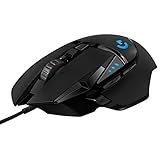
 Logitech G PRO X2 SUPERSTRIKE Wireless Gaming MouseOne Size4.9 x 2.5 x 0.1 inches0.1 PoundsCheck on Amazon
 Logitech G502 X Plus Wireless RGB Gaming MouseWireless7.1 x 4.6 x 2.7 Inches0.84 poundsCheck on Amazon


Top 3 picks at a glance
Roblox Hypershot Controls Guide: Keybinds, Sensitivity and Aim-Assist Settings
Hypershot’s default bindings are WASD to move, Space to jump, Shift to boost, mouse to aim and left-click to fire, with a slide mapped to Ctrl and a quick-turn/reload action on R — but the defaults are a starting point, not a finished setup. The two settings that actually decide whether your flicks and slide-shots land are camera/sensitivity consistency and aim-assist strength; get those wrong and no amount of keybind remapping will save your crosshair placement.
This guide maps every input across keyboard, controller and touch, then gives concrete sensitivity and assist numbers to tune toward, plus the reasoning behind each value.
As an Amazon Associate we earn from qualifying purchases at no extra cost to you.



Default Hypershot Keybinds (Keyboard & Mouse)
| Action | Default bind | Remap advice |
|---|---|---|
| Move | W / A / S / D | Keep — thumb stays free for jump/slide |
| Jump | Space | Keep |
| Boost / sprint | Shift | Keep on pinky; avoid moving to a mouse button |
| Slide | Ctrl (hold or toggle, per settings) | Move to Shift and put boost on a side mouse button if sliding feels cramped |
| Fire | Left mouse | Keep |
| Aim / ADS | Right mouse (hold or toggle) | Toggle if you flick often |
| Reload / quick action | R | Keep |
| Weapon / ability switch | 1–3 (numeric row) | Mouse wheel-up/down if your mouse supports it |
| Scoreboard / map | Tab | Keep |
| Push-to-talk (if enabled) | V or T, per lobby defaults | Rebind off a movement key |
The exact ability labels and numeric slots follow the game’s own control menu, so treat the action names above as the categories rather than a guarantee of the on-screen wording in every Hypershot mode. Open Settings → Controls in-game to confirm the labels your build shows.
Why the slide bind matters more than the rest
Slide-shots combine two inputs in one motion: a slide (movement + slide key) and a shot (mouse). If slide sits on Ctrl, your pinky has to travel down and away from Shift while your index finger is already on the trigger — that micro-delay is the difference between a hit and a trade. Moving slide to Shift, or to a thumb-side mouse button, keeps both inputs inside one hand’s natural range.
Step-by-step: build a reliable keyboard layout
- Open Settings → Controls and note the current binds before changing anything. Reason: you need a fallback if a remap creates a conflict.
- Set slide to a key your left thumb or index can hold while still moving. Reason: slide is a held state in most Hypershot modes, not a tap.
- Set aim to toggle rather than hold if you flick. Reason: holding right mouse tenses the forearm and shrinks your flick arc.
- Put reload adjacent to your firing hand, not across the keyboard. Reason: reloads happen mid-slide more often than mid-strafe.
- Test in the lobby for 2–3 minutes before a real match. Reason: conflict flashes and dead binds only show up under load.
Controller Layout in Hypershot
| Action | Typical controller input |
|---|---|
| Move | Left stick |
| Look / aim | Right stick |
| Jump | A / Cross |
| Slide | B / Circle or left bumper, depending on layout |
| Fire | Right trigger |
| Aim / ADS | Left trigger |
| Boost | Left stick click or bumper |
| Reload | X / Square |
| Ability / switch | Face buttons or d-pad |
Controller users should expect a wider effective aim-assist window than mouse users in most Roblox shooters, because assist is normally applied to stick response rather than raw cursor movement. That’s also why controller builds often run lower sensitivity than beginners expect — the assist does the fine tracking, and your stick handles the gross turn.
Mobile (Touch) Controls
On phones and tablets Hypershot runs a virtual stick plus on-screen action buttons. Two adjustments matter more than button size:
- Static vs dynamic stick: static anchors the movement stick to a fixed spot, which is more predictable for slide-shots; dynamic lets you start the stick anywhere.
- Camera sensitivity on the right side of the screen: most touch players run noticeably lower than their first instinct, because drag-to-aim has no mouse acceleration to absorb overshoot.
If you have a controller, plugging it in bypasses the touch overlay entirely and gets you the button layout above — that’s usually the single biggest input upgrade available on a tablet or phone.
Sensitivity Settings That Make Flicks Land
There is no universal “best sensitivity,” but there is a reliable method. Use it and your slide-shots become repeatable instead of lucky.
Worked example: calibrating with a 180° turn
Pick a number, then measure it. Suppose you set mouse sensitivity so that a 10 cm horizontal mouse movement rotates your camera exactly 180°. That gives you a fixed relationship: 18° of turn per centimetre. Now:
- A 45° flick needs about 2.5 cm of mouse travel.
- A 90° slide-shot correction needs about 5 cm.
- A full 180° defensive turn needs about 10 cm.
The value of fixing this number is that your hand learns distances, not guesswork. If your mousepad is, say, 45 cm wide and you aim to use the middle 60% for turning, that’s 27 cm of usable travel — under the 180°/10 cm rule that’s roughly 486° of total rotation, comfortably more than a full spin without lifting. If your setup gives you less than about 360° of usable rotation, lower sensitivity rather than widening your mouse movement, because lifting mid-slide breaks the shot.
Aiming-assist: what to change and why
| Setting | What it does | Sensible direction |
|---|---|---|
| Assist strength | How strongly the crosshair is pulled toward a target near the reticle | Start at or near default, raise only if you’re on controller |
| Assist range / radius | How far from the target the pull still applies | Keep moderate — a huge radius fights your flick instead of helping it |
| Slowdown / friction zone | Reduces sensitivity when the reticle nears a target | Helpful with a controller, often counterproductive with a mouse |
| Camera acceleration | Adds speed as you drag faster | Off for mouse, and off for touch if you can manage it |
| FOV | How much of the field you see | Wider helps track slides; too wide shrinks targets at range |
The reasoning is the same in each row: assist should finish a flick you initiated, not start one for you. Assist strong enough to move the reticle on its own will pull you off a target that’s strafing through your line — the exact scenario slide-shots create.
Choose your settings by situation
| Your setup | Sensitivity approach | Aim-assist | Camera accel |
|---|---|---|---|
| Mouse, small desk / pad under 30 cm | Higher; fix on a 120–150° per 10 cm rule instead of 180° | Default or low | Off |
| Mouse, wide pad 40 cm+ | Lower; 180° per 10 cm | Low | Off |
| Controller | Moderate; rely on stick curve | Default to moderately high | Off |
| Touch, phone | Lower than instinct; test in the lobby | Default or higher | Off if available |
| Touch, tablet + gamepad | Treat as controller | Treat as controller | Off |
Cross-Input Comparison: Which One To Use
| Input | Strength | Weakness | Best for |
|---|---|---|---|
| Keyboard + mouse | Precise flicks, instant 180s | Slide key can feel cramped; no assist | Players chasing exact crosshair control |
| Controller | Comfortable movement, assist helps tracking | Slower large turns unless sensitivity is raised | Long sessions, couch play |
| Touch | Always available, no hardware needed | Overlay covers screen, drag-aim overshoots | Casual play; upgrade to a controller if possible |
If you’re choosing hardware rather than settings: any wired mouse with a stable sensor is enough for Hypershot, and a gamepad with a working left bumper will outperform touch input on the same tablet. You don’t need a high-end peripheral to land slide-shots — you need a consistent sensitivity and a slide bind your hand can hold.
Frequently Asked Questions
What are the default Hypershot controls?
Movement is WASD, jump is Space, boost is Shift, fire is left mouse, aim is right mouse, slide is typically Ctrl and reload is R. Controller defaults follow the standard layout of left stick to move, right stick to aim, triggers to fire and aim, and face buttons for jump and reload. Exact labels can vary by mode, so confirm them in the in-game Controls menu.
How do I change keybinds in Hypershot?
Open Settings and go to the Controls section, select the action you want to change, then press the new input. Before you remap anything, note the default so you have a fallback, and test the new layout in the lobby for a couple of minutes — binding conflicts usually only appear once you’re actually moving and firing at the same time.
What sensitivity should I use for Hypershot?
There’s no single correct number, because it depends on mouse DPI, pad size and in-game sensitivity. The practical method is to set a target rotation — many players use roughly 180° per 10 cm of mouse movement on a wide pad, or 120–150° on a small one — then keep that number fixed so your hand learns distances. Change one variable at a time and give each change a few sessions.
Does Hypershot have aim assist, and should I turn it up?
Most Roblox shooters of this type apply aim assist, and Hypershot’s settings expose strength, range and often a slowdown zone. Raise it if you’re on a controller, where assist finishes tracking your stick started. On mouse, keep it low or off — a strong pull will drag your reticle off targets that strafe through your crosshair mid-slide.
Why do my slide-shots miss even when I’m aiming correctly?
The usual cause is the slide bind, not the aim. If slide sits on a key your pinky must reach while your index finger is on fire, the slide starts a fraction late and you shoot from a standing pose. Move slide to Shift or a thumb-side mouse button, then re-check that aim is set to toggle rather than hold so your forearm stays relaxed through the flick.
Can I use a controller on Hypershot on mobile?
Yes — connecting a Bluetooth or wired gamepad to a phone or tablet generally replaces the touch overlay with the standard controller layout, which gives you proper triggers and analog movement. That’s usually the largest single improvement available to a mobile player, larger than any sensitivity tweak on the touch controls themselves.
Whatever input you settle on, treat the settings as a fixed baseline for at least several sessions. Flick and slide-shot consistency comes from repeating one sensitivity, one slide bind and one assist level — not from chasing a new number after every bad match.