
QoS, short for Quality of Service, is a router feature that decides which network traffic gets sent first when your connection is busy, so a game or voice call can jump ahead of a big download. It helps most when other devices are saturating your internet line; it does not add speed, and on a quiet network you may not notice it at all.
As an Amazon Associate we earn from qualifying purchases at no extra cost to you.


Our Top Picks
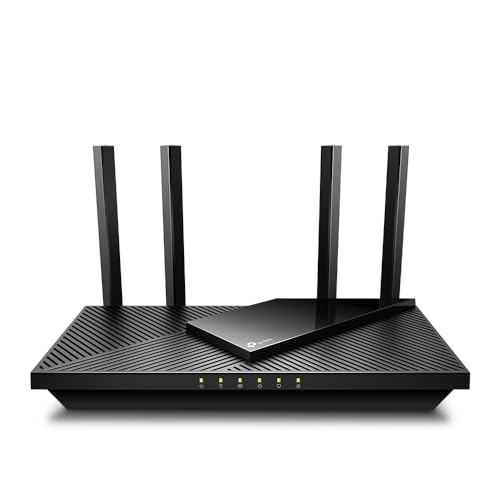
 TP-Link AXE5400 Tri-Band WiFi 6E RouterWiFi 6E, Tri-Band AXE540012.91 x 10.43 x 4.72 inches1.5 PoundsCheck on Amazon


Top 3 picks at a glance
What QoS actually does
Every router has a queue of packets waiting to leave toward the internet. When your upload or download is full, that queue grows and every packet, including your game inputs, waits in line. Classic QoS sorts the line: it labels traffic by device, application, port or type, and sends the labeled high-priority packets ahead of low-priority ones. Typical high-priority classes are gaming, voice and video calls; low-priority classes are bulk downloads, backups and cloud sync.
The result you are chasing is lower and steadier latency (ping) and fewer spikes during busy moments. It is not about maximum download speed.
QoS versus bufferbloat and SQM
Several networking guides separate plain QoS from a related feature called Smart Queue Management (SQM). The problem they describe is bufferbloat: oversized buffers in a modem or router fill with data when the line is saturated, adding tens or hundreds of milliseconds of delay.
- Classic QoS reorders packets but does not necessarily shrink the queue that caused the delay.
- SQM shapes traffic and keeps the queue short, typically using algorithms such as FQ-CoDel or CAKE. It usually requires you to enter a speed limit set slightly below your real line speed, often around 90 to 95 percent, so the bottleneck sits in the router where it can be managed instead of in an unmanaged buffer elsewhere.
Router makers use many names for related features: Adaptive QoS, Smart Queue, Game Mode, Bufferbloat control, or SQM. A “gaming boost” setting is often application or port prioritization. Open-source firmware such as OpenWrt, and router operating systems such as pfSense, are commonly mentioned for advanced SQM control.
Quick-reference table
| Feature | What it does | Best for |
|---|---|---|
| Device priority | Puts a chosen PC or console first | Households where one device matters most |
| Application priority | Ranks gaming, streaming, downloads | Simple setups |
| Port or DSCP rules | Prioritizes specific traffic types | Advanced users |
| Bandwidth limits | Caps what a device or app can use | Keeping downloads from filling the line |
| SQM (CAKE, FQ-CoDel) | Keeps the queue short under load | Fixing lag during heavy use |
| Wi-Fi WMM | Prioritizes by category over wireless | Mixed wireless traffic |
How it matters for a gaming PC
Online games send small packets often. They need very little bandwidth but are sensitive to delay and to lost packets. A game session can feel fine until someone starts a large download or a video upload on the same connection. At that moment the line fills, the queue grows and the game lags. QoS or SQM is intended to protect the small packets.
Reviewers and networking guides stress limits. QoS cannot fix a weak Wi-Fi signal, interference from neighbouring networks, an ISP outage, a distant game server, or a slow route outside your home. A wired Ethernet connection from the PC to the router is generally the first improvement to make, with QoS second.
How to check whether you need it
- Connect the gaming PC by Ethernet if possible.
- Run a speed test that reports loaded latency or a bufferbloat grade, and note the results with the connection idle.
- Start a large download or upload on another device and run the test again, or watch your ping in a game.
- If ping jumps sharply under load, bufferbloat is a likely reason, and QoS or SQM may help.
- If ping stays steady under load, you probably do not need to configure anything.
How to set it up
Menu names vary by router maker and model, so use the router manual or support page. The general flow is as follows.
- Log in to the router’s admin page using the address and credentials printed on the router or in its manual. Change a default admin password if you have not already.
- Find the QoS, Traffic Manager, Smart Queue or Adaptive QoS section.
- If the router offers SQM, enable it and enter download and upload limits slightly below your measured speeds, often in the 85 to 95 percent range according to guides.
- If it offers only priority rules, mark your gaming PC or console as the high-priority device, or choose the gaming category.
- Save and, if needed, restart the router.
- Repeat the loaded-latency test to see whether the result changed.
Some routers slow down their throughput when QoS is active because the processor handles each packet. On fast fiber connections, a router that cannot keep up may lower your top speed. Test before and after, and turn the feature off if it hurts more than it helps. Changing router firmware can void a warranty and can cause connection problems, so read the maker’s policy first.
Common misconceptions
- “QoS makes my internet faster.” It reorders traffic; the total capacity is unchanged.
- “Gaming mode always helps.” Results depend on the router and on how congested your line is.
- “Set priority and forget it.” If speeds change, SQM limits may need updating.
- “QoS fixes bad Wi-Fi.” It does not remove radio interference or distance problems.
- “Prioritizing everything works.” If everything is high priority, nothing is.
When to care and when to ignore it
Care about QoS if you share a connection with streamers, remote workers or downloads, have a modest upload speed, or notice lag spikes when others are online. Ignore it if you live alone on a fast connection, your ping is steady under load, or your router is simple and has no queue management features.
Wired, wireless and shared connections
QoS on the router only controls traffic the router itself handles. If the gaming PC is on Wi-Fi, packets also compete for airtime with every other wireless device, and router-level priority cannot fully fix that. Wi-Fi Multimedia (WMM) settings give some wireless prioritization, and modern Wi-Fi 6 and WiFi 7 routers handle many devices better than older ones, but a cable remains the most predictable path. In a busy household, also consider which devices are the heavy users: cloud backups, game downloads on consoles, and 4K streaming are the usual culprits. Scheduling them for off-hours often helps as much as any router setting. Finally, remember that your internet provider’s modem may have its own limited controls, so an extra router placed behind it may be needed for good queue management; follow the provider’s guidance on that setup.
Frequently Asked Questions
Does QoS lower ping?
It can lower ping during congestion by sending game packets first. On an idle connection it makes little difference, since there is no queue.
Is SQM better than normal QoS?
Many networking guides say SQM works better against bufferbloat because it controls the queue as well as the order. It needs a router or firmware that supports it.
Should I put my PC on Wi-Fi with QoS on?
Wired is generally steadier. QoS on the router does not control interference on the wireless link, so Ethernet is the safer choice for competitive play.
What speed should I enter for SQM?
Guides suggest setting it a little under your real measured speed, about 85 to 95 percent. Run a speed test at a quiet time and adjust until loaded latency stays low.
Can QoS cause problems?
Yes. Misconfigured limits can slow a connection, and some routers lose throughput with QoS on. Turn it off to compare if your speeds drop.


