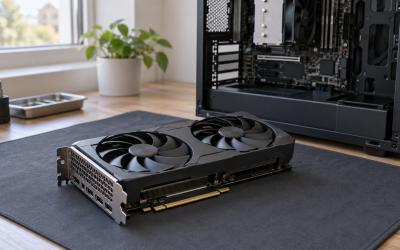
Your PC powers on, the GPU fans spin up for a second or two (or keep running), the case lights come on, but your monitor sits there with a black screen or a “No Signal” message. Sometimes the fans do a single burst and stop; sometimes they run continuously while nothing ever appears on screen. The symptom is confusing because the graphics card appears to be getting power — which makes people assume the card is dead.
In most cases, it isn’t. This symptom is usually caused by a display input problem, a loose power or seating issue, or a stuck post — and most of these are fixable in under 15 minutes. Work through the fixes below in order, from easiest to most involved, before you consider buying replacement parts. One note for 2026-era builds: many of these steps apply equally to newer PCIe 5.0 cards with 12V-2×6 connectors and older 8-pin cards alike.
Likely Causes
| Cause | How to confirm | Fix difficulty |
|---|---|---|
| Monitor on the wrong input or wrong cable | Monitor OSD shows an input with no device; try a second input or cable | Very easy |
| Monitor plugged into motherboard video instead of the GPU | Look at where the display cable terminates — motherboard ports sit near USB ports | Very easy |
| Unseated GPU or loose PCIe power cable | Reseat the card and connectors; check for a clicking 12V-2×6 latch | Easy |
| Stuck POST / stale hardware state | Full power drain and CMOS reset brings the display back | Easy |
| RAM not seated, causing failed POST | Motherboard EZ Debug LED stuck on DRAM; single-stick test | Moderate |
| Insufficient PSU power or a faulty PCIe power lead | Card works in another PC, or a different PSU works in yours | Moderate |
| Dead GPU or failed PCIe slot | Card fails in a known-good system; another card fails in your slot | Hard |
Fix 1: Check the Monitor Input and Cable
What causes it
Monitors remember the last input they used. If you swapped cables, added a new device, or the monitor lost power briefly, it may be listening on HDMI 2 while your GPU is outputting on DisplayPort 1. Damaged or low-quality cables also fail outright, especially DisplayPort cables at higher resolutions and refresh rates.
How to check
Open your monitor’s on-screen display menu (usually a joystick or the Menu button) and check the input selector. Cycle through HDMI 1, HDMI 2, DisplayPort, and USB-C if present. Inspect the cable ends for bent pins, and wiggle each connector gently to see if the signal flickers on.
What to do
Select the input that matches the physical port your cable uses. If the correct input shows nothing, swap in a different cable — use a certified DisplayPort cable or an HDMI cable rated for your resolution (an “Ultra High Speed” HDMI cable for 4K above 60 Hz). If your monitor and GPU both support it, try the other connector type entirely.
How to undo it
Just switch the monitor back to your preferred input, or reconnect the original cable. Nothing is persisted in software.
Fix 2: Plug the Monitor Into the GPU, Not the Motherboard
What causes it
This is the single most common cause of “fans spin but no signal” after a new GPU install. The motherboard’s HDMI and DisplayPort outputs are wired to the CPU’s integrated graphics, and on most desktop systems the iGPU outputs nothing when a discrete card is installed. The cable is easy to plug into the wrong bank of ports because both sit near each other on many cases and motherboards.
How to check
Trace your display cable. If it connects to a port on the motherboard’s I/O shield — the same panel as your USB and Ethernet ports — rather than the horizontal row of ports on the graphics card itself, this is your problem.
What to do
Move the cable to the GPU’s output ports. Power off the monitor first, reconnect, then power the monitor back on.
How to undo it
Not applicable — this is a connection correction, not a setting change.
Fix 3: Reseat the GPU and Its Power Cables
What causes it
Shipping, moving the case, or a sagging heavy card can work the card slightly out of the PCIe slot or loosen a power connector. On 12V-2×6 (16-pin) connectors, a cable that isn’t fully clicked in can prevent the card from powering on properly — several 2026 cards have sensing pins that throttle or refuse to post on a partial connection.
How to check
Power off, flip the PSU switch off, and hold the case power button for 10 seconds to drain residual charge. Remove the side panel, press the PCIe retention tab at the back of the slot, unscrew the card bracket, and pull the card out. Look at the gold PCIe edge connector for dust or debris. Reinsert firmly until the retention tab clicks. Reconnect all PCIe power cables and confirm each 12V-2×6 connector is fully seated with an audible or tactile click and no visible gap.
What to do
If you’re using a modular PSU, confirm each power lead is fully seated at both ends — the GPU end and the PSU end. Use native PSU cables rather than third-party adapters where possible, and never reuse a 12V-2×6 cable from a different PSU model.
How to undo it
Reseating doesn’t change any settings; simply reverse the disassembly if you need to move the card.
Fix 4: Do a Full Power Drain and CMOS Reset
What causes it
Motherboards occasionally get into a bad post state — often after a driver crash, a shutdown during a BIOS update, or a hardware change — where the board powers the fans but never initializes video output. Draining flea power and clearing CMOS forces the board to retrain memory and re-enumerate devices.
How to check
If your motherboard has EZ Debug LEDs (common on ASUS, MSI, and Gigabyte boards), note which LED stays lit: CPU, DRAM, VGA, or BOOT. A VGA LED stuck on points at the GPU path; a DRAM LED points at memory. No LEDs at all with fans spinning still suggests a failed post.
What to do
Shut down, flip the PSU switch off, and unplug the AC cord. Hold the case power button for 30 seconds. Then locate the clear-CMOS jumper (usually labeled CLRTC, JBAT1, or CLR_CMOS near the battery or bottom edge of the board) — short it per your motherboard manual, or remove the coin cell battery for five minutes. Restore power and boot.
How to undo it
A CMOS reset reverts BIOS settings to defaults: XMP/EXPO memory profiles will be disabled, custom fan curves reset, and boot drive order may change. Re-enter BIOS (usually Del or F2 during post) and re-enable your XMP or EXPO profile under the Ai Tweaker / OC / Overclocking menu, then confirm your boot drive is first in the boot priority list.
Fix 5: Reseat Your RAM and Test One Stick
What causes it
If memory training fails, many boards halt before ever initializing the GPU, leaving fans spinning and no signal. This is especially common after enabling XMP/EXPO, after a BIOS update, or if a stick is partially unseated.
How to check
A stuck DRAM debug LED is the clearest indicator. If your board lacks LEDs, listen for repeated short beep codes if you have a case speaker. Visually, a stick with an unopened latch on one end is likely unseated.
What to do
Power down fully. Open both RAM latches, remove each stick, and reinsert firmly until both latches snap closed. If it still fails, boot with a single stick in the slot your manual designates as A2 (usually the second slot from the CPU). Test each stick individually to find a faulty module. If the system posts with one stick, enter BIOS, set your memory profile, and re-add sticks one at a time.
How to undo it
Return the sticks to their original slots once you’ve identified the problem. If a stick is faulty, replace it — no configuration to revert.
Fix 6: Test the PCIe Power Supply Path
What causes it
A PSU that provides standby power can spin fans briefly, but if its PCIe power rails sag or a single cable/lead is failing, the GPU won’t initialize video. This also covers underpowered units — a card with a 300 W board draw connected to a PSU that can’t deliver stable transient power may refuse to post.
How to check
If possible, test with a different, known-good PSU of adequate wattage (check your GPU’s recommended PSU rating on the box, typically 650–850 W for modern performance cards). Alternatively, test your GPU in another PC. Also try different PCIe power cables: if your PSU has two separate 8-pin leads, don’t use a single daisy-chained cable — use two dedicated runs.
What to do
Swap in a replacement PSU rated at or above your GPU manufacturer’s recommendation, ensuring it has the native 12V-2×6 or 8-pin connectors your card requires. If a different PSU resolves the issue, replace yours.
How to undo it
Wiring a PSU back is just re-cable management — route the 24-pin, CPU 8-pin (EPS), and GPU power cables as before and confirm each is fully clicked in.
Fix 7: Test Another PCIe Slot and Update the BIOS
What causes it
A failed PCIe x16 slot, or an older BIOS that doesn’t properly support your GPU generation, can prevent video init. This is relevant if you installed a brand-new card in an older board.
How to check
If your motherboard has a second full-size PCIe x16 slot, move the card to it. If it works there, the first slot is suspect. To rule out firmware, check your motherboard model’s support page for a BIOS newer than yours (compare the version shown in BIOS under the Main or System Information tab).
What to do
Flash the BIOS using your motherboard’s built-in tool: many boards offer USB BIOS Flashback (rename the file per the manual, put it on a FAT32 USB stick, press the Flashback button with the system off — no CPU or GPU needed on compatible boards). Otherwise, use the EZ Flash / M-Flash utility inside BIOS (usually F2 or Del at boot, then the tool under the Tool or M-Flash menu). Never cut power during a flash.
How to undo it
You can flash an older BIOS version the same way, though most boards block downgrades — check your manual. Moving back to the original slot requires no reconfiguration.
Fix 8: Test the GPU in Another System
What causes it
After every easier fix fails, the card itself — or your specific slot/silicon pairing — is the remaining variable. You need to isolate which component is actually dead.
How to check
Install the card in a second, working PC (or have a friend test yours). Also test a different, known-working GPU in your PC. Two outcomes tell you everything: your card failing in a good system means the card is faulty; a good card failing in your system means the motherboard or PSU is at fault.
What to do
If the GPU is confirmed dead, check its warranty — most major brands carry 2–3 year coverage, and some extend to 4 years with registration. Start an RMA through the card manufacturer’s support portal with your proof of purchase. If the motherboard is at fault, an RMA or replacement board is the path.
How to undo it
Reinstall your original hardware in its original slots once testing is complete. If you removed the CMOS battery or changed BIOS settings during troubleshooting, reapply your XMP/EXPO profile and boot order.
If Nothing Works
At this point you’ve ruled out the display chain, seating, power delivery, memory, and firmware. The remaining candidates are a dead GPU, a failed motherboard PCIe subsystem, or — rarely — a CPU with damaged integrated graphics or PCIe lanes. Your best move is to assemble or borrow a minimal test bench: motherboard outside the case on its box, one RAM stick, PSU, and your GPU, booting with the monitor on the card. If that still shows no signal with known-good parts, contact the motherboard manufacturer’s support with your debug LED readings, and open an RMA with the GPU manufacturer. If your card is out of warranty, a reputable local repair shop can sometimes diagnose VRAM or power-stage failures, though replacement is usually more economical on cards more than a few years old.
FAQ
Why do my GPU fans spin and then stop with no signal?
Many modern cards use zero-RPM fan modes: the fans spin briefly at power-on as a self-test, then stop until the GPU heats up. If the display never comes on, the fan behavior itself is normal — treat the no-signal symptom as the actual problem and work through the fixes above.
Can a faulty PSU cause fans to spin but no display?
Yes. A PSU can deliver enough standby and fan power while failing to provide stable 12V PCIe power, leaving the card unable to initialize. Swapping in a known-good PSU of adequate wattage is the definitive test.
Should I reinstall my graphics drivers to fix a no-signal issue?
Only after you get video back. Driver software can’t run if the card never posts, so drivers aren’t the cause of a no-signal-at-boot scenario. Once display output works, a clean driver reinstall with DDU (Display Driver Uninstaller) in Safe Mode can fix black-screen crashes that occur later in Windows.
Is it bad that my GPU fans spin continuously with no signal?
It’s not harmful in the short term — spinning fans with no load won’t damage the card. However, don’t leave the system in this state indefinitely. Power it off and troubleshoot, since some failure modes (like a shorted power stage) warrant shutting down rather than letting the system sit powered on.