A buzzing sound from a custom PC is one of the most common complaints builders bring to forums and repair shops, and the good news is that the vast majority of causes are harmless vibrations rather than failing hardware. The trick is identifying which component is producing the noise — a coil whine from a graphics card sounds very different from a fan bearing grinding or a loose panel rattling. This guide walks through the most frequent culprits, a structured diagnostic process you can complete in under an hour with nothing more than a screwdriver and a flashlight, and reversible fixes for each cause. Work through it in order and you will almost always find the source without opening a support ticket.
Most Common Causes
Before you start pulling parts, narrow down the type of buzz you are hearing. Pitch, timing, and what triggers it all point to different components.
| Cause | Symptom | Likelihood |
|---|---|---|
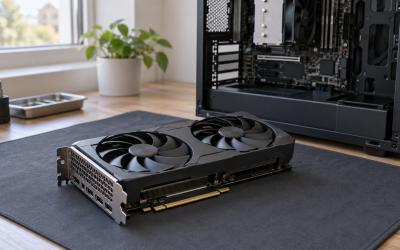
| Coil whine (GPU, PSU, or motherboard VRM) | High-pitched electronic whine or buzz that changes with framerate or load; worst in menus and during benchmarks | Very high |
| Fan bearing wear or cable strike | Rhythmic clicking, grinding, or buzzing; may worsen when the case is tilted | High |
| Loose panels, drive cages, or screws | Buzz that appears under load and disappears when you press on the side panel | High |
| HDD vibration | Low mechanical buzz or hum during file transfers or game loading | Moderate |
| PSU fan or aging capacitors | Buzz from the rear of the case, sometimes accompanied by electrical crackle under load | Moderate |
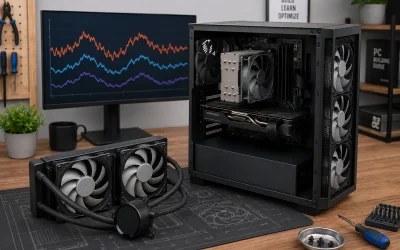
| Pump noise (AIO liquid cooler) | buzzy hum or gurgle from the CPU block or radiator; pitch shifts as coolant flow changes | Moderate |
| Audio ground loop | Buzz heard through speakers or headphones only, changes with GPU load | Lower |
Diagnose Step by Step
1. Isolate the Noise by Ear
Open the side panel (glass panels: lay the panel on a towel) and run the machine with the case open in a quiet room. Note whether the buzz comes from the top rear (PSU), the GPU area, the CPU cooler, the front drive bays, or the motherboard itself. A rolled-up paper tube or a length of clean garden hose held to your ear works as a makeshift stethoscope — never touch anything metal inside a running PC except fan blades stopped gently with a finger only if you are comfortable doing so; the safer method is to briefly press the center hub of each fan with a plastic pen cap to stop it and see if the buzz stops.
2. Correlate the Buzz with Load
Watch the sound while you change load. Open Task Manager (Ctrl+Shift+Esc) to the Performance tab and note GPU usage, then run a game and sit in the main menu — menus render uncapped frames and are the classic trigger for coil whine. If the buzz vanishes the instant you enable V-Sync or cap the framerate, you have your answer. If it is constant even at idle, suspect fans, pump, or the PSU instead.
3. Check Every Fan Individually
In your BIOS/UEFI (usually Del or F2 during boot), find the hardware monitor or Q-Fan / Smart Fan section, or use Fan Control (open source) in Windows. Set each fan to 0% or a very low PWM value one at a time where the BIOS allows it, or unplug one fan header at a time (system fans only — never the CPU fan for long) and listen. A fan that stops buzzing when slowed to 40% has a failing bearing or a cable brushing the blades.
4. Test Whether It Is Mechanical Rattle
With the machine buzzing under load, press firmly but gently on the side panel, the top cover, the rear I/O shroud, and each drive cage. If pressing anywhere changes or stops the buzz, it is a resonance problem, not a component fault. Also check that all thumbscrews and any unused expansion-slot covers are tight; a single loose slot cover can buzz loudly at a specific fan RPM.
5. Rule Out the Hard Drive
If you still have a spinning HDD, open Resource Monitor (resmon.exe) and watch the Disk queue length while the buzz occurs. Buzz synchronized with disk activity points to drive vibration transmitted through the drive cage — often fixable with rubber isolators, though some buzz is normal HDD operation.
6. Rule Out Audio Ground Loop
Unplug your speakers or headphones entirely. If the buzz disappears, it was never inside the case — it is a ground loop between the motherboard’s audio jack and another grounded device. This is especially common when a PC, monitor, and powered speakers share a power strip.
Fixes by Cause
Coil Whine
What causes it: Inductors (coils) in the GPU or PSU vibrate at the frequency of switching currents. It is an electrical-mechanical artifact, not damage, and does not shorten component life.
How to check: Buzz rises and falls with framerate. Enable an FPS counter (Windows Game Bar: Win+G, or NVIDIA App / AMD Adrenalin overlay) and watch whether the pitch tracks your frame rate.
What to do: Cap your framerate below your monitor’s refresh rate. In NVIDIA App: Graphics, Global Settings, Max Frame Rate — try 141 for a 144 Hz display, or use V-Sync. Enable V-Sync in-game first as it is free. For GPUs, enabling Adaptive Sync/G-Sync plus a frame cap usually reduces whine dramatically. Some motherboards let you change the processor’s power plan: set Windows Power Mode to Balanced (Settings, System, Power and battery) instead of Best Performance, since high C-states can excite motherboard VRM whine.
How to undo: Simply restore your original framerate cap or V-Sync setting. Nothing hardware-side is modified.
Fan Bearing Wear or Cable Strike
What causes it: Sleeve-bearing fans wear with age and heat, developing a grinding or buzzing sound especially when cold. Separately, a fan cable that is not routed can clip the blades once per revolution, producing a fast ticking or buzz.
How to check: Stop each fan briefly with a plastic pen cap while it is buzzing. Inspect cables near each fan for contact with the blades; spin each fan by hand (system off) and feel for roughness or scraping.
What to do: Reroute or zip-tie any cable touching a fan. For a worn bearing, replace the fan — most case and radiator fans are 120 mm or 140 mm, and swapping takes minutes. Match the connector type (PWM 4-pin vs DC 3-pin) and note whether your motherboard headers are high-amperage. As a temporary measure, dropping the fan’s RPM curve in BIOS (e.g., capping a case fan at 60% below 50°C) can quiet a marginal bearing.
How to undo: Restore the original fan curve in BIOS, or reconnect the original fan. Cable routing is fully reversible.
Loose Panels, Cages, and Screws
What causes it: Thin sheet-metal panels and drive cages resonate at fan frequencies. Anything loose becomes a sounding board.
How to check: Press on panels and components while the buzz occurs (step 4 above). Check GPU sag — a drooping graphics card can transmit vibration to the bracket.
What to do: Tighten all thumbscrews, expansion-slot screws, and drive cage screws. Install a GPU support bracket if the card sags. Add thin rubber or foam pads (closed-cell foam weatherstripping works) between the side panel and case edge, or between the case and the desk — many “PC buzzing” complaints vanish when the case stops resonating into the desk surface. Some cases ship with unused rubber grommet plugs for drive bays; seat them properly.
How to undo: Remove the foam padding and restore screws to their previous tension — nothing else changes.
HDD Vibration
What causes it: Spinning platters at 5400 or 7200 RPM create vibration that couples into the drive cage and case.
How to check: Buzz correlates with disk activity in Resource Monitor. Touch the drive cage lightly — if you feel vibration, this is it.
What to do: Fit rubber screw grommets or silicone isolation mounts (most modern cases include them in the accessory box). If the drive is only used for storage, consider migrating to a SATA SSD and retiring the HDD. Some buzz during heavy access is normal and not fixable without isolation.
How to undo: Swap rubber mounts back for metal screws — no software or data changes involved.
PSU Noise
What causes it: Either fan bearing wear or, more concerning, aging or marginal capacitors producing electrical buzz under load.
How to check: Listen at the rear grille. Set a semi-passive PSU’s fan mode switch (if present) from Hybrid/ECO to the always-on position — if the buzz changes, the fan is involved. Electrical crackling that gets worse under sustained load warrants attention.
What to do: If it is the fan and the PSU is out of warranty, an experienced builder can replace the fan, but for most readers the correct move is a warranty replacement — quality PSUs carry 7 to 10 year warranties. Never open a PSU casing: capacitors hold a dangerous charge even unplugged.
How to undo: Return the fan-mode switch to its original position. A warranty swap replaces the unit entirely, so there is nothing to reverse.
AIO Pump Noise
What causes it: Air trapped in the loop, an overly aggressive pump curve, or pump bearing wear.
How to check: Buzz or gurgle from the CPU block or radiator top. Tilt the case gently 45 degrees while running — gurgling that shifts indicates trapped air.
What to do: Reduce pump speed in BIOS or the cooler’s software (many AIOs run fine at 60–80% PWM). For trapped air, power off, unplug, and tilt/rotate the case so the pump is at the lowest point for a minute, then run the pump at full speed for a few minutes while the radiator is the highest point in the loop. Check that the pump’s power cable is fully seated in the CPU_FAN or pump header and not rubbing anything.
How to undo: Restore the original pump PWM curve. Tilting maneuvers are inherently reversible.
Audio Ground Loop
What causes it: Small voltage differences between grounded devices create an audible 60 Hz hum through analog audio connections, often worsening with GPU load.
How to check: Unplug speakers — buzz gone means ground loop. Try powering the speakers from a different outlet.
What to do: Use a ground loop isolator inline with the audio cable (a small passive adapter), or switch to a USB DAC or the digital/optical output if your speakers support it. Avoid cheap three-prong-to-two-prong adapters as a “fix” — they defeat safety grounding.
How to undo: Remove the isolator and reconnect the original cable.
When to Replace or Reinstall
None of the causes above require reinstalling Windows — buzzing is a hardware or acoustics problem, not a software one. That said, replace rather than repair in these situations: any PSU that produces crackling, popping, or a burning smell (replace the entire unit immediately and stop using the system); fans with visibly seized or scraping bearings (replacement fans cost less than an hour of your time); and an AIO pump that whines even at low PWM after air-clearing attempts (pump failure can follow, so warranty-replace it while you can). Coil whine never requires replacement unless it is intolerable and the vendor will cross-ship — most GPU and PSU manufacturers will offer an RMA for severe whine within the return window, but the replacement may whine too, since it is a manufacturing tolerance lottery.
A fresh Windows install is only relevant if your “buzz” turns out to be sound emitted through connected speakers due to a driver problem. In that case, before anything drastic, uninstall and reinstall the audio driver via Device Manager (right-click Start, Device Manager, Sound, video and game controllers, right-click your audio device, Uninstall device, then restart) and grab the latest driver from your motherboard vendor’s support page for your exact board model.
FAQ
Is coil whine dangerous to my hardware?
No. Coil whine is a vibration artifact in inductors and has no effect on component lifespan or performance. It is purely an acoustic annoyance, and severity varies unit to unit even within the same GPU model.
Why is the buzzing worse at night?
Two reasons: ambient noise is lower, so you hear more, and many regions see cleaner grid power at night, which can change electrical noise. If the buzz is only audible at night and bothers no one during the day, capping framerates and adding case-to-desk foam padding usually solves the perceived problem.
Can software cause my PC to buzz?
Software affects buzzing indirectly: uncapped framerates and heavy CPU load change component load, which changes coil whine and fan speeds. Running HWiNFO64 in sensors-only mode while the buzz occurs tells you exactly which component is loaded at that moment. But no application makes a healthy PC buzz on its own — the buzz is always physical.
When should I stop troubleshooting and get help?
If you hear crackling, popping, or smell anything burning, power off and stop — that points to the PSU or a short, and it is not a DIY diagnosis. Likewise, if the buzz comes with system instability such as random shutdowns or reboots under load, suspect the PSU or a motherboard fault and pursue warranty service rather than continuing to run the machine.
By the time you have worked through every check in this guide, you will have either found the culprit or narrowed it to a single component — and if you are still shopping for parts with noise in mind as you plan a build in 2026, prioritizing PWM fans with fluid dynamic bearings and a PSU with a semi-passive mode will spare you most of these headaches from day one.