The best PC accessories are the ones that remove a specific limitation—insufficient desk space, poor aim, tangled cables, uncomfortable posture, missing ports, or an unrealistic budget—rather than simply adding more RGB lighting.
As an Amazon Associate we earn from qualifying purchases at no extra cost to you.



Our Top Picks


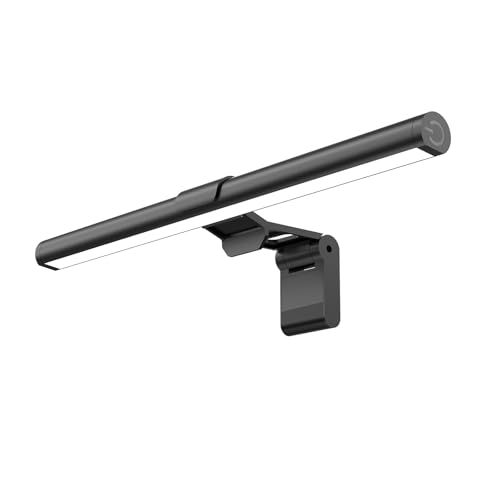

Top 3 picks at a glance
Choose the Upgrade That Solves Your Biggest Problem
| Your situation | Most useful upgrade | What to look for | Typical market range |
|---|---|---|---|
| Small desk or shared workspace | Monitor arm and compact peripherals | VESA support, clamp depth, 75% or tenkeyless keyboard | $40–$180 |
| Competitive gaming | High-refresh monitor, lightweight mouse, large mouse pad | 240Hz or higher, low click latency, consistent sensor tracking | $100–$500 |
| Many USB devices | Powered USB hub or dock | USB 3.x bandwidth, external power, enough downstream ports | $30–$180 |
| Neck, wrist, or shoulder discomfort | Monitor arm, adjustable chair support, ergonomic input devices | Screen at eye level, neutral wrist angle, adjustable height | $50–$300 |
| Frequent cable clutter | Under-desk tray, cable sleeve, and Velcro ties | Removable fasteners and separate power/data routing | $15–$80 |
| Limited upgrade budget | Mouse pad, desk mat, cable ties, and a monitor riser | Correct sizing and improved positioning before cosmetic extras | $20–$70 |
Best PC Accessories by Desk Space
Use a monitor arm before buying a larger desk
A monitor arm is often the highest-impact accessory for a crowded setup. It moves the display’s stand away from the surface, creates room for speakers or a laptop, and makes screen height easier to adjust. Check that your monitor has a 75 x 75 mm or 100 x 100 mm VESA mounting pattern and that the arm supports its weight without the stand.
For a single 24- to 32-inch monitor, a standard gas-spring arm is usually sufficient. For an ultrawide or dual-monitor setup, choose an arm specifically rated for the combined screen sizes and weight. A desk clamp needs a solid rear edge; glass desks and thin hollow-core tops may require a separate mounting solution.
Match keyboard size to the work you actually do
- Full-size: best when you frequently enter numbers or use dedicated navigation keys.
- Tenkeyless: removes the number pad and gives a mouse more room without losing the function row.
- 75%: retains arrows and most navigation functions in a compact layout.
- 60%: maximizes mouse space, but requires function-layer shortcuts for arrows and navigation.
A compact keyboard is not automatically better. If you use spreadsheets, accounting software, or 3D applications every day, losing the number pad can cost more time than it saves in desk space.
Gaming Accessories: Buy for the Game, Not the Feature List
Competitive mouse and mouse pad choices
For competitive shooters, prioritize shape, weight, sensor consistency, and wireless latency over a very high DPI number. Most players can start around 800–1600 DPI and adjust in-game sensitivity from there. A large cloth mouse pad is useful because it allows lower sensitivity without running out of room.
Keep the mouse cable—or wireless receiver—away from the pad’s active area. If you use a wireless mouse, place its receiver close to the mouse with a short extension cable rather than leaving it behind a metal PC case. This reduces the chance of interference and keeps the receiver within a predictable range.
Calculate whether a high-refresh display fits your PC
Refresh rate matters only when your system can produce enough frames. For example, a 2560 x 1440 monitor running at 240Hz requires a potential frame rate of 240 frames per second. Its raw pixel workload is:
2560 × 1440 × 240 = 884,736,000 pixels per second
That is about 3.7 times the pixel workload of 1920 x 1080 at 144Hz, which is 298,598,400 pixels per second. The comparison is not a direct GPU benchmark—game engines and settings matter—but it explains why a 1440p/240Hz display demands substantially more graphics performance than a 1080p/144Hz display.
Choose a 144Hz or 165Hz display for a balanced gaming PC, 240Hz for a system that can regularly exceed 200 FPS in your main games, and 60Hz or 75Hz if productivity and low cost matter more than motion clarity. Adaptive-sync support is valuable when frame rates fluctuate.
Headsets, microphones, and speakers
A gaming headset is convenient for positional audio and voice chat, but a separate USB microphone can improve speech quality if you stream or play with a regular group. Look for a physical mute button, a boom that stays close to the mouth, and sidetone monitoring so you can hear your own voice without shouting.
For a simple desktop audio setup, powered stereo speakers are easier to position than a soundbar. Keep speakers at ear height when possible and avoid placing them directly against a wall, where bass can become boomy.
Cable Management That Stays Organized
Effective cable management is a routing system, not a pile of clips. First, unplug everything and identify each cable by destination. Then route power cables separately from video, USB, and network cables where practical. Use reusable Velcro ties instead of permanent zip ties so future upgrades do not require cutting the bundle.
- Mount a power strip under or beside the desk. This shortens the visible mains-cable path.
- Group cables by destination. Create separate bundles for the monitor, PC, audio, and charging devices.
- Leave service loops. Keep 10–20 cm of extra cable near movable monitors and peripherals.
- Label both ends. Small labels prevent you from disconnecting the wrong device later.
- Secure heavy adapters independently. Do not let a laptop power brick hang from a USB or display cable.
Do not bend high-speed DisplayPort, HDMI, or USB-C cables sharply behind the desk. A gentle curve is safer and makes intermittent connection problems easier to diagnose.
Ergonomics: Positioning Beats Premium Materials
Set the monitor so the top edge is approximately level with your eyes, then tilt it slightly upward or downward until you can view the center without leaning forward. Keep the screen roughly an arm’s length away, adjusting for its size and your vision. Your elbows should remain near your sides, with the keyboard close enough that your shoulders stay relaxed.
A wrist rest should support the heel of the hand during pauses, not force the wrist upward while typing. If you use a mouse with a very high sensitivity, consider lowering sensitivity gradually and enlarging the pad rather than gripping the mouse tightly.
For long work or gaming sessions, alternate between sitting and standing if your desk allows it. A footrest can help shorter users keep their feet supported, which prevents pressure behind the knees and reduces the tendency to slide forward in the chair.
Connectivity and Bandwidth: Avoid the Wrong Hub
USB hubs are convenient, but their ports share an upstream connection. A USB 3.2 Gen 1 link is rated at 5Gbps, while USB 3.2 Gen 2 reaches 10Gbps under suitable hardware and cables. Those are theoretical link rates, not guaranteed file-transfer speeds.
Consider a simple workload: an external SSD transferring at 800MB/s uses approximately 6.4Gbps before protocol overhead because 800 × 8 = 6,400 megabits per second. Adding a second fast SSD to the same 5Gbps hub guarantees contention. Put high-speed storage directly on the PC or on a hub with a faster upstream connection, and use lower-bandwidth devices such as a keyboard, mouse, and webcam on the shared hub.
A powered hub is preferable when connecting several bus-powered drives, audio interfaces, or charging devices. A USB-C dock is better when you need one-cable laptop connectivity for display, network, storage, and peripherals. Confirm the exact display mode: USB-C ports vary widely, and some support data only while others support DisplayPort Alt Mode and power delivery.
Best Budget Upgrade Path
With less than $50, start with a correctly sized mouse pad, Velcro cable ties, a basic desk mat or monitor riser, and a small headphone hook. These improvements change daily use without locking you into a particular keyboard or monitor standard.
At $50–$150, prioritize a monitor arm, a reliable powered USB hub, or a better mouse—whichever addresses the biggest problem. Do not buy all three if your desk cannot safely support the arm or your PC lacks the required USB-C features.
Above $150, combine upgrades strategically: a monitor arm plus a high-refresh display for gaming, or a dock plus an ergonomic keyboard and microphone for a work-and-play setup. Expensive accessories are worthwhile only when their specifications match your hardware and routine.
Frequently asked questions
How do I know whether my desk can support a monitor arm?
Check the monitor’s VESA mounting pattern and weight, then confirm that the arm supports both. The monitor should use a 75 x 75 mm or 100 x 100 mm pattern. The desk clamp also needs a solid rear edge; glass desks and thin hollow-core tops may require a separate mounting solution. For dual monitors or an ultrawide, verify the arm’s combined size and weight rating.
Should I choose a compact keyboard if I have limited desk space?
Choose a compact keyboard only if its missing keys will not slow down your regular work. A tenkeyless or 75% keyboard creates more room for the mouse while retaining important keys, whereas a 60% layout requires function-layer shortcuts for arrows and navigation. If you use spreadsheets, accounting software, or 3D applications often, a full-size keyboard may be more practical.
Where should I place a wireless mouse receiver?
Place the wireless receiver close to the mouse, ideally using a short extension cable rather than leaving it behind a metal PC case. This keeps the receiver within a predictable range and reduces the chance of interference. Also keep the mouse cable or receiver away from the active area of the mouse pad so it does not interfere with movement.
Can I connect multiple fast devices to one USB hub?
You can connect them, but they may compete for the hub’s shared upstream bandwidth. A fast external SSD transferring at 800MB/s uses approximately 6.4Gbps before protocol overhead, so adding another fast SSD to the same 5Gbps hub guarantees contention. Put high-speed storage directly on the PC or use a hub with a faster upstream connection, while lower-bandwidth peripherals can share a hub.
How should I position desktop speakers for clearer sound?
Place powered stereo speakers at ear height when possible and avoid positioning them directly against a wall. A wall can make the bass become boomy. For a simple desktop audio setup, powered stereo speakers are easier to position than a soundbar. Their placement should complement your monitor and other desk equipment without creating cable clutter or blocking useful workspace.
Final Buying Checklist
- Measure the desk before choosing an arm, pad, or keyboard.
- Check VESA pattern, monitor weight, and clamp compatibility.
- Match monitor resolution and refresh rate to your realistic frame rate.
- Calculate shared USB bandwidth before connecting multiple fast devices.
- Choose peripherals by shape, comfort, and use case rather than lighting.
- Prefer adjustable, repairable, and reusable cable-management hardware.
- Fix monitor and seating position before spending more on ergonomic accessories.