Your PC powers on, the fans spin, the RGB lights up, but the monitor stays black. Sometimes the keyboard lights respond and the system beeps normally; sometimes you get an error beep code or a Q-code on the motherboard debug display. Either way, the machine sounds alive while the screen shows nothing, which is one of the most common and most confusing failure modes in PC gaming.
The good news: this is rarely fatal. In most cases the culprit is a loose cable, a monitor set to the wrong input, or a GPU that needs a reseat — all fixable in minutes with a screwdriver and some patience. Work through the fixes below in order, easiest first, and you’ll likely be back in-game the same evening. Only a small percentage of “no display” cases point to a dead component, and even then, most of those are covered under warranty. Set aside 30–60 minutes and don’t panic.
Likely Causes
| Cause | How to confirm | Fix difficulty |
|---|---|---|
| Wrong monitor input or dead cable | Monitor OSD shows “No Signal” on every input; swapping cables changes nothing | Very easy |
| Monitor plugged into motherboard video instead of GPU | Cable runs from the motherboard’s I/O ports rather than the graphics card | Very easy |
| RAM not seated or a bad stick | Motherboard debug LEDs stuck on DRAM, or repeated beep code (e.g., 3 beeps on AMI BIOS) | Easy |
| GPU not seated or PCIe power cables missing | Debug LEDs stuck on VGA; 6-pin/8-pin connectors hanging loose at the card’s top edge | Easy |
| CMOS/BIOS corruption or a bad overclock, including XMP/EXPO instability | System powers on, then power-cycles itself two or three times before settling with a black screen | Moderate |
| Failed PSU rail, motherboard, or dead GPU | Debug LEDs pass POST but screen stays black on known-good monitor and cable; no display even with integrated graphics | Hard |
Fix 1: Check the Monitor, Cable, and Input
What causes it
Monitors remember their last-used input. If the monitor is set to HDMI 1 but your cable is in DisplayPort, or the cable worked loose at the GPU end, you get a black screen with a perfectly healthy PC. DisplayPort connectors in particular use a locking mechanism that can unclick when a case gets bumped or moved.
How to check
Look at the monitor itself. If it displays “No Signal,” “Check Cable,” or falls asleep after a few seconds, it’s receiving nothing — the problem is upstream, not the panel. Press the monitor’s input/source button and cycle through every input while watching for anything to appear. Inspect both ends of the cable: the GPU end (lower in the case, not the motherboard’s I/O) and the monitor end. Check that the DisplayPort latch is clicked in.
What to do
Swap to a different cable of the same type, or switch from DisplayPort to HDMI (or vice versa). Try a different port on the GPU — many cards have three DisplayPort and one HDMI, and a single damaged port is common. If possible, test the monitor with a laptop or console to rule out the panel itself. Also verify the monitor’s refresh rate settings once you get an image back; a 144 Hz+ panel negotiating a bad signal can black-screen intermittently.
How to undo it
Nothing to undo — reconnect your preferred cable and input when done.
Fix 2: Move the Cable to the Graphics Card
What causes it
After integrated graphics are used (e.g., after removing the GPU for cleaning), it’s easy to reconnect the display cable to the motherboard’s video ports instead of the graphics card. Modern CPUs with iGPUs will happily output to those ports, but if the CPU has no integrated graphics (most non-F-suffix Intel chips excluded; nearly all AMD Ryzen CPUs except G-series and newer APUs), those motherboard ports output nothing at all.
How to check
Trace the display cable physically. It should exit the case through the expansion slot openings, plugged into the horizontal ports on the graphics card — not the vertical ports in the motherboard’s I/O shield area at the top of the case.
What to do
Unplug the cable from the motherboard and plug it into the graphics card’s ports. Reboot. If you have a CPU without integrated graphics and the cable was in the motherboard, this alone will explain everything.
How to undo it
No change to reverse; simply reconnect however your hardware requires.
Fix 3: Reseat the RAM
What causes it
Memory sticks can work slightly loose over time from thermal cycling, or a module may not have clicked fully into place after installation or transport. A system with unseated RAM will power on but fail POST, producing no display — often with the motherboard’s DRAM debug LED lit or a beep code (three beeps on many AMI BIOSes).
How to check
Power off and open the case. Look at the debug LEDs (usually four small LEDs labeled CPU, DRAM, VGA, BOOT near the 24-pin connector or top-right edge) or listen for beep codes. If DRAM is the lit LED, memory is your prime suspect. Also check whether a recent component move coincided with the problem starting.
What to do
Power off, flip the PSU switch, and hold the case power button for 10 seconds to drain residual charge. Push the retention clips open, pull each stick out, then reinsert firmly until both clips snap closed on their own. Do this one stick at a time if you have multiple: try a single stick in the second slot from the CPU (A2 on most four-slot boards), boot, then add sticks back one by one to isolate a bad module.
How to undo it
No configuration changes were made. Return sticks to their original slots once you’ve identified the problem, keeping dual-channel pairing per your motherboard manual (typically slots A2 and B2).
Fix 4: Reseat the GPU and Check PCIe Power
What causes it
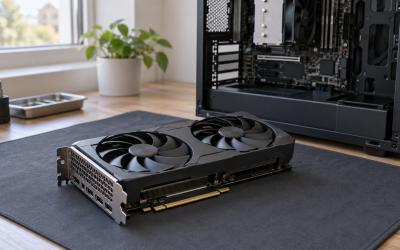
Heavy graphics cards sag over time, which can partially unseat them from the PCIe slot. Separately, the 6-pin/8-pin/12V-2×6 power connectors at the card’s top edge can work loose or be plugged into the wrong cables. A GPU with power or seating problems lights the VGA debug LED and delivers no display.
How to check
Check the debug LEDs with the case open. Confirm every power connector on the card is fully clicked home — on 12V-2×6 (12VHPWR) connectors used by many RTX 40/50-series cards, an incompletely seated plug is a notorious no-display cause. Verify the cables come from the PSU’s PCIe/VGA-labeled ports, and use one PCIe cable per 8-pin connector rather than a single daisy-chained cable for high-draw cards.
What to do
Power down and unplug. Unscrew the GPU’s bracket thumbscrews, press the PCIe slot’s release tab (location varies by board — check the manual), and pull the card straight out. Inspect the PCIe slot for debris, then reinsert the card firmly until the tab clicks. Reconnect all power cables, ensuring full insertion until they click. Reboot.
How to undo it
Nothing to revert — the card goes back in the same slot it came out of. If GPU sag caused the issue, install an anti-sag bracket or support stick to prevent recurrence.
Fix 5: Clear the CMOS
What causes it
Corrupted BIOS settings, a failed memory overclock (XMP or EXPO), or an unstable CPU overclock can leave the system powering on with no POST. Memory training instability after a BIOS update or a new RAM install is especially common on DDR5 platforms in 2026, and it presents exactly this way: fans on, screen dark.
How to check
Ask yourself: did you recently change RAM, update the BIOS, enable XMP/EXPO, or overclock? Does the system power-cycle itself two or three times before settling into a black screen? That reboot loop is classic memory-training failure. Check for a debug LED stuck on DRAM or CPU.
What to do
Power off, flip the PSU switch, and hold the case power button for 10 seconds. Most boards have a CMOS-clear method in one of two forms: a dedicated button on the rear I/O panel (labeled “Clear CMOS” — hold it for 5–10 seconds with the system powered off), or a two-pin jumper near the motherboard battery (short it with a screwdriver for 10 seconds, or move the jumper cap from pins 1–2 to 2–3 for 10 seconds, then back). Alternatively, remove the CR2032 coin battery for five minutes with the PSU switched off. DDR5 boards may need two or three boot attempts after clearing — memory retraining can take 1–3 minutes per try, so be patient. Once display returns, enter BIOS and re-enable XMP/EXPO (usually under “Advanced” or “OC” → “AI Overclock Tuner” / “Extreme Memory Profile” / “EXPO”). If the black screen returns after enabling it, leave memory at default speeds and update the BIOS before retrying.
How to undo it
Clearing CMOS resets BIOS to defaults by design. Re-enter BIOS (usually Del or F2 at boot), restore your boot drive order if needed (Boot menu → Boot Option #1 → your NVMe/SSD), re-enable XMP/EXPO if stable, and set your fan curves back to preference.
Fix 6: Test with Integrated Graphics / Remove the GPU
What causes it
A failed or failing GPU outputs nothing even when everything else works. Before condemning it, you need to isolate whether the card is the problem.
How to check
If your CPU has integrated graphics (Intel K/KF distinction matters: KF has none; AMD Ryzen 7000/9000 non-F chips all include a basic iGPU), remove the GPU entirely and plug your monitor into the motherboard. If you get a display, the GPU is almost certainly the fault.
What to do
Power down, disconnect GPU power cables, release the PCIe slot tab, remove the card, and connect your monitor to the motherboard’s HDMI or DisplayPort. Boot. If display returns, test the GPU in another PC if possible, or contact the manufacturer for warranty service (most graphics cards carry 2–3 year warranties as of 2026, some extended by registration).
How to undo it
Reinstall the GPU when resolved: seat it fully, reconnect all power cables, and move your monitor cable back to the card.
Fix 7: Test the PSU and Motherboard
What causes it
A PSU with a failed rail, a shorted motherboard component, or a damaged 24-pin/8-pin EPS connection can power fans and lights while failing to POST at all. This is the least common but most serious cause.
How to check
Confirm the 8-pin EPS CPU cable (top-left of the motherboard) and 24-pin ATX cable are fully seated — these work loose more often than people expect. Check for burn smells, bulging capacitors, or liquid damage. Many boards have a POST code display: look up the two-digit hex code in your motherboard manual (e.g., codes stuck on “00” or “55” point to CPU/memory initialization failure). If your PSU has zero RPM fan mode, watch whether the fan ever twitches at power-on — a completely dead fan plus no POST suggests PSU trouble.
What to do
Breadboard the system if you can: remove the motherboard from the case, connect only CPU, one RAM stick, PSU, and monitor, and short the power-switch pins with a screwdriver to boot. If it POSTs outside the case, you likely have a standoff short — check for an extra standoff under the board or a misrouted cable. If it still fails, test with a known-good PSU of adequate wattage. If the board is at fault, check warranty status; most motherboard warranties run 3–5 years.
How to undo it
Rebuild into the case once resolved, confirming every standoff is used and no cables are pinched under the board.
If Nothing Works
If you’ve confirmed a known-good monitor, cable, and input, reseated RAM and GPU, cleared CMOS, and tested with integrated graphics — and there’s still no display — the remaining suspects are the CPU, motherboard, and PSU in roughly that order. At this point, systematic substitution is the only reliable method: test components in another system or bring your system to a local repair shop for bench diagnosis. Check your warranty paperwork before buying replacements; CPU warranties often run three years and motherboard warranties longer. If your board supports BIOS Flashback (a USB port and button that flash firmware without a CPU), try reflashing the BIOS with a freshly downloaded firmware file on a FAT32 USB stick renamed per your manual’s instructions — a corrupted BIOS is one of the few remaining “invisible” causes.
FAQ
Why do fans spin but the screen stays black?
Power delivery and display output are separate systems. The PSU can spin fans and light LEDs while the CPU fails to complete POST — meaning it never sends a signal to the GPU at all. The debug LEDs and beep codes on your motherboard exist precisely to tell you which subsystem stopped the boot.
Can a bad power supply cause no display?
Yes, but it’s less common than cables, RAM, or GPU seating. A PSU with a degraded rail can power fans while the system fails POST. If your motherboard’s debug LEDs never light or cycle erratically, or the system only boots when cold and dies when warm, suspect the PSU.
How do I know if my GPU or my monitor is dead?
Test the monitor with another device — a laptop, console, or even a phone over USB-C. If the monitor works elsewhere and your PC still shows nothing on both GPU and motherboard outputs, the GPU (or a deeper board/CPU issue) is at fault, not the panel.
Will clearing CMOS delete my files?
No. Clearing CMOS resets BIOS settings to factory defaults only — boot order, XMP/EXPO profiles, fan curves, and any overclocks. Your operating system, games, and personal files on the drives are untouched. The only inconvenience is reconfiguring BIOS settings afterward.