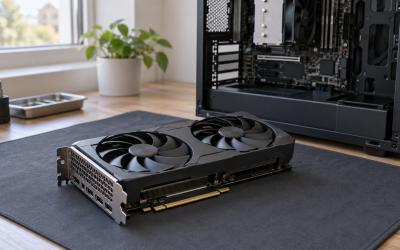
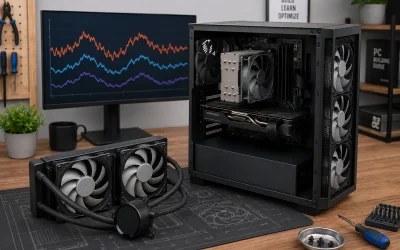
A PC that boots fine, idles fine, and then crashes the moment a game loads is one of the most frustrating failures you can build. The telltale pattern usually involves a GPU mounted on a PCIe riser cable — common in vertical GPU mounts, small form factor builds, and open-frame test benches. Symptoms include sudden crashes to desktop with no error, the display driver resetting (“Display driver nvlddmkm stopped responding” style events in Event Viewer), artifacts or screen flicker under load, games that fail to launch at all, or a GPU that drops off the bus entirely and forces a reboot. Often the system is rock stable in benchmarks like a quick 3DMark run at stock, yet a real game session triggers the fault within minutes.
How urgent is this? Not hardware-destroying urgent — a faulty riser rarely damages the card or motherboard. But it will make your system unusable for gaming, and unexplained crashes can mask a genuinely serious problem like overheating VRAM or a failing PSU rail. Work through this guide in order; the fixes below are arranged easiest-first, and most people solve the issue within the first three. If your crashes come with burning smells or loud coil whine paired with shutdowns, power the system down and stop troubleshooting until you’ve ruled out electrical problems.
Likely Causes
| Cause | How to confirm | Fix difficulty |
|---|---|---|
| Riser set to the wrong PCIe generation speed | Crashes appear under load; GPU-Z’s “Bus Interface” reading drops to PCIe 1.1 x1 or shows errors when under load | Easy |
| Loose or improperly seated riser connection | Crash behavior changes when you flex or re-route the cable; gold contacts visible past the slot edge | Easy |
| Missing or unconnected riser power connector | Riser has a 6-pin or SATA power plug that is empty; GPU draws all power through the slot | Easy |
| PCIe slot power delivery limits exceeded | GPU with high slot-draw (some cards pull 75W+ through the slot) crashes even with an underclock; happens more under transient spikes | Moderate |
| Signal integrity degradation from cable length or coiling | Riser is 20cm+ long, tightly coiled, or bundled next to power cables; crashes correlate with case vibration or cable movement | Moderate |
| BIOS/UEFI incompatibility (Above 4G Decoding, Re-Size BAR, CSM) | GPU not detected at boot intermittently, or boot loops that stop once the riser is removed | Moderate |
Fix 1: Force the Riser to PCIe 3.0 Speed
What causes it
The single most common riser failure: the link negotiates at PCIe 4.0 or 5.0 speeds, and signal integrity over the cable isn’t good enough to sustain it. The link retrains mid-game and the driver crashes. Most riser cables, even ones sold as “4.0-capable,” are more stable at 3.0 speeds.
How to check
Open GPU-Z and look at the Bus Interface line. At idle it may read PCIe 1.1 (that’s normal power-saving), but click the “?” next to it to run the load test. If the reported link speed fluctuates, drops to x1, or the test never completes, your link is unstable. Also check Reliability Monitor (Win+R, type perfmon /rel) for LiveKernelEvent 141 or 117 entries.
What to do
Reboot into BIOS/UEFI (usually Del or F2 at boot). Look under Advanced, PCIe Configuration, or Overclocking menus for “PCIe Slot Configuration,” “PCIe Speed,” or “Link Speed.” Set the primary x16 slot from Auto to Gen3. Save with F10 and reboot. If the crashes stop, you can later try Gen4 again to see if your specific cable tolerates it.
How to undo it
Return to the same BIOS menu and set the link speed back to Auto. Nothing else is affected.
Fix 2: Reseat Both Ends of the Riser Cable
What causes it
Shipping, building, and case flexing can back the riser’s slot connector or GPU-end connector out by a millimeter or two. A partially seated connection causes intermittent link drops that look exactly like driver crashes.
How to check
Power off, flip the PSU switch, and hold the case power button for 10 seconds to drain residual power. Inspect both ends: the riser should be fully inserted into the motherboard slot with no gold pins visible, and the GPU should sit square in the riser’s GPU-end connector. Check for dust or debris in the connectors with a flashlight.
What to do
Remove the GPU from the riser, then gently but firmly reseat both connectors. Use the GPU’s support bracket so cable weight doesn’t torque the connection. Re-route the cable so it isn’t pulling at an angle on either connector. Blow out the motherboard slot with compressed air before reinstalling.
How to undo it
Reseating isn’t a setting — there’s nothing to undo. If you want to revert routing changes, just reposition the cable, but leave it slack and unsupported by connectors.
Fix 3: Connect Riser Auxiliary Power
What causes it
Many risers include a 6-pin PCIe or SATA power input meant to feed the slot’s 12V rail directly from the PSU rather than through the motherboard slot. Without it, the motherboard slot supplies all slot-side power, and high-draw cards or transient spikes can sag the 12V line enough to crash the link.
How to check
Look at the riser’s PCB near the slot connector. If there’s a 6-pin PCIe, 4-pin Molex, or SATA power receptacle, it should be populated. Trace whether a cable is actually connected and confirm the other end is plugged into the PSU.
What to do
Connect the riser’s power input to a dedicated PCIe or SATA cable from the PSU — do not daisy-chain from the GPU’s own power cables. If your riser only offers SATA power, be aware SATA connectors are rated for 4.5A on 12V (54W); prefer a riser with a 6-pin PCIe input if your GPU pulls heavily from the slot.
How to undo it
Unplug the cable. There’s no firmware or software component to revert.
Fix 4: Update or Roll Back the GPU Driver
What causes it
Riser-induced link errors and driver behavior interact: some driver versions handle link retraining poorly and crash where older ones recovered. Alternatively, a corrupted driver install amplifies marginal signal problems into full crashes.
How to check
Note your current driver version in Device Manager (Win+X, Device Manager, Display adapters, right-click the GPU, Properties, Driver tab). Search Event Viewer (Win+R, eventvwr.msc) under Windows Logs > System for Event ID 14 or 4101 around crash times.
What to do
Do a clean driver install using DDU (Display Driver Uninstaller) in Safe Mode: boot to Safe Mode (hold Shift while clicking Restart, then Troubleshoot > Advanced options > Startup Settings > Restart, then press 4), run DDU selecting “Clean and restart,” then install the latest driver from NVIDIA, AMD, or Intel with the “Factory reset / clean installation” checkbox ticked. If crashes started right after a specific driver update, roll back one version instead.
How to undo it
Install a different driver version using the same DDU clean-install process. Keep the installer for your previous stable version saved locally before experimenting.
Fix 5: Adjust BIOS Settings — Above 4G Decoding, Re-Size BAR, and CSM
What causes it
Risers complicate GPU initialization at boot. Legacy CSM mode combined with a riser often causes detection failures and unstable operation, while Re-Size BAR’s BAR sizing can misbehave when the link retrains. These interact poorly with older or budget riser cables in particular.
How to check
Enter BIOS (Del/F2 at boot). Look in Boot and PCIe/NB Configuration menus for “CSM” (Compatibility Support Module), “Above 4G Decoding,” and “Re-Size BAR Support.” Note the current values with a photo before changing anything.
What to do
Set CSM to Disabled, Above 4G Decoding to Enabled, and try Re-Size BAR both ways — if crashes persist after the first three fixes, disabling Re-Size BAR Support is a known stabilizer on marginal links. Also disable “PCIe Slot Link Training” tweaks or ASPM (Advanced State Power Management) for the GPU slot if present; aggressive power-down states can expose weak signal integrity.
How to undo it
Restore your photographed values, or use “Load Optimized Defaults” and re-apply any other customizations (XMP/EXPO memory profile, boot order).
Fix 6: Improve Cable Routing and Reduce Length Stress
What causes it
PCIe signals are high-frequency differential pairs. Sharp bends, tight coils, zip-tied bundles pressed against power cables, and running the riser parallel to GPU power leads all induce crosstalk and attenuation that worsen over time as insulation relaxes.
How to check
Examine the cable path. Bends tighter than roughly a 30–40mm radius, kinks, or a cable pinned under a shroud or glass panel are red flags. Note whether crashes changed after any recent case rearrangement or cable management session.
What to do
Re-route with gentle, sweeping bends. Keep the riser at least a few centimeters away from GPU power cables and the PSU’s bundled leads where possible. Don’t zip-tie the riser tightly — use loose velcro straps. Avoid coiling excess length; instead, figure-eight it loosely or fold it with wide bends.
How to undo it
Re-route to the original layout if you preferred its appearance, but if that layout caused crashes, there’s no reason to go back.
Fix 7: Reduce GPU Slot Power Draw via Power Limit or Underclock
What causes it
Some GPUs draw a substantial portion of their power through the slot (up to the 75W spec, sometimes beyond with transient spikes). On a marginal riser connection, those spikes sag voltage and crash the link even when the cable is otherwise functional.
How to check
If crashes stop when you lock a low power limit, slot power draw is implicated. HWiNFO64’s GPU sensor section shows “GPU PCIe Slot Power” on supported cards — watch it during a game session that usually crashes.
What to do
In MSI Afterburner, drag the Power Limit slider down (start at 70–80%) and set a slightly reduced core clock offset (e.g., -100 to -200 MHz). This trims transient spikes through the slot. If stability returns, keep a modest profile — most modern games lose only a few percent of frame rate at 80% power limit.
How to undo it
In Afterburner, click the reset (circular arrow) button to restore stock clocks, power, and voltage, or uninstall Afterburner entirely.
Fix 8: Replace the Riser Cable
What causes it
Riser cables degrade and cheap units have inconsistent quality control. If everything above fails, the cable itself is the remaining suspect — and it’s the cheapest single component in the chain to swap.
How to check
By elimination: if your GPU is stable mounted directly in the motherboard slot with the same driver, BIOS, and power settings, the riser is at fault. Confirm this before buying anything.
What to do
Buy a riser rated for your platform’s PCIe generation (Gen4 or Gen5 rated for a Gen4/Gen5 board, even if you then run it at Gen3) from a manufacturer with a real warranty. Match the physical form factor you need: standard x16-to-x16 for vertical mounts, or the correct riser style for your case. Mount it with slack in the cable and retest at Gen4 speeds before settling back to Gen3.
How to undo it
Reinstall the old riser if you want — but if the new one fixed it, keep the old cable as a bench diagnostic spare rather than returning it to service.
If Nothing Works
Test the GPU directly in the top motherboard slot with the riser completely removed. If crashes persist there, the problem was never the riser — investigate the GPU itself (VRAM temperatures via HWiNFO64’s “GPU Memory Junction Temperature,” which should stay under roughly 100°C), the PSU (swap in a known-good unit or test with a different PCIe cable set), and system RAM (run MemTest86 overnight, four passes minimum). If the GPU is stable direct-mounted but crashes through a brand-new, correctly powered, Gen3-capped riser, suspect the motherboard slot itself — try the second x16 slot if your board has one, and update the BIOS to the latest version from the manufacturer’s support page. As a last resort, a vertical-mount adapter bracket that holds the GPU at a fixed angle with a short, stiff riser (rather than a long flexible cable) eliminates cable flex as a variable entirely.
FAQ
Can a PCIe riser cable actually damage my GPU?
Not realistically. A bad riser causes signal and power delivery problems, but there’s no mechanism by which it destroys the card. The real risk is that riser crashes mask a separate issue — heat, power, or memory instability — so always test the GPU direct-mounted before you conclude the riser is the only problem.
Does running my riser at PCIe 3.0 instead of 4.0 cost gaming performance?
For the vast majority of current games, PCIe 3.0 x16 is not a meaningful bottleneck at 1080p and above. Losses, when measurable, are typically a few percent in a handful of titles that stream large assets aggressively. Stability at Gen3 beats theoretical bandwidth you can’t use anyway because your system keeps crashing.
Why does my PC crash in games but pass 3DMark or FurMark?
Synthetic benchmarks present a consistent, sustained load with predictable power draw, while games generate rapid load transients and mix in asset streaming over the PCIe bus. A marginal link can survive the former and fail the latter. Also, some benchmarks tolerate a driver reset by design where a game will simply terminate.
Are riser cables rated for PCIe 5.0 worth buying in 2026?
If you own a Gen5 board and GPU and want to preserve full link speed through a vertical mount, yes — but only from established brands, because Gen5 signaling over a cable is demanding and quality control varies widely. If your priority is stability, a Gen4-rated cable run at Gen3 speeds remains the most forgiving combination, and you give up almost nothing in real-world frame rates.